Layout Customization in React Diagram
01 Sep 202624 minutes to read
The React Diagram component provides extensive customization options for automatic layouts, allowing developers to control orientation, spacing, alignment, bounds, and visual behavior. These properties enable fine-tuned positioning and appearance of nodes within hierarchical, organizational, and tree-based diagrams.
To explore all available layout properties, refer to Layout Properties.
Layout Bounds
The diagram supports aligning layouts within custom rectangular areas using layout bounds. This feature constrains the layout to a specific region of the canvas, providing precise control over where the layout appears.
Layout bounds define a rectangular area where the entire layout will be positioned. This is particularly useful when integrating diagrams into dashboards or when multiple layouts need to coexist on the same canvas.
The following example shows how to align the layout within specified layout bounds:
import * as React from "react";
import * as ReactDOM from 'react-dom';
import { DiagramComponent, Inject, HierarchicalTree, DataBinding, Rect, } from "@syncfusion/ej2-react-diagrams";
import { DataManager, Query } from "@syncfusion/ej2-data";

//Initializes data source
let data = [
    {
        Name: "Steve-Ceo",
    },
    {
        Name: "Kevin-Manager",
        ReportingPerson: "Steve-Ceo",
    },
    {
        Name: "Peter-Manager",
        ReportingPerson: "Kevin-Manager",
    },
    {
        Name: "John- Manager",
        ReportingPerson: "Peter-Manager",
    },
    {
        Name: "Mary-CSE ",
        ReportingPerson: "Peter-Manager",
    },
];
let items = new DataManager(data, new Query().take(7));

export default function App() {
    return (
        <DiagramComponent
            id="container"
            width={"100%"}
            height={"550px"}
            //Uses layout to auto-arrange nodes on the diagram page
            layout=

            //Configures data source for diagram
            dataSourceSettings=

            //Sets the default properties for nodes
            getNodeDefaults={(node) => {
                node.annotations = [{ content: node.data.Name }];
                node.width = 100; node.height = 40;
                return node;
            }}

            //Sets the default properties for connectors
            getConnectorDefaults={(connector) => {
                connector.type = "Orthogonal";
                return connector;
            }}>

            {/* Inject necessary services for the diagram */}
            <Inject services={[DataBinding, HierarchicalTree]} />
        </DiagramComponent>);
}

// Render the App component into the 'diagram' element in the DOM
const root = ReactDOM.createRoot(document.getElementById("diagram"));
root.render(<App />);
import * as React from "react";
import * as ReactDOM from 'react-dom';
import { DiagramComponent, Inject, HierarchicalTree, DataBinding, Rect,
NodeModel, ConnectorModel, } from "@syncfusion/ej2-react-diagrams";
import { DataManager, Query } from "@syncfusion/ej2-data";
//Initialize data source
let data: object[] = [
{
Name: "Steve-Ceo",
},
{
Name: "Kevin-Manager",
ReportingPerson: "Steve-Ceo",
},
{
Name: "Peter-Manager",
ReportingPerson: "Kevin-Manager",
},
{
Name: "John- Manager",
ReportingPerson: "Peter-Manager",
},
{
Name: "Mary-CSE ",
ReportingPerson: "Peter-Manager",
},
];
let items: DataManager = new DataManager(data as JSON[], new Query().take(7));
export default function App() {
return (
<DiagramComponent
id="container"
width={"100%"}
height={"550px"}
//Uses layout to auto-arrange nodes on the diagram page
layout=
//Configures data source for diagram
dataSourceSettings=
//Sets the default properties for nodes
getNodeDefaults={(node: NodeModel): NodeModel => {
node.annotations = [{ content: (node.data as { Name: 'string' }).Name }];
node.width = 100; node.height = 40;
return node;
}}
//Sets the default properties for connectors
getConnectorDefaults={(connector: ConnectorModel): ConnectorModel => {
connector.type = "Orthogonal";
return connector;
}}>
{/* Inject necessary services for the diagram */}
<Inject services={[DataBinding, HierarchicalTree]} />
</DiagramComponent>);
}
// Render the App component into the 'diagram' element in the DOM
const root = ReactDOM.createRoot(document.getElementById("diagram") as HTMLElement);
root.render(<App />);For more information about bounds, refer to bounds.
Layout Alignment
The layout can be positioned anywhere within the layout bounds using horizontalAlignment and verticalAlignment properties. These properties determine how the layout is positioned relative to its container.
Available alignment options include Left, Right, Center for horizontal alignment, and Top, Bottom, Center for vertical alignment. These settings work independently, allowing for precise positioning control.
The following code illustrates how to configure layout alignment and modify alignment properties at runtime:
import * as React from 'react';
import * as ReactDOM from 'react-dom';
import { DiagramComponent, Inject, HierarchicalTree, DataBinding } from '@syncfusion/ej2-react-diagrams';
import { DataManager, Query } from '@syncfusion/ej2-data';

//Initializes data source
let data = [
  { Name: 'Steve-Ceo' },
  { Name: 'Kevin-Manager', ReportingPerson: 'Steve-Ceo' },
  { Name: 'Peter-Manager', ReportingPerson: 'Kevin-Manager' },
  { Name: 'John- Manager', ReportingPerson: 'Peter-Manager' },
  { Name: 'Mary-CSE ', ReportingPerson: 'Peter-Manager' },
];
let items = new DataManager(data, new Query().take(7));

export default function App() {
  let diagramInstance;
  let horizontalInstance;
  let verticalInstance;

  // Function to handle Horizontal Alignment
  function horizontalAlign() {
    diagramInstance.layout.horizontalAlignment = horizontalInstance.value;
    diagramInstance.dataBind();
  }

  // Function to handle Vertical Alignment
  function verticalAlign() {
    diagramInstance.layout.verticalAlignment = verticalInstance.value;
    diagramInstance.dataBind();
  }

  return (
    <div>
      <label htmlFor="horizontal">Horizontal : </label>
      <select name="HorizontalAlignment" id="horizontalAlign" onChange={horizontalAlign}
        ref={(horizontal) => (horizontalInstance = horizontal)}
      >
        <option value="Left">Left</option>
        <option value="Center">Center</option>
        <option value="Right">Right</option>
      </select>
      <label htmlFor="vertical">Vertical : </label>

      <select name="verticalAlignment" id="verticalAlign" onChange={verticalAlign}
        ref={(vertical) => (verticalInstance = vertical)}
      >
        <option value="Top">Top</option>
        <option value="Center">Center</option>
        <option value="Bottom">Bottom</option>
      </select>

      <DiagramComponent
        id="container"
        width={'100%'}
        height={'550px'}
        ref={(diagram) => (diagramInstance = diagram)}

        //Uses layout to auto-arrange nodes on the diagram page
        layout=

        //Configures data source for diagram
        dataSourceSettings=

        //Sets the default properties for nodes
        getNodeDefaults={(node) => {
          node.annotations = [{ content: node.data.Name }];
          node.width = 100;
          node.height = 40;
          return node;
        }}

        //Sets the default properties for connectors
        getConnectorDefaults={(connector) => {
          connector.type = 'Orthogonal';
          return connector;
        }}
      >

        {/* Inject necessary services for the diagram */}
        <Inject services={[DataBinding, HierarchicalTree]} />
      </DiagramComponent>

    </div>
  );
}

// Render the App component into the 'diagram' element in the DOM
const root = ReactDOM.createRoot(document.getElementById('diagram'));
root.render(<App />);
import * as React from 'react';
import * as ReactDOM from 'react-dom';
import { DiagramComponent, Inject, HierarchicalTree, DataBinding, ConnectorModel,
NodeModel, HorizontalAlignment, VerticalAlignment } from '@syncfusion/ej2-react-diagrams';
import { DataManager, Query } from '@syncfusion/ej2-data';
//Initializes data source
let data: object[] = [
{ Name: 'Steve-Ceo' },
{ Name: 'Kevin-Manager', ReportingPerson: 'Steve-Ceo' },
{ Name: 'Peter-Manager', ReportingPerson: 'Kevin-Manager' },
{ Name: 'John- Manager', ReportingPerson: 'Peter-Manager' },
{ Name: 'Mary-CSE ', ReportingPerson: 'Peter-Manager' },
];
let items: DataManager = new DataManager(data as JSON[], new Query().take(7));
export default function App() {
let diagramInstance: DiagramComponent;
let horizontalInstance: HTMLSelectElement;
let verticalInstance: HTMLSelectElement;
// Function to handle Horizontal Alignment
function horizontalAlign() {
diagramInstance.layout.horizontalAlignment = horizontalInstance.value as HorizontalAlignment;
diagramInstance.dataBind();
}
// Function to handle Vertical Alignment
function verticalAlign() {
diagramInstance.layout.verticalAlignment = verticalInstance.value as VerticalAlignment;
diagramInstance.dataBind();
}
return (
<div>
<label htmlFor="horizontal">Horizontal : </label>
<select name="HorizontalAlignment" id="horizontalAlign" onChange={horizontalAlign}
ref={(horizontal: any) => (horizontalInstance = horizontal)}
>
<option value="Left">Left</option>
<option value="Center">Center</option>
<option value="Right">Right</option>
</select>
<label htmlFor="vertical">Vertical : </label>
<select name="verticalAlignment" id="verticalAlign" onChange={verticalAlign}
ref={(vertical: any) => (verticalInstance = vertical)}
>
<option value="Top">Top</option>
<option value="Center">Center</option>
<option value="Bottom">Bottom</option>
</select>
<DiagramComponent
id="container"
width={'100%'}
height={'550px'}
ref={(diagram: any) => (diagramInstance = diagram)}
//Uses layout to auto-arrange nodes on the diagram page
layout=
//Configures data source for diagram
dataSourceSettings=
//Sets the default properties for nodes
getNodeDefaults={(node: NodeModel): NodeModel => {
node.annotations = [{ content: (node.data as { Name: 'string' }).Name }];
node.width = 100;
node.height = 40;
return node;
}}
//Sets the default properties for connectors
getConnectorDefaults={(connector: ConnectorModel): ConnectorModel => {
connector.type = 'Orthogonal';
return connector;
}}
>
{/* Inject necessary services for the diagram */}
<Inject services={[DataBinding, HierarchicalTree]} />
</DiagramComponent>
</div>
);
}
// Render the App component into the 'diagram' element in the DOM
const root = ReactDOM.createRoot(document.getElementById('diagram') as HTMLElement);
root.render(<App />);Layout Spacing
Layout spacing controls the distance between nodes in the layout. The horizontalSpacing and verticalSpacing properties define the gaps between nodes horizontally and vertically respectively.
Proper spacing ensures visual clarity and prevents node overlap. Spacing values are measured in pixels and can be adjusted based on node sizes and content density requirements.
The following code illustrates how to set initial horizontal and vertical spacing for the layout and modify these values at runtime:
import * as React from 'react';
import * as ReactDOM from 'react-dom';
import { DiagramComponent, Inject, HierarchicalTree, DataBinding } from '@syncfusion/ej2-react-diagrams';
import { DataManager, Query } from '@syncfusion/ej2-data';


//Initializes data source
let data = [
  { Name: 'Steve-Ceo' },
  { Name: 'Kevin-Manager', ReportingPerson: 'Steve-Ceo' },
  { Name: 'Peter-Manager', ReportingPerson: 'Kevin-Manager' },
  { Name: 'John- Manager', ReportingPerson: 'Peter-Manager' },
  { Name: 'Mary-CSE ', ReportingPerson: 'Peter-Manager' },
];
let items = new DataManager(data, new Query().take(7));

export default function App() {
  let diagramInstance;
  let horizontalInstance;
  let verticalInstance;

  // Function to handle Horizontal Spacing
  function horizontalSpacing() {
    let value = Number(horizontalInstance.value);
    if (value < 20) {
      value = 20;
    }
    if (value > 100) {
      value = 100;
    }
    diagramInstance.layout.horizontalSpacing = value;
    diagramInstance.dataBind();
  }

  // Function to handle Vertical Spacing
  function verticalSpacing() {
    let value = Number(verticalInstance.value);
    if (value < 20) {
      value = 20;
    }
    if (value > 100) {
      value = 100;
    }
    diagramInstance.layout.verticalSpacing = value;
    diagramInstance.dataBind();
  }

  return (
    <div>
      <label htmlFor="horizontal">Horizontal : </label>
      <input type="number" name="horizontal" id="horizontalSpacing"
        onChange={horizontalSpacing} ref={(horizontal) => (horizontalInstance = horizontal)} />
      <label htmlFor="vertical">Vertical : </label>
      <input type="number" name="vertical" id="verticalSpacing"
        onChange={verticalSpacing} ref={(vertical) => (verticalInstance = vertical)} />

      <DiagramComponent
        id="container"
        width={'100%'}
        height={'550px'}
        ref={(diagram) => (diagramInstance = diagram)}

        //Uses layout to auto-arrange nodes on the diagram page
        layout=

        //Configures data source for diagram
        dataSourceSettings=

        //Sets the default properties for nodes
        getNodeDefaults={(node) => {
          node.annotations = [{ content: node.data.Name }];
          node.width = 100;
          node.height = 40;
          return node;
        }}

        //Sets the default properties for connectors
        getConnectorDefaults={(connector) => {
          connector.type = 'Orthogonal';
          return connector;
        }}
      >

        {/* Inject necessary services for the diagram */}
        <Inject services={[DataBinding, HierarchicalTree]} />
      </DiagramComponent>

    </div>
  );
}

// Render the App component into the 'diagram' element in the DOM
const root = ReactDOM.createRoot(document.getElementById('diagram'));
root.render(<App />);
import * as React from 'react';
import * as ReactDOM from 'react-dom';
import { DiagramComponent, Inject, HierarchicalTree, DataBinding, ConnectorModel, NodeModel } from '@syncfusion/ej2-react-diagrams';
import { DataManager, Query } from '@syncfusion/ej2-data';
//Initializes data source
let data: object[] = [
{ Name: 'Steve-Ceo' },
{ Name: 'Kevin-Manager', ReportingPerson: 'Steve-Ceo' },
{ Name: 'Peter-Manager', ReportingPerson: 'Kevin-Manager' },
{ Name: 'John- Manager', ReportingPerson: 'Peter-Manager' },
{ Name: 'Mary-CSE ', ReportingPerson: 'Peter-Manager' },
];
let items: DataManager = new DataManager(data as JSON[], new Query().take(7));
export default function App() {
let diagramInstance: DiagramComponent;
let horizontalInstance: HTMLSelectElement;
let verticalInstance: HTMLSelectElement;
// Function to handle Horizontal Spacing
function horizontalSpacing() {
let value = Number(horizontalInstance.value);
if (value < 20) {
value = 20;
}
if (value > 100) {
value = 100;
}
diagramInstance.layout.horizontalSpacing = value;
diagramInstance.dataBind();
}
// Function to handle Vertical Spacing
function verticalSpacing() {
let value = Number(verticalInstance.value);
if (value < 20) {
value = 20;
}
if (value > 100) {
value = 100;
}
diagramInstance.layout.verticalSpacing = value;
diagramInstance.dataBind();
}
return (
<div>
<label htmlFor="horizontal">Horizontal : </label>
<input type="number" name="horizontal" id="horizontalSpacing"
onChange={horizontalSpacing} ref={(horizontal: any) => (horizontalInstance = horizontal)} />
<label htmlFor="vertical">Vertical : </label>
<input type="number" name="vertical" id="verticalSpacing"
onChange={verticalSpacing} ref={(vertical: any) => (verticalInstance = vertical)} />
<DiagramComponent
id="container"
width={'100%'}
height={'550px'}
ref={(diagram: any) => (diagramInstance = diagram)}
//Uses layout to auto-arrange nodes on the diagram page
layout=
//Configures data source for diagram
dataSourceSettings=
//Sets the default properties for nodes
getNodeDefaults={(node: NodeModel): NodeModel => {
node.annotations = [{ content: (node.data as { Name: 'string' }).Name }];
node.width = 100;
node.height = 40;
return node;
}}
//Sets the default properties for connectors
getConnectorDefaults={(connector: ConnectorModel): ConnectorModel => {
connector.type = 'Orthogonal';
return connector;
}}
>
{/* Inject necessary services for the diagram */}
<Inject services={[DataBinding, HierarchicalTree]} />
</DiagramComponent>
</div>
);
}
// Render the App component into the 'diagram' element in the DOM
const root = ReactDOM.createRoot(document.getElementById('diagram') as HTMLElement);
root.render(<App />);Layout Margin
Layout margin creates blank space between the layout bounds and the actual layout content. The margin property adds padding around the entire layout, ensuring adequate separation from container edges.
Margins are particularly useful when layouts are displayed within panels, cards, or other UI containers where visual separation is important for clarity and aesthetics.
The following code demonstrates how to set initial layout margin and modify margin values dynamically at runtime:
import * as React from 'react';
import * as ReactDOM from 'react-dom';
import { DiagramComponent, Inject, HierarchicalTree, DataBinding } from '@syncfusion/ej2-react-diagrams';
import { DataManager, Query } from '@syncfusion/ej2-data';

//Initializes data source
let data = [
  { Name: 'Steve-Ceo' },
  { Name: 'Kevin-Manager', ReportingPerson: 'Steve-Ceo' },
  { Name: 'Peter-Manager', ReportingPerson: 'Kevin-Manager' },
  { Name: 'John- Manager', ReportingPerson: 'Peter-Manager' },
  { Name: 'Mary-CSE ', ReportingPerson: 'Peter-Manager' },
];
let items = new DataManager(data, new Query().take(7));

const layout = {
  //Sets layout type
  type: 'HierarchicalTree',
  //set layout margin
  margin: { left: 100, top: 100 },
};

const dataSourceSettings = {
  id: 'Name',
  parentId: 'ReportingPerson',
  dataManager: items,
};

export default function App() {

  return (
    <div>
      <DiagramComponent
        id="container"
        width={'100%'}
        height={'550px'}

        //Uses layout to auto-arrange nodes on the diagram page
        layout={layout}

        //Configures data source for diagram
        dataSourceSettings={dataSourceSettings}

        //Sets the default properties for nodes
        getNodeDefaults={(node) => {
          node.annotations = [{ content: node.data.Name }];
          node.width = 100;
          node.height = 40;
          return node;
        }}

        //Sets the default properties for connectors
        getConnectorDefaults={(connector) => {
          connector.type = 'Orthogonal';
          return connector;
        }}
      >

        {/* Inject necessary services for the diagram */}
        <Inject services={[DataBinding, HierarchicalTree]} />
      </DiagramComponent>

    </div>
  );
}

// Render the App component into the 'diagram' element in the DOM
const root = ReactDOM.createRoot(document.getElementById('diagram'));
root.render(<App />);
import * as React from 'react';
import * as ReactDOM from 'react-dom';
import { DiagramComponent, Inject, HierarchicalTree, DataBinding,
ConnectorModel, NodeModel } from '@syncfusion/ej2-react-diagrams';
import { DataManager, Query } from '@syncfusion/ej2-data';
//Initializes data source
let data: object[] = [
{ Name: 'Steve-Ceo' },
{ Name: 'Kevin-Manager', ReportingPerson: 'Steve-Ceo' },
{ Name: 'Peter-Manager', ReportingPerson: 'Kevin-Manager' },
{ Name: 'John- Manager', ReportingPerson: 'Peter-Manager' },
{ Name: 'Mary-CSE ', ReportingPerson: 'Peter-Manager' },
];
let items: DataManager = new DataManager(data as JSON[], new Query().take(7));
const layout = {
//Sets layout type
type: 'HierarchicalTree',
//set layout margin
margin: { left: 100, top: 100 },
};
const dataSourceSettings = {
id: 'Name',
parentId: 'ReportingPerson',
dataManager: items,
};
export default function App() {
return (
<div>
<DiagramComponent
id="container"
width={'100%'}
height={'550px'}
//Uses layout to auto-arrange nodes on the diagram page
layout={layout}
//Configures data source for diagram
dataSourceSettings={dataSourceSettings}
//Sets the default properties for nodes
getNodeDefaults={(node: NodeModel): NodeModel => {
node.annotations = [{ content: (node.data as { Name: 'string' }).Name }];
node.width = 100;
node.height = 40;
return node;
}}
//Sets the default properties for connectors
getConnectorDefaults={(connector: ConnectorModel): ConnectorModel => {
connector.type = 'Orthogonal';
return connector;
}}
>
{/* Inject necessary services for the diagram */}
<Inject services={[DataBinding, HierarchicalTree]} />
</DiagramComponent>
</div>
);
}
// Render the App component into the 'diagram' element in the DOM
const root = ReactDOM.createRoot(document.getElementById('diagram') as HTMLElement);
root.render(<App />);Layout Orientation
The layout orientation determines the primary direction in which the layout flows. Different orientations are suitable for various organizational structures and display requirements.
| Orientation | Description |
|---|---|
| TopToBottom | Aligns the layout from top to bottom. All root nodes are placed at the top of the diagram. |
| LeftToRight | Aligns the layout from left to right. All root nodes are placed at the left of the diagram. |
| BottomToTop | Aligns the layout from bottom to top. All root nodes are placed at the bottom of the diagram. |
| RightToLeft | Aligns the layout from right to left. All root nodes are placed at the right of the diagram. |
The orientation property can be customized to match specific design requirements or cultural reading patterns.
The following code demonstrates how to set the initial orientation for the layout and how to change it dynamically at runtime.
import * as React from 'react';
import * as ReactDOM from 'react-dom';
import { DiagramComponent, Inject, HierarchicalTree, DataBinding } from '@syncfusion/ej2-react-diagrams';
import { DataManager, Query } from '@syncfusion/ej2-data';

//Initializes data source
let data = [
  { Name: 'Steve-Ceo' },
  { Name: 'Kevin-Manager', ReportingPerson: 'Steve-Ceo' },
  { Name: 'Peter-Manager', ReportingPerson: 'Kevin-Manager' },
  { Name: 'John- Manager', ReportingPerson: 'Peter-Manager' },
  { Name: 'Mary-CSE ', ReportingPerson: 'Peter-Manager' },
];
let items = new DataManager(data, new Query().take(7));

export default function App() {

  return (
    <div>
      <DiagramComponent
        id="container"
        width={'100%'}
        height={'550px'}

        //Uses layout to auto-arrange nodes on the diagram page
        layout=

        //Configures data source for diagram
        dataSourceSettings=

        //Sets the default properties for nodes
        getNodeDefaults={(node) => {
          node.annotations = [{ content: node.data.Name }];
          node.width = 100;
          node.height = 40;
          return node;
        }}

        //Sets the default properties for connectors
        getConnectorDefaults={(connector) => {
          connector.type = 'Orthogonal';
          return connector;
        }}
      >

        {/* Inject necessary services for the diagram */}
        <Inject services={[DataBinding, HierarchicalTree]} />
      </DiagramComponent>

    </div>
  );
}

// Render the App component into the 'diagram' element in the DOM
const root = ReactDOM.createRoot(document.getElementById('diagram'));
root.render(<App />);
import * as React from 'react';
import * as ReactDOM from 'react-dom';
import { DiagramComponent, Inject, HierarchicalTree, DataBinding,
ConnectorModel, NodeModel } from '@syncfusion/ej2-react-diagrams';
import { DataManager, Query } from '@syncfusion/ej2-data';
//Initializes data source
let data: object[] = [
{ Name: 'Steve-Ceo' },
{ Name: 'Kevin-Manager', ReportingPerson: 'Steve-Ceo' },
{ Name: 'Peter-Manager', ReportingPerson: 'Kevin-Manager' },
{ Name: 'John- Manager', ReportingPerson: 'Peter-Manager' },
{ Name: 'Mary-CSE ', ReportingPerson: 'Peter-Manager' },
];
let items: DataManager = new DataManager(data as JSON[], new Query().take(7));
export default function App() {
return (
<div>
<DiagramComponent
id="container"
width={'100%'}
height={'550px'}
//Uses layout to auto-arrange nodes on the diagram page
layout=
//Configures data source for diagram
dataSourceSettings=
//Sets the default properties for nodes
getNodeDefaults={(node: NodeModel): NodeModel => {
node.annotations = [{ content: (node.data as { Name: 'string' }).Name }];
node.width = 100;
node.height = 40;
return node;
}}
//Sets the default properties for connectors
getConnectorDefaults={(connector: ConnectorModel): ConnectorModel => {
connector.type = 'Orthogonal';
return connector;
}}
>
{/* Inject necessary services for the diagram */}
<Inject services={[DataBinding, HierarchicalTree]} />
</DiagramComponent>
</div>
);
}
// Render the App component into the 'diagram' element in the DOM
const root = ReactDOM.createRoot(document.getElementById('diagram') as HTMLElement);
root.render(<App />);In the diagram, the default orientation is TopToBottom.
Exclude From Layout
In certain scenarios, specific nodes may need manual positioning rather than automatic arrangement by the layout algorithm. These nodes can be excluded from layout calculations by setting the excludeFromLayout property to true.
This feature is useful for annotation nodes, floating panels, or special elements that require fixed positioning regardless of the overall layout structure.
The following code example demonstrates how to exclude a node from the layout and position it manually:
import * as React from 'react';
import * as ReactDOM from 'react-dom';
import { DiagramComponent, Inject, HierarchicalTree, DataBinding } from '@syncfusion/ej2-react-diagrams';
import { DataManager, Query } from '@syncfusion/ej2-data';

//Initializes data source
let data = [
    { Name: 'Steve-Ceo' },
    { Name: 'Kevin-Manager', ReportingPerson: 'Steve-Ceo' },
    { Name: 'Robert', ReportingPerson: 'Steve-Ceo' },
    { Name: 'Peter-Manager', ReportingPerson: 'Steve-Ceo' },
    { Name: 'John- Manager', ReportingPerson: 'Peter-Manager' },
    { Name: 'Mary-CSE ', ReportingPerson: 'Peter-Manager' },
    { Name: 'Jim-CSE ', ReportingPerson: 'Kevin-Manager' },
    { Name: 'Martin-CSE', ReportingPerson: 'Kevin-Manager' }
];
let items = new DataManager(data, new Query().take(7));

export default function App() {

    return (
        <div>
            <DiagramComponent
                id="container"
                width={'100%'}
                height={'550px'}

                //Uses layout to auto-arrange nodes on the diagram page
                layout=

                //Configures data source for diagram
                dataSourceSettings=

                //Sets the default properties for nodes
                getNodeDefaults={(node) => {
                    node.annotations = [{ content: node.data.Name }];
                    node.width = 100;
                    node.height = 40;
                    if ((node.data).Name === 'Robert') {
                        //Excludes node from layout
                        node.excludeFromLayout = true;
                        node.offsetX = 350;
                        node.offsetY = 75;
                    }
                    return node;
                }}

                //Sets the default properties for connectors
                getConnectorDefaults={(connector) => {
                    connector.type = 'Orthogonal';
                    return connector;
                }}
            >

                {/* Inject necessary services for the diagram */}
                <Inject services={[DataBinding, HierarchicalTree]} />
            </DiagramComponent>

        </div>
    );
}

// Render the App component into the 'diagram' element in the DOM
const root = ReactDOM.createRoot(document.getElementById('diagram'));
root.render(<App />);
import * as React from 'react';
import * as ReactDOM from 'react-dom';
import { DiagramComponent, Inject, HierarchicalTree, DataBinding,
ConnectorModel, NodeModel } from '@syncfusion/ej2-react-diagrams';
import { DataManager, Query } from '@syncfusion/ej2-data';
//Initializes data source
let data: object[] = [
{ Name: 'Steve-Ceo' },
{ Name: 'Kevin-Manager', ReportingPerson: 'Steve-Ceo' },
{ Name: 'Robert', ReportingPerson: 'Steve-Ceo' },
{ Name: 'Peter-Manager', ReportingPerson: 'Steve-Ceo' },
{ Name: 'John- Manager', ReportingPerson: 'Peter-Manager' },
{ Name: 'Mary-CSE ', ReportingPerson: 'Peter-Manager' },
{ Name: 'Jim-CSE ', ReportingPerson: 'Kevin-Manager' },
{ Name: 'Martin-CSE', ReportingPerson: 'Kevin-Manager' }
];
let items: DataManager = new DataManager(data as JSON[], new Query().take(7));
export default function App() {
return (
<div>
<DiagramComponent
id="container"
width={'100%'}
height={'550px'}
//Uses layout to auto-arrange nodes on the diagram page
layout=
//Configures data source for diagram
dataSourceSettings=
//Sets the default properties for nodes
getNodeDefaults={(node: NodeModel): NodeModel => {
node.annotations = [{ content: (node.data as { Name: 'string' }).Name }];
node.width = 100;
node.height = 40;
if ((node.data as any).Name === 'Robert') {
//Excludes node from layout
node.excludeFromLayout = true;
node.offsetX = 350;
node.offsetY = 75;
}
return node;
}}
//Sets the default properties for connectors
getConnectorDefaults={(connector: ConnectorModel): ConnectorModel => {
connector.type = 'Orthogonal';
return connector;
}}
>
{/* Inject necessary services for the diagram */}
<Inject services={[DataBinding, HierarchicalTree]} />
</DiagramComponent>
</div>
);
}
// Render the App component into the 'diagram' element in the DOM
const root = ReactDOM.createRoot(document.getElementById('diagram') as HTMLElement);
root.render(<App />);Fixed Node
Layout provides support to arrange the nodes with reference to the position of a fixed node and set it to the fixedNode property. This ensures that the specified node maintains its position while other nodes are arranged around it.
This feature is particularly beneficial during expand/collapse operations, where maintaining the position of the interacted node provides better user experience and visual stability.
import * as React from 'react';
import * as ReactDOM from 'react-dom';
import { DiagramComponent, Inject, FlowchartLayout, DataBinding } from '@syncfusion/ej2-react-diagrams';
import { DataManager, Query } from '@syncfusion/ej2-data';

//Initializes data source
let data = [
    { Name: "Steve-Ceo" },
    { Name: "Kevin-Manager", ReportingPerson: "Steve-Ceo" },
    { Name: "Peter-Manager", ReportingPerson: "Steve-Ceo" },
    { Name: "John-Manager", ReportingPerson: "Peter-Manager" },
    { Name: "Mary-CSE", ReportingPerson: "Peter-Manager" },
    { Name: "Jim-CSE", ReportingPerson: "Kevin-Manager" },
    { Name: "Martin-CSE ", ReportingPerson: "Kevin-Manager" },
];

let items = new DataManager(data, new Query().take(7));

export default function App() {
    return (
        <div>
            <DiagramComponent
                id="container"
                width={'80%'}
                height={'550px'}

                //Uses layout to auto-arrange nodes on the diagram page
                layout=

                //Configures data source for diagram
                dataSourceSettings=

                //Sets the default properties for nodes
                getNodeDefaults={(node) => {
                    node.width = 100;
                    node.height = 40;
                    node.annotations = [{ content: node.data.Name }];

                    return node;
                }}

                //Sets the default properties for connectors
                getConnectorDefaults={(connector) => {
                    connector.type = 'Orthogonal';
                    return connector;
                }}
            >

                {/* Inject necessary services for the diagram */}
                <Inject services={[DataBinding, FlowchartLayout]} />
            </DiagramComponent>

        </div>
    );
}

// Render the App component into the 'diagram' element in the DOM
const root = ReactDOM.createRoot(document.getElementById('diagram'));
root.render(<App />);
import * as React from 'react';
import * as ReactDOM from 'react-dom';
import { DiagramComponent, Inject, FlowchartLayout, DataBinding, ConnectorModel, NodeModel } from '@syncfusion/ej2-react-diagrams';
import { DataManager, Query } from '@syncfusion/ej2-data';
//Initializes data source
let data: object[] = [
{ Name: "Steve-Ceo" },
{ Name: "Kevin-Manager", ReportingPerson: "Steve-Ceo" },
{ Name: "Peter-Manager", ReportingPerson: "Steve-Ceo" },
{ Name: "John-Manager", ReportingPerson: "Peter-Manager" },
{ Name: "Mary-CSE", ReportingPerson: "Peter-Manager" },
{ Name: "Jim-CSE", ReportingPerson: "Kevin-Manager" },
{ Name: "Martin-CSE ", ReportingPerson: "Kevin-Manager" },
];
let items: DataManager = new DataManager(data as JSON[], new Query().take(7));
export default function App() {
return (
<div>
<DiagramComponent
id="container"
width={'80%'}
height={'550px'}
//Uses layout to auto-arrange nodes on the diagram page
layout=
//Configures data source for diagram
dataSourceSettings=
//Sets the default properties for nodes
getNodeDefaults={(node: NodeModel): NodeModel => {
node.width = 100;
node.height = 40;
node.annotations = [{ content: (node.data as { Name: 'string' }).Name }];
return node;
}}
//Sets the default properties for connectors
getConnectorDefaults={(connector: ConnectorModel): ConnectorModel => {
connector.type = 'Orthogonal';
return connector;
}}
>
{/* Inject necessary services for the diagram */}
<Inject services={[DataBinding, FlowchartLayout]} />
</DiagramComponent>
</div>
);
}
// Render the App component into the 'diagram' element in the DOM
const root = ReactDOM.createRoot(document.getElementById('diagram') as HTMLElement);
root.render(<App />);Expand and Collapse
The diagram supports expanding and collapsing subtrees within layouts. The node’s isExpanded property controls the visibility of child nodes, allowing users to focus on specific portions of large hierarchical structures.
This functionality is essential for managing complex organizational charts, decision trees, and other hierarchical data where progressive disclosure improves usability.
The following code example shows how to expand/collapse the children of a node:
import * as React from 'react';
import * as ReactDOM from 'react-dom';
import { DiagramComponent, Inject, HierarchicalTree, DataBinding, SelectorConstraints } from '@syncfusion/ej2-react-diagrams';
import { DataManager, Query } from '@syncfusion/ej2-data';

//Initializes data source
let data = [
    {
        'Id': 'parent1',
        'Name': 'Maria ',
        'Designation': 'Managing Director',
        'RatingColor': '#C34444'
    },
    {
        'Id': 'parent',
        'Name': ' sam',
        'Designation': 'Managing Director',
        'ReportingPerson': 'parent1',
        'RatingColor': '#C34444'
    },
    {
        'Id': 'parent3',
        'Name': ' sam geo',
        'Designation': 'Managing Director',
        'ReportingPerson': 'parent1',
        'RatingColor': '#C34444'
    },
    {
        'Id': '80',
        'Name': ' david',
        'Designation': 'Managing Director',
        'ReportingPerson': 'parent3',
        'RatingColor': '#C34444'
    },
    {
        'Id': '82',
        'Name': ' pirlo',
        'Designation': 'Managing Director',
        'ReportingPerson': 'parent',
        'RatingColor': '#C34444'
    }
];

let items = new DataManager(data, new Query().take(7));

const layout = {
    //Sets layout type
    type: 'OrganizationalChart',

    // define the getLayoutInfo
    getLayoutInfo: (tree) => {
        if (!tree.hasSubTree) {
            tree.orientation = 'vertical';
            tree.type = 'alternate';
        }
    }
};

const dataSourceSettings = {
    id: 'Id',
    parentId: 'ReportingPerson',
    dataManager: items,
};

export default function App() {
    let diagramInstance;

    return (
        <div>
            <DiagramComponent
                id="container"
                width={'100%'}
                height={'550px'}

                selectedItems=
                snapSettings=

                //Uses layout to auto-arrange nodes on the diagram page
                layout={layout}

                //Configures data source for diagram
                dataSourceSettings={dataSourceSettings}

                //Sets the default properties for nodes
                getNodeDefaults={(node) => {
                    node.width = 50; node.height = 50;
                    node.expandIcon = {
                        height: 15,
                        width: 15,
                        shape: "Plus",
                        fill: 'lightgray',
                        offset: { x: .5, y: .85 }
                    }
                    node.collapseIcon = {
                        height: 15,
                        width: 15,
                        shape: "Minus",
                        offset: { x: .5, y: .85 },
                    }
                    return node;
                }}

                //Sets the default properties for connectors
                getConnectorDefaults={(connector) => {
                    connector.type = 'Orthogonal';
                    connector.targetDecorator.shape = 'None';
                    return connector;
                }}
            >

                {/* Inject necessary services for the diagram */}
                <Inject services={[DataBinding, HierarchicalTree]} />
            </DiagramComponent>

        </div>
    );
}

// Render the App component into the 'diagram' element in the DOM
const root = ReactDOM.createRoot(document.getElementById('diagram'));
root.render(<App />);
import * as React from 'react';
import * as ReactDOM from 'react-dom';
import { DiagramComponent, Inject, HierarchicalTree, DataBinding, ConnectorModel,
NodeModel, SelectorConstraints, DecoratorModel, TreeInfo } from '@syncfusion/ej2-react-diagrams';
import { DataManager, Query } from '@syncfusion/ej2-data';
//Initializes data source
let data: object[] = [
{
'Id': 'parent1',
'Name': 'Maria ',
'Designation': 'Managing Director',
'RatingColor': '#C34444'
},
{
'Id': 'parent',
'Name': ' sam',
'Designation': 'Managing Director',
'ReportingPerson': 'parent1',
'RatingColor': '#C34444'
},
{
'Id': 'parent3',
'Name': ' sam geo',
'Designation': 'Managing Director',
'ReportingPerson': 'parent1',
'RatingColor': '#C34444'
},
{
'Id': '80',
'Name': ' david',
'Designation': 'Managing Director',
'ReportingPerson': 'parent3',
'RatingColor': '#C34444'
},
{
'Id': '82',
'Name': ' pirlo',
'Designation': 'Managing Director',
'ReportingPerson': 'parent',
'RatingColor': '#C34444'
}
];
let items: DataManager = new DataManager(data as JSON[], new Query().take(7));
const layout = {
//Sets layout type
type: 'OrganizationalChart',
// define the getLayoutInfo
getLayoutInfo: (tree: TreeInfo | any) => {
if (!tree.hasSubTree) {
tree.orientation = 'vertical';
tree.type = 'alternate';
}
}
};
const dataSourceSettings = {
id: 'Id',
parentId: 'ReportingPerson',
dataManager: items,
};
export default function App() {
return (
<div>
<DiagramComponent
id="container"
width={'100%'}
height={'550px'}
selectedItems=
snapSettings=
//Uses layout to auto-arrange nodes on the diagram page
layout={layout}
//Configures data source for diagram
dataSourceSettings={dataSourceSettings}
//Sets the default properties for nodes
getNodeDefaults={(node: NodeModel): NodeModel => {
node.width = 50; node.height = 50;
node.expandIcon = {
height: 15,
width: 15,
shape: "Plus",
fill: 'lightgray',
offset: { x: .5, y: .85 }
}
node.collapseIcon = {
height: 15,
width: 15,
shape: "Minus",
offset: { x: .5, y: .85 },
}
return node;
}}
//Sets the default properties for connectors
getConnectorDefaults={(connector: ConnectorModel): ConnectorModel => {
connector.type = 'Orthogonal';
(connector.targetDecorator as DecoratorModel).shape = 'None';
return connector;
}}
>
{/* Inject necessary services for the diagram */}
<Inject services={[DataBinding, HierarchicalTree]} />
</DiagramComponent>
</div>
);
}
// Render the App component into the 'diagram' element in the DOM
const root = ReactDOM.createRoot(document.getElementById('diagram') as HTMLElement);
root.render(<App />);For more details about customizing the expand and collapse icon refer expand Collapse.
Layout Animation
Expand and collapse operations can be animated by applying transitions during layout changes. The enableAnimation property controls this behavior, enhancing the visual experience during structural changes.
Animation provides visual continuity and helps users track changes in the layout structure. By default, enableAnimation is set to true.
The LayoutAnimation module must be injected into the diagram to enable layout animation. The following snippet shows how to import the module and inject it via the Inject component:
import { DiagramComponent, Inject, HierarchicalTree, DataBinding, LayoutAnimation } from '@syncfusion/ej2-react-diagrams';

<DiagramComponent id="container" width={'100%'} height={'550px'} layout=>
  <Inject services={[DataBinding, HierarchicalTree, LayoutAnimation]} />
</DiagramComponent>
The following example demonstrates how layout animation enhances the visual experience during expand and collapse operations:
import * as React from 'react';
import * as ReactDOM from 'react-dom';
import { DiagramComponent, Inject, HierarchicalTree, DataBinding, LayoutAnimation } from '@syncfusion/ej2-react-diagrams';
import { DataManager, Query } from '@syncfusion/ej2-data';

//Initializes data source
let data = [
    { Name: 'Steve-Ceo' },
    { Name: 'Kevin-Manager', ReportingPerson: 'Steve-Ceo' },
    { Name: 'Robert-Manager', ReportingPerson: 'Steve-Ceo' },
    { Name: 'Peter-Manager', ReportingPerson: 'Kevin-Manager' },
    { Name: 'Hary-Manager', ReportingPerson: 'Robert-Manager' },
    { Name: 'John- Manager', ReportingPerson: 'Hary-Manager' },
    { Name: 'Mary-CSE ', ReportingPerson: 'Hary-Manager' },
    { Name: 'John- Manager', ReportingPerson: 'Peter-Manager' },
    { Name: 'Mary-CSE ', ReportingPerson: 'Peter-Manager' }
];

let items = new DataManager(data, new Query().take(7));

export default function App() {

    return (
        <div>
            <DiagramComponent
                id="container"
                width={'100%'}
                height={'550px'}

                //Uses layout to auto-arrange nodes on the diagram page
                layout=

                //Configures data source for diagram
                dataSourceSettings=

                //Sets the default properties for nodes
                getNodeDefaults={(node) => {
                    node.width = 100;
                    node.height = 40;
                    node.annotations = [{ content: node.data.Name }];
                    node.expandIcon = { shape: "Minus" };
                    node.collapseIcon = { shape: "Plus" };
                    return node;
                }}

                //Sets the default properties for connectors
                getConnectorDefaults={(connector) => {
                    connector.type = 'Orthogonal';
                    return connector;
                }}
            >

                {/* Inject necessary services for the diagram */}
                <Inject services={[DataBinding, HierarchicalTree, LayoutAnimation]} />
            </DiagramComponent>

        </div>
    );
}

// Render the App component into the 'diagram' element in the DOM
const root = ReactDOM.createRoot(document.getElementById('diagram'));
root.render(<App />);
import * as React from 'react';
import * as ReactDOM from 'react-dom';
import { DiagramComponent, Inject, HierarchicalTree, DataBinding,
ConnectorModel, NodeModel, LayoutAnimation } from '@syncfusion/ej2-react-diagrams';
import { DataManager, Query } from '@syncfusion/ej2-data';
//Initializes data source
let data: object[] = [
{ Name: 'Steve-Ceo' },
{ Name: 'Kevin-Manager', ReportingPerson: 'Steve-Ceo' },
{ Name: 'Robert-Manager', ReportingPerson: 'Steve-Ceo' },
{ Name: 'Peter-Manager', ReportingPerson: 'Kevin-Manager' },
{ Name: 'Hary-Manager', ReportingPerson: 'Robert-Manager' },
{ Name: 'John- Manager', ReportingPerson: 'Hary-Manager' },
{ Name: 'Mary-CSE ', ReportingPerson: 'Hary-Manager' },
{ Name: 'John- Manager', ReportingPerson: 'Peter-Manager' },
{ Name: 'Mary-CSE ', ReportingPerson: 'Peter-Manager' }
];
let items: DataManager = new DataManager(data as JSON[], new Query().take(7));
export default function App() {
return (
<div>
<DiagramComponent
id="container"
width={'100%'}
height={'550px'}
//Uses layout to auto-arrange nodes on the diagram page
layout=
//Configures data source for diagram
dataSourceSettings=
//Sets the default properties for nodes
getNodeDefaults={(node: NodeModel): NodeModel => {
node.width = 100;
node.height = 40;
node.annotations = [{ content: (node.data as { Name: 'string' }).Name }];
node.expandIcon = { shape: "Minus" };
node.collapseIcon = { shape: "Plus" };
return node;
}}
//Sets the default properties for connectors
getConnectorDefaults={(connector: ConnectorModel): ConnectorModel => {
connector.type = 'Orthogonal';
return connector;
}}
>
{/* Inject necessary services for the diagram */}
<Inject services={[DataBinding, HierarchicalTree, LayoutAnimation]} />
</DiagramComponent>
</div>
);
}
// Render the App component into the 'diagram' element in the DOM
const root = ReactDOM.createRoot(document.getElementById('diagram') as HTMLElement);
root.render(<App />);Parent - Child Relation with Dropped Nodes from Symbol Palette
Layouts can be dynamically extended by creating parent-child relationships between existing nodes and items dropped from the symbol palette. The drop event provides the mechanism to establish these connections programmatically.
This functionality enables interactive diagram building, where users can expand existing structures by dragging and dropping new elements from a predefined set of symbols.
The following code example creates parent-child relationships between source and target nodes in the drop event:
import * as React from 'react';
import * as ReactDOM from 'react-dom';
import { DiagramComponent, Inject, HierarchicalTree, DataBinding, NodeConstraints,
    randomId, SymbolPaletteComponent } from '@syncfusion/ej2-react-diagrams';
import { DataManager, Query } from '@syncfusion/ej2-data';

//Initializes data source
let data = [
    { Name: 'Steve-Ceo' },
    { Name: 'Kevin-Manager', ReportingPerson: 'Steve-Ceo' },
    { Name: 'Peter-Manager', ReportingPerson: 'Steve-Ceo' },
    { Name: 'John-Manager', ReportingPerson: 'Peter-Manager' },
    { Name: 'Mary-CSE ', ReportingPerson: 'Peter-Manager' },
    { Name: 'Jim-CSE ', ReportingPerson: 'Kevin-Manager' },
    { Name: 'Martin-CSE', ReportingPerson: 'Kevin-Manager' }
];

let items = new DataManager(data, new Query().take(7));

//Initialize shapes for symbol palette
let palettes = [
    {
        title: 'Basic shapes',
        id: 'basicShapes',
        symbols: [
            {
                id: 'Node',
                width: 100,
                height: 50,
                data: { Name: 'New Node' },
            },
        ],
    },
];

export default function App() {
    let diagramInstance;

    // Handle drop event that create a connection between the source and target item
    function drop(args) {
        setTimeout(() => {
            //Argument element is used to get the dropped node.
            let node = args.element;
            let bottomNode = args.target;
            //Gets the connector that connected to dropped node
            let edges = diagramInstance.getEdges(node);
            if (edges && edges.length > 0) {
                let connector = diagramInstance.getObject(edges[0]);
                //Argument target is used to get the hovered node
                connector.sourceID = args.target.id;
                diagramInstance.dataBind();
            } else {
                let newCon = {
                    id: 'newcon' + randomId(),
                    sourceID: args.target.id,
                    targetID: args.element.id,
                };
                if (newCon.sourceID === undefined || newCon.sourceID === 'container') {
                    newCon.sourceID = diagramInstance.nodes[0].id;
                }
                diagramInstance.dataBind();
                diagramInstance.add(newCon);
            }
            diagramInstance.doLayout();
        }, 100);
    }

    return (
        <div>
            <div style=>
                <SymbolPaletteComponent
                    id='symbolPalette'
                    width={'100%'}
                    height={'550px'}
                    palettes={palettes}
                /></div>

            <DiagramComponent
                id="container"
                width={'70%'}
                height={'550px'}
                ref={(diagram) => (diagramInstance = diagram)}
                // Event Triggers when a symbol is dragged and dropped from symbol palette
                drop={drop}
                //Uses layout to auto-arrange nodes on the diagram page
                layout=

                //Configures data source for diagram
                dataSourceSettings=

                //Sets the default properties for nodes
                getNodeDefaults={(node) => {
                    node.width = 100;
                    node.height = 40;
                    node.constraints = NodeConstraints.Default | NodeConstraints.AllowDrop;

                    return node;
                }}

                //Sets the default properties for connectors
                getConnectorDefaults={(connector) => {
                    connector.type = 'Orthogonal';
                    return connector;
                }}
            >

                {/* Inject necessary services for the diagram */}
                <Inject services={[DataBinding, HierarchicalTree]} />
            </DiagramComponent>

        </div>
    );
}

// Render the App component into the 'diagram' element in the DOM
const root = ReactDOM.createRoot(document.getElementById('diagram'));
root.render(<App />);
import * as React from 'react';
import * as ReactDOM from 'react-dom';
import { DiagramComponent, Inject, HierarchicalTree, DataBinding, ConnectorModel, NodeModel,
PaletteModel, NodeConstraints, IDropEventArgs, randomId, SymbolPaletteComponent } from '@syncfusion/ej2-react-diagrams';
import { DataManager, Query } from '@syncfusion/ej2-data';
//Initializes data source
let data: object[] = [
{ Name: 'Steve-Ceo' },
{ Name: 'Kevin-Manager', ReportingPerson: 'Steve-Ceo' },
{ Name: 'Peter-Manager', ReportingPerson: 'Steve-Ceo' },
{ Name: 'John-Manager', ReportingPerson: 'Peter-Manager' },
{ Name: 'Mary-CSE ', ReportingPerson: 'Peter-Manager' },
{ Name: 'Jim-CSE ', ReportingPerson: 'Kevin-Manager' },
{ Name: 'Martin-CSE', ReportingPerson: 'Kevin-Manager' }
];
let items: DataManager = new DataManager(data as JSON[], new Query().take(7));
//Initialize shapes for symbol palette
let palettes: PaletteModel[] = [
{
title: 'Basic shapes',
id: 'basicShapes',
symbols: [
{
id: 'Node',
width: 100,
height: 50,
data: { Name: 'New Node' },
},
],
},
];
export default function App() {
let diagramInstance: DiagramComponent;
// Handle drop event that create a connection between the source and target item
function drop(args: IDropEventArgs) {
setTimeout(() => {
//Argument element is used to get the dropped node.
let node: NodeModel = args.element as NodeModel;
let bottomNode: NodeModel = args.target as NodeModel;
//Gets the connector that connected to dropped node
let edges: string[] = diagramInstance.getEdges(node);
if (edges && edges.length > 0) {
let connector: ConnectorModel = diagramInstance.getObject(edges[0]);
//Argument target is used to get the hovered node
connector.sourceID = (args.target as NodeModel).id;
diagramInstance.dataBind();
} else {
let newCon: ConnectorModel = {
id: 'newcon' + randomId(),
sourceID: (args.target as NodeModel).id,
targetID: (args.element as NodeModel).id,
};
if (newCon.sourceID === undefined || newCon.sourceID === 'container') {
newCon.sourceID = diagramInstance.nodes[0].id;
}
diagramInstance.dataBind();
diagramInstance.add(newCon);
}
diagramInstance.doLayout();
}, 100);
}
return (
<div>
<div style=>
<SymbolPaletteComponent
id='symbolPalette'
width={'100%'}
height={'550px'}
palettes={palettes}
/></div>
<DiagramComponent
id="container"
width={'70%'}
height={'550px'}
ref={(diagram: any) => (diagramInstance = diagram)}
// Event Triggers when a symbol is dragged and dropped from symbol palette
drop={drop}
//Uses layout to auto-arrange nodes on the diagram page
layout=
//Configures data source for diagram
dataSourceSettings=
//Sets the default properties for nodes
getNodeDefaults={(node: NodeModel): NodeModel => {
node.width = 100;
node.height = 40;
node.constraints = NodeConstraints.Default | NodeConstraints.AllowDrop;
return node;
}}
//Sets the default properties for connectors
getConnectorDefaults={(connector: ConnectorModel): ConnectorModel => {
connector.type = 'Orthogonal';
return connector;
}}
>
{/* Inject necessary services for the diagram */}
<Inject services={[DataBinding, HierarchicalTree]} />
</DiagramComponent>
</div>
);
}
// Render the App component into the 'diagram' element in the DOM
const root = ReactDOM.createRoot(document.getElementById('diagram') as HTMLElement);
root.render(<App />);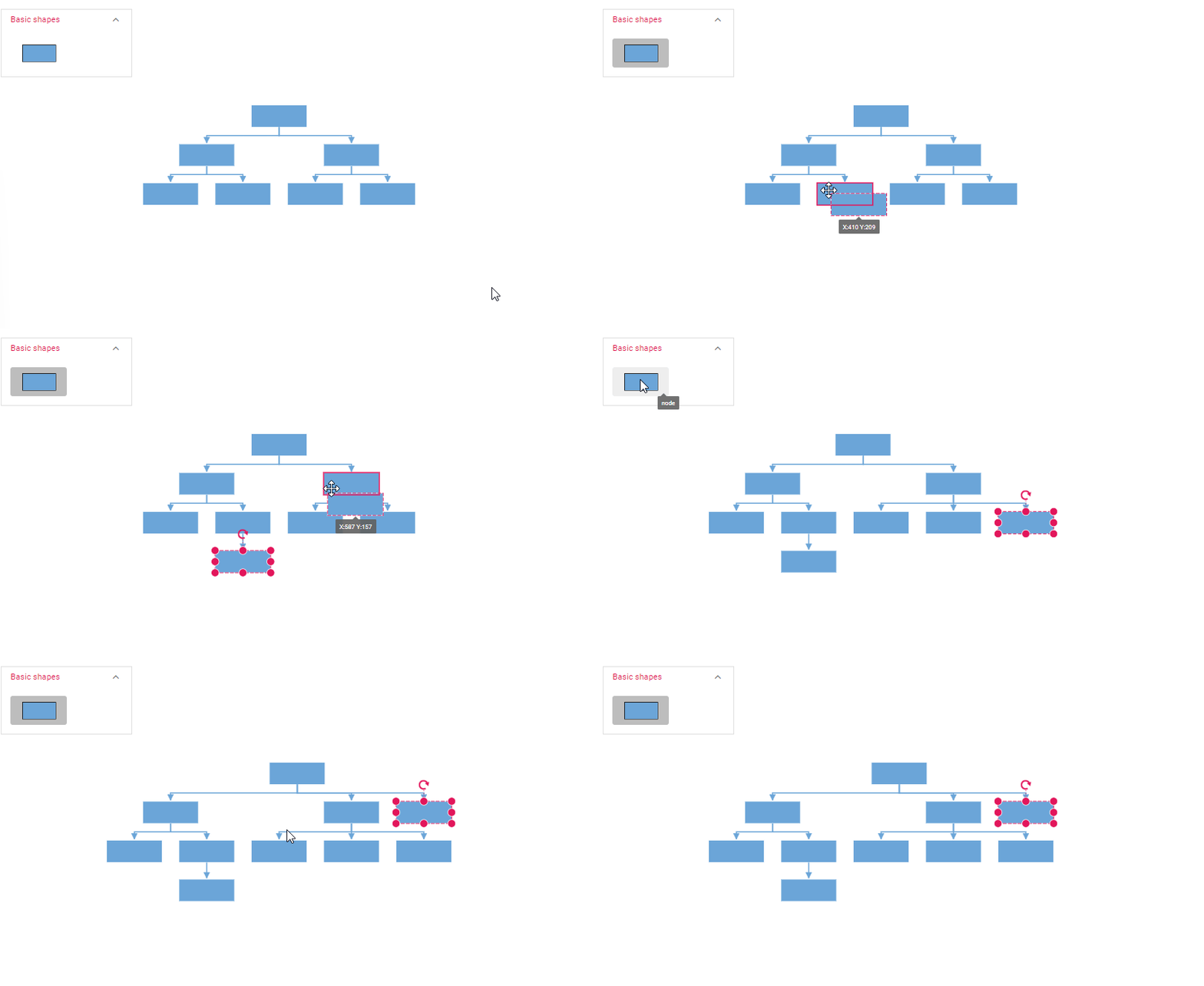
setNodeTemplate
The setNodeTemplate function allows you to customize the visual representation and behavior of nodes within your diagram. It is invoked during the initialization of each node, enabling you to define the node’s style, properties, and bind custom JSON data to it.
Typically, the setNodeTemplate function accepts a container element (e.g., StackPanel, Grid) to organize the visual components within the node. In the following example, a StackPanel is used to organize the node’s content, with an ImageElement displaying an image and a TextBlock showing text bound to the “Name” property of the node’s data. The StackPanel can contain a variety of elements, including PathElement, NativeElement, DiagramElement and HtmlElement.
You can also set the cornerRadius to create a rounded appearance for the node, while horizontalAlignment and verticalAlignment control the positioning of the StackPanel within the node.
The orientation property determines whether child elements are arranged horizontally or vertically. By effectively utilizing the setNodeTemplate function, you can create visually appealing and informative nodes that enhance the overall user experience of your diagram.
import * as React from 'react';
import * as ReactDOM from 'react-dom';
import { DiagramComponent, Inject, HierarchicalTree, DataBinding, ImageElement,
    StackPanel, TextElement } from '@syncfusion/ej2-react-diagrams';
import { DataManager, Query } from '@syncfusion/ej2-data';

//Initializes data source
let data = [
    { Name: "Steve-Ceo" },
    { Name: "Kevin-Manager", ReportingPerson: "Steve-Ceo", color: 'darkcyan' },
    { Name: "Peter-Manager", ReportingPerson: "Steve-Ceo", color: 'white' },
    { Name: "John-Manager", ReportingPerson: "Peter-Manager", color: 'darkcyan' },
    { Name: "Mary-CSE", ReportingPerson: "Peter-Manager", color: 'white' },
    { Name: "Jim-CSE", ReportingPerson: "Kevin-Manager", color: 'darkcyan' },
    { Name: "Martin-CSE ", ReportingPerson: "Kevin-Manager", color: 'white' },
];

let items = new DataManager(data, new Query().take(7));

export default function App() {

    //Function to add the Template of the Node.
    function setNodeTemplate(node) {

        // Create an outer StackPanel as container to contain image and text elements
        let container = new StackPanel();
        container.width = 200;
        container.height = 60;
        container.cornerRadius = 10;
        container.style.fill = 'skyblue';
        container.horizontalAlignment = 'Left';
        container.orientation = 'Horizontal';
        container.id = node.data.Name + '_StackContainter';

        // Create an inner image element to displaying image
        let innerContent = new ImageElement();
        innerContent.id = node.data.Name + '_innerContent';
        innerContent.width = 40;
        innerContent.height = 40;
        innerContent.margin.left = 20;
        innerContent.style.fill = 'lightgrey';

        // Create a inner text element for displaying employee details
        let text = new TextElement();
        text.content = 'Name: ' + node.data.Name;
        text.margin = { left: 10, top: 5 };
        text.id = node.data.Name + '_textContent';
        text.style.fill = 'green';
        text.style.color = 'white';
        if (node.data.Name === 'Steve-Ceo') {
            text.style.fill = 'black';
            text.style.color = 'white';
        }

        // Add inner image and text element to the outer StackPanel
        container.children = [innerContent, text];
        return container;
    }

    return (
        <div>
            <DiagramComponent
                id="container"
                width={'80%'}
                height={'550px'}

                setNodeTemplate={setNodeTemplate}
                //Uses layout to auto-arrange nodes on the diagram page
                layout=

                //Configures data source for diagram
                dataSourceSettings=

                //Sets the default properties for nodes
                getNodeDefaults={(node) => {
                    node.width = 200;
                    node.height = 60;
                    return node;
                }}

                //Sets the default properties for connectors
                getConnectorDefaults={(connector) => {
                    connector.type = 'Orthogonal';
                    connector.targetDecorator.shape = 'None';
                    return connector;
                }}
            >

                {/* Inject necessary services for the diagram */}
                <Inject services={[DataBinding, HierarchicalTree]} />
            </DiagramComponent>

        </div>
    );
}

// Render the App component into the 'diagram' element in the DOM
const root = ReactDOM.createRoot(document.getElementById('diagram'));
root.render(<App />);
import * as React from 'react';
import * as ReactDOM from 'react-dom';
import { DiagramComponent, Inject, HierarchicalTree, DataBinding, ConnectorModel, Container,
NodeModel, DecoratorModel, ImageElement, StackPanel, TextElement } from '@syncfusion/ej2-react-diagrams';
import { DataManager, Query } from '@syncfusion/ej2-data';
//Initializes data source
let data: object[] = [
{ Name: "Steve-Ceo" },
{ Name: "Kevin-Manager", ReportingPerson: "Steve-Ceo", color: 'darkcyan' },
{ Name: "Peter-Manager", ReportingPerson: "Steve-Ceo", color: 'white' },
{ Name: "John-Manager", ReportingPerson: "Peter-Manager", color: 'darkcyan' },
{ Name: "Mary-CSE", ReportingPerson: "Peter-Manager", color: 'white' },
{ Name: "Jim-CSE", ReportingPerson: "Kevin-Manager", color: 'darkcyan' },
{ Name: "Martin-CSE ", ReportingPerson: "Kevin-Manager", color: 'white' },
];
let items: DataManager = new DataManager(data as JSON[], new Query().take(7));
export default function App() {
//Function to add the Template of the Node.
function setNodeTemplate(node: NodeModel): Container {
// Create an outer StackPanel as container to contain image and text elements
let container = new StackPanel();
container.width = 200;
container.height = 60;
container.cornerRadius = 10;
container.style.fill = 'skyblue';
container.horizontalAlignment = 'Left';
container.orientation = 'Horizontal';
container.id = (node.data as any).Name + '_StackContainter';
// Create an inner image element to displaying image
let innerContent = new ImageElement();
innerContent.id = (node.data as any).Name + '_innerContent';
innerContent.width = 40;
innerContent.height = 40;
innerContent.margin.left = 20;
innerContent.style.fill = 'lightgrey';
// Create a inner text element for displaying employee details
let text = new TextElement();
text.content = 'Name: ' + (node.data as any).Name;
text.margin = { left: 10, top: 5 };
text.id = (node.data as any).Name + '_textContent';
text.style.fill = 'green';
text.style.color = 'white';
if ((node.data as any).Name === 'Steve-Ceo') {
text.style.fill = 'black';
text.style.color = 'white';
}
// Add inner image and text element to the outer StackPanel
container.children = [innerContent, text];
return container;
}
return (
<div>
<DiagramComponent
id="container"
width={'80%'}
height={'550px'}
setNodeTemplate={setNodeTemplate}
//Uses layout to auto-arrange nodes on the diagram page
layout=
//Configures data source for diagram
dataSourceSettings=
//Sets the default properties for nodes
getNodeDefaults={(node: NodeModel): NodeModel => {
node.width = 200;
node.height = 60;
return node;
}}
//Sets the default properties for connectors
getConnectorDefaults={(connector: ConnectorModel): ConnectorModel => {
connector.type = 'Orthogonal';
(connector.targetDecorator as DecoratorModel).shape = 'None';
return connector;
}}
>
{/* Inject necessary services for the diagram */}
<Inject services={[DataBinding, HierarchicalTree]} />
</DiagramComponent>
</div>
);
}
// Render the App component into the 'diagram' element in the DOM
const root = ReactDOM.createRoot(document.getElementById('diagram') as HTMLElement);
root.render(<App />);Refresh Layout
The diagram supports refreshing layouts at runtime to reflect structural or data changes. The doLayout method recalculates and redraws the entire layout based on current data and configuration.
This functionality is essential when nodes are added, removed, or modified programmatically, ensuring the layout remains consistent with the updated structure.
//To refresh layout
diagramInstance.doLayout();