Organizational Chart Layout in React Diagram
01 Sep 202624 minutes to read
An organizational chart is a diagram that displays the hierarchical structure of an organization, showing reporting relationships and roles within the company. The React Diagram component provides specialized support for creating professional organizational charts through automatic layout algorithms. To create an organizational chart, set the layout type to OrganizationalChart.
Organizational Chart with DataSource
This approach is ideal when working with dynamic data from databases, APIs, or when the organizational structure changes frequently. The component automatically generates nodes and connectors based on the provided data structure.
When using organizational chart layout with the data source, both HierarchicalTree and DataBinding modules must be injected into the React Diagram component.
import * as React from 'react';
import * as ReactDOM from 'react-dom';
import { DiagramComponent, Inject, DataBinding, HierarchicalTree } from "@syncfusion/ej2-react-diagrams";
import { DataManager, Query } from "@syncfusion/ej2-data";


//Initializes data source
let data = [
    {
        Id: 'parent',
        Role: 'Project Management',
    },
    {
        Id: 1,
        Role: 'R&D Team',
        Team: 'parent',
    },
    {
        Id: 3,
        Role: 'Philosophy',
        Team: '1',
    },
    {
        Id: 4,
        Role: 'Organization',
        Team: '1',
    },
    {
        Id: 5,
        Role: 'Technology',
        Team: '1',
    },
    {
        Id: 7,
        Role: 'Funding',
        Team: '1',
    },
    {
        Id: 8,
        Role: 'Resource Allocation',
        Team: '1',
    },
    {
        Id: 9,
        Role: 'Targeting',
        Team: '1',
    },
    {
        Id: 11,
        Role: 'Evaluation',
        Team: '1',
    },
    {
        Id: 156,
        Role: 'HR Team',
        Team: 'parent',
    },
    {
        Id: 13,
        Role: 'Recruitment',
        Team: '156',
    },
    {
        Id: 112,
        Role: 'Employee Relation',
        Team: '156',
    },
    {
        Id: 17,
        Role: 'Production & Sales Team',
        Team: 'parent',
    },
    {
        Id: 119,
        Role: 'Design',
        Team: '17',
    },
    {
        Id: 19,
        Role: 'Operation',
        Team: '17',
    },
    {
        Id: 20,
        Role: 'Support',
        Team: '17',
    },
    {
        Id: 21,
        Role: 'Quality Assurance',
        Team: '17',
    },
    {
        Id: 23,
        Role: 'Customer Interaction',
        Team: '17',
    },
    {
        Id: 24,
        Role: 'Support and Maintenance',
        Team: '17',
    },
    {
        Id: 25,
        Role: 'Task Coordination',
        Team: '17',
    }
];

let items = new DataManager(data, new Query().take(7));

//Uses layout to auto-arrange nodes on the diagram page
const layout = {
    //set layout type
    type: 'OrganizationalChart'
};

//Configures data source for diagram
const dataSourceSettings = {
    id: 'Id',
    parentId: 'Team',
    dataSource: items
};

export default function App() {
    return (
        <DiagramComponent
            id="container"
            width={"100%"}
            height={"550px"}
            snapSettings=

            //Uses layout to auto-arrange nodes on the diagram page
            layout={layout}

            //Configures data source for diagram
            dataSourceSettings={dataSourceSettings}

            //Sets the default properties for nodes
            getNodeDefaults={(node) => {
                node.annotations = [{ content: node.data.Role }];
                node.width = 75;
                node.height = 40;
                return node;
            }}

            //Sets the default properties for connectors
            getConnectorDefaults={(connector) => {
                connector.type = 'Orthogonal';
                return connector;
            }}
        >

            {/* Inject necessary services for the diagram */}
            <Inject services={[DataBinding, HierarchicalTree]} />
        </DiagramComponent>
    );
}

// Render the App component into the 'diagram' element in the DOM
const root = ReactDOM.createRoot(document.getElementById("diagram"));
root.render(<App />);
import * as React from 'react';
import * as ReactDOM from 'react-dom';
import { DiagramComponent, Inject, ConnectorModel, DataBinding, NodeModel, HierarchicalTree, LayoutModel, DataSourceModel } from "@syncfusion/ej2-react-diagrams";
import { DataManager, Query } from "@syncfusion/ej2-data";
//Initializes data source
let data: object[] = [
{
Id: 'parent',
Role: 'Project Management',
},
{
Id: 1,
Role: 'R&D Team',
Team: 'parent',
},
{
Id: 3,
Role: 'Philosophy',
Team: '1',
},
{
Id: 4,
Role: 'Organization',
Team: '1',
},
{
Id: 5,
Role: 'Technology',
Team: '1',
},
{
Id: 7,
Role: 'Funding',
Team: '1',
},
{
Id: 8,
Role: 'Resource Allocation',
Team: '1',
},
{
Id: 9,
Role: 'Targeting',
Team: '1',
},
{
Id: 11,
Role: 'Evaluation',
Team: '1',
},
{
Id: 156,
Role: 'HR Team',
Team: 'parent',
},
{
Id: 13,
Role: 'Recruitment',
Team: '156',
},
{
Id: 112,
Role: 'Employee Relation',
Team: '156',
},
{
Id: 17,
Role: 'Production & Sales Team',
Team: 'parent',
},
{
Id: 119,
Role: 'Design',
Team: '17',
},
{
Id: 19,
Role: 'Operation',
Team: '17',
},
{
Id: 20,
Role: 'Support',
Team: '17',
},
{
Id: 21,
Role: 'Quality Assurance',
Team: '17',
},
{
Id: 23,
Role: 'Customer Interaction',
Team: '17',
},
{
Id: 24,
Role: 'Support and Maintenance',
Team: '17',
},
{
Id: 25,
Role: 'Task Coordination',
Team: '17',
}
];
let items: DataManager = new DataManager(data as JSON[], new Query().take(7));
//Uses layout to auto-arrange nodes on the diagram page
const layout: LayoutModel = {
//set layout type
type: 'OrganizationalChart'
};
//Configures data source for diagram
const dataSourceSettings: DataSourceModel = {
id: 'Id',
parentId: 'Team',
dataSource: items as DataManager
};
export default function App() {
return (
<DiagramComponent
id="container"
width={"100%"}
height={"550px"}
snapSettings=
//Uses layout to auto-arrange nodes on the diagram page
layout={layout}
//Configures data source for diagram
dataSourceSettings={dataSourceSettings}
//Sets the default properties for nodes
getNodeDefaults={(node: NodeModel) => {
node.annotations = [{ content: (node.data as { Role: 'string' }).Role }];
node.width = 75;
node.height = 40;
return node;
}}
//Sets the default properties for connectors
getConnectorDefaults={(connector: ConnectorModel) => {
connector.type = 'Orthogonal';
return connector;
}}
>
{/* Inject necessary services for the diagram */}
<Inject services={[DataBinding, HierarchicalTree]} />
</DiagramComponent>
);
}
// Render the App component into the 'diagram' element in the DOM
const root = ReactDOM.createRoot(document.getElementById("diagram") as HTMLElement);
root.render(<App />);Organizational Chart with Nodes and Connectors
You can render an org-chart layout without using DataSource. In this approach, nodes and connectors are defined manually, with each connector linking a parent node to its child node to express the reporting hierarchy. The following code demonstrates how to render an org-chart layout without using a data source.
import * as React from 'react';
import * as ReactDOM from 'react-dom';
import { DiagramComponent, Inject, DataBinding, HierarchicalTree } from "@syncfusion/ej2-react-diagrams";

//Initialize nodes for diagram
let nodes = [
    { id: 'Project Management' },
    { id: 'R&D Team' },
    { id: 'Philosophy' },
    { id: 'Organization' },
    { id: 'Technology' },
    { id: 'Funding' },
    { id: 'Resource Allocation' },
    { id: 'Targeting' },
    { id: 'Evaluation' },
    { id: 'HR Team' },
    { id: 'Recruitment' },
    { id: 'Employee Relation' },
    { id: 'Production & Sales Team' },
    { id: 'Design' },
    { id: 'Operation' },
    { id: 'Support' },
    { id: 'Quality Assurance' },
    { id: 'Customer Interaction' },
    { id: 'Support and Maintenance' },
    { id: 'Task Coordination' },
];

//Initialize connectors for diagram
let connectors = [
    {
        id: 'Project Management-R&D Team',
        sourceID: 'Project Management',
        targetID: 'R&D Team',
    },
    {
        id: 'R&D Team-Philosophy',
        sourceID: 'R&D Team',
        targetID: 'Philosophy'
    },
    {
        id: 'R&D Team-Organization',
        sourceID: 'R&D Team',
        targetID: 'Organization',
    },
    {
        id: 'R&D Team-Technology',
        sourceID: 'R&D Team',
        targetID: 'Technology'
    },
    {
        id: 'R&D Team-Funding',
        sourceID: 'R&D Team',
        targetID: 'Funding'
    },
    {
        id: 'R&D Team-Resource Allocation',
        sourceID: 'R&D Team',
        targetID: 'Resource Allocation',
    },
    {
        id: 'R&D Team-Targeting',
        sourceID: 'R&D Team',
        targetID: 'Targeting'
    },
    {
        id: 'R&D Team-Evaluation',
        sourceID: 'R&D Team',
        targetID: 'Evaluation'
    },
    {
        id: 'Project Management-HR Team',
        sourceID: 'Project Management',
        targetID: 'HR Team',
    },
    {
        id: 'HR Team-Recruitment',
        sourceID: 'HR Team',
        targetID: 'Recruitment'
    },
    {
        id: 'HR Team-Employee Relation',
        sourceID: 'HR Team',
        targetID: 'Employee Relation',
    },
    {
        id: 'Project Management-Production & Sales Team',
        sourceID: 'Project Management',
        targetID: 'Production & Sales Team',
    },
    {
        id: 'Production & Sales Team-Design',
        sourceID: 'Production & Sales Team',
        targetID: 'Design',
    },
    {
        id: 'Production & Sales Team-Operation',
        sourceID: 'Production & Sales Team',
        targetID: 'Operation',
    },
    {
        id: 'Production & Sales Team-Support',
        sourceID: 'Production & Sales Team',
        targetID: 'Support',
    },
    {
        id: 'Production & Sales Team-Quality Assurance',
        sourceID: 'Production & Sales Team',
        targetID: 'Quality Assurance',
    },
    {
        id: 'Production & Sales Team-Customer Interaction',
        sourceID: 'Production & Sales Team',
        targetID: 'Customer Interaction',
    },
    {
        id: 'Production & Sales Team-Support and Maintenance',
        sourceID: 'Production & Sales Team',
        targetID: 'Support and Maintenance',
    },
    {
        id: 'Production & Sales Team-Task Coordination',
        sourceID: 'Production & Sales Team',
        targetID: 'Task Coordination',
    },
];

//Uses layout to auto-arrange nodes on the diagram page
const layout = {
    //set layout type
    type: 'OrganizationalChart'
};

export default function App() {
    return (
        <DiagramComponent
            id="container"
            width={"100%"}
            height={"550px"}
            nodes={nodes}
            connectors={connectors}
            snapSettings=

            //Uses layout to auto-arrange nodes on the diagram page
            layout={layout}

            //Sets the default properties for nodes
            getNodeDefaults={(node) => {
                node.annotations = [{ content: node.id }];
                node.width = 75;
                node.height = 40;
                return node;
            }}

            //Sets the default properties for connectors
            getConnectorDefaults={(connector) => {
                connector.type = 'Orthogonal';
                return connector;
            }}
        >

            {/* Inject necessary services for the diagram */}
            <Inject services={[DataBinding, HierarchicalTree]} />
        </DiagramComponent>
    );
}

// Render the App component into the 'diagram' element in the DOM
const root = ReactDOM.createRoot(document.getElementById("diagram"));
root.render(<App />);
import * as React from 'react';
import * as ReactDOM from 'react-dom';
import { DiagramComponent, Inject, ConnectorModel, DataBinding, NodeModel, HierarchicalTree, LayoutModel } from "@syncfusion/ej2-react-diagrams";
//Initialize nodes for diagram
let nodes: NodeModel[] = [
{ id: 'Project Management' },
{ id: 'R&D Team' },
{ id: 'Philosophy' },
{ id: 'Organization' },
{ id: 'Technology' },
{ id: 'Funding' },
{ id: 'Resource Allocation' },
{ id: 'Targeting' },
{ id: 'Evaluation' },
{ id: 'HR Team' },
{ id: 'Recruitment' },
{ id: 'Employee Relation' },
{ id: 'Production & Sales Team' },
{ id: 'Design' },
{ id: 'Operation' },
{ id: 'Support' },
{ id: 'Quality Assurance' },
{ id: 'Customer Interaction' },
{ id: 'Support and Maintenance' },
{ id: 'Task Coordination' },
];
//Initialize connectors for diagram
let connectors: ConnectorModel[] = [
{
id: 'Project Management-R&D Team',
sourceID: 'Project Management',
targetID: 'R&D Team',
},
{
id: 'R&D Team-Philosophy',
sourceID: 'R&D Team',
targetID: 'Philosophy'
},
{
id: 'R&D Team-Organization',
sourceID: 'R&D Team',
targetID: 'Organization',
},
{
id: 'R&D Team-Technology',
sourceID: 'R&D Team',
targetID: 'Technology'
},
{
id: 'R&D Team-Funding',
sourceID: 'R&D Team',
targetID: 'Funding'
},
{
id: 'R&D Team-Resource Allocation',
sourceID: 'R&D Team',
targetID: 'Resource Allocation',
},
{
id: 'R&D Team-Targeting',
sourceID: 'R&D Team',
targetID: 'Targeting'
},
{
id: 'R&D Team-Evaluation',
sourceID: 'R&D Team',
targetID: 'Evaluation'
},
{
id: 'Project Management-HR Team',
sourceID: 'Project Management',
targetID: 'HR Team',
},
{
id: 'HR Team-Recruitment',
sourceID: 'HR Team',
targetID: 'Recruitment'
},
{
id: 'HR Team-Employee Relation',
sourceID: 'HR Team',
targetID: 'Employee Relation',
},
{
id: 'Project Management-Production & Sales Team',
sourceID: 'Project Management',
targetID: 'Production & Sales Team',
},
{
id: 'Production & Sales Team-Design',
sourceID: 'Production & Sales Team',
targetID: 'Design',
},
{
id: 'Production & Sales Team-Operation',
sourceID: 'Production & Sales Team',
targetID: 'Operation',
},
{
id: 'Production & Sales Team-Support',
sourceID: 'Production & Sales Team',
targetID: 'Support',
},
{
id: 'Production & Sales Team-Quality Assurance',
sourceID: 'Production & Sales Team',
targetID: 'Quality Assurance',
},
{
id: 'Production & Sales Team-Customer Interaction',
sourceID: 'Production & Sales Team',
targetID: 'Customer Interaction',
},
{
id: 'Production & Sales Team-Support and Maintenance',
sourceID: 'Production & Sales Team',
targetID: 'Support and Maintenance',
},
{
id: 'Production & Sales Team-Task Coordination',
sourceID: 'Production & Sales Team',
targetID: 'Task Coordination',
},
];
//Uses layout to auto-arrange nodes on the diagram page
const layout: LayoutModel = {
//set layout type
type: 'OrganizationalChart'
};
export default function App() {
return (
<DiagramComponent
id="container"
width={"100%"}
height={"550px"}
nodes={nodes}
connectors={connectors}
snapSettings=
//Uses layout to auto-arrange nodes on the diagram page
layout={layout}
//Sets the default properties for nodes
getNodeDefaults={(node: NodeModel) => {
node.annotations = [{ content: node.id }];
node.width = 75;
node.height = 40;
return node;
}}
//Sets the default properties for connectors
getConnectorDefaults={(connector: ConnectorModel) => {
connector.type = 'Orthogonal';
return connector;
}}
>
{/* Inject necessary services for the diagram */}
<Inject services={[DataBinding, HierarchicalTree]} />
</DiagramComponent>
);
}
// Render the App component into the 'diagram' element in the DOM
const root = ReactDOM.createRoot(document.getElementById("diagram") as HTMLElement);
root.render(<App />);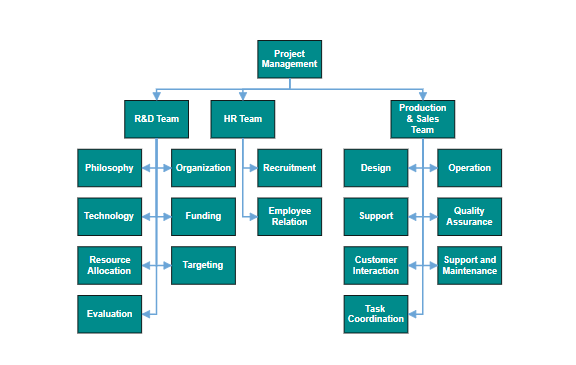
Advanced Layout Customization with getLayoutInfo
Organizational chart layout starts parsing from the root and iterates through all its child elements. The getLayoutInfo method provides granular control over how each subtree within the organizational chart is arranged. This method is invoked for every node during the layout process, allowing developers to customize the arrangement of child nodes based on orientation, alignment, spacing, and special node types like assistants to meet specific business requirements.
getLayoutInfo Parameters
The getLayoutInfo method accepts the following parameters:
-
node(
NodeModel): The parent node for which layout options are being configured. - options: Configuration object containing customizable layout properties.
Layout Options Properties
The following table illustrates the properties that the “options” argument takes.
| Property | Description | Default Value |
|---|---|---|
| options.assistants | By default, the collection is empty. When any of the child nodes have to be set as Assistant, you can remove from children collection and have to insert into assistants collection. | Empty array |
| options.orientation | Gets or sets the organizational chart orientation. |
SubTreeOrientation.Vertical |
| options.type | Gets or sets the chart organizational chart type. | For horizontal chart orientation:SubTreeAlignments.Center and for vertical chart orientation:SubTreeAlignments.Alternate |
| options.offset | Offset is the horizontal space to be left between parent and child nodes. Accepts a number value in pixels. | 20 pixels, applicable only for vertical chart orientations. |
| options.hasSubTree | Gets whether the node contains subtrees. | Boolean |
| options.level | Gets the depth of the node from layout root. | Number |
| options.enableRouting | By default, connections are routed based on the chart type and orientations. This property gets or sets whether default routing is to be enabled or disabled. | true |
| options.rows | Sets the number of rows on which the child nodes will be arranged. Applicable only for the Balanced horizontal orientation. | Number |
Orientation and Alignment Options
The following table describes the available chart orientations and their corresponding alignment types:
| Orientation | Type | Description | Example |
|---|---|---|---|
| Horizontal | Left | Arranges the child nodes horizontally at the left side of the parent. | 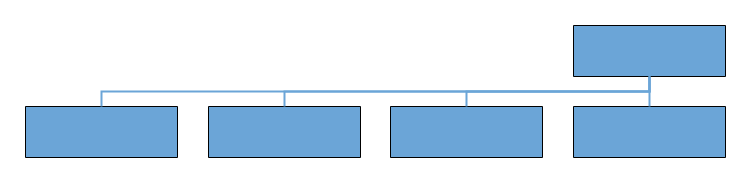 |
| Right | Arranges the child nodes horizontally at the right side of the parent. | 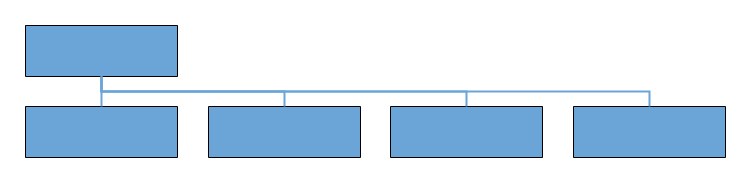 |
|
| Center | Arranges the child nodes horizontally, centered beneath the parent node. | 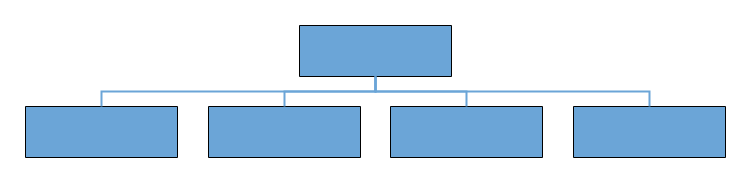 |
|
| Balanced | Arranges the leaf level child nodes in multiple rows. | 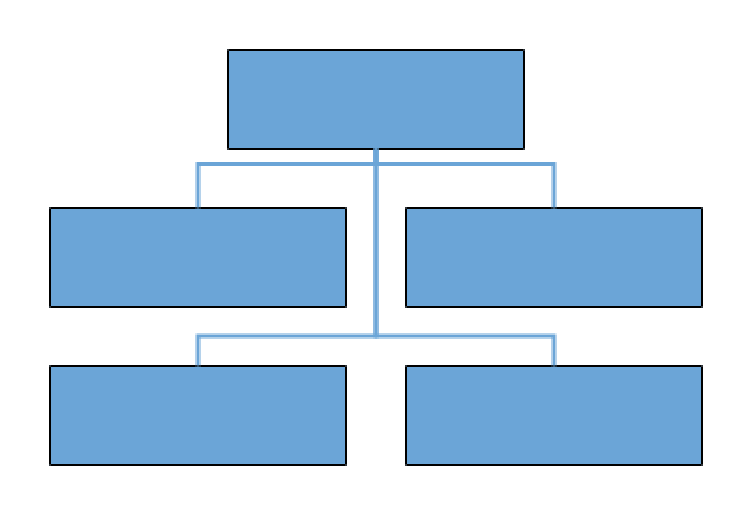 |
|
| Vertical | Left | Arranges the children vertically at the left side of the parent. |  |
| Right | Arranges the children vertically at the right side of the parent. | 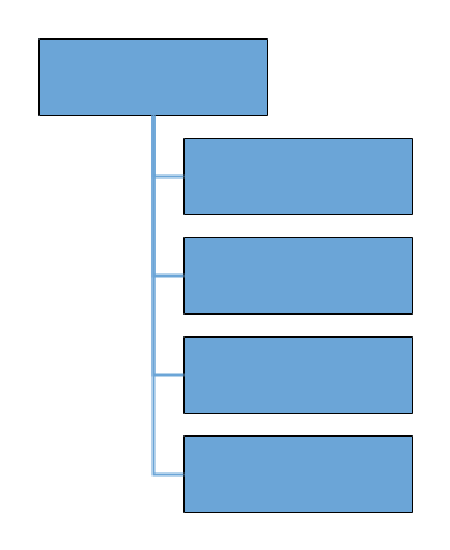 |
|
| Alternate | Arranges the children vertically at both left and right sides of the parent. |  |
Horizontal Subtree Orientation Example
The following example demonstrates customizing subtree alignment for horizontal organizational structures:
import * as React from 'react';
import * as ReactDOM from 'react-dom';
import { DiagramComponent, Inject, DataBinding, HierarchicalTree } from "@syncfusion/ej2-react-diagrams";
import { DataManager, Query } from "@syncfusion/ej2-data";

//Initializes data source
let data = [
    { Id: 1, Role: 'General Manager' },
    { Id: 2, Role: 'Assistant Manager', Team: 1 },
    { Id: 3, Role: 'Human Resource Manager', Team: 1 },
    { Id: 4, Role: 'Design Manager', Team: 1 },
    { Id: 5, Role: 'Operation Manager', Team: 1 },
    { Id: 6, Role: 'Marketing Manager', Team: 1 },
];
let items = new DataManager(data, new Query().take(7));

const layout = {
    //Sets layout type
    type: 'OrganizationalChart',
    // define the getLayoutInfo
    getLayoutInfo: (node, options) => {
        if (!options.hasSubTree) {
            options.type = 'Center';
            options.orientation = 'Horizontal';
        }
    }
};

const dataSourceSettings = {
    id: 'Id',
    parentId: 'Team',
    dataSource: items
};

export default function App() {
    let diagramInstance;
    let alignmentInstance;

    function onAlignmentChange() {
        const args = alignmentInstance.value;
        diagramInstance.layout.getLayoutInfo = (node, options) => {
            if (!options.hasSubTree) {
                options.type = args;
                options.orientation = 'Horizontal';
            }
        };
    };

    return (
        <div>
            <label htmlFor="alignment">Alignment: </label>
            <select name="alignment" id="alignment" onChange={onAlignmentChange}
                ref={(alignment) => (alignmentInstance = alignment)}
            >
                <option value="Center">Center</option>
                <option value="Right">Right</option>
                <option value="Left">Left</option>
                <option value="Balanced">Balanced</option>
            </select>

            <DiagramComponent
                id="container"
                width={"100%"}
                height={"550px"}
                ref={(diagram) => (diagramInstance = diagram)}
                snapSettings=

                //Uses layout to auto-arrange nodes on the diagram page
                layout={layout}

                //Configures data source for diagram
                dataSourceSettings={dataSourceSettings}

                //Sets the default properties for nodes
                getNodeDefaults={(node) => {
                    node.annotations = [{ content: node.data.Role }];
                    node.width = 150;
                    node.height = 50;
                    return node;
                }}

                //Sets the default properties for connectors
                getConnectorDefaults={(connector) => {
                    connector.type = 'Orthogonal';
                    (connector.targetDecorator).shape = 'None';
                    return connector;
                }}
            >

                {/* Inject necessary services for the diagram */}
                <Inject services={[DataBinding, HierarchicalTree]} />
            </DiagramComponent>
        </div>

    );
}

// Render the App component into the 'diagram' element in the DOM
const root = ReactDOM.createRoot(document.getElementById("diagram"));
root.render(<App />);
import * as React from 'react';
import * as ReactDOM from 'react-dom';
import { DiagramComponent, Inject, ConnectorModel, DataBinding, NodeModel, HierarchicalTree, SubTreeAlignments, TreeInfo, DecoratorModel } from "@syncfusion/ej2-react-diagrams";
import { DataManager, Query } from "@syncfusion/ej2-data";
//Initializes data source
let data: object[] = [
{ Id: 1, Role: 'General Manager' },
{ Id: 2, Role: 'Assistant Manager', Team: 1 },
{ Id: 3, Role: 'Human Resource Manager', Team: 1 },
{ Id: 4, Role: 'Design Manager', Team: 1 },
{ Id: 5, Role: 'Operation Manager', Team: 1 },
{ Id: 6, Role: 'Marketing Manager', Team: 1 },
];
let items: DataManager = new DataManager(data as JSON[], new Query().take(7));
const layout = {
//Sets layout type
type: 'OrganizationalChart',
// define the getLayoutInfo
getLayoutInfo: (node: Node, options: TreeInfo) => {
if (!options.hasSubTree) {
options.type = 'Center';
options.orientation = 'Horizontal';
}
}
};
const dataSourceSettings = {
id: 'Id',
parentId: 'Team',
dataSource: items
};
export default function App() {
let diagramInstance: DiagramComponent;
let alignmentInstance: HTMLSelectElement;
function onAlignmentChange() {
const args = alignmentInstance.value;
diagramInstance.layout.getLayoutInfo = (node: Node, options: TreeInfo) => {
if (!options.hasSubTree) {
options.type = (args as SubTreeAlignments);
options.orientation = 'Horizontal';
}
};
};
return (
<div>
<label htmlFor="alignment">Alignment: </label>
<select name="alignment" id="alignment" onChange={onAlignmentChange}
ref={(alignment: any) => (alignmentInstance = alignment)}
>
<option value="Center">Center</option>
<option value="Right">Right</option>
<option value="Left">Left</option>
<option value="Balanced">Balanced</option>
</select>
<DiagramComponent
id="container"
width={"100%"}
height={"550px"}
ref={(diagram: any) => (diagramInstance = diagram)}
snapSettings=
//Uses layout to auto-arrange nodes on the diagram page
layout={layout}
//Configures data source for diagram
dataSourceSettings={dataSourceSettings}
//Sets the default properties for nodes
getNodeDefaults={(node: NodeModel) => {
node.annotations = [{ content: (node.data as { Role: 'string' }).Role }];
node.width = 150;
node.height = 50;
return node;
}}
//Sets the default properties for connectors
getConnectorDefaults={(connector: ConnectorModel) => {
connector.type = 'Orthogonal';
(connector.targetDecorator as DecoratorModel).shape = 'None';
return connector;
}}
>
{/* Inject necessary services for the diagram */}
<Inject services={[DataBinding, HierarchicalTree]} />
</DiagramComponent>
</div>
);
}
// Render the App component into the 'diagram' element in the DOM
const root = ReactDOM.createRoot(document.getElementById("diagram") as HTMLElement);
root.render(<App />);Vertical Subtree Orientation Example
This example shows how to implement vertical arrangement for leaf-level organizational trees:
import * as React from 'react';
import * as ReactDOM from 'react-dom';
import { DiagramComponent, Inject, DataBinding, HierarchicalTree } from "@syncfusion/ej2-react-diagrams";
import { DataManager, Query } from "@syncfusion/ej2-data";

//Initializes data source
let data = [
    { Id: 1, Role: 'General Manager' },
    { Id: 2, Role: 'Assistant Manager', Team: 1 },
    { Id: 3, Role: 'Human Resource Manager', Team: 1 },
    { Id: 4, Role: 'Design Manager', Team: 1 },
    { Id: 5, Role: 'Operation Manager', Team: 1 },
    { Id: 6, Role: 'Marketing Manager', Team: 1 },
];
let items = new DataManager(data, new Query().take(7));
const layout = {
    //Sets layout type
    type: 'OrganizationalChart',
    // define the getLayoutInfo
    getLayoutInfo: (node, options) => {
        if (!options.hasSubTree) {
            options.type = 'Left';
            options.orientation = 'Vertical';
        }
    }
};
const dataSourceSettings = {
    id: 'Id',
    parentId: 'Team',
    dataSource: items
};
export default function App() {
    let diagramInstance;
    let alignmentInstance;

    function onAlignmentChange() {
        const args = alignmentInstance.value;
        diagramInstance.layout.getLayoutInfo = (node, options) => {
            if (!options.hasSubTree) {
                options.type = args;
                options.orientation = 'Vertical';
            }
        };
    };

    return (
        <div>
            <label htmlFor="alignment">Alignment: </label>
            <select name="alignment" id="alignment" onChange={onAlignmentChange}
                ref={(alignment) => (alignmentInstance = alignment)}
            >
                <option value="Left">Left</option>
                <option value="Right">Right</option>
                <option value="Alternate">Alternate</option>
            </select>

            <DiagramComponent
                id="container"
                width={"100%"}
                height={"550px"}
                ref={(diagram) => (diagramInstance = diagram)}
                snapSettings=

                //Uses layout to auto-arrange nodes on the diagram page
                layout={layout}

                //Configures data source for diagram
                dataSourceSettings={dataSourceSettings}

                //Sets the default properties for nodes
                getNodeDefaults={(node) => {
                    node.annotations = [{ content: node.data.Role }];
                    node.width = 150;
                    node.height = 50;
                    return node;
                }}

                //Sets the default properties for connectors
                getConnectorDefaults={(connector) => {
                    connector.type = 'Orthogonal';
                    (connector.targetDecorator).shape = 'None';
                    return connector;
                }}
            >

                {/* Inject necessary services for the diagram */}
                <Inject services={[DataBinding, HierarchicalTree]} />
            </DiagramComponent>
        </div>

    );
}

// Render the App component into the 'diagram' element in the DOM
const root = ReactDOM.createRoot(document.getElementById("diagram"));
root.render(<App />);
import * as React from 'react';
import * as ReactDOM from 'react-dom';
import { DiagramComponent, Inject, ConnectorModel, DataBinding, NodeModel, HierarchicalTree, SubTreeAlignments, TreeInfo, DecoratorModel } from "@syncfusion/ej2-react-diagrams";
import { DataManager, Query } from "@syncfusion/ej2-data";
//Initializes data source
let data: object[] = [
{ Id: 1, Role: 'General Manager' },
{ Id: 2, Role: 'Assistant Manager', Team: 1 },
{ Id: 3, Role: 'Human Resource Manager', Team: 1 },
{ Id: 4, Role: 'Design Manager', Team: 1 },
{ Id: 5, Role: 'Operation Manager', Team: 1 },
{ Id: 6, Role: 'Marketing Manager', Team: 1 },
];
let items: DataManager = new DataManager(data as JSON[], new Query().take(7));
const layout = {
//Sets layout type
type: 'OrganizationalChart',
// define the getLayoutInfo
getLayoutInfo: (node: Node, options: TreeInfo) => {
if (!options.hasSubTree) {
options.type = 'Left';
options.orientation = 'Vertical';
}
}
};
const dataSourceSettings = {
id: 'Id',
parentId: 'Team',
dataSource: items
};
export default function App() {
let diagramInstance: DiagramComponent;
let alignmentInstance: HTMLSelectElement;
function onAlignmentChange() {
const args = alignmentInstance.value;
diagramInstance.layout.getLayoutInfo = (node: Node, options: TreeInfo) => {
if (!options.hasSubTree) {
options.type = (args as SubTreeAlignments);
options.orientation = 'Vertical';
}
};
};
return (
<div>
<label htmlFor="alignment">Alignment: </label>
<select name="alignment" id="alignment" onChange={onAlignmentChange}
ref={(alignment: any) => (alignmentInstance = alignment)}
>
<option value="Left">Left</option>
<option value="Right">Right</option>
<option value="Alternate">Alternate</option>
</select>
<DiagramComponent
id="container"
width={"100%"}
height={"550px"}
ref={(diagram: any) => (diagramInstance = diagram)}
snapSettings=
//Uses layout to auto-arrange nodes on the diagram page
layout={layout}
//Configures data source for diagram
dataSourceSettings={dataSourceSettings}
//Sets the default properties for nodes
getNodeDefaults={(node: NodeModel) => {
node.annotations = [{ content: (node.data as { Role: 'string' }).Role }];
node.width = 150;
node.height = 50;
return node;
}}
//Sets the default properties for connectors
getConnectorDefaults={(connector: ConnectorModel) => {
connector.type = 'Orthogonal';
(connector.targetDecorator as DecoratorModel).shape = 'None';
return connector;
}}
>
{/* Inject necessary services for the diagram */}
<Inject services={[DataBinding, HierarchicalTree]} />
</DiagramComponent>
</div>
);
}
// Render the App component into the 'diagram' element in the DOM
const root = ReactDOM.createRoot(document.getElementById("diagram") as HTMLElement);
root.render(<App />);Assistant Nodes
Assistant nodes represent positions with specialized relationships to their parent, such as executive assistants or advisers. These nodes are positioned in a dedicated area separate from regular child nodes. To designate a node as an assistant, add it to the assistants collection within the getLayoutInfo options parameter.
The following code example illustrates how to add assistants to layout.
import * as React from 'react';
import * as ReactDOM from 'react-dom';
import { DiagramComponent, Inject, DataBinding, HierarchicalTree } from "@syncfusion/ej2-react-diagrams";
import { DataManager, Query } from "@syncfusion/ej2-data";

//Initializes data source
let data = [
    { Id: 1, Role: 'General Manager' },
    { Id: 2, Role: 'Assistant Manager', Team: 1 },
    { Id: 3, Role: 'Human Resource Manager', Team: 1 },
    { Id: 4, Role: 'Design Manager', Team: 1 },
    { Id: 5, Role: 'Operation Manager', Team: 1 },
    { Id: 6, Role: 'Marketing Manager', Team: 1 },
];
let items = new DataManager(data, new Query().take(7));

const layout = {
    //Sets layout type
    type: 'OrganizationalChart',
    // define the getLayoutInfo
    getLayoutInfo: (node, options) => {
        if (node.data['Role'] === 'General Manager') {
            options.assistants.push(options.children[0]);
            options.children.splice(0, 1);
        }
        if (!options.hasSubTree) {
            options.type = 'Center';
            options.orientation = 'Horizontal';
        }
    }
};

const dataSourceSettings = {
    id: 'Id',
    parentId: 'Team',
    dataSource: items
};

export default function App() {

    return (
        <div>
            <DiagramComponent
                id="container"
                width={"100%"}
                height={"550px"}
                snapSettings=

                //Uses layout to auto-arrange nodes on the diagram page
                layout={layout}

                //Configures data source for diagram
                dataSourceSettings={dataSourceSettings}

                //Sets the default properties for nodes
                getNodeDefaults={(node) => {
                    node.annotations = [{ content: node.data.Role }];
                    node.width = 150;
                    node.height = 50;
                    return node;
                }}

                //Sets the default properties for connectors
                getConnectorDefaults={(connector) => {
                    connector.type = 'Orthogonal';
                    connector.targetDecorator.shape = 'None';
                    return connector;
                }}
            >

                {/* Inject necessary services for the diagram */}
                <Inject services={[DataBinding, HierarchicalTree]} />
            </DiagramComponent>
        </div>

    );
}

// Render the App component into the 'diagram' element in the DOM
const root = ReactDOM.createRoot(document.getElementById("diagram"));
root.render(<App />);
import * as React from 'react';
import * as ReactDOM from 'react-dom';
import { DiagramComponent, Inject, ConnectorModel, DataBinding, NodeModel, HierarchicalTree, TreeInfo, DecoratorModel } from "@syncfusion/ej2-react-diagrams";
import { DataManager, Query } from "@syncfusion/ej2-data";
//Initializes data source
let data: object[] = [
{ Id: 1, Role: 'General Manager' },
{ Id: 2, Role: 'Assistant Manager', Team: 1 },
{ Id: 3, Role: 'Human Resource Manager', Team: 1 },
{ Id: 4, Role: 'Design Manager', Team: 1 },
{ Id: 5, Role: 'Operation Manager', Team: 1 },
{ Id: 6, Role: 'Marketing Manager', Team: 1 },
];
let items: DataManager = new DataManager(data as JSON[], new Query().take(7));
const layout = {
//Sets layout type
type: 'OrganizationalChart',
// define the getLayoutInfo
getLayoutInfo: (node: Node | any, options: TreeInfo) => {
if (node.data['Role'] === 'General Manager') {
(options.assistants as string[]).push((options.children as string[])[0]);
(options.children as string[]).splice(0, 1);
}
if (!options.hasSubTree) {
options.type = 'Center';
options.orientation = 'Horizontal';
}
}
};
const dataSourceSettings = {
id: 'Id',
parentId: 'Team',
dataSource: items
};
export default function App() {
return (
<div>
<DiagramComponent
id="container"
width={"100%"}
height={"550px"}
snapSettings=
//Uses layout to auto-arrange nodes on the diagram page
layout={layout}
//Configures data source for diagram
dataSourceSettings={dataSourceSettings}
//Sets the default properties for nodes
getNodeDefaults={(node: NodeModel) => {
node.annotations = [{ content: (node.data as { Role: 'string' }).Role }];
node.width = 150;
node.height = 50;
return node;
}}
//Sets the default properties for connectors
getConnectorDefaults={(connector: ConnectorModel) => {
connector.type = 'Orthogonal';
(connector.targetDecorator as DecoratorModel).shape = 'None';
return connector;
}}
>
{/* Inject necessary services for the diagram */}
<Inject services={[DataBinding, HierarchicalTree]} />
</DiagramComponent>
</div>
);
}
// Render the App component into the 'diagram' element in the DOM
const root = ReactDOM.createRoot(document.getElementById("diagram") as HTMLElement);
root.render(<App />);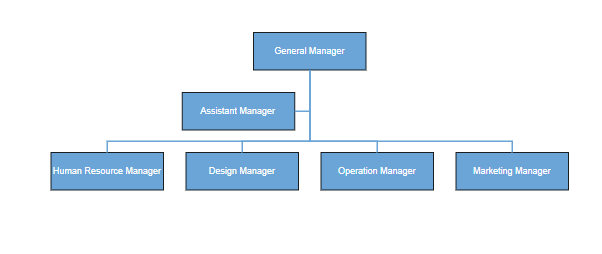
Assistant nodes cannot have child nodes and serve as terminal positions in the organizational hierarchy.
Best Practices
- Use the DataSource approach for dynamic organizational structures that may change frequently.
- Implement the Nodes and Connectors approach when requiring custom node designs or static hierarchies.
- Consider using assistant nodes for specialized roles like executive assistants or advisory positions.
- Apply appropriate orientation and alignment settings based on the size and complexity of the organization.
- Test layout performance with large datasets and consider implementing virtualization for extensive organizational charts.