Conditional Formatting in ASP.NET Core Pivot Table
23 Aug 202623 minutes to read
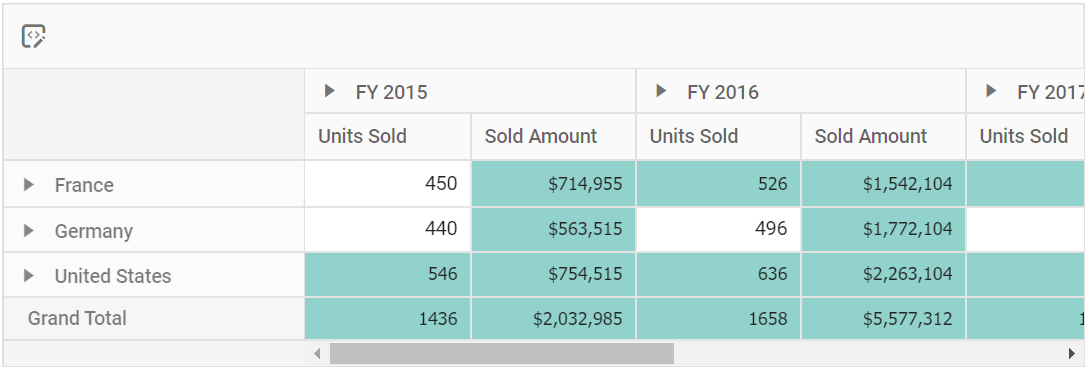
The conditional formatting feature enables users to customize the appearance of Pivot Table value cells by modifying background color, font color, font family, and font size based on specific conditions. This powerful visualization feature helps highlight important value cells and makes them stand out in the Pivot Table.
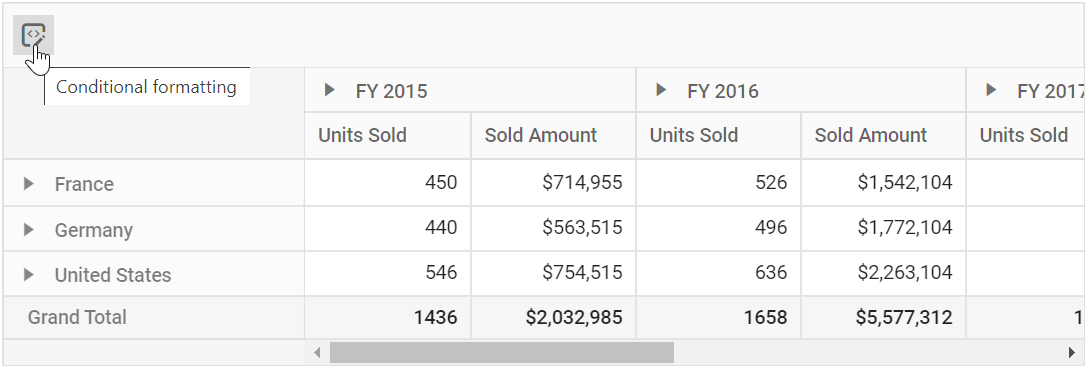
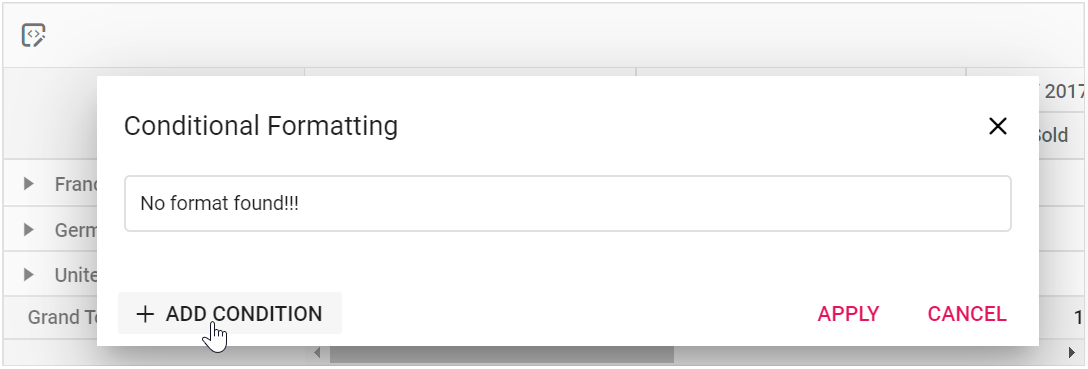
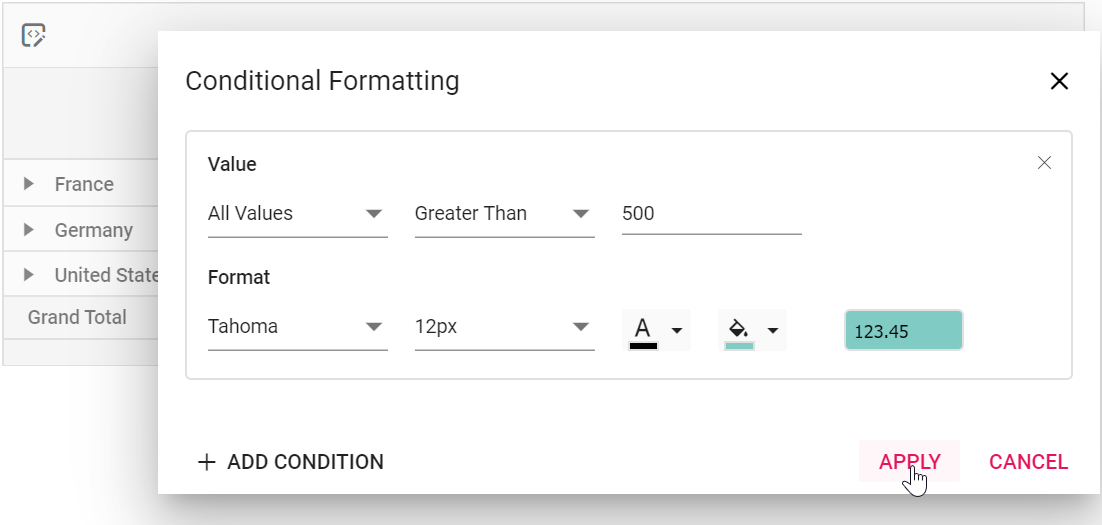
The conditional formatting can be applied at runtime through the built-in dialog, invoked from the toolbar. To enable this functionality, set the allowConditionalFormatting and showToolbar properties to true. Additionally, include the ConditionalFormatting item within the toolbar property. Users will see the “Conditional Formatting” icon in the toolbar UI automatically, which opens the formatting dialog when clicked.
To use the conditional formatting feature, you need to inject the
ConditionalFormattingmodule in Pivot Table.
<ejs-pivotview id="PivotView" width="100%" height="300" allowConditionalFormatting="true" showFieldList="true" showToolbar="true" toolbar="@(new List<string>() { "ConditionalFormatting" })">
    <e-datasourcesettings dataSource="@ViewBag.DataSource" expandAll="false" enableSorting="true">
        <e-formatsettings>
            <e-field name="Amount" format="C0" maximumSignificantDigits="10" minimumSignificantDigits="1" useGrouping="true"></e-field>
        </e-formatsettings>
        <e-drilledmembers>
            <e-field name="Country" items="@ViewBag.drilledMembers"></e-field>
        </e-drilledmembers>
        <e-rows>
            <e-field name="Country"></e-field>
            <e-field name="Products"></e-field>
        </e-rows>
        <e-columns>
            <e-field name="Year"></e-field>
            <e-field name="Order_Source" caption="Order Source"></e-field>
        </e-columns>
        <e-values>
            <e-field name="In_Stock" caption="In Stock"></e-field>
            <e-field name="Sold" caption="Units Sold"></e-field>
        </e-values>
        <e-filters>
            <e-field name="Product_Categories" caption="Product Categories"></e-field>
        </e-filters>
        <e-conditionalformatsettings>
            <e-format measure="In_Stock" conditions="LessThan" value1="5000">
                <e-fieldlist-style backgroundColor="#80cbc4" color="black" fontFamily="Tahoma" fontSize="12px" />
            </e-format>
            <e-format measure="Sold" conditions="Between" value1="3400" value2="40000">
                <e-fieldlist-style backgroundColor="#f48fb1" color="black" fontFamily="Tahoma" fontSize="12px" />
            </e-format>
        </e-conditionalformatsettings>
    </e-datasourcesettings>
    <e-gridSettings columnWidth="100"></e-gridSettings>

</ejs-pivotview>
public ActionResult Index()
{
var data = GetPivotData();
ViewBag.DataSource = data;
ViewBag.drilledMembers = new string[] { "France" };
return View();
}
Configure conditional formatting through code-behind
Conditional formatting can also be applied programmatically during component initialization using the
Conditional formatting can also be included in the pivot table through code-behind using the e-conditionalformatsettings property in the e-datasourcesettings. This approach allows you to define formatting rules directly in the code-behind, ensuring that specific styling conditions are automatically applied when the Pivot Table loads. The required properties to apply a new conditional formatting are,
- applyGrandTotals: This Boolean property allows you to restrict conditional formatting for grand totals in the row and column axes. By default, this property is set to true.
-
measure: Specifies the value field name for which style will be applied. -
conditions: Defines the operator type used for conditional formatting, such as equals, greater than, less than, etc. -
value1: Specifies the starting value for the conditional formatting. -
value2: Specifies the ending value for the conditional formatting range. This property is applicable only for conditions like Between and NotBetween. -
style: Specifies the custom styling applied to the cell.
The e-field-style object includes the following properties, which you can use to customize the appearance of value cells:
-
backgroundColor: It allows you to set the background color of the value cell in the Pivot Table. -
color: It allows you to set the font color of the value cell in the Pivot Table. -
fontFamily: It allows you to set the font family of the value cell in the Pivot Table. -
fontSize: It allows you to set the font size of the value cell in the Pivot Table.
Opening conditional formatting dialog programmatically
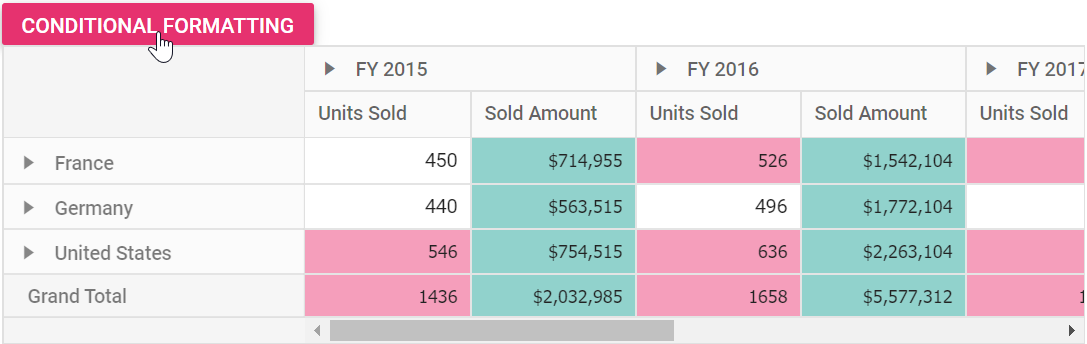
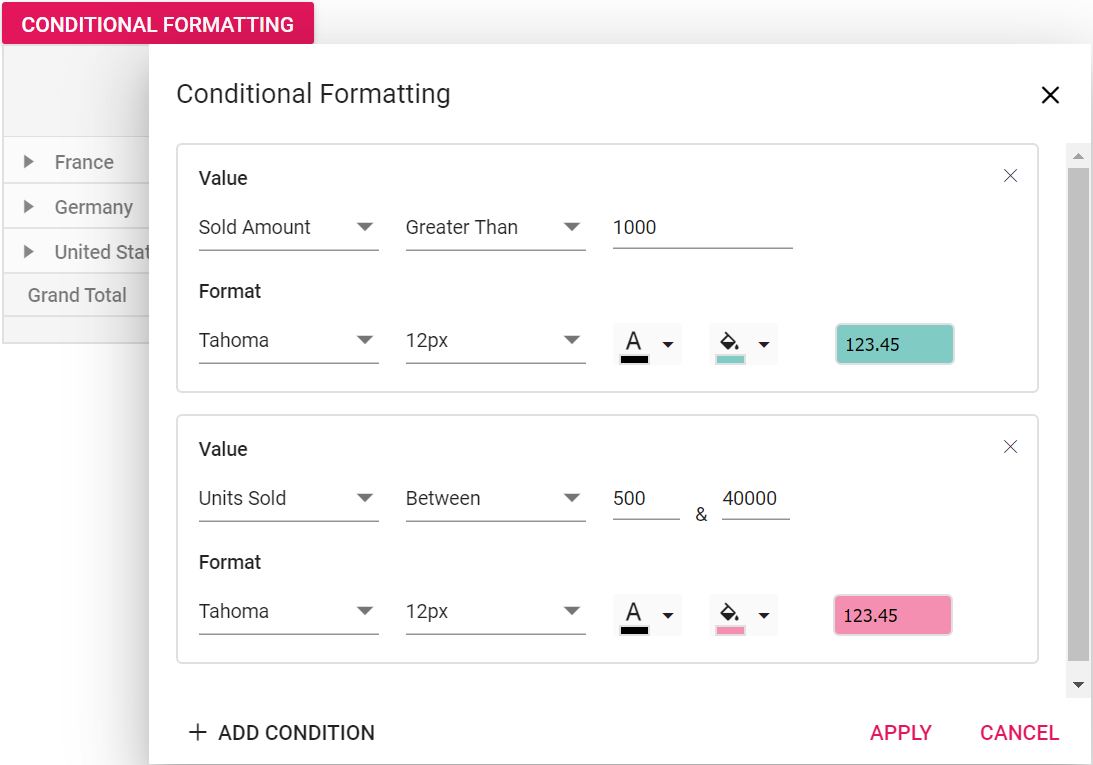
Users can also access the conditional formatting dialog through external UI elements by calling the showConditionalFormattingDialog method. In the following example, an external button is used to open the conditional formatting dialog programmatically.
<ejs-button id="conditional-formatting-btn" content="Conditional Formatting" isPrimary="true"></ejs-button>
<ejs-pivotview id="PivotView" width="100%" height="300" allowConditionalFormatting="true" showFieldList="true">
    <e-datasourcesettings dataSource="@ViewBag.DataSource" expandAll="false" enableSorting="true">
        <e-formatsettings>
            <e-field name="Amount" format="C0" maximumSignificantDigits="10" minimumSignificantDigits="1" useGrouping="true"></e-field>
        </e-formatsettings>
        <e-drilledmembers>
            <e-field name="Country" items="@ViewBag.drilledMembers"></e-field>
        </e-drilledmembers>
        <e-rows>
            <e-field name="Country"></e-field>
            <e-field name="Products"></e-field>
        </e-rows>
        <e-columns>
            <e-field name="Year"></e-field>
            <e-field name="Order_Source" caption="Order Source"></e-field>
        </e-columns>
        <e-values>
            <e-field name="In_Stock" caption="In Stock"></e-field>
            <e-field name="Sold" caption="Units Sold"></e-field>
        </e-values>
        <e-filters>
            <e-field name="Product_Categories" caption="Product Categories"></e-field>
        </e-filters>
        <e-conditionalformatsettings>
            <e-format measure="In_Stock" conditions="LessThan" value1="1000">
                <e-fieldlist-style backgroundColor="#80cbc4" color="black" fontFamily="Tahoma" fontSize="12px" />
            </e-format>
            <e-format measure="Sold" conditions="Between" value1="500" value2="40000">
                <e-fieldlist-style backgroundColor="#f48fb1" color="black" fontFamily="Tahoma" fontSize="12px" />
            </e-format>
        </e-conditionalformatsettings>
    </e-datasourcesettings>
    <e-gridSettings columnWidth="100"></e-gridSettings>
</ejs-pivotview>

<script>
    document.getElementById("conditional-formatting-btn").addEventListener('click', function () {
        var pivotObj = document.getElementById("PivotView").ej2_instances[0];
        pivotObj.conditionalFormattingModule.showConditionalFormattingDialog();
    });
</script>
public ActionResult Index()
{
var data = GetPivotData();
ViewBag.DataSource = data;
return View();
}
Conditional formatting for all fields
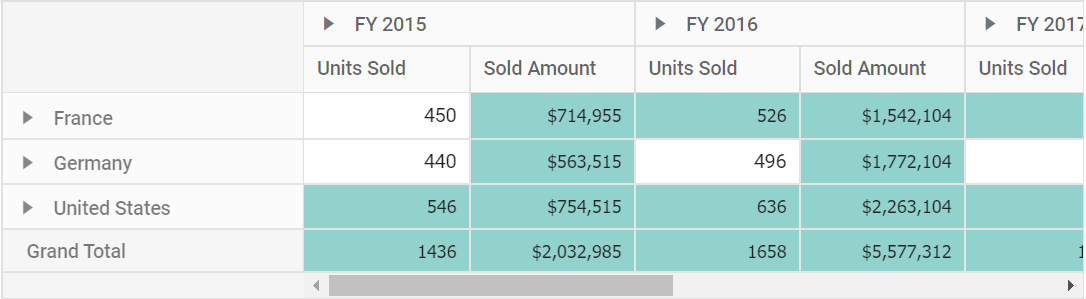
The Pivot Table component allows you to apply conditional formatting to all value fields simultaneously. This approach ensures consistent highlighting and styling of value cells across the entire Pivot Table, removing the need to configure formatting for each value field individually.
To format all value fields together, use the
Conditional formatting can also be included in the pivot table through code-behind using the e-conditionalformatsettings property without specifying the measure property. When the measure property is omitted, the formatting rules are automatically applied to every value field in your Pivot Table, resulting in a uniform appearance for all value cells.
<ejs-pivotview id="PivotView" width="100%" height="300" allowConditionalFormatting="true" showFieldList="true">
    <e-datasourcesettings dataSource="@ViewBag.DataSource" expandAll="false" enableSorting="true">
        <e-formatsettings>
            <e-field name="Amount" format="C0" maximumSignificantDigits="10" minimumSignificantDigits="1" useGrouping="true"></e-field>
        </e-formatsettings>
        <e-drilledmembers>
            <e-field name="Country" items="@ViewBag.drilledMembers"></e-field>
        </e-drilledmembers>
        <e-rows>
            <e-field name="Country"></e-field>
            <e-field name="Products"></e-field>
        </e-rows>
        <e-columns>
            <e-field name="Year"></e-field>
            <e-field name="Order_Source" caption="Order Source"></e-field>
        </e-columns>
        <e-values>
            <e-field name="In_Stock" caption="In Stock"></e-field>
            <e-field name="Sold" caption="Units Sold"></e-field>
        </e-values>
        <e-filters>
            <e-field name="Product_Categories" caption="Product Categories"></e-field>
        </e-filters>
        <e-conditionalformatsettings>
            <e-format conditions="GreaterThan" value1="500">
                <e-fieldlist-style backgroundColor="#80cbc4" color="black" fontFamily="Tahoma" fontSize="12px" />
            </e-format>
        </e-conditionalformatsettings>
    </e-datasourcesettings>
    <e-gridSettings columnWidth="100"></e-gridSettings>
</ejs-pivotview>
public ActionResult Index()
{
var data = GetPivotData();
ViewBag.DataSource = data;
ViewBag.drilledMembers = new string[] { "France" };
return View();
}
Conditional formatting for specific value field
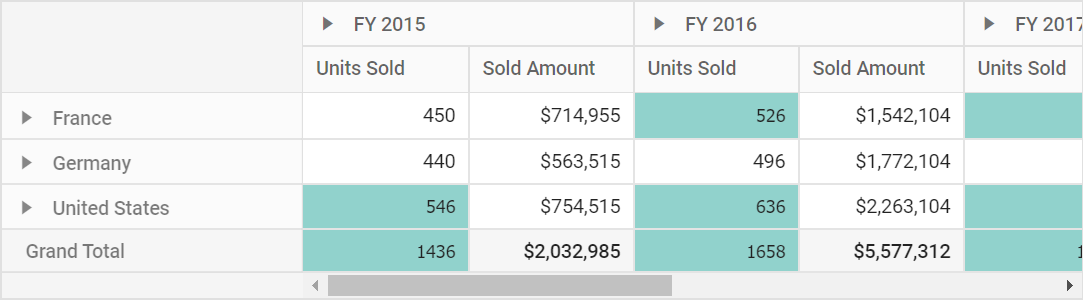
To apply conditional formatting exclusively to a particular value field, set the measure property with the specific value field name in
Conditional formatting can also be included in the pivot table through code-behind using the e-conditionalformatsettings.
<ejs-pivotview id="PivotView" width="100%" height="300" allowConditionalFormatting="true" showFieldList="true">
    <e-datasourcesettings dataSource="@ViewBag.DataSource" expandAll="false" enableSorting="true">
        <e-formatsettings>
            <e-field name="Amount" format="C0" maximumSignificantDigits="10" minimumSignificantDigits="1" useGrouping="true"></e-field>
        </e-formatsettings>
        <e-drilledmembers>
            <e-field name="Country" items="@ViewBag.drilledMembers"></e-field>
        </e-drilledmembers>
        <e-rows>
            <e-field name="Country"></e-field>
            <e-field name="Products"></e-field>
        </e-rows>
        <e-columns>
            <e-field name="Year"></e-field>
            <e-field name="Order_Source" caption="Order Source"></e-field>
        </e-columns>
        <e-values>
            <e-field name="In_Stock" caption="In Stock"></e-field>
            <e-field name="Sold" caption="Units Sold"></e-field>
        </e-values>
        <e-filters>
            <e-field name="Product_Categories" caption="Product Categories"></e-field>
        </e-filters>
        <e-conditionalformatsettings>
            <e-format measure="In_Stock" conditions="LessThan" value1="500">
                <e-fieldlist-style backgroundColor="#80cbc4" color="black" fontFamily="Tahoma" fontSize="12px" />
            </e-format>
        </e-conditionalformatsettings>
    </e-datasourcesettings>
    <e-gridSettings columnWidth="100"></e-gridSettings>
</ejs-pivotview>
public ActionResult Index()
{
var data = GetPivotData();
ViewBag.DataSource = data;
return View();
}
Conditional formatting for specific row or column
You can apply conditional formatting for specific row or column using label option in the pivot table. It can be configured using the e-conditionalformatsettings tag through code behind, during initial rendering. The required settings are:
-
label: Specifies the header name to apply conditions for row or column. -
conditions: Specifies the operator type such as equals, greater than, less than, etc. -
value1: Specifies the start value. -
value2: Specifies the end value. -
style: Specifies the style for the cell.
<ejs-pivotview id="PivotView"  width="100%" height="300" allowConditionalFormatting="true" showFieldList="true">
                <e-datasourcesettings dataSource="@ViewBag.DataSource" expandAll="false" enableSorting="true">
                    <e-formatsettings>
                        <e-field name="Amount" format="C0" maximumSignificantDigits="10" minimumSignificantDigits="1" useGrouping="true"></e-field>
                    </e-formatsettings>
                    <e-rows>
                        <e-field name="Country"></e-field>
                        <e-field name="Products"></e-field>
                    </e-rows>
                    <e-columns>
                        <e-field name="Year"></e-field>
                        <e-field name="Order_Source" caption="Order Source"></e-field>
                    </e-columns>
                    <e-values>
                        <e-field name="In_Stock" caption="In Stock"></e-field>
                        <e-field name="Sold" caption="Units Sold"></e-field>
                    </e-values>
                    <e-filters>
                        <e-field name="Product_Categories" caption="Product Categories"></e-field>
                    </e-filters>
                    <e-conditionalformatsettings>
                        <e-format label="Germany" conditions="Between" value1="500" value2="50000">
                            <e-fieldlist-style backgroundColor="#f48fb1" color="black" fontFamily="Tahoma" fontSize="12px" />
                        </e-format>
                    </e-conditionalformatsettings>
                </e-datasourcesettings>
                <e-gridSettings columnWidth="100"></e-gridSettings>
</ejs-pivotview>
public ActionResult Index()
{
var data = GetPivotData();
ViewBag.DataSource = data;
return View();
}Editing and removing existing conditional format
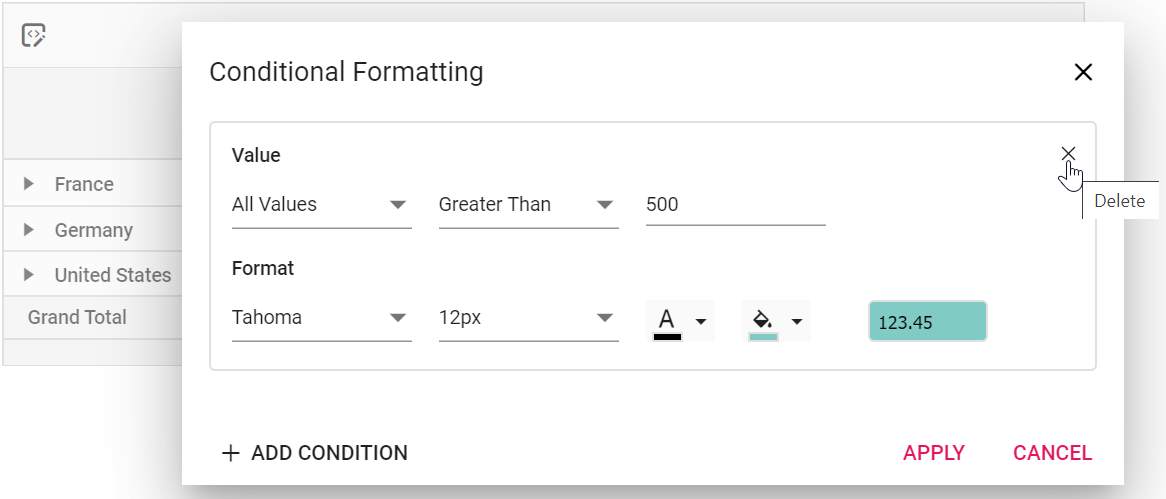
Editing and removing existing conditional format can be done through the UI at runtime. To do so, open the conditional formatting dialog and edit the Value, Condition, and Format options based on the user’s requirements, and click OK. To remove a conditional format, click the Delete icon next to the respective condition.
Event
The Pivot Table provides the following event to monitor conditional formatting operations. Use it to customize the conditions or styles applied at runtime.
ConditionalFormatting
The conditionalFormatting event is triggered when the “ADD CONDITION” button is clicked in the conditional formatting dialog, enabling users to define custom conditions instead of the default conditions at runtime. To use this event, the allowConditionalFormatting property of the Pivot Table component must be set to true. This event provides the following parameters:
-
applyGrandTotals- Allows you to apply conditional formatting to the grand totals of the row and column axes in the Pivot Table. -
conditions- Allows you to choose the operator type such as equals, greater than, less than, etc. for conditional formatting. -
label- Allows you to set the header text of a specific row/column field to apply conditional formatting. -
measure- Allows you to set the value field name to apply conditional formatting. -
style- Allows you to set the custom styles for the formatted values in the Pivot Table. -
value1- Allows you to set the start value for applying conditional formatting. -
value2- Allows you to set the end value for applying conditional formatting. This property is applicable only for conditions like Between and NotBetween.
<ejs-button id="conditional-formatting-btn" content="Conditional Formatting" isPrimary="true"></ejs-button>
<ejs-pivotview id="PivotView" width="100%" height="300" allowConditionalFormatting="true" conditionalFormatting="conditionalFormatting" showFieldList="true">
    <e-datasourcesettings dataSource="@ViewBag.DataSource" expandAll="false" enableSorting="true">
        <e-formatsettings>
            <e-field name="Amount" format="C0" maximumSignificantDigits="10" minimumSignificantDigits="1" useGrouping="true"></e-field>
        </e-formatsettings>
        <e-drilledmembers>
            <e-field name="Country" items="@ViewBag.drilledMembers"></e-field>
        </e-drilledmembers>
        <e-rows>
            <e-field name="Country"></e-field>
            <e-field name="Products"></e-field>
        </e-rows>
        <e-columns>
            <e-field name="Year"></e-field>
            <e-field name="Order_Source" caption="Order Source"></e-field>
        </e-columns>
        <e-values>
            <e-field name="In_Stock" caption="In Stock"></e-field>
            <e-field name="Sold" caption="Units Sold"></e-field>
        </e-values>
        <e-filters>
            <e-field name="Product_Categories" caption="Product Categories"></e-field>
        </e-filters>
        <e-conditionalformatsettings>
            <e-format measure="In_Stock" conditions="LessThan" value1="1000">
                <e-fieldlist-style backgroundColor="#80cbc4" color="black" fontFamily="Tahoma" fontSize="12px" />
            </e-format>
            <e-format measure="Sold" conditions="Between" value1="500" value2="40000">
                <e-fieldlist-style backgroundColor="#f48fb1" color="black" fontFamily="Tahoma" fontSize="12px" />
            </e-format>
        </e-conditionalformatsettings>
    </e-datasourcesettings>
    <e-gridSettings columnWidth="100"></e-gridSettings>
</ejs-pivotview>

<script>
    document.getElementById("conditional-formatting-btn").addEventListener('click', function () {
        var pivotObj = document.getElementById("PivotView").ej2_instances[0];
        pivotObj.conditionalFormattingModule.showConditionalFormattingDialog();
    });
    function conditionalFormatting(args){
        args.style.backgroundColor = "Blue";
        args.value1 = 23459;
    }
</script>
public ActionResult Index()
{
var data = GetPivotData();
ViewBag.DataSource = data;
return View();
}