Getting Started with Angular Using Angular CLI
14 Sep 20268 minutes to read
This guide provides step-by-step instructions for setting up an Angular project with TypeScript using Angular CLI, and integrating Syncfusion® Angular components. For module-based or framework host setups, see See Also.
The Angular CLI simplifies creating, managing, and building Angular applications so you can start development quickly.
Prerequisites
- Node.js 24+ (LTS recommended).
- Syncfusion CLI.
Install the Syncfusion CLI
Install the Syncfusion CLI globally using the following command:
npm install -g @syncfusion/syncfusion-cliCreate a new Angular application using Syncfusion CLI
You can create a Angular application using the Syncfusion CLI. The CLI provides two ways to create a project:
Non-interactive mode
Non-interactive mode allows you to create a project directly using a single command with the required command-line arguments.
sf new syncfusion-angular-app --framework angular --template gridIn this mode, the project configuration is passed directly in the command. The above command creates a Angular CLI application configured with the Syncfusion® Grid component.
Interactive mode
Interactive mode guides you through the project creation process with step-by-step prompts.
sfWhen you run the sf command, the CLI prompts you to select the required project configuration. To create a Angular CLI application with the Syncfusion® Grid component, select the following options:
√ Project name? ... syncfusion-angular-app
√ Choose Framework: » Angular
√ Choose Template: » Grid
√ Choose Theme: » Material3
√ Choose Style Format: » CSS
√ Would you like to integrate the Syncfusion MCP Server (AI Assistant) into this project? ... no
√ Would you like to install Syncfusion Component Skills for AI-powered development? ... no
√ Install dependencies and start app now? ... no
The above selections generate a Angular CLI application configured with the Syncfusion® Grid component. You can choose different values for language, theme, style format, MCP setup, and skills installation based on your project requirements.
The Syncfusion® CLI creates the project with a predefined template. After the project is generated, you can customize or replace the component code based on your application requirements.
Run the project
Once the project is created, navigate to the project directory and run the following commands in your terminal.
cd syncfusion-angular-app
npm install
ng serve
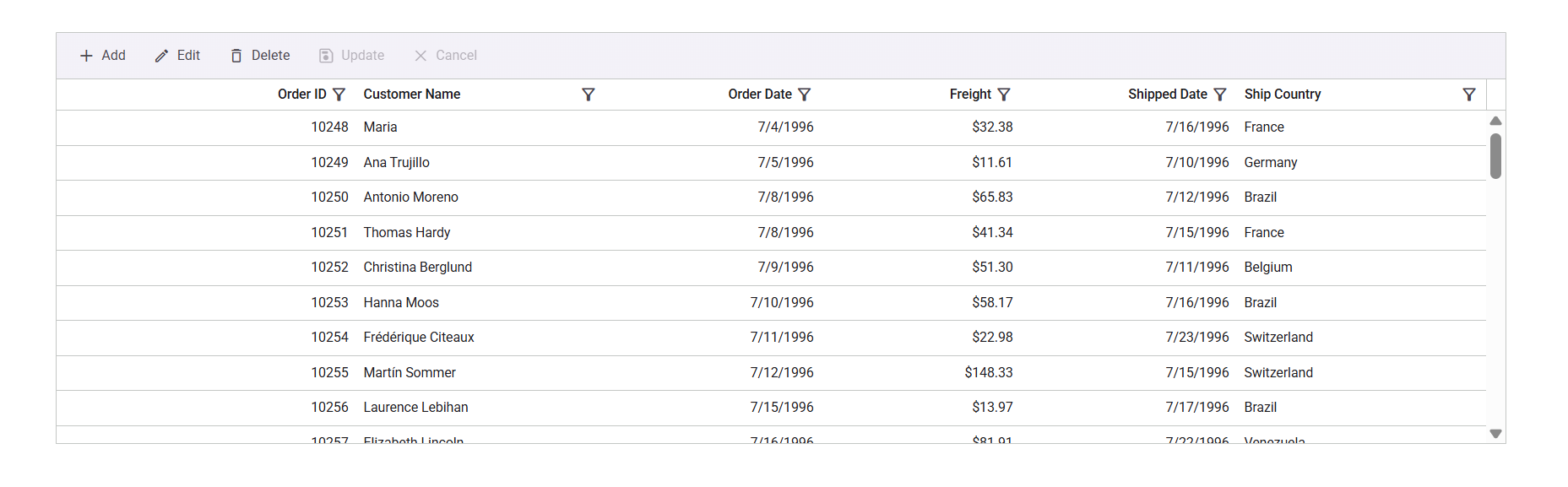
The output will appear as follows:
Prerequisites
- Install a supported Node.js LTS release and npm (or another Node package manager) before continuing.
- Ensure your environment meets the System Requirements for Syncfusion® Angular UI Components.
- Supported Angular and Syncfusion package combinations are listed in the Version Compatibility guide. This walkthrough assumes Angular 20+ with the default application scaffolding (
src/app/app.tsor the equivalent root component generated by your CLI version).
Install Angular CLI
Install Angular CLI globally (optional if you invoke it via npx):
npm install -g @angular/cli
Create a New Application
Generate a new application:
ng new syncfusion-angular-app
When prompts appear, the defaults are fine for this guide. To skip the interactive prompts, use non-interactive flags—for example CSS stylesheets and no routing:
ng new syncfusion-angular-app --defaults --style=css --routing=false
Change into the project directory before running any further commands:
cd syncfusion-angular-app
Add Syncfusion® Angular Packages
To install the Syncfusion® Angular Grids package, use the following command:
npm install @syncfusion/ej2-angular-grids --save
Adding CSS reference
Themes for Syncfusion® Data Grid components can be applied using CSS files provided through npm theme packages. For available themes, refer to the Themes documentation.
Install the Material 3 theme package using the following npm command:
npm install @syncfusion/ej2-material3-theme --save
Then add the following CSS reference to the src/style.css file:
@import "../node_modules/@syncfusion/ej2-material3-theme/styles/grid/index.css";
Add Syncfusion® Angular Components
After package and theme setup, update the root component. File name and class name can vary by Angular CLI version (src/app/app.ts with export class App, or app.component.ts with AppComponent). Replace the root component content with the sample below, or merge the Grid import, template, and data into your generated file.
GridModule provides the Grid directives used in the component. Add the following Grid markup in src/app/app.html, while the component class only supplies the data source.
| Input / element | Purpose |
|---|---|
[dataSource] |
Row data bound to the Grid |
<e-column field> |
Maps a data field to a column |
headerText, width, textAlign, format
|
Column display options |
For the full property list, see the Grid API reference.
import { Component, OnInit } from '@angular/core';
import { GridModule } from '@syncfusion/ej2-angular-grids'
import { PageService, SortService, FilterService, GroupService } from '@syncfusion/ej2-angular-grids'
import { data } from './datasource';
import { PageSettingsModel } from '@syncfusion/ej2-angular-grids';

@Component({
    imports: [
        GridModule
    ],
    providers: [PageService,
        SortService,
        FilterService,
        GroupService],
    standalone: true,
    selector: 'app-root',
    templateUrl: './app.html'
})
export class App implements OnInit {
    public data?: object[];
    public pageSettings?: PageSettingsModel;
    ngOnInit(): void {
        this.data = data;
        this.pageSettings = { pageSize: 6 };
    }
}
In app.html, add the Grid markup below:
<ejs-grid [dataSource]='data' [allowPaging]="true" [allowSorting]="true" [allowFiltering]="true"
  [pageSettings]="pageSettings">
  <e-columns>
    <e-column field='OrderID' headerText='Order ID' textAlign='Right' width=90></e-column>
    <e-column field='CustomerID' headerText='Customer ID' width=120></e-column>
    <e-column field='Freight' headerText='Freight' textAlign='Right' format='C2' width=90></e-column>
    <e-column field='OrderDate' headerText='Order Date' textAlign='Right' format='yMd' width=120></e-column>
  </e-columns>
</ejs-grid>
Create the app/datasource.ts file and add the datasource:
To bind sample data to the Grid, create a new datasource.ts file in the src/app/ directory and export the order records to use in the Grid component:
export let data: Object[] = [
    {
        OrderID: 10248, CustomerID: 'VINET', EmployeeID: 5, OrderDate: new Date(8364186e5),
        ShipName: 'Vins et alcools Chevalier', ShipCity: 'Reims', ShipAddress: '59 rue de l Abbaye',
        ShipRegion: 'CJ', ShipPostalCode: '51100', ShipCountry: 'France', Freight: 32.38, Verified: !0
    },
    {
        OrderID: 10249, CustomerID: 'TOMSP', EmployeeID: 6, OrderDate: new Date(836505e6),
        ShipName: 'Toms Spezialitäten', ShipCity: 'Münster', ShipAddress: 'Luisenstr. 48',
        ShipRegion: 'CJ', ShipPostalCode: '44087', ShipCountry: 'Germany', Freight: 11.61, Verified: !1
    },
    {
        OrderID: 10250, CustomerID: 'HANAR', EmployeeID: 4, OrderDate: new Date(8367642e5),
        ShipName: 'Hanari Carnes', ShipCity: 'Rio de Janeiro', ShipAddress: 'Rua do Paço, 67',
        ShipRegion: 'RJ', ShipPostalCode: '05454-876', ShipCountry: 'Brazil', Freight: 65.83, Verified: !0
    }
  ];
If your CLI scaffold uses
templateUrlinstead of an inlinetemplate, place the same markup in the component HTML file.
Run the Application
From the project root:
ng serve
When the build succeeds, the CLI reports a local URL (default: http://localhost:4200). Open that URL in a browser to view the Grid. If the port is already in use, the CLI prompts for another port, or you can run ng serve --port 4201.
Stop the server with Ctrl+C in the terminal.
Troubleshooting
-
Peer dependency or install errors: Align Angular and
@syncfusion/ej2-angular-*versions with the Version Compatibility guide, then deletenode_modulesand reinstall. -
Grid styles missing or unstyled UI: Confirm Material 3 is listed under
stylesinangular.jsonor thatsrc/styles.csscontains the Grid@importpath above. -
Unknown element
ejs-grid: EnsureGridAllModule(or the specific Grid modules you need) is listed in the standalone componentimportsarray, or declared/imported in an NgModule for module-based apps. -
ng addschematic failures: Run from the workspace root (angular.jsonpresent) with a clean git state so the schematic can update project files.