Getting Started with ASP.NET MVC Gantt Control
10 Jul 202612 minutes to read
This guide walks you through setting up and integrating the ASP.NET MVC Gantt control in your application using Visual Studio. You’ll learn how to configure the component, bind task data, map fields, and quickly visualize project timelines in just a few steps.
Ready to streamline your Syncfusion® ASP.NET MVC development? Discover the full potential of Syncfusion® ASP.NET MVC controls with Syncfusion® AI Coding Assistant. Effortlessly integrate, configure, and enhance your projects with intelligent, context-aware code suggestions, streamlined setups, and real-time insights—all seamlessly integrated into your preferred AI-powered IDEs like Visual Studio, Visual Studio Code, Cursor, Syncfusion® CodeStudio and more. Explore Syncfusion® AI Coding Assistant
Prerequisites
System requirements for ASP.NET MVC controls
Create ASP.NET MVC application with HTML helper
Install ASP.NET MVC package in the application
To add ASP.NET MVC controls in the application, open the NuGet package manager in Visual Studio (Tools → NuGet Package Manager → Manage NuGet Packages for Solution), search for Syncfusion.EJ2.MVC5 and then install it.
Install-Package Syncfusion.EJ2.MVC5 -Version 34.1.29NOTE
Syncfusion® ASP.NET MVC controls are available in nuget.org. Refer to NuGet packages topic to learn more about installing NuGet packages in various OS environments. The Syncfusion.EJ2.MVC5 NuGet package has dependencies, Newtonsoft.Json for JSON serialization and Syncfusion.Licensing for validating Syncfusion® license key.
Update packages.config
To update the packages.config file with the latest ASP.NET MVC and Razor versions, run the following command in the NuGet Package Manager Console:
Update-Package Microsoft.AspNet.Mvc -Source nuget.orgNOTE
If you encounter any issues after updating, you may need to update the corresponding
Web.configfiles in your project to reference the new assembly versions. Also, ensure that your project’s target framework is compatible with the updated package versions.
Add namespace
Add Syncfusion.EJ2 namespace reference in Web.config under Views folder.
<namespaces>
    <add namespace="Syncfusion.EJ2"/>
</namespaces>
Add stylesheet and script resources
Here, the theme and script is referred using CDN inside the <head> of ~/Views/Shared/_Layout.cshtml file as follows,
<head>
    ...
    <!-- Syncfusion ASP.NET MVC controls styles -->
    <link rel="stylesheet" href="https://cdn.syncfusion.com/ej2/34.1.29/fluent.css" />
    <!-- Syncfusion ASP.NET MVC controls scripts -->
    <script src="https://cdn.syncfusion.com/ej2/34.1.29/dist/ej2.min.js"></script>
</head>
NOTE
Checkout the Themes topic to learn different ways (CDN, NPM package, and CRG) to refer styles in ASP.NET MVC application, and to have the expected appearance for Syncfusion® ASP.NET MVC controls. Checkout the Adding Script Reference topic to learn different approaches for adding script references in your ASP.NET MVC application.
Register Syncfusion® script manager
Also, register the script manager EJS().ScriptManager() at the end of <body> in the ~/Views/Shared/_Layout.cshtml file as follows.
<body>
...
    <!-- Syncfusion ASP.NET MVC Script Manager -->
    @Html.EJS().ScriptManager()
</body>
Create sample data
Define a simple task list with hierarchical relationships. Each task must have a StartDate and either a Duration or EndDate to render properly.
List<GanttDataSource> GanttDataSourceCollection = new List<GanttDataSource>()
{
    new GanttDataSource() { TaskId = 1, TaskName = "Project initiation", StartDate = new DateTime(2019, 04, 02), EndDate = new DateTime(2019, 04, 21) },
    new GanttDataSource() { TaskId = 2, TaskName = "Identify site location", StartDate = new DateTime(2019, 04, 02), Duration = 4, Progress = 70, ParentID = 1 },
    new GanttDataSource() { TaskId = 3, TaskName = "Perform soil test", StartDate = new DateTime(2019, 04, 02), Duration = 4, Progress = 50, ParentID = 1 },
    new GanttDataSource() { TaskId = 4, TaskName = "Soil test approval", StartDate = new DateTime(2019, 04, 02), Duration = 4, Progress = 50, ParentID = 1 },
    new GanttDataSource() { TaskId = 5, TaskName = "Project estimation", StartDate = new DateTime(2019, 04, 02), EndDate = new DateTime(2019, 04, 21) },
    new GanttDataSource() { TaskId = 6, TaskName = "Develop floor plan for estimation", StartDate = new DateTime(2019, 04, 04), Duration = 3, Progress = 70, ParentID = 5 },
    new GanttDataSource() { TaskId = 7, TaskName = "List materials", StartDate = new DateTime(2019, 04, 04), Duration = 3, Progress = 50, ParentID = 5 }
};

public class GanttDataSource
{
    public int TaskId { get; set; }
    public string TaskName { get; set; }
    public DateTime StartDate { get; set; }
    public DateTime EndDate { get; set; }
    public int? Duration { get; set; }
    public int Progress { get; set; }
    public int? ParentID { get; set; }
}
Configure task fields
Map your data fields to Gantt Chart properties using taskFields:
TaskFields(ts => ts.Id("TaskId").Name(
    "TaskName").StartDate("StartDate").EndDate("EndDate").Duration("Duration").Progress("Progress").ParentID("ParentID"))
Field mapping reference
| Property | Description | Required |
|---|---|---|
id |
Unique task identifier | Yes |
name |
Task display name | Yes |
startDate |
Task start date | Yes |
endDate |
Task end date | No |
duration |
Task duration in days | Yes |
progress |
Task completion percentage (0-100) | No |
parentID |
Parent task ID for hierarchy | No |
Add ASP.NET MVC Gantt Control
Now, add the Syncfusion® ASP.NET MVC Gantt control to the ~/Views/Home/Index.cshtml page and configure the controller in ~/Controllers\HomeController.cs. The following code snippet initializes a basic Gantt component with default settings.
Bind the data with Gantt control by using the DataSource property. It accepts an array of JavaScript object or the DataManager instance. The data source fields that are required to render the tasks are mapped to the Gantt control using the TaskFields property.
@model List<GanttDataSource>

@Html.EJS().Gantt("Gantt").DataSource((IEnumerable<object>)Model).Height("450px").TaskFields(ts => ts.Id("TaskId").Name(
    "TaskName").StartDate("StartDate").EndDate("EndDate").Duration("Duration").Progress("Progress").ParentID("ParentID")).Render()
using System;
using System.Collections.Generic;
using System.Web.Mvc;
public class HomeController : Controller
{
public ActionResult Index()
{
return View(ganttData());
}
public static List<GanttDataSource> ganttData()
{
List<GanttDataSource> GanttDataSourceCollection = new List<GanttDataSource>()
{
new GanttDataSource() { TaskId = 1, TaskName = "Project initiation", StartDate = new DateTime(2019, 04, 02), EndDate = new DateTime(2019, 04, 21) },
new GanttDataSource() { TaskId = 2, TaskName = "Identify site location", StartDate = new DateTime(2019, 04, 02), Duration = 4, Progress = 70, ParentID = 1 },
new GanttDataSource() { TaskId = 3, TaskName = "Perform soil test", StartDate = new DateTime(2019, 04, 02), Duration = 4, Progress = 50, ParentID = 1 },
new GanttDataSource() { TaskId = 4, TaskName = "Soil test approval", StartDate = new DateTime(2019, 04, 02), Duration = 4, Progress = 50, ParentID = 1 },
new GanttDataSource() { TaskId = 5, TaskName = "Project estimation", StartDate = new DateTime(2019, 04, 02), EndDate = new DateTime(2019, 04, 21) },
new GanttDataSource() { TaskId = 6, TaskName = "Develop floor plan for estimation", StartDate = new DateTime(2019, 04, 04), Duration = 3, Progress = 70, ParentID = 5 },
new GanttDataSource() { TaskId = 7, TaskName = "List materials", StartDate = new DateTime(2019, 04, 04), Duration = 3, Progress = 50, ParentID = 5 }
};
return GanttDataSourceCollection;
}
}
public class GanttDataSource
{
public int TaskId { get; set; }
public string TaskName { get; set; }
public DateTime StartDate { get; set; }
public DateTime EndDate { get; set; }
public int? Duration { get; set; }
public int Progress { get; set; }
public int? ParentID { get; set; }
}Run the application
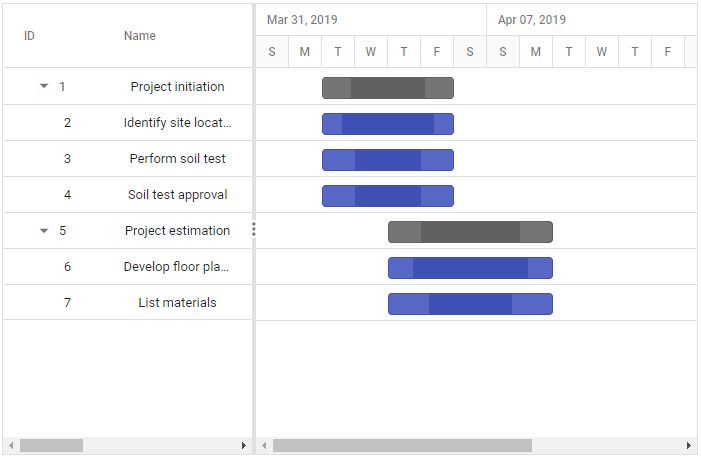
Press Ctrl+F5 (Windows) or ⌘+F5 (macOS) to run the app. Then, the Syncfusion® ASP.NET MVC Gantt control will be rendered in the default web browser.
Output
You will see a Gantt Chart with:
- Task hierarchy with parent-child relationships
- Timeline view showing task bars
- Progress indicators on each task
- Automatically calculated dates based on duration
See also
- Key Elements - Learn about UI components and interactions
- Overview - Explore all available features