CRUD Actions in Vue Scheduler
8 Aug 202624 minutes to read
Events, a.k.a. Appointments, play an important role in Scheduler with which the users mostly interact. Appointments can be manipulated (add, edit, delete) through the editor window or by using drag and resize actions.
Add
Appointments such as normal, all-day, spanned, or recurring events can be added to the Schedule component using any of the following approaches.
Creation using Editor Window
Double-clicking on Schedule cells opens the default editor window. The editor provides fields such as Subject, Location, Start and End time, All-day, Timezone, Description, and recurrence options. Once the fields are filled with proper values, enter the Save button to add an event.
For quick entry of only the Subject, single-clicking the required cells opens the quick popup. Multiple cells can also be selected and the Enter key pressed to open the quick popup for the selected time range, then save the appointment for that range.
To include additional fields in the editor, use the custom editor window. To add one or two additional fields to the existing default editor window, define and append them to the editor.
Creation using addEvent Method
Appointments can be created dynamically using the addEvent method. A single appointment object or a collection of objects can be passed to addEvent. The following example demonstrates creating multiple appointments simultaneously.
<template>
    <div id="app">
        <div id="container">
            <tr>
                <td>
                    <div>
                        <ejs-button id="btn1" v-on:click="onAddClick">Add</ejs-button>
                    </div>
                </td>
            </tr>
            <ejs-schedule ref='scheduleObj' width="100%" height="520px" :eventSettings='eventSettings'
                :selectedDate='selectedDate'>
                <e-views>
                    <e-view option="Day"></e-view>
                    <e-view option="Week"></e-view>
                    <e-view option="WorkWeek"></e-view>
                    <e-view option="Month"></e-view>
                </e-views>
            </ejs-schedule>
        </div>
    </div>
</template>
<script setup>
import { provide, ref } from "vue";
import { ButtonComponent as EjsButton } from "@syncfusion/ej2-vue-buttons";
import { ScheduleComponent as EjsSchedule, ViewDirective as EView, ViewsDirective as EViews, Day, Week, WorkWeek, Month } from "@syncfusion/ej2-vue-schedule";

const scheduleObj = ref(null);
const scheduleData = [{
    Id: 1,
    Subject: 'Testing',
    StartTime: new Date(2018, 1, 11, 9, 0),
    EndTime: new Date(2018, 1, 11, 10, 0),
    IsAllDay: false
}, {
    Id: 2,
    Subject: 'Vacation',
    StartTime: new Date(2018, 1, 13, 9, 0),
    EndTime: new Date(2018, 1, 13, 10, 0),
    IsAllDay: false
}];

const eventSettings = { dataSource: scheduleData };
const selectedDate = new Date(2018, 1, 15);

provide('schedule', [Day, Week, WorkWeek, Month]);
const onAddClick = function () {
    let Data = [{
        Id: 3,
        Subject: 'Conference',
        StartTime: new Date(2018, 1, 12, 9, 0),
        EndTime: new Date(2018, 1, 12, 10, 0),
        IsAllDay: true
    }, {
        Id: 4,
        Subject: 'Meeting',
        StartTime: new Date(2018, 1, 15, 10, 0),
        EndTime: new Date(2018, 1, 15, 11, 30),
        IsAllDay: false
    }];
    scheduleObj.value.addEvent(Data);
}
</script>
<style>
@import '../node_modules/@syncfusion/ej2-base/styles/material3.css';
@import '../node_modules/@syncfusion/ej2-buttons/styles/material3.css';
@import '../node_modules/@syncfusion/ej2-calendars/styles/material3.css';
@import '../node_modules/@syncfusion/ej2-dropdowns/styles/material3.css';
@import '../node_modules/@syncfusion/ej2-inputs/styles/material3.css';
@import '../node_modules/@syncfusion/ej2-navigations/styles/material3.css';
@import '../node_modules/@syncfusion/ej2-popups/styles/material3.css';
@import '../node_modules/@syncfusion/ej2-vue-schedule/styles/material3.css';
</style><template>
<div id="app">
<div id="container">
<tr>
<td>
<div>
<ejs-button id="btn1" v-on:click="onAddClick">Add</ejs-button>
</div>
</td>
</tr>
<ejs-schedule ref='scheduleObj' width="100%" height="520px" :eventSettings='eventSettings'
:selectedDate='selectedDate'>
<e-views>
<e-view option="Day"></e-view>
<e-view option="Week"></e-view>
<e-view option="WorkWeek"></e-view>
<e-view option="Month"></e-view>
</e-views>
</ejs-schedule>
</div>
</div>
</template>
<script>
import { ButtonComponent } from "@syncfusion/ej2-vue-buttons";
import { ScheduleComponent, ViewDirective, ViewsDirective, Day, Week, WorkWeek, Month } from "@syncfusion/ej2-vue-schedule";
let scheduleData = [{
Id: 1,
Subject: 'Testing',
StartTime: new Date(2018, 1, 11, 9, 0),
EndTime: new Date(2018, 1, 11, 10, 0),
IsAllDay: false
}, {
Id: 2,
Subject: 'Vacation',
StartTime: new Date(2018, 1, 13, 9, 0),
EndTime: new Date(2018, 1, 13, 10, 0),
IsAllDay: false
}];
export default {
name: "App",
components: {
"ejs-button": ButtonComponent,
"ejs-schedule": ScheduleComponent,
"e-views": ViewsDirective,
"e-view": ViewDirective
},
data() {
return {
eventSettings: { dataSource: scheduleData },
selectedDate: new Date(2018, 1, 15),
}
},
provide: {
schedule: [Day, Week, WorkWeek, Month]
},
methods: {
onAddClick: function () {
let Data = [{
Id: 3,
Subject: 'Conference',
StartTime: new Date(2018, 1, 12, 9, 0),
EndTime: new Date(2018, 1, 12, 10, 0),
IsAllDay: true
}, {
Id: 4,
Subject: 'Meeting',
StartTime: new Date(2018, 1, 15, 10, 0),
EndTime: new Date(2018, 1, 15, 11, 30),
IsAllDay: false
}];
this.$refs.scheduleObj.addEvent(Data);
},
}
}
</script>
<style>
@import '../node_modules/@syncfusion/ej2-base/styles/material3.css';
@import '../node_modules/@syncfusion/ej2-buttons/styles/material3.css';
@import '../node_modules/@syncfusion/ej2-calendars/styles/material3.css';
@import '../node_modules/@syncfusion/ej2-dropdowns/styles/material3.css';
@import '../node_modules/@syncfusion/ej2-inputs/styles/material3.css';
@import '../node_modules/@syncfusion/ej2-navigations/styles/material3.css';
@import '../node_modules/@syncfusion/ej2-popups/styles/material3.css';
@import '../node_modules/@syncfusion/ej2-vue-schedule/styles/material3.css';
</style>Inserting Events into Database at Server-Side
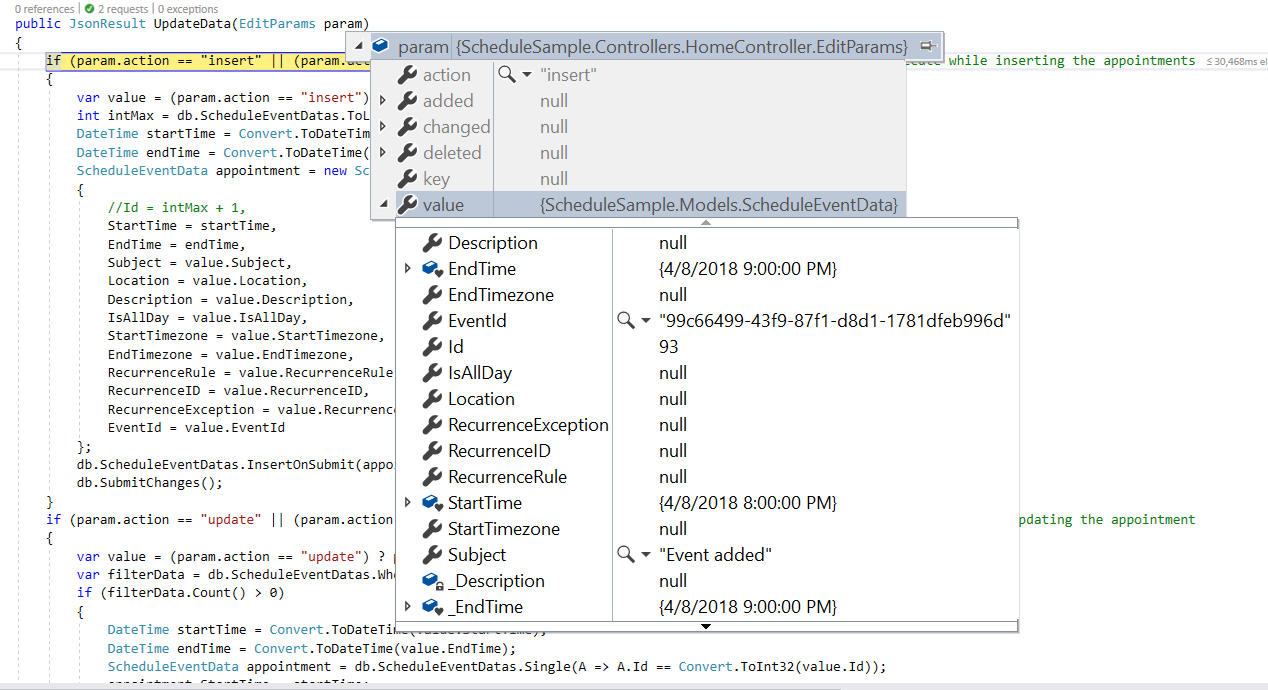
While adding normal or recurring events, an insert action occurs. The following example illustrates inserting a new event into a database on the server side.
if (param.action == "insert" || (param.action == "batch" && param.added != null)) // this block of code will execute while inserting the appointments
{
    var value = (param.action == "insert") ? param.value : param.added[0];
    int intMax = db.ScheduleEventDatas.ToList().Count > 0 ? db.ScheduleEventDatas.ToList().Max(p => p.Id) : 1;
    DateTime startTime = Convert.ToDateTime(value.StartTime);
    DateTime endTime = Convert.ToDateTime(value.EndTime);
    ScheduleEventData appointment = new ScheduleEventData()
    {
        Id = intMax + 1,
        StartTime = startTime.ToLocalTime(),
        EndTime = endTime.ToLocalTime(),
        Subject = value.Subject,
        IsAllDay = value.IsAllDay,
        StartTimezone = value.StartTimezone,
        EndTimezone = value.EndTimezone,
        RecurrenceRule = value.RecurrenceRule,
        RecurrenceID = value.RecurrenceID,
        RecurrenceException = value.RecurrenceException
    };
    db.ScheduleEventDatas.InsertOnSubmit(appointment);
    db.SubmitChanges();
}
Restricting add Action based on Specific Criteria
In the following example, the specific fields of Scheduler editor window such as Subject and Location are made to undergo validation such that if it is left as blank, then the default Required validation message will be displayed, while clicking on a save button.
Additionally, the regex condition has been added to the Location field, so that if any special characters are typed into it, then the custom validation message will be displayed.
<template>
    <div id="app">
        <div id="container">
            <ejs-schedule width="100%" height="550px" :eventSettings='eventSettings' :selectedDate='selectedDate'>
                <e-views>
                    <e-view option="Day"></e-view>
                    <e-view option="Week"></e-view>
                    <e-view option="WorkWeek"></e-view>
                    <e-view option="Month"></e-view>
                    <e-view option="Agenda"></e-view>
                </e-views>
            </ejs-schedule>
        </div>
    </div>
</template>

<script setup>
import { provide } from "vue";
import { ScheduleComponent as EjsSchedule, ViewDirective as EView, ViewsDirective as EViews, Day, Week, WorkWeek, Month, Agenda } from "@syncfusion/ej2-vue-schedule";
import { scheduleData } from './datasource.js';

const eventSettings = {
    dataSource: scheduleData,
    fields: {
        subject: { name: 'Subject', validation: { required: true } },
        location: {
            name: 'Location', validation: {
                required: true,
                regex: ["^[a-zA-Z0-9- ]*$", 'Special character(s) not allowed in this field']
            }
        }
    }
}
const selectedDate = new Date(2018, 1, 15)

provide('schedule', [Day, Week, WorkWeek, Month, Agenda]);

</script>
<style>
@import '../node_modules/@syncfusion/ej2-base/styles/material3.css';
@import '../node_modules/@syncfusion/ej2-buttons/styles/material3.css';
@import '../node_modules/@syncfusion/ej2-calendars/styles/material3.css';
@import '../node_modules/@syncfusion/ej2-dropdowns/styles/material3.css';
@import '../node_modules/@syncfusion/ej2-inputs/styles/material3.css';
@import '../node_modules/@syncfusion/ej2-navigations/styles/material3.css';
@import '../node_modules/@syncfusion/ej2-popups/styles/material3.css';
@import '../node_modules/@syncfusion/ej2-vue-schedule/styles/material3.css';
</style><template>
<div id="app">
<div id="container">
<ejs-schedule width="100%" height="550px" :eventSettings='eventSettings' :selectedDate='selectedDate'>
<e-views>
<e-view option="Day"></e-view>
<e-view option="Week"></e-view>
<e-view option="WorkWeek"></e-view>
<e-view option="Month"></e-view>
<e-view option="Agenda"></e-view>
</e-views>
</ejs-schedule>
</div>
</div>
</template>
<script>
import { ScheduleComponent, ViewDirective, ViewsDirective, Day, Week, WorkWeek, Month, Agenda } from "@syncfusion/ej2-vue-schedule";
import { scheduleData } from './datasource.js';
export default {
name: "App",
components: {
"ejs-schedule": ScheduleComponent,
"e-views": ViewsDirective,
"e-view": ViewDirective
},
data() {
return {
eventSettings: {
dataSource: scheduleData,
fields: {
subject: { name: 'Subject', validation: { required: true } },
location: {
name: 'Location', validation: {
required: true,
regex: ["^[a-zA-Z0-9- ]*$", 'Special character(s) not allowed in this field']
}
}
}
},
selectedDate: new Date(2018, 1, 15),
}
},
provide: {
schedule: [Day, Week, WorkWeek, Month, Agenda]
}
}
</script>
<style>
@import '../node_modules/@syncfusion/ej2-base/styles/material3.css';
@import '../node_modules/@syncfusion/ej2-buttons/styles/material3.css';
@import '../node_modules/@syncfusion/ej2-calendars/styles/material3.css';
@import '../node_modules/@syncfusion/ej2-dropdowns/styles/material3.css';
@import '../node_modules/@syncfusion/ej2-inputs/styles/material3.css';
@import '../node_modules/@syncfusion/ej2-navigations/styles/material3.css';
@import '../node_modules/@syncfusion/ej2-popups/styles/material3.css';
@import '../node_modules/@syncfusion/ej2-vue-schedule/styles/material3.css';
</style>Creation of appointments can also be prevented dynamically. For example, to decline creation on weekend days, the appropriate condition can be checked within the actionBegin event.
<template>
    <div id="app">
        <div id="container">
            <ejs-schedule width="100%" height="550px" :eventSettings='eventSettings' :selectedDate='selectedDate'
                :actionBegin='onActionBegin'>
                <e-views>
                    <e-view option="Day"></e-view>
                    <e-view option="Week"></e-view>
                    <e-view option="WorkWeek"></e-view>
                    <e-view option="Month"></e-view>
                    <e-view option="Agenda"></e-view>
                </e-views>
            </ejs-schedule>
        </div>
    </div>
</template>

<script setup>
import { provide } from "vue";
import { ScheduleComponent as EjsSchedule, ViewDirective as EView, ViewsDirective as EViews, Day, Week, WorkWeek, Month, Agenda } from "@syncfusion/ej2-vue-schedule";
import { scheduleData } from './datasource.js';

const eventSettings = {
    dataSource: scheduleData
}
const selectedDate = new Date(2018, 1, 15)

const onActionBegin = function (args) {
    let weekEnds = [0, 6];
    if (args.requestType == 'eventCreate' && weekEnds.indexOf((args.data[0].StartTime).getDay()) >= 0) {
        args.cancel = true;
    }
}

provide('schedule', [Day, Week, WorkWeek, Month, Agenda]);
</script>
<style>
@import '../node_modules/@syncfusion/ej2-base/styles/material3.css';
@import '../node_modules/@syncfusion/ej2-buttons/styles/material3.css';
@import '../node_modules/@syncfusion/ej2-calendars/styles/material3.css';
@import '../node_modules/@syncfusion/ej2-dropdowns/styles/material3.css';
@import '../node_modules/@syncfusion/ej2-inputs/styles/material3.css';
@import '../node_modules/@syncfusion/ej2-navigations/styles/material3.css';
@import '../node_modules/@syncfusion/ej2-popups/styles/material3.css';
@import '../node_modules/@syncfusion/ej2-vue-schedule/styles/material3.css';
</style><template>
<div id="app">
<div id="container">
<ejs-schedule width="100%" height="550px" :eventSettings='eventSettings' :selectedDate='selectedDate'
:actionBegin='onActionBegin'>
<e-views>
<e-view option="Day"></e-view>
<e-view option="Week"></e-view>
<e-view option="WorkWeek"></e-view>
<e-view option="Month"></e-view>
<e-view option="Agenda"></e-view>
</e-views>
</ejs-schedule>
</div>
</div>
</template>
<script>
import { ScheduleComponent, ViewDirective, ViewsDirective, Day, Week, WorkWeek, Month, Agenda } from "@syncfusion/ej2-vue-schedule";
import { scheduleData } from './datasource.js';
export default {
name: "App",
components: {
"ejs-schedule": ScheduleComponent,
"e-views": ViewsDirective,
"e-view": ViewDirective
},
data() {
return {
eventSettings: {
dataSource: scheduleData
},
selectedDate: new Date(2018, 1, 15),
}
},
provide: {
schedule: [Day, Week, WorkWeek, Month, Agenda]
},
methods: {
onActionBegin: function (args) {
let weekEnds = [0, 6];
if (args.requestType == 'eventCreate' && weekEnds.indexOf((args.data[0].StartTime).getDay()) >= 0) {
args.cancel = true;
}
}
}
}
</script>
<style>
@import '../node_modules/@syncfusion/ej2-base/styles/material3.css';
@import '../node_modules/@syncfusion/ej2-buttons/styles/material3.css';
@import '../node_modules/@syncfusion/ej2-calendars/styles/material3.css';
@import '../node_modules/@syncfusion/ej2-dropdowns/styles/material3.css';
@import '../node_modules/@syncfusion/ej2-inputs/styles/material3.css';
@import '../node_modules/@syncfusion/ej2-navigations/styles/material3.css';
@import '../node_modules/@syncfusion/ej2-popups/styles/material3.css';
@import '../node_modules/@syncfusion/ej2-vue-schedule/styles/material3.css';
</style>Edit
The same way the appointments such as normal, all-day, spanned or recurring events are created, it can be easily edited using any of the following approaches.
Update using Editor Window
Double-clicking an event opens the default editor window, automatically populated with the appointment’s details. Edit the desired fields—Subject, Location, Start and End time, All-day, Timezone, Description, and recurrence options—and select Save to update.
Single-clicking appointments opens the quick info popup with Edit and Delete options. Selecting Edit opens the default editor. Selecting Delete prompts for confirmation.
Update using SaveEvent Method
Appointments can be edited and updated manually using the saveEvent method. The following code examples shows how to edit the normal and recurring events.
Normal event - Here, an event with ID 3 is edited and its subject is changed with a new text. When the modified data object is passed onto the saveEvent method, the changes gets reflected onto the original event. The Id field is mandatory in this edit process, where the modified event object should hold the valid Id value that exists in the Scheduler data source.
<template>
    <div id="app">
        <div id="container">
            <tr>
                <td>
                    <div>
                        <ejs-button id="btn1" v-on:click="onEditClick">Edit</ejs-button>
                    </div>
                </td>
            </tr>
            <ejs-schedule ref='scheduleObj' id='Schedule' width="100%" height="520px" :eventSettings='eventSettings'
                :selectedDate='selectedDate'>
                <e-views>
                    <e-view option="Day"></e-view>
                    <e-view option="Week"></e-view>
                    <e-view option="WorkWeek"></e-view>
                    <e-view option="Month"></e-view>
                </e-views>
            </ejs-schedule>
        </div>
    </div>
</template>
<script setup>
import { provide, ref } from "vue";
import { ButtonComponent as EjsButton } from "@syncfusion/ej2-vue-buttons";
import { ScheduleComponent as EjsSchedule, ViewDirective as EView, ViewsDirective as EViews, Day, Week, WorkWeek, Month } from "@syncfusion/ej2-vue-schedule";

const scheduleObj = ref(null);
const scheduleData = [{
    Id: 3,
    Subject: 'Testing',
    StartTime: new Date(2018, 1, 11, 9, 0),
    EndTime: new Date(2018, 1, 11, 10, 0),
    IsAllDay: false
}, {
    Id: 4,
    Subject: 'Vacation',
    StartTime: new Date(2018, 1, 13, 9, 0),
    EndTime: new Date(2018, 1, 13, 10, 0),
    IsAllDay: false
}];

const eventSettings = { dataSource: scheduleData };
const selectedDate = new Date(2018, 1, 15);

provide('schedule', [Day, Week, WorkWeek, Month]);

const onEditClick = function () {
    let Data = {
        Id: 3,
        Subject: 'Testing-edited',
        StartTime: new Date(2018, 1, 11, 10, 0),
        EndTime: new Date(2018, 1, 11, 11, 0),
        IsAllDay: false
    };
    scheduleObj.value.saveEvent(Data);
}
</script>
<style>
@import '../node_modules/@syncfusion/ej2-base/styles/material3.css';
@import '../node_modules/@syncfusion/ej2-buttons/styles/material3.css';
@import '../node_modules/@syncfusion/ej2-calendars/styles/material3.css';
@import '../node_modules/@syncfusion/ej2-dropdowns/styles/material3.css';
@import '../node_modules/@syncfusion/ej2-inputs/styles/material3.css';
@import '../node_modules/@syncfusion/ej2-navigations/styles/material3.css';
@import '../node_modules/@syncfusion/ej2-popups/styles/material3.css';
@import '../node_modules/@syncfusion/ej2-vue-schedule/styles/material3.css';
</style><template>
<div id="app">
<div id="container">
<tr>
<td>
<div>
<ejs-button id="btn1" v-on:click="onEditClick">Edit</ejs-button>
</div>
</td>
</tr>
<ejs-schedule ref='scheduleObj' id='Schedule' width="100%" height="520px" :eventSettings='eventSettings'
:selectedDate='selectedDate'>
<e-views>
<e-view option="Day"></e-view>
<e-view option="Week"></e-view>
<e-view option="WorkWeek"></e-view>
<e-view option="Month"></e-view>
</e-views>
</ejs-schedule>
</div>
</div>
</template>
<script>
import { ButtonComponent } from "@syncfusion/ej2-vue-buttons";
import { ScheduleComponent, ViewDirective, ViewsDirective, ViewDirective, ViewsDirective, Day, Week, WorkWeek, Month } from "@syncfusion/ej2-vue-schedule";
let scheduleData = [{
Id: 3,
Subject: 'Testing',
StartTime: new Date(2018, 1, 11, 9, 0),
EndTime: new Date(2018, 1, 11, 10, 0),
IsAllDay: false
}, {
Id: 4,
Subject: 'Vacation',
StartTime: new Date(2018, 1, 13, 9, 0),
EndTime: new Date(2018, 1, 13, 10, 0),
IsAllDay: false
}];
export default {
name: "App",
components: {
"ejs-button": ButtonComponent,
"ejs-schedule": ScheduleComponent,
"e-views": ViewsDirective,
"e-view": ViewDirective
},
data() {
return {
eventSettings: { dataSource: scheduleData },
selectedDate: new Date(2018, 1, 15),
}
},
provide: {
schedule: [Day, Week, WorkWeek, Month]
},
methods: {
onEditClick: function () {
let Data = {
Id: 3,
Subject: 'Testing-edited',
StartTime: new Date(2018, 1, 11, 10, 0),
EndTime: new Date(2018, 1, 11, 11, 0),
IsAllDay: false
};
this.$refs.scheduleObj.saveEvent(Data);
}
}
}
</script>
<style>
@import '../../node_modules/@syncfusion/ej2-base/styles/material3.css';
@import '../../node_modules/@syncfusion/ej2-buttons/styles/material3.css';
@import '../../node_modules/@syncfusion/ej2-calendars/styles/material3.css';
@import '../../node_modules/@syncfusion/ej2-dropdowns/styles/material3.css';
@import '../../node_modules/@syncfusion/ej2-inputs/styles/material3.css';
@import '../../node_modules/@syncfusion/ej2-navigations/styles/material3.css';
@import '../../node_modules/@syncfusion/ej2-popups/styles/material3.css';
@import '../../node_modules/@syncfusion/ej2-vue-schedule/styles/material3.css';
</style>Recurring event - The following code example shows how to edit a single occurrence of a recurring event. In this case, the modified data should hold an additional field namely RecurrenceID mapping to its parent recurring event’s Id value. Also, this modified occurrence will be considered as a new event in the Scheduler dataSource, where it is linked with its parent event through the RecurrenceID field value. The saveEvent method takes 2 arguments, first one accepting the modified event data object and second argument accepting either of the 2 text values - EditOccurrence or EditSeries.
When the second argument is passed as EditOccurrence, which means that the passed event data is a single modified occurrence - whereas if the second argument is passed as EditSeries, it means that the modified data needs to be edited as a whole series and therefore no new event object will be maintained in the Scheduler dataSource.
In case of modifying the single occurrence, it is also necessary to update the RecurrenceException field of parent event altogether with the occurrence editing. To know more about how to set RecurrenceException values, refer the recurring events topic.
<template>
    <div id="app">
        <div id="container">
            <tr>
                <td>
                    <div>
                        <ejs-button id="btn1" v-on:click="onEditClick">Edit</ejs-button>
                    </div>
                </td>
            </tr>
            <ejs-schedule ref='scheduleObj' width="100%" height="520px" :eventSettings='eventSettings'
                :selectedDate='selectedDate'>
                <e-views>
                    <e-view option="Day"></e-view>
                    <e-view option="Week"></e-view>
                    <e-view option="WorkWeek"></e-view>
                    <e-view option="Month"></e-view>
                </e-views>
            </ejs-schedule>
        </div>
    </div>
</template>
<script setup>
import { provide } from "vue";
import { DataManager, Query, Predicate } from '@syncfusion/ej2-data';
import { ButtonComponent as EjsButton } from "@syncfusion/ej2-vue-buttons";
import { ScheduleComponent as EjsSchedule, ViewDirective as EView, ViewsDirective as EViews, Day, Week, WorkWeek, Month } from "@syncfusion/ej2-vue-schedule";

const scheduleObj = ref(null);
const scheduleData = [{
    Id: 3,
    Subject: 'Testing',
    StartTime: new Date(2018, 1, 11, 9, 0),
    EndTime: new Date(2018, 1, 11, 10, 0),
    IsAllDay: false,
    RecurrenceRule: 'FREQ=DAILY;INTERVAL=1;COUNT=3'
}, {
    Id: 4,
    Subject: 'Vacation',
    StartTime: new Date(2018, 1, 12, 11, 0),
    EndTime: new Date(2018, 1, 12, 12, 0),
    IsAllDay: false,
    RecurrenceRule: 'FREQ=DAILY;INTERVAL=1;COUNT=2'
}];

const eventSettings = { dataSource: scheduleData };
const selectedDate = new Date(2018, 1, 15);

provide('schedule', [Day, Week, WorkWeek, Month]);
const onEditClick = function () {
    let data = new DataManager(scheduleObj.getCurrentViewEvents()).executeLocal(new Query().where('RecurrenceID', 'equal', 3));
    data[0].Subject = 'Edited';
    scheduleObj.saveEvent(data[0], 'EditOccurrence');
}

</script>
<style>
@import '../node_modules/@syncfusion/ej2-base/styles/material3.css';
@import '../node_modules/@syncfusion/ej2-buttons/styles/material3.css';
@import '../node_modules/@syncfusion/ej2-calendars/styles/material3.css';
@import '../node_modules/@syncfusion/ej2-dropdowns/styles/material3.css';
@import '../node_modules/@syncfusion/ej2-inputs/styles/material3.css';
@import '../node_modules/@syncfusion/ej2-navigations/styles/material3.css';
@import '../node_modules/@syncfusion/ej2-popups/styles/material3.css';
@import '../node_modules/@syncfusion/ej2-vue-schedule/styles/material3.css';
</style><template>
<div id="app">
<div id="container">
<tr>
<td>
<div>
<ejs-button id="btn1" v-on:click="onEditClick">Edit</ejs-button>
</div>
</td>
</tr>
<ejs-schedule ref='scheduleObj' width="100%" height="520px" :eventSettings='eventSettings'
:selectedDate='selectedDate'>
<e-views>
<e-view option="Day"></e-view>
<e-view option="Week"></e-view>
<e-view option="WorkWeek"></e-view>
<e-view option="Month"></e-view>
</e-views>
</ejs-schedule>
</div>
</div>
</template>
<script>
import { DataManager, Query, Predicate } from '@syncfusion/ej2-data';
import { ButtonComponent } from "@syncfusion/ej2-vue-buttons";
import { ScheduleComponent, ViewDirective, ViewsDirective, Day, Week, WorkWeek, Month } from "@syncfusion/ej2-vue-schedule";
let scheduleData = [{
Id: 3,
Subject: 'Testing',
StartTime: new Date(2018, 1, 11, 9, 0),
EndTime: new Date(2018, 1, 11, 10, 0),
IsAllDay: false,
RecurrenceRule: 'FREQ=DAILY;INTERVAL=1;COUNT=3'
}, {
Id: 4,
Subject: 'Vacation',
StartTime: new Date(2018, 1, 12, 11, 0),
EndTime: new Date(2018, 1, 12, 12, 0),
IsAllDay: false,
RecurrenceRule: 'FREQ=DAILY;INTERVAL=1;COUNT=2'
}];
export default {
name: "App",
components: {
"ejs-button": ButtonComponent,
"ejs-schedule": ScheduleComponent,
"e-views": ViewsDirective,
"e-view": ViewDirective
},
data() {
return {
eventSettings: { dataSource: scheduleData },
selectedDate: new Date(2018, 1, 15),
}
},
provide: {
schedule: [Day, Week, WorkWeek, Month]
},
methods: {
onEditClick: function () {
let data = new DataManager(this.$refs.scheduleObj.getCurrentViewEvents()).executeLocal(new Query().where('RecurrenceID', 'equal', 3));
data[0].Subject = 'Edited';
this.$refs.scheduleObj.saveEvent(data[0], 'EditOccurrence');
}
}
}
</script>
<style>
@import '../node_modules/@syncfusion/ej2-base/styles/material3.css';
@import '../node_modules/@syncfusion/ej2-buttons/styles/material3.css';
@import '../node_modules/@syncfusion/ej2-calendars/styles/material3.css';
@import '../node_modules/@syncfusion/ej2-dropdowns/styles/material3.css';
@import '../node_modules/@syncfusion/ej2-inputs/styles/material3.css';
@import '../node_modules/@syncfusion/ej2-navigations/styles/material3.css';
@import '../node_modules/@syncfusion/ej2-popups/styles/material3.css';
@import '../node_modules/@syncfusion/ej2-vue-schedule/styles/material3.css';
</style>Updating Events in Database at Server-Side
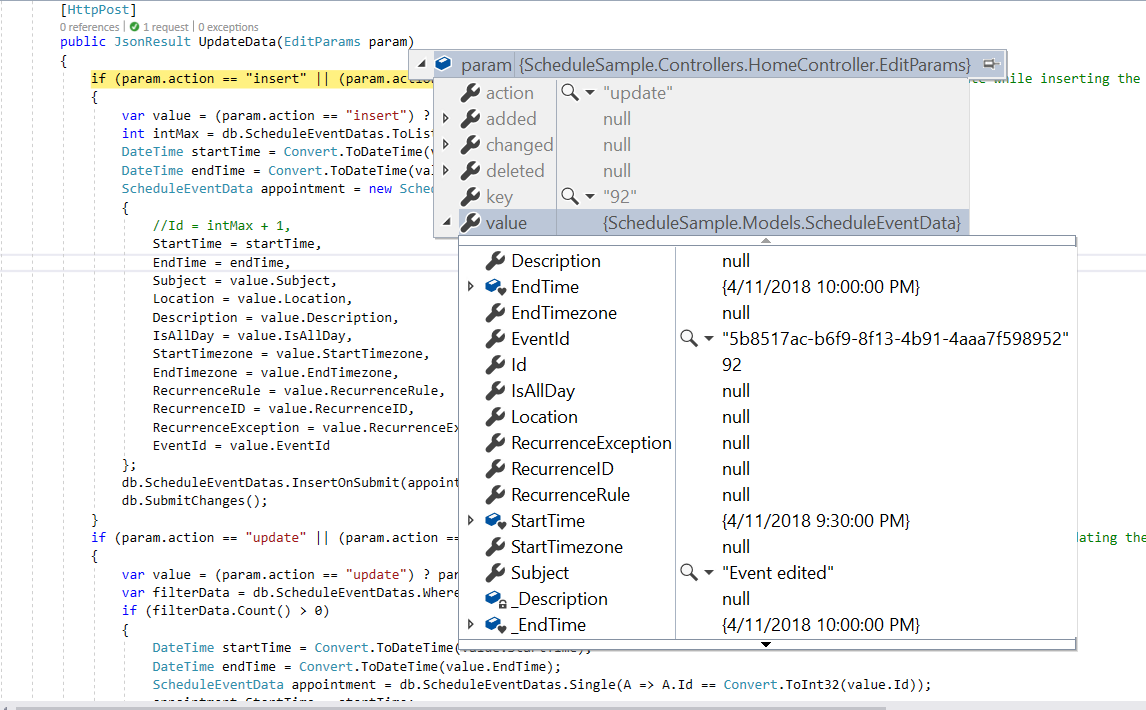
While editing the normal events in the Scheduler, update action takes place and the following code example describes how to update event into database at server side.
if (param.action == "update" || (param.action == "batch" && param.changed != null)) // this block of code will execute while updating the appointment
{
    var value = (param.action == "update") ? param.value : param.changed[0];
    var filterData = db.ScheduleEventDatas.Where(c => c.Id == Convert.ToInt32(value.Id));
    if (filterData.Count() > 0)
    {
        DateTime startTime = Convert.ToDateTime(value.StartTime);
        DateTime endTime = Convert.ToDateTime(value.EndTime);
        ScheduleEventData appointment = db.ScheduleEventDatas.Single(A => A.Id == Convert.ToInt32(value.Id));
        appointment.StartTime = startTime.ToLocalTime();
        appointment.EndTime = endTime.ToLocalTime();
        appointment.StartTimezone = value.StartTimezone;
        appointment.EndTimezone = value.EndTimezone;
        appointment.Subject = value.Subject;
        appointment.IsAllDay = value.IsAllDay;
        appointment.RecurrenceRule = value.RecurrenceRule;
        appointment.RecurrenceID = value.RecurrenceID;
        appointment.RecurrenceException = value.RecurrenceException;
    }
    db.SubmitChanges();
}
How to edit a single occurrence or entire series and update it in database at server-side
Recurring appointments can be edited in either of the following ways.
- Single occurrence
- Entire series
Editing single occurrence - When you double click on a recurring event, a popup prompts you to choose either to edit the single event or entire series. From this, if you choose to select EDIT EVENT option, a single occurrence of the recurring appointment alone will be edited. The following process takes place while editing a single occurrence,
-
A new event will be created from the parent event data and added to the Scheduler dataSource, with all its default field values overwritten with the newly modified data and additionally, the
recurrenceIDfield will be added to it, that holds theidvalue of the parent recurring event. Also, a newIdwill be generated for this event in the dataSource. -
The parent recurring event needs to be updated with appropriate
recurrenceExceptionfield to hold the edited occurrence appointment’s date collection.
Therefore, when a single occurrence is edited from a recurring event, the batch action takes place by allowing both the Add and Edit action requests to take place together.
In case, if you edit an existing edited occurrence of a recurring event, only those edited occurrence which present in the database as an individual event object will get updated. In this case,
updateaction alone takes place on the edited occurrence object on the database.
if (param.action == "insert" || (param.action == "batch" && param.added != null)) // this block of code will execute while inserting the appointments
{
    var value = (param.action == "insert") ? param.value : param.added[0];
    int intMax = db.ScheduleEventDatas.ToList().Count > 0 ? db.ScheduleEventDatas.ToList().Max(p => p.Id) : 1;
    DateTime startTime = Convert.ToDateTime(value.StartTime);
    DateTime endTime = Convert.ToDateTime(value.EndTime);
    ScheduleEventData appointment = new ScheduleEventData()
    {
        Id = intMax + 1,
        StartTime = startTime.ToLocalTime(),
        EndTime = endTime.ToLocalTime(),
        Subject = value.Subject,
        IsAllDay = value.IsAllDay,
        StartTimezone = value.StartTimezone,
        EndTimezone = value.EndTimezone,
        RecurrenceRule = value.RecurrenceRule,
        RecurrenceID = value.RecurrenceID,
        RecurrenceException = value.RecurrenceException
    };
    db.ScheduleEventDatas.InsertOnSubmit(appointment);
    db.SubmitChanges();
}
if (param.action == "update" || (param.action == "batch" && param.changed != null)) // this block of code will execute while updating the appointment
{
    var value = (param.action == "update") ? param.value : param.changed[0];
    var filterData = db.ScheduleEventDatas.Where(c => c.Id == Convert.ToInt32(value.Id));
    if (filterData.Count() > 0)
    {
        DateTime startTime = Convert.ToDateTime(value.StartTime);
        DateTime endTime = Convert.ToDateTime(value.EndTime);
        ScheduleEventData appointment = db.ScheduleEventDatas.Single(A => A.Id == Convert.ToInt32(value.Id));
        appointment.StartTime = startTime.ToLocalTime();
        appointment.EndTime = endTime.ToLocalTime();
        appointment.StartTimezone = value.StartTimezone;
        appointment.EndTimezone = value.EndTimezone;
        appointment.Subject = value.Subject;
        appointment.IsAllDay = value.IsAllDay;
        appointment.RecurrenceRule = value.RecurrenceRule;
        appointment.RecurrenceID = value.RecurrenceID;
        appointment.RecurrenceException = value.RecurrenceException;
    }
    db.SubmitChanges();
}
Editing entire series - When you select an option EDIT SERIES from the popup that opens on double clicking the recurring event, the whole recurring series will be updated with the newly provided value. When this option is chosen explicitly, if a parent event holds any edited occurrences - then all its child occurrences will be removed from the dataSource and simply the single parent data will be updated.
This action of editing entire series also leads to the batch process, as both the Delete and Edit action takes place together.
if (param.action == "update" || (param.action == "batch" && param.changed != null)) // this block of code will execute while updating the appointment
{
    var value = (param.action == "update") ? param.value : param.changed[0];
    var filterData = db.ScheduleEventDatas.Where(c => c.Id == Convert.ToInt32(value.Id));
    if (filterData.Count() > 0)
    {
        DateTime startTime = Convert.ToDateTime(value.StartTime);
        DateTime endTime = Convert.ToDateTime(value.EndTime);
        ScheduleEventData appointment = db.ScheduleEventDatas.Single(A => A.Id == Convert.ToInt32(value.Id));
        appointment.StartTime = startTime.ToLocalTime();
        appointment.EndTime = endTime.ToLocalTime();
        appointment.StartTimezone = value.StartTimezone;
        appointment.EndTimezone = value.EndTimezone;
        appointment.Subject = value.Subject;
        appointment.IsAllDay = value.IsAllDay;
        appointment.RecurrenceRule = value.RecurrenceRule;
        appointment.RecurrenceID = value.RecurrenceID;
        appointment.RecurrenceException = value.RecurrenceException;
    }
    db.SubmitChanges();
}
if (param.action == "remove" || (param.action == "batch" && param.deleted != null)) // this block of code will execute while removing the appointment
{
    if (param.action == "remove")
    {
        int key = Convert.ToInt32(param.key);
        ScheduleEventData appointment = db.ScheduleEventDatas.Where(c => c.Id == key).FirstOrDefault();
        if (appointment != null) db.ScheduleEventDatas.DeleteOnSubmit(appointment);
    }
    else
    {
        foreach (var apps in param.deleted)
        {
            ScheduleEventData appointment = db.ScheduleEventDatas.Where(c => c.Id == apps.Id).FirstOrDefault();
            if (appointment != null) db.ScheduleEventDatas.DeleteOnSubmit(appointment);
        }
    }
    db.SubmitChanges();
}
To know more about handling recurrence exceptions, refer the Adding exceptions topic.
How to Edit from the Current and following Events of a Series
The recurring appointments can be edited from current and following events when enable the property editFollowingEvents.
Editing Following Events - When you double click on a recurring event, a popup prompts you to choose either to edit the single event or Edit Following Events or entire series. From this, if you choose to select EDIT FOLLOWING EVENTS option, a current and following events of the recurring appointment will be edited. The following process takes place while editing a following events,
-
A new event will be created from the parent event data and added to the Scheduler dataSource, with all its default field values overwritten with the newly modified data and additionally, the
followingIDfield will be added to it, that holds theidvalue of the immediate parent recurring event. Also, a newIdwill be generated for this event in the dataSource. -
The parent recurring event is updated with an appropriate
recurrenceRulevalue to set the modified series end date.
Therefore, when a following events are edited from a recurring event, the batch action takes place by allowing the Add, Edit and Delete action requests to take place together.
if (param.action == "insert" || (param.action == "batch" && param.added != null)) // this block of code will execute while inserting the appointments
{
    var value = (param.action == "insert") ? param.value : param.added[0];
    int intMax = db.ScheduleEventDatas.ToList().Count > 0 ? db.ScheduleEventDatas.ToList().Max(p => p.Id) : 1;
    DateTime startTime = Convert.ToDateTime(value.StartTime);
    DateTime endTime = Convert.ToDateTime(value.EndTime);
    ScheduleEventData appointment = new ScheduleEventData()
    {
        Id = intMax + 1,
        StartTime = startTime.ToLocalTime(),
        EndTime = endTime.ToLocalTime(),
        Subject = value.Subject,
        IsAllDay = value.IsAllDay,
        StartTimezone = value.StartTimezone,
        EndTimezone = value.EndTimezone,
        RecurrenceRule = value.RecurrenceRule,
        RecurrenceID = value.RecurrenceID,
        FollowingID = value.FollowingID,
        RecurrenceException = value.RecurrenceException
    };
    db.ScheduleEventDatas.InsertOnSubmit(appointment);
    db.SubmitChanges();
}
if (param.action == "update" || (param.action == "batch" && param.changed != null)) // this block of code will execute while updating the appointment
{
    var value = (param.action == "update") ? param.value : param.changed[0];
    var filterData = db.ScheduleEventDatas.Where(c => c.Id == Convert.ToInt32(value.Id));
    if (filterData.Count() > 0)
    {
        DateTime startTime = Convert.ToDateTime(value.StartTime);
        DateTime endTime = Convert.ToDateTime(value.EndTime);
        ScheduleEventData appointment = db.ScheduleEventDatas.Single(A => A.Id == Convert.ToInt32(value.Id));
        appointment.StartTime = startTime.ToLocalTime();
        appointment.EndTime = endTime.ToLocalTime();
        appointment.StartTimezone = value.StartTimezone;
        appointment.EndTimezone = value.EndTimezone;
        appointment.Subject = value.Subject;
        appointment.IsAllDay = value.IsAllDay;
        appointment.RecurrenceRule = value.RecurrenceRule;
        appointment.RecurrenceID = value.RecurrenceID;
        appointment.FollowingID = value.FollowingID;
        appointment.RecurrenceException = value.RecurrenceException;
    }
    db.SubmitChanges();
}
if (param.action == "remove" || (param.action == "batch" && param.deleted != null)) // this block of code will execute while removing the appointment
{
    if (param.action == "remove")
    {
        int key = Convert.ToInt32(param.key);
        ScheduleEventData appointment = db.ScheduleEventDatas.Where(c => c.Id == key).FirstOrDefault();
        if (appointment != null) db.ScheduleEventDatas.DeleteOnSubmit(appointment);
    }
    else
    {
        foreach (var apps in param.deleted)
        {
            ScheduleEventData appointment = db.ScheduleEventDatas.Where(c => c.Id == apps.Id).FirstOrDefault();
            if (appointment != null) db.ScheduleEventDatas.DeleteOnSubmit(appointment);
        }
    }
    db.SubmitChanges();
}
Restricting Edit Action based on Specific Criteria
Editing of appointments can be prevented dynamically. For example, to restrict updates during non-working hours, evaluate the appropriate condition within the actionBegin event.
<template>
    <div id="app">
        <div id="container">
            <ejs-schedule ref='scheduleObj' width="100%" height="550px" :eventSettings='eventSettings'
                :selectedDate='selectedDate' :workHours='workHours' :actionBegin='onActionBegin'>
                <e-views>
                    <e-view option="Day"></e-view>
                    <e-view option="Week"></e-view>
                    <e-view option="WorkWeek"></e-view>
                    <e-view option="Month"></e-view>
                    <e-view option="Agenda"></e-view>
                </e-views>
            </ejs-schedule>
        </div>
    </div>
</template>

<script setup>
import { provide, ref } from "vue";
import { ScheduleComponent as EjsSchedule, ViewDirective as EView, ViewsDirective as EViews, Day, Week, WorkWeek, Month, Agenda } from "@syncfusion/ej2-vue-schedule";
import { scheduleData } from './datasource.js';

const scheduleObj = ref(null);
const eventSettings = {
    dataSource: scheduleData
}
const selectedDate = new Date(2018, 1, 15);
const workHours = {
    highlight: true,
    start: '11:00',
    end: '20:00'
}

provide('schedule', [Day, Week, WorkWeek, Month, Agenda]);
const onActionBegin = function (args) {
    if (args.requestType == 'eventChange') {
        let weekEnds = [0, 6];
        let weekDay = weekEnds.indexOf((args.data.StartTime).getDay()) >= 0;
        let workHours = (args.data.StartTime.getHours < parseInt(scheduleObj.value.workHours.start)) || (args.data.StartTime.getHours > parseInt(scheduleObj.value.workHours.end));
        if (weekDay || workHours) {
            args.cancel = true;
        }
    }
}

</script>
<style>
@import '../node_modules/@syncfusion/ej2-base/styles/material3.css';
@import '../node_modules/@syncfusion/ej2-buttons/styles/material3.css';
@import '../node_modules/@syncfusion/ej2-calendars/styles/material3.css';
@import '../node_modules/@syncfusion/ej2-dropdowns/styles/material3.css';
@import '../node_modules/@syncfusion/ej2-inputs/styles/material3.css';
@import '../node_modules/@syncfusion/ej2-navigations/styles/material3.css';
@import '../node_modules/@syncfusion/ej2-popups/styles/material3.css';
@import '../node_modules/@syncfusion/ej2-vue-schedule/styles/material3.css';
</style><template>
<div id="app">
<div id="container">
<ejs-schedule ref='scheduleObj' width="100%" height="550px" :eventSettings='eventSettings'
:selectedDate='selectedDate' :workHours='workHours' :actionBegin='onActionBegin'>
<e-views>
<e-view option="Day"></e-view>
<e-view option="Week"></e-view>
<e-view option="WorkWeek"></e-view>
<e-view option="Month"></e-view>
<e-view option="Agenda"></e-view>
</e-views>
</ejs-schedule>
</div>
</div>
</template>
<script>
import { ScheduleComponent, ViewDirective, ViewsDirective, Day, Week, WorkWeek, Month, Agenda } from "@syncfusion/ej2-vue-schedule";
import { scheduleData } from './datasource.js';
export default {
name: "App",
components: {
"ejs-schedule": ScheduleComponent,
"e-views": ViewsDirective,
"e-view": ViewDirective
},
data() {
return {
eventSettings: {
dataSource: scheduleData
},
selectedDate: new Date(2018, 1, 15),
workHours: {
highlight: true,
start: '11:00',
end: '20:00'
}
}
},
provide: {
schedule: [Day, Week, WorkWeek, Month, Agenda]
},
methods: {
onActionBegin: function (args) {
if (args.requestType == 'eventChange') {
let weekEnds = [0, 6];
let weekDay = weekEnds.indexOf((args.data.StartTime).getDay()) >= 0;
let workHours = (args.data.StartTime.getHours < parseInt(this.$refs.scheduleObj.workHours.start)) || (args.data.StartTime.getHours > parseInt(this.$refs.scheduleObj.workHours.end));
if (weekDay || workHours) {
args.cancel = true;
}
}
}
}
}
</script>
<style>
@import '../node_modules/@syncfusion/ej2-base/styles/material3.css';
@import '../node_modules/@syncfusion/ej2-buttons/styles/material3.css';
@import '../node_modules/@syncfusion/ej2-calendars/styles/material3.css';
@import '../node_modules/@syncfusion/ej2-dropdowns/styles/material3.css';
@import '../node_modules/@syncfusion/ej2-inputs/styles/material3.css';
@import '../node_modules/@syncfusion/ej2-navigations/styles/material3.css';
@import '../node_modules/@syncfusion/ej2-popups/styles/material3.css';
@import '../node_modules/@syncfusion/ej2-vue-schedule/styles/material3.css';
</style>Delete
The appointments can be deleted in either of the following ways,
- Selecting an appointment and clicking the delete icon from the quick popup that opens.
- Selecting an appointment and pressing
Deletekey. - Selecting multiple appointments by tap holding an event and then continuously single clicking on other consecutive events and then clicking the
Deletekey. - Double clicking on an event which opens the default event editor pre-filled with event details, and then choosing
Deletebutton in it.
While performing all these above mentioned actions, a pop-up with a delete confirmation message will be displayed prompting either to proceed with deleting an appointment.
Deletion using Editor Window
When an event is double-clicked, the default editor window includes a Delete button at the bottom-left. Deleting from the editor removes the appointment immediately without displaying an additional confirmation alert.
Deletion using deleteEvent Method
Appointments can be removed programmatically using the deleteEvent method. The following examples demonstrate deleting normal and recurring events.
Normal event - Normal appointments can be deleted by passing either the appointment Id value or the event object collection to deleteEvent method.
<template>
    <div id="app">
        <div id="container">
            <tr>
                <td>
                    <div>
                        <ejs-button id="btn1" v-on:click="onDeleteClick">Delete</ejs-button>
                    </div>
                </td>
            </tr>
            <ejs-schedule ref='scheduleObj' id='Schedule' width="100%" height="520px" :eventSettings='eventSettings'
                :selectedDate='selectedDate'>
                <e-views>
                    <e-view option="Day"></e-view>
                    <e-view option="Week"></e-view>
                    <e-view option="WorkWeek"></e-view>
                    <e-view option="Month"></e-view>
                </e-views>
            </ejs-schedule>
        </div>
    </div>
</template>
<script setup>
import { provide, ref } from "vue";
import { ButtonComponent as EjsButton } from "@syncfusion/ej2-vue-buttons";
import { ScheduleComponent as EjsSchedule, ViewDirective as EView, ViewsDirective as EViews, Day, Week, WorkWeek, Month } from "@syncfusion/ej2-vue-schedule";

const scheduleObj = ref(null);
const scheduleData = [{
    Id: 3,
    Subject: 'Testing',
    StartTime: new Date(2018, 1, 11, 9, 0),
    EndTime: new Date(2018, 1, 11, 10, 0),
    IsAllDay: false
}, {
    Id: 4,
    Subject: 'Vacation',
    StartTime: new Date(2018, 1, 13, 9, 0),
    EndTime: new Date(2018, 1, 13, 10, 0),
    IsAllDay: false
}];

const eventSettings = { dataSource: scheduleData };
const selectedDate = new Date(2018, 1, 15);

provide('schedule', [Day, Week, WorkWeek, Month]);
const onDeleteClick = function () {
    scheduleObj.value.deleteEvent(4);
}
</script>
<style>
@import '../node_modules/@syncfusion/ej2-base/styles/material3.css';
@import '../node_modules/@syncfusion/ej2-buttons/styles/material3.css';
@import '../node_modules/@syncfusion/ej2-calendars/styles/material3.css';
@import '../node_modules/@syncfusion/ej2-dropdowns/styles/material3.css';
@import '../node_modules/@syncfusion/ej2-inputs/styles/material3.css';
@import '../node_modules/@syncfusion/ej2-navigations/styles/material3.css';
@import '../node_modules/@syncfusion/ej2-popups/styles/material3.css';
@import '../node_modules/@syncfusion/ej2-vue-schedule/styles/material3.css';
</style><template>
<div id="app">
<div id="container">
<tr>
<td>
<div>
<ejs-button id="btn1" v-on:click="onDeleteClick">Delete</ejs-button>
</div>
</td>
</tr>
<ejs-schedule ref='scheduleObj' id='Schedule' width="100%" height="520px" :eventSettings='eventSettings'
:selectedDate='selectedDate'>
<e-views>
<e-view option="Day"></e-view>
<e-view option="Week"></e-view>
<e-view option="WorkWeek"></e-view>
<e-view option="Month"></e-view>
</e-views>
</ejs-schedule>
</div>
</div>
</template>
<script>
import { ButtonComponent } from "@syncfusion/ej2-vue-buttons";
import { ScheduleComponent, ViewDirective, ViewsDirective, Day, Week, WorkWeek, Month } from "@syncfusion/ej2-vue-schedule";
let scheduleData = [{
Id: 3,
Subject: 'Testing',
StartTime: new Date(2018, 1, 11, 9, 0),
EndTime: new Date(2018, 1, 11, 10, 0),
IsAllDay: false
}, {
Id: 4,
Subject: 'Vacation',
StartTime: new Date(2018, 1, 13, 9, 0),
EndTime: new Date(2018, 1, 13, 10, 0),
IsAllDay: false
}];
export default {
name: "App",
components: {
"ejs-button": ButtonComponent,
"ejs-schedule": ScheduleComponent,
"e-views": ViewsDirective,
"e-view": ViewDirective
},
data() {
return {
eventSettings: { dataSource: scheduleData },
selectedDate: new Date(2018, 1, 15),
}
},
provide: {
schedule: [Day, Week, WorkWeek, Month]
},
methods: {
onDeleteClick: function () {
this.$refs.scheduleObj.deleteEvent(4);
}
}
}
</script>
<style>
@import '../node_modules/@syncfusion/ej2-base/styles/material3.css';
@import '../node_modules/@syncfusion/ej2-buttons/styles/material3.css';
@import '../node_modules/@syncfusion/ej2-calendars/styles/material3.css';
@import '../node_modules/@syncfusion/ej2-dropdowns/styles/material3.css';
@import '../node_modules/@syncfusion/ej2-inputs/styles/material3.css';
@import '../node_modules/@syncfusion/ej2-navigations/styles/material3.css';
@import '../node_modules/@syncfusion/ej2-popups/styles/material3.css';
@import '../node_modules/@syncfusion/ej2-vue-schedule/styles/material3.css';
</style>Recurring Event - Recurring events can be removed as an entire series or as a single occurrence by passing DeleteSeries or DeleteOccurrence to the deleteEvent method. The following example demonstrates deleting an entire series.
<template>
    <div id="app">
        <div id="container">
            <tr>
                <td>
                    <div>
                        <ejs-button id="btn1" v-on:click="onDeleteClick">Delete</ejs-button>
                    </div>
                </td>
            </tr>
            <ejs-schedule ref='scheduleObj' width="100%" height="520px" :eventSettings='eventSettings'
                :selectedDate='selectedDate'>
                <e-views>
                    <e-view option="Day"></e-view>
                    <e-view option="Week"></e-view>
                    <e-view option="WorkWeek"></e-view>
                    <e-view option="Month"></e-view>
                </e-views>
            </ejs-schedule>
        </div>
    </div>
</template>
<script setup>
import { provide } from "vue";
import { ButtonComponent as EjsButton } from "@syncfusion/ej2-vue-buttons";
import { ScheduleComponent as EjsSchedule, ViewDirective as EView, ViewsDirective as EViews, Day, Week, WorkWeek, Month } from "@syncfusion/ej2-vue-schedule";

const scheduleObj = ref(null);
const scheduleData = [{
    Id: 3,
    Subject: 'Testing',
    StartTime: new Date(2018, 1, 11, 9, 0),
    EndTime: new Date(2018, 1, 11, 10, 0),
    IsAllDay: false,
    RecurrenceRule: 'FREQ=DAILY;INTERVAL=1;COUNT=3'
}, {
    Id: 4,
    Subject: 'Vacation',
    StartTime: new Date(2018, 1, 12, 11, 0),
    EndTime: new Date(2018, 1, 12, 12, 0),
    IsAllDay: false,
    RecurrenceRule: 'FREQ=DAILY;INTERVAL=1;COUNT=2'
}];

const eventSettings = { dataSource: scheduleData };
const selectedDate = new Date(2018, 1, 15);

provide('schedule', [Day, Week, WorkWeek, Month]);
const onDeleteClick = function () {
    let data = [{
        Id: 4,
        Subject: 'Vacation',
        RecurrenceID: 4,
        StartTime: new Date(2018, 1, 12, 11, 0),
        EndTime: new Date(2018, 1, 12, 12, 0),
        IsAllDay: false,
        RecurrenceRule: 'FREQ=DAILY;INTERVAL=1;COUNT=2'
    }];
    scheduleObj.value.deleteEvent(data, 'DeleteSeries');
}
</script>
<style>
@import '../node_modules/@syncfusion/ej2-base/styles/material3.css';
@import '../node_modules/@syncfusion/ej2-buttons/styles/material3.css';
@import '../node_modules/@syncfusion/ej2-calendars/styles/material3.css';
@import '../node_modules/@syncfusion/ej2-dropdowns/styles/material3.css';
@import '../node_modules/@syncfusion/ej2-inputs/styles/material3.css';
@import '../node_modules/@syncfusion/ej2-navigations/styles/material3.css';
@import '../node_modules/@syncfusion/ej2-popups/styles/material3.css';
@import '../node_modules/@syncfusion/ej2-vue-schedule/styles/material3.css';
</style><template>
<div id="app">
<div id="container">
<tr>
<td>
<div>
<ejs-button id="btn1" v-on:click="onDeleteClick">Delete</ejs-button>
</div>
</td>
</tr>
<ejs-schedule ref='scheduleObj' width="100%" height="520px" :eventSettings='eventSettings'
:selectedDate='selectedDate'>
<e-views>
<e-view option="Day"></e-view>
<e-view option="Week"></e-view>
<e-view option="WorkWeek"></e-view>
<e-view option="Month"></e-view>
</e-views>
</ejs-schedule>
</div>
</div>
</template>
<script>
import { ButtonComponent } from "@syncfusion/ej2-vue-buttons";
import { ScheduleComponent, ViewDirective, ViewsDirective, ViewDirective, ViewsDirective, Day, Week, WorkWeek, Month } from "@syncfusion/ej2-vue-schedule";
let scheduleData = [{
Id: 3,
Subject: 'Testing',
StartTime: new Date(2018, 1, 11, 9, 0),
EndTime: new Date(2018, 1, 11, 10, 0),
IsAllDay: false,
RecurrenceRule: 'FREQ=DAILY;INTERVAL=1;COUNT=3'
}, {
Id: 4,
Subject: 'Vacation',
StartTime: new Date(2018, 1, 12, 11, 0),
EndTime: new Date(2018, 1, 12, 12, 0),
IsAllDay: false,
RecurrenceRule: 'FREQ=DAILY;INTERVAL=1;COUNT=2'
}];
export default {
name: "App",
components: {
"ejs-button": ButtonComponent,
"ejs-schedule": ScheduleComponent,
"e-views": ViewsDirective,
"e-view": ViewDirective
},
data() {
return {
eventSettings: { dataSource: scheduleData },
selectedDate: new Date(2018, 1, 15),
}
},
provide: {
schedule: [Day, Week, WorkWeek, Month]
},
methods: {
onDeleteClick: function () {
let data = [{
Id: 4,
Subject: 'Vacation',
RecurrenceID: 4,
StartTime: new Date(2018, 1, 12, 11, 0),
EndTime: new Date(2018, 1, 12, 12, 0),
IsAllDay: false,
RecurrenceRule: 'FREQ=DAILY;INTERVAL=1;COUNT=2'
}];
this.$refs.scheduleObj.deleteEvent(data, 'DeleteSeries');
},
}
}
</script>
<style>
@import '../node_modules/@syncfusion/ej2-base/styles/material3.css';
@import '../node_modules/@syncfusion/ej2-buttons/styles/material3.css';
@import '../node_modules/@syncfusion/ej2-calendars/styles/material3.css';
@import '../node_modules/@syncfusion/ej2-dropdowns/styles/material3.css';
@import '../node_modules/@syncfusion/ej2-inputs/styles/material3.css';
@import '../node_modules/@syncfusion/ej2-navigations/styles/material3.css';
@import '../node_modules/@syncfusion/ej2-popups/styles/material3.css';
@import '../node_modules/@syncfusion/ej2-vue-schedule/styles/material3.css';
</style>Removing Events from Database at Server-Side
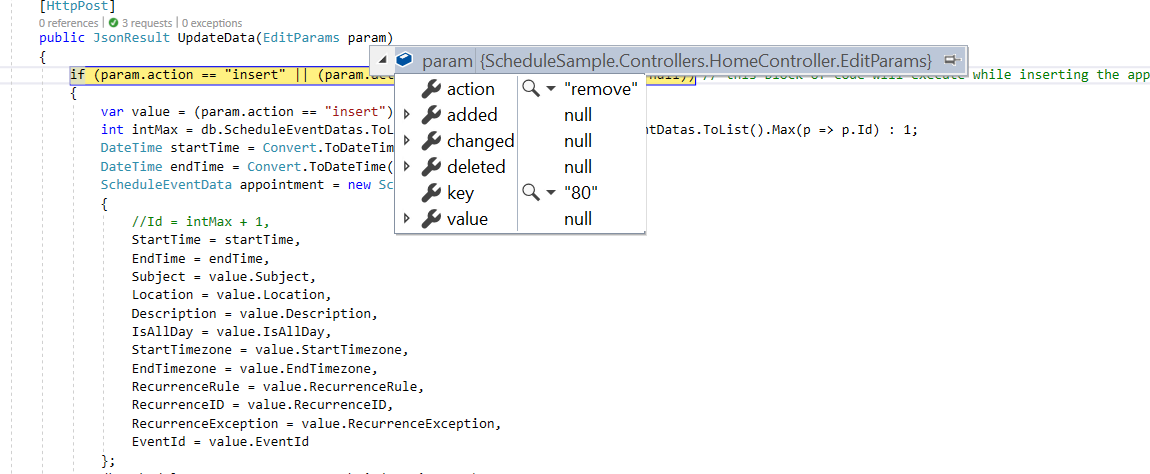
While deleting the event from the Scheduler, remove action takes place and the following code example describes how to delete event from database at server side.
if (param.action == "remove" || (param.action == "batch" && param.deleted != null)) // this block of code will execute while removing the appointment
{
    if (param.action == "remove")
    {
        int key = Convert.ToInt32(param.key);
        ScheduleEventData appointment = db.ScheduleEventDatas.Where(c => c.Id == key).FirstOrDefault();
        if (appointment != null) db.ScheduleEventDatas.DeleteOnSubmit(appointment);
    }
    else
    {
        foreach (var apps in param.deleted)
        {
            ScheduleEventData appointment = db.ScheduleEventDatas.Where(c => c.Id == apps.Id).FirstOrDefault();
            if (appointment != null) db.ScheduleEventDatas.DeleteOnSubmit(appointment);
        }
    }
    db.SubmitChanges();
}
How to delete a single occurrence or entire series from Scheduler and update it in database at server-side
The recurring events can be deleted in either of the following two ways.
- Single occurrence
- Entire series
Single occurrence - When deletion is initiated on a recurring event, a popup prompts for deleting a single event or the entire series. Selecting DELETE EVENT removes only that occurrence. The following process occurs:
- The selected occurrence will be deleted from the Scheduler user interface.
- In code, the parent recurring event object will be updated with appropriate
recurrenceExceptionfield, to hold the deleted occurrence appointment’s date collection.
Therefore, when a single occurrence is deleted from a recurring event, the update action takes place on the parent recurring event as shown in the following code example.
When an edited occurrence is deleted, only that occurrence object (stored as an individual event) is removed. In this case, a delete action occurs instead of
updateaction and the parent recurring event remains unchanged.
if (param.action == "update" || (param.action == "batch" && param.changed != null)) // this block of code will execute while updating the appointment
{
    var value = (param.action == "update") ? param.value : param.changed[0];
    var filterData = db.ScheduleEventDatas.Where(c => c.Id == Convert.ToInt32(value.Id));
    if (filterData.Count() > 0)
    {
        DateTime startTime = Convert.ToDateTime(value.StartTime);
        DateTime endTime = Convert.ToDateTime(value.EndTime);
        ScheduleEventData appointment = db.ScheduleEventDatas.Single(A => A.Id == Convert.ToInt32(value.Id));
        appointment.StartTime = startTime.ToLocalTime();
        appointment.EndTime = endTime.ToLocalTime();
        appointment.StartTimezone = value.StartTimezone;
        appointment.EndTimezone = value.EndTimezone;
        appointment.Subject = value.Subject;
        appointment.IsAllDay = value.IsAllDay;
        appointment.RecurrenceRule = value.RecurrenceRule;
        appointment.RecurrenceID = value.RecurrenceID;
        appointment.RecurrenceException = value.RecurrenceException;
    }
    db.SubmitChanges();
}
Entire series - When you select an option DELETE SERIES from the popup, the whole recurring series will be deleted. When this option is chosen explicitly, if a parent event holds any edited occurrences - then all its child occurrences which are maintained as separate event objects will also be removed from the dataSource. This action of deleting entire series leads to remove action and removes one or more event objects at the same time.
if (param.action == "remove" || (param.action == "batch" && param.deleted != null)) // this block of code will execute while removing the appointment
{
    if (param.action == "remove")
    {
        int key = Convert.ToInt32(param.key);
        ScheduleEventData appointment = db.ScheduleEventDatas.Where(c => c.Id == key).FirstOrDefault();
        if (appointment != null) db.ScheduleEventDatas.DeleteOnSubmit(appointment);
    }
    else
    {
        foreach (var apps in param.deleted)
        {
            ScheduleEventData appointment = db.ScheduleEventDatas.Where(c => c.Id == apps.Id).FirstOrDefault();
            if (appointment != null) db.ScheduleEventDatas.DeleteOnSubmit(appointment);
        }
    }
    db.SubmitChanges();
}
How to delete only the current and following events of a series
Recurring events can be deleted from the current and following events when the editFollowingEvents property is enabled.
Delete Following Events - When deletion is initiated on a recurring event, a popup prompts for deleting a single event, following events, or the entire series. Selecting FOLLOWING EVENT removes the current and subsequent events in the series. The following process occurs:
- The selected occurrence and the following events in same series will be deleted from the Scheduler user interface.
- In code, the parent recurring event object will be updated with appropriate
recurrenceRulefield, to update the end date of the recurring events.
Therefore, when following events are deleted from a recurring event, the remove and update action takes place on the immediate parent recurring event as shown in the following code example.
if (param.action == "update" || (param.action == "batch" && param.changed != null)) // this block of code will execute while updating the appointment
{
    var value = (param.action == "update") ? param.value : param.changed[0];
    var filterData = db.ScheduleEventDatas.Where(c => c.Id == Convert.ToInt32(value.Id));
    if (filterData.Count() > 0)
    {
        DateTime startTime = Convert.ToDateTime(value.StartTime);
        DateTime endTime = Convert.ToDateTime(value.EndTime);
        ScheduleEventData appointment = db.ScheduleEventDatas.Single(A => A.Id == Convert.ToInt32(value.Id));
        appointment.StartTime = startTime.ToLocalTime();
        appointment.EndTime = endTime.ToLocalTime();
        appointment.StartTimezone = value.StartTimezone;
        appointment.EndTimezone = value.EndTimezone;
        appointment.Subject = value.Subject;
        appointment.IsAllDay = value.IsAllDay;
        appointment.RecurrenceRule = value.RecurrenceRule;
        appointment.RecurrenceID = value.RecurrenceID;
        appointment.FollowingID = value.FollowingID;
        appointment.RecurrenceException = value.RecurrenceException;
    }
    db.SubmitChanges();
}
if (param.action == "remove" || (param.action == "batch" && param.deleted != null)) // this block of code will execute while removing the appointment
{
    if (param.action == "remove")
    {
        int key = Convert.ToInt32(param.key);
        ScheduleEventData appointment = db.ScheduleEventDatas.Where(c => c.Id == key).FirstOrDefault();
        if (appointment != null) db.ScheduleEventDatas.DeleteOnSubmit(appointment);
    }
    else
    {
        foreach (var apps in param.deleted)
        {
            ScheduleEventData appointment = db.ScheduleEventDatas.Where(c => c.Id == apps.Id).FirstOrDefault();
            if (appointment != null) db.ScheduleEventDatas.DeleteOnSubmit(appointment);
        }
    }
    db.SubmitChanges();
}
Drag and Drop
Dragging and dropping a normal event performs an edit action. Dragging and dropping a recurring event to a new time range triggers the batch action described in Editing a single occurrence, allowing both Add and Edit actions to occur together.
By default, dragging a recurring instance edits only the occurrence, not the entire series.
You can watch the following video to learn more about Vue Scheduler’s advanced drag and resize options:
<template>
    <div id="app">
        <div id="container">
            <ejs-schedule ref='scheduleObj' width="100%" height="550px" :eventSettings='eventSettings'
                :selectedDate='selectedDate'>
                <e-views>
                    <e-view option="Day"></e-view>
                    <e-view option="Week"></e-view>
                    <e-view option="WorkWeek"></e-view>
                    <e-view option="Month"></e-view>
                    <e-view option="Agenda"></e-view>
                </e-views>
            </ejs-schedule>
        </div>
    </div>
</template>
<script setup>
import { provide } from "vue";
import { ScheduleComponent as EjsSchedule, ViewDirective as EView, ViewsDirective as EViews, Day, Week, WorkWeek, Month, Agenda, DragAndDrop } from "@syncfusion/ej2-vue-schedule";
import { scheduleData } from './datasource.js'

const eventSettings = { dataSource: scheduleData };
const selectedDate = new Date(2018, 1, 15);

provide('schedule', [Day, Week, WorkWeek, Month, Agenda, DragAndDrop]);
</script>
<style>
@import '../node_modules/@syncfusion/ej2-base/styles/material3.css';
@import '../node_modules/@syncfusion/ej2-buttons/styles/material3.css';
@import '../node_modules/@syncfusion/ej2-calendars/styles/material3.css';
@import '../node_modules/@syncfusion/ej2-dropdowns/styles/material3.css';
@import '../node_modules/@syncfusion/ej2-inputs/styles/material3.css';
@import '../node_modules/@syncfusion/ej2-navigations/styles/material3.css';
@import '../node_modules/@syncfusion/ej2-popups/styles/material3.css';
@import '../node_modules/@syncfusion/ej2-vue-schedule/styles/material3.css';
</style><template>
<div id="app">
<div id="container">
<ejs-schedule ref='scheduleObj' width="100%" height="550px" :eventSettings='eventSettings'
:selectedDate='selectedDate'>
<e-views>
<e-view option="Day"></e-view>
<e-view option="Week"></e-view>
<e-view option="WorkWeek"></e-view>
<e-view option="Month"></e-view>
<e-view option="Agenda"></e-view>
</e-views>
</ejs-schedule>
</div>
</div>
</template>
<script>
import { ScheduleComponent, ViewDirective, ViewsDirective, Day, Week, WorkWeek, Month, Agenda, DragAndDrop } from "@syncfusion/ej2-vue-schedule";
import { scheduleData } from './datasource.js'
export default {
name: "App",
components: {
"ejs-schedule": ScheduleComponent,
"e-views": ViewsDirective,
"e-view": ViewDirective
},
data() {
return {
eventSettings: { dataSource: scheduleData },
selectedDate: new Date(2018, 1, 15),
}
},
provide: {
schedule: [Day, Week, WorkWeek, Month, Agenda, DragAndDrop]
}
}
</script>
<style>
@import '../node_modules/@syncfusion/ej2-base/styles/material3.css';
@import '../node_modules/@syncfusion/ej2-buttons/styles/material3.css';
@import '../node_modules/@syncfusion/ej2-calendars/styles/material3.css';
@import '../node_modules/@syncfusion/ej2-dropdowns/styles/material3.css';
@import '../node_modules/@syncfusion/ej2-inputs/styles/material3.css';
@import '../node_modules/@syncfusion/ej2-navigations/styles/material3.css';
@import '../node_modules/@syncfusion/ej2-popups/styles/material3.css';
@import '../node_modules/@syncfusion/ej2-vue-schedule/styles/material3.css';
</style>Resize
Resizing a normal event performs an edit action. Resizing a recurring event to a new time triggers the batch action described in Editing a single occurrence, allowing both Add and Edit actions to occur together.
By default, when you resize a recurring instance, only the occurrence of the event gets edited and not a whole series.
<template>
    <div id="app">
        <div id="container">
            <ejs-schedule ref='scheduleObj' width="100%" height="550px" :eventSettings='eventSettings'
                :selectedDate='selectedDate'>
                <e-views>
                    <e-view option="Day"></e-view>
                    <e-view option="Week"></e-view>
                    <e-view option="WorkWeek"></e-view>
                    <e-view option="Month"></e-view>
                    <e-view option="Agenda"></e-view>
                </e-views>
            </ejs-schedule>
        </div>
    </div>
</template>
<script setup>
import { provide } from "vue";
import { ScheduleComponent as EjsSchedule, ViewDirective as EView, ViewsDirective as EViews, Day, Week, WorkWeek, Month, Agenda, Resize } from "@syncfusion/ej2-vue-schedule";
import { scheduleData } from './datasource.js'

const eventSettings = { dataSource: scheduleData };
const selectedDate = new Date(2018, 1, 15);

provide('schedule', [Day, Week, WorkWeek, Month, Agenda, Resize]);

</script>
<style>
@import '../node_modules/@syncfusion/ej2-base/styles/material3.css';
@import '../node_modules/@syncfusion/ej2-buttons/styles/material3.css';
@import '../node_modules/@syncfusion/ej2-calendars/styles/material3.css';
@import '../node_modules/@syncfusion/ej2-dropdowns/styles/material3.css';
@import '../node_modules/@syncfusion/ej2-inputs/styles/material3.css';
@import '../node_modules/@syncfusion/ej2-navigations/styles/material3.css';
@import '../node_modules/@syncfusion/ej2-popups/styles/material3.css';
@import '../node_modules/@syncfusion/ej2-vue-schedule/styles/material3.css';
</style><template>
<div id="app">
<div id="container">
<ejs-schedule ref='scheduleObj' width="100%" height="550px" :eventSettings='eventSettings'
:selectedDate='selectedDate'>
<e-views>
<e-view option="Day"></e-view>
<e-view option="Week"></e-view>
<e-view option="WorkWeek"></e-view>
<e-view option="Month"></e-view>
<e-view option="Agenda"></e-view>
</e-views>
</ejs-schedule>
</div>
</div>
</template>
<script>
import { ScheduleComponent, ViewDirective, ViewsDirective, Day, Week, WorkWeek, Month, Agenda, Resize } from "@syncfusion/ej2-vue-schedule";
import { scheduleData } from './datasource.js'
export default {
name: "App",
components: {
"ejs-schedule": ScheduleComponent,
"e-views": ViewsDirective,
"e-view": ViewDirective
},
data() {
return {
eventSettings: { dataSource: scheduleData },
selectedDate: new Date(2018, 1, 15),
}
},
provide: {
schedule: [Day, Week, WorkWeek, Month, Agenda, Resize]
}
}
</script>
<style>
@import '../node_modules/@syncfusion/ej2-base/styles/material3.css';
@import '../node_modules/@syncfusion/ej2-buttons/styles/material3.css';
@import '../node_modules/@syncfusion/ej2-calendars/styles/material3.css';
@import '../node_modules/@syncfusion/ej2-dropdowns/styles/material3.css';
@import '../node_modules/@syncfusion/ej2-inputs/styles/material3.css';
@import '../node_modules/@syncfusion/ej2-navigations/styles/material3.css';
@import '../node_modules/@syncfusion/ej2-popups/styles/material3.css';
@import '../node_modules/@syncfusion/ej2-vue-schedule/styles/material3.css';
</style>Refer to the Vue Scheduler feature tour page for detailed information. Explore the Vue Scheduler example example to see how data is presented and manipulated.