Custom Binding with Django REST Framework in Angular Data Grid
29 Sep 202624 minutes to read
This guide explains connecting the Angular Data Grid to a Django REST Framework (DRF) backend with Custom Binding. Custom Binding provides full control over the Grid’s communication with the server: the Grid raises events for data operations (paging, sorting, filtering, searching) and CRUD, client code calls DRF endpoints, and DRF returns standardized results.
Difference between Custom Binding and UrlAdaptor:
With UrlAdaptor, the Syncfusion® DataManager serializes all Grid actions into a single, framework‑specific payload posted to one endpoint.
Custom Binding provides full, manual control over request design. The Grid raises events (dataStateChange, dataSourceChanged), and the client code shapes the request (query string, body, headers) and targets specific RESTful endpoints.
Since Django REST Framework expects standard REST patterns, calls can be designed to match DRF conventions, for example, GET for actions like paging, filtering, sorting, searching, and POST/PUT/DELETE for CRUD, while responses return the simple { result, count } structure that the Grid can bind to.
In short, Custom Binding means the contract (requests and responses) is owned by the application, making alignment with DRF’s native pagination, filtering, ordering, and searching straightforward.
Prerequisites
- Node.js LTS (v20+), npm/yarn.
- Angular 18+ (with TypeScript 5.x+).
- Python 3.11+.
- Django 5.2+, Django REST Framework, django-filter, django-cors-headers.
- Microsoft SQL Server (or adapt to PostgreSQL/MySQL/SQLite).
Key topics
| # | Topics | Link |
|---|---|---|
| 1 | Set up Django REST Framework and connect it to Microsoft SQL Server | View |
| 2 | Create and configure the Angular application with the Angular Data Grid | View |
| 3 | Handle server-side data operations (paging/sorting/filtering/searching) with Custom Binding | View |
| 4 | Enable create, update, and delete operations with Custom Binding | View |
| 5 | Run the Django and Angular applications locally for development | View |
Setting up the Django REST Framework for Microsoft SQL database
The DRF backend exposes REST endpoints the Grid calls from client-side event handlers.
Step 1: Set up the Django REST Framework server and install required packages
Instructions:
-
Open a terminal ( for example, an integrated terminal in Visual Studio Code or Windows Command Prompt opened with Win+R or macOS Terminal launched with Cmd+Space ).
-
Before creating the Django project, set up a virtual environment. A virtual environment keeps project dependencies isolated, ensuring that package installations do not affect other projects.
The following commands create and activate the environment:
python -m venv .venv .venv\Scripts\activate # Mac/Linux: source .venv/bin/activate -
Once the virtual environment is active, install the required packages for Django REST Framework and Microsoft SQL Server support:
pip install django djangorestframework django-filter django-cors-headers mssql-django pyodbc-
mssql-djangoenables Django to connect to SQL Server throughpyodbc. - For Django settings reference, see databases.
-
-
Initialize the Django project and application:
For this guide, a Django project named django_server is created, along with a new application module, using the following commands:
   django-admin startproject django_server
   python manage.py startapp library
The django_server folder is now created. This initializes the project structure and creates the library app, which will contain the models, views, and API logic for the Django REST Framework backend.
Step 2: Configure Django settings
The file (django_server/server/settings.py) is automatically generated when a Django project is created.
This step updates the file to establish the SQL Server connection and enable essential Django REST Framework features such as CORS, filtering, and pagination.
Instructions:
- Opens the (django_server/server/settings.py) file.
-
Define the SQL server database connection:
The DATABASES section configures Django to connect to SQL Server.
 DATABASES = {
     "default": {
         "ENGINE": "mssql",
         "NAME": "LibraryDB",
         "USER": "django_user",
         "PASSWORD": "Django@123",
         "HOST": "(localdb)\MSSQLLocalDB",
         "OPTIONS": {
             "driver": "ODBC Driver 18 for SQL Server",
             "trustServerCertificate": "yes",
         },
     }
 }
Line breakdown:
-
ENGINE: Database backend; for SQL Server via
mssql-django, set to “mssql”. - NAME: Database name to connect to (e.g., LibraryDB).
- USER: SQL Server login used by Django.
- PASSWORD: Password for the above user.
- HOST: Server/instance name or address (e.g., (localdb)\MSSQLLocalDB or a hostname).
- OPTIONS.driver: ODBC driver to use (e.g., ODBC Driver 18 for SQL Server). Must be installed on the machine.
- OPTIONS.trustServerCertificate: When “yes”, accepts the server certificate without validation (convenient for local/dev). For production, configure TLS properly and remove this override.
-
ENGINE: Database backend; for SQL Server via
-
Add required applications:
Add the required packages to the INSTALLED_APPS list to enable REST APIs, filtering, CORS, and the project’s app (library):
 INSTALLED_APPS = [
     "django.contrib.admin",
     "django.contrib.auth",
     "django.contrib.contenttypes",
     "django.contrib.sessions",
     "django.contrib.messages",
     "django.contrib.staticfiles",
     "rest_framework",
     "django_filters",
     "corsheaders",
     "library",
 ]
Purpose of key apps:
- rest_framework – Core Django REST Framework functionality support.
- corsheaders - Cross‑origin access for frontend frameworks.
- library - Application created in the project.
-
Configure middleware:
Middleware processes incoming requests.
 MIDDLEWARE = [
     "corsheaders.middleware.CorsMiddleware",
     "django.middleware.security.SecurityMiddleware",
     "django.contrib.sessions.middleware.SessionMiddleware",
     "django.middleware.common.CommonMiddleware",
     "django.middleware.csrf.CsrfViewMiddleware",
     "django.contrib.auth.middleware.AuthenticationMiddleware",
     "django.contrib.messages.middleware.MessageMiddleware",
     "django.middleware.clickjacking.XFrameOptionsMiddleware",
 ]
Place “CORS” middleware near the top so preflight requests are handled correctly.
-
Enable “CORS” for the Angular development server:
Add the Angular dev origin so the browser can call the API during development.
 CORS_ALLOWED_ORIGINS = [
     "http://localhost:4200",
 ]
This prevents cross‑origin access errors while the frontend calls backend APIs during development.
-
Configure Django REST Framework (DRF):
The REST_FRAMEWORK section defines the API’s input formats, data parsing rules, pagination behavior, and features for filtering, searching, and ordering.
 REST_FRAMEWORK = {
     "DATETIME_INPUT_FORMATS": [
         "%Y-%m-%dT%H:%M:%S.%fZ",
         "%Y-%m-%dT%H:%M:%SZ",
         "%Y-%m-%dT%H:%M:%S",
         "iso-8601",
     ],
     "DATE_INPUT_FORMATS": [
         "%Y-%m-%d",
         "%Y-%m-%dT%H:%M:%S.%fZ",
         "%Y-%m-%dT%H:%M:%SZ",
         "%Y-%m-%dT%H:%M:%S",
         "iso-8601",
     ],
     "DEFAULT_PARSER_CLASSES": [
         "rest_framework.parsers.JSONParser",
         "rest_framework.parsers.FormParser",
         "rest_framework.parsers.MultiPartParser",
     ],
     "DEFAULT_PAGINATION_CLASS": "rest_framework.pagination.PageNumberPagination",
     "PAGE_SIZE": 12,
     "DEFAULT_FILTER_BACKENDS": [
         "django_filters.rest_framework.DjangoFilterBackend",
         "rest_framework.filters.SearchFilter",
         "rest_framework.filters.OrderingFilter",
     ],
 }
Step 3: Define models
A Django model defines the way data is stored and accessed in the database. Each model maps to a database table and exposes its fields as structured records that can be queried, created, updated, and deleted by the application and API.
Instructions:
-
Open the (library/models.py) file. This file contains the model definitions for the library app.
-
Add the “BookLending” model.
The model describes the table structure, including fields for book details, borrower details, important dates, and lending status.
Indexed fields (“book_title”, “author_name”, “genre”, “lending_status”) speed up server‑side filtering/search; default ordering shows most recent borrowings first.
[library/models.py] from django.db import models class BookLending(models.Model): record_id = models.AutoField(primary_key=True) book_title = models.CharField(max_length=255) isbn_number = models.CharField(max_length=32, db_index=True) author_name = models.CharField(max_length=255) genre = models.CharField(max_length=100) borrower_name = models.CharField(max_length=255) borrower_email = models.EmailField() borrowed_date = models.DateField() expected_return_date = models.DateField() actual_return_date = models.DateField(null=True, blank=True) lending_status = models.CharField(max_length=20) class Meta: indexes = [ models.Index(fields=["book_title"]), models.Index(fields=["author_name"]), models.Index(fields=["genre"]), models.Index(fields=["lending_status"]), ] ordering = ["-borrowed_date"] def __str__(self): return f"{self.book_title} ({self.isbn_number}) - {self.borrower_name}" -
Create database migrations:
Django migrations are the mechanism that convert model definitions into real SQL Server tables and columns. Whenever a model is created or modified, migrations ensure the database structure stays updated.
-
Generate a new migration
Open the Visual Studio Code Terminal and run the following command:
python manage.py makemigrationsExplanation:
- Scans the models.py file for any new or updated models.
- Creates a migration file inside the (library/migrations) folder.
- This migration file acts as a blueprint describing the required database changes.
-
Apply the migration to the database
After the migration file is created, run the next command:
python manage.py migrateExplanation:
- Reads the migration blueprint created earlier.
- Creates the required SQL Server tables.
- Adds all fields defined in the model.
- Updates or modifies existing tables if the model structure changed.
This step updates the actual database and ensures the structure matches the “BookLending” model.
-
Purpose of migrations:
Migrations act as a bridge between the
Pythonmodels and the SQL Server database.- Every change in a model (new field, renamed field, removed field, new model) is recorded as a migration.
- These changes are applied safely without writing SQL manually.
- The database structure remains consistent across all environments (development, staging, production).
- Whenever a model is modified in the future:
makemigrations → migrateThis sequence updates the database schema automatically.
-
Step 4: Create serializer
A serializer defines the transformation of model instances to and from JSON over the API. This layer centralizes field formatting (e.g., dates) and validation so responses remain consistent across list, detail, and CRUD endpoints.
Instructions:
-
Open the (library/serializers.py) file. This file contains serializer definitions for the library app.
-
Add the ZuluDateField and BookLendingSerializer. The custom ZuluDateField normalizes all date fields to a consistent wire format (YYYY-MM-DDT00:00:00Z). This avoids timezone offsets and simplifies client-side parsing. The model serializer then exposes every field of the BookLending model for read and write operations.
 # django_server/library/serializers.py

 from rest_framework import serializers
 from .models import BookLending

 class ZuluDateField(serializers.DateField):
     """Date field serialized as YYYY-MM-DDT00:00:00Z."""
     def to_representation(self, value):
         if value is None:
             return None
         return f"{value:%Y-%m-%d}T00:00:00Z"

 class BookLendingSerializer(serializers.ModelSerializer):
     borrowed_date = ZuluDateField()
     expected_return_date = ZuluDateField()
     actual_return_date = ZuluDateField(allow_null=True, required=False)

     class Meta:
         model = BookLending
         fields = "__all__"
Explanation:
-
ZuluDateField ensures that all date values are emitted as UTC strings.
-
BookLendingSerializer exposes every field from the model, enabling list/detail retrievals and round‑trip CRUD while maintaining the standardized date format.
Step 5: Configure API routing
API routing defines the URLs through which the application exposes CRUD operations for book‑lending records.
A Django REST Framework router automatically generates RESTful routes for the “BookLendingViewSet”, allowing the API to handle listing, retrieving, creating, updating, and deleting records under a single endpoint.
Instructions:
-
Open the following auto generated file named (django_server/urls.py). This file controls all top‑level routes in the Django project.
-
Register the “BookLendingViewSet” with a DRF router:
Add the following code to define the
api/lendingsroute.[django_server/urls.py] from django.contrib import admin from django.urls import path, include from rest_framework.routers import DefaultRouter from library.views import BookLendingViewSet router = DefaultRouter() router.register(r"lendings", BookLendingViewSet, basename="lending") urlpatterns = [ path("admin/", admin.site.urls), path("api/", include(router.urls)), ]
Explanation:
- The router connects the “BookLendingViewSet” to the URL path
api/lendings. - Standard REST routes (list, retrieve, create, update, delete) are generated automatically.
- No manual URL writing for each action is required.
- All router‑generated routes are added to the project through include(router.urls).
- This keeps the API structure organized and avoids repetitive URL definitions.
Step 6: Add filters & ViewSet for RESTful endpoints
The ViewSet exposes RESTful endpoints and wires filtering, searching, ordering, paging, and CRUD for Custom Binding. A dedicated FilterSet declares field-level lookups, including CSV date-set filters (e.g., borrowed_date__in=2026-01-01,2026-01-10), while the list() method returns { result, count } required by the Grid.
Instructions:
- Open (library/views.py).
- Add a
DateInFilterfor CSV date membership and define aBookLendingFilterSetdescribing allowed lookups per field (exact, in, icontains, gt/gte/lt/lte, etc.). - Implement
BookLendingViewSetwithDjangoFilterBackend,SearchFilter, andOrderingFilter. Thelist()action honorspageandpage_sizeand returns{ result, count }to support Grid paging. Keep default DRF methods for POST/PUT/DELETE so Custom Binding CRUD works viadataSourceChanged.
# django_server/library/views.py

from rest_framework import viewsets
from rest_framework.filters import OrderingFilter, SearchFilter
from rest_framework.response import Response
from django_filters.rest_framework import DjangoFilterBackend
from django_filters import rest_framework as filters

from .models import BookLending
from .serializers import BookLendingSerializer

class DateInFilter(filters.BaseInFilter, filters.DateFilter):
    """Accepts CSV dates -> applies <field>__in for DateField."""
    pass

class BookLendingFilterSet(filters.FilterSet):
    borrowed_date__in = DateInFilter(field_name='borrowed_date', lookup_expr='in')
    expected_return_date__in = DateInFilter(field_name='expected_return_date', lookup_expr='in')
    actual_return_date__in = DateInFilter(field_name='actual_return_date', lookup_expr='in')

    class Meta:
        model = BookLending
        fields = {
            "record_id": ["exact", "in"],
            "book_title": ["exact", "in", "icontains", "istartswith", "iendswith"],
            "isbn_number": ["exact", "in", "icontains", "istartswith", "iendswith"],
            "author_name": ["exact", "in", "icontains", "istartswith", "iendswith"],
            "genre": ["exact", "in", "icontains", "istartswith", "iendswith"],
            "borrower_name": ["exact", "in", "icontains", "istartswith", "iendswith"],
            "borrower_email": ["exact", "in", "icontains", "istartswith", "iendswith"],
            "borrowed_date": ["exact", "gt", "gte", "lt", "lte"],
            "expected_return_date": ["exact", "gt", "gte", "lt", "lte"],
            "actual_return_date": ["exact", "gt", "gte", "lt", "lte"],
            "lending_status": ["exact", "in", "icontains", "istartswith", "iendswith"],
        }

class BookLendingViewSet(viewsets.ModelViewSet):
    """
    REST ViewSet for BookLending with standard DRF request/response formats.
    """
    queryset = BookLending.objects.all()
    serializer_class = BookLendingSerializer

    filter_backends = [DjangoFilterBackend, SearchFilter, OrderingFilter]
    filterset_class = BookLendingFilterSet

    # Fields included in DRF SearchFilter (space-separated search string)
    search_fields = [
        "record_id",
        "isbn_number",
        "book_title",
        "author_name",
        "genre",
        "borrower_name",
        "borrower_email",
        "lending_status",
    ]

    # READ for Custom Binding: page/page_size + filters/search/ordering -> { result, count }
    def list(self, request, *args, **kwargs):
        queryset = self.filter_queryset(self.get_queryset())

        page = int(request.query_params.get("page"))
        page_size = int(request.query_params.get("page_size"))

        total = queryset.count()
        offset = (page - 1) * page_size
        serializer = self.get_serializer(queryset[offset: offset + page_size], many=True)
        return Response({ "result": serializer.data, "count": total })

    # CREATE: POST /api/lendings/
    def create(self, request, *args, **kwargs):
        return super().create(request, *args, **kwargs)

    # UPDATE: PUT /api/lendings/{record_id}/
    def update(self, request, *args, **kwargs):
        return super().update(request, *args, **kwargs)

    # DELETE: DELETE /api/lendings/{record_id}/
    def destroy(self, request, *args, **kwargs):
        return super().destroy(request, *args, **kwargs)
Explanation:
- FilterSet & lookups: Centralizes allowed operators per field (text, numeric, date) so server-side filtering remains consistent.
-
CSV date membership:
DateInFilteraccepts comma‑separated dates and maps them to a single__inlookup for efficient date multi‑select filtering. -
Search & ordering:
SearchFilterhandles thesearchparameter acrosssearch_fields;OrderingFilterapplies theorderingparameter (e.g.,book_title,-borrowed_date). -
Paging & contract:
list()readspage/page_size, applies filters/search/sort, slices the queryset, and returns{ result, count }for the Grid pager. -
CRUD: Default DRF
create,update, anddestroysupportPOST/PUT/DELETE.
ViewSet configured for RESTful reads and writes aligned with Custom Binding.
Integrate Syncfusion Angular Grid with Django REST Framework (Custom Binding)
The Angular Data Grid is a robust, high‑performance component built to efficiently display, manage, and manipulate large datasets. It provides advanced features such as sorting, filtering, and paging. Follow these steps to render the grid and integrate it with a Django backend.
Step 1 : Creating the Angular client application
Create a new Angular application using the Angular CLI, which provides a complete development environment optimized for Angular development.
Open a Visual Studio Code terminal or Command Prompt and run the below command:
ng new client
cd client
This command creates an Angular application named client with the essential folder structure and files required to begin development immediately.
The integration process begins by installing the required Angular Data Grid packages before establishing the DRF API.
Step 2: Install Syncfusion Grid packages
Install the necessary Syncfusion® packages using the below command in Visual Studio Code terminal or Command Prompt:
npm install @syncfusion/ej2-angular-grids @syncfusion/ej2-data --save
npm install @syncfusion/ej2-bootstrap5.3-theme --save-
@syncfusion/ej2-angular-grids– Required package for integrating the Syncfusion® Grid component in Angular. -
@syncfusion/ej2-data– Provides data utilities for binding and manipulating Grid data. -
@syncfusion/ej2-bootstrap5.3-theme- Required to apply the Bootstrap 5.3 theme styles to the Data Grid component.
Step 3: Including required Syncfusion stylesheets
Once the dependencies are installed, the required CSS files are made available in the (../node_modules/@syncfusion) package directory, and the corresponding CSS references are included in the styles.css file.
[src/styles.css]

@import "../node_modules/@syncfusion/ej2-bootstrap5.3-theme/styles/grid/index.css";
For this project, the “Bootstrap 5.3” theme is used. A different theme can be selected or the existing theme can be customized based on project requirements. Refer to the Syncfusion® Angular Components Appearance documentation to learn more about theming and customization options.
Step 4: Create the Grid component
Create a new component with the Syncfusion® Grid and include the basic column definitions to render the Grid. This component will serve as the base for integrating custom binding and data operations.
Instructions:
-
Update the component template file (client/src/app/app.component.html) with the basic Grid structure and column definitions:
<!-- client/src/app/app.component.html --> <div class="grid-shell"> <ejs-grid [dataSource]="[]"> <e-columns> <e-column field="record_id" headerText="Record ID" width="120" isPrimaryKey="true" textAlign="Right"></e-column> <e-column field="isbn_number" headerText="ISBN" width="160"></e-column> <e-column field="book_title" headerText="Book Title" width="220"></e-column> <e-column field="author_name" headerText="Author" width="180"></e-column> <e-column field="genre" headerText="Genre" width="140"></e-column> <e-column field="borrower_name" headerText="Borrower" width="180"></e-column> <e-column field="borrower_email" headerText="Email" width="220"></e-column> <e-column field="borrowed_date" headerText="Borrowed Date" width="160"></e-column> <e-column field="expected_return_date" headerText="Expected Return" width="170"></e-column> <e-column field="actual_return_date" headerText="Actual Return" width="160"></e-column> <e-column field="lending_status" headerText="Status" width="140"></e-column> </e-columns> </ejs-grid> </div> -
Update the component TypeScript file (client/src/app/app.component.ts) with basic component setup:
 // client/src/app/app.component.ts
 import { Component } from '@angular/core';
 import { CommonModule } from '@angular/common';
 import { GridModule } from '@syncfusion/ej2-angular-grids';

 @Component({
   selector: 'app-root',
   standalone: true,
   imports: [CommonModule, GridModule],
   templateUrl: './app.component.html',
   styleUrl: './app.component.css'
 })
 export class AppComponent {
 }
Step 5: Create a client API service for DRF query-string model
This step builds a lightweight client service that translates Syncfusion® Grid state (paging, sorting, filtering, searching) into Django REST Framework (DRF) query parameters and calls REST endpoints for read and CRUD. The service centralizes request/response handling so components stay small and focused on UI.
Instructions:
- Create a new file at (client/src/app/services/apiClient.ts).
- Copy the code below. It includes:
- A
requesthelper for JSON GET/POST/PUT/DELETE. -
buildQueryParams()to convert Grid state into DRF query params (page,page_size,ordering,search, field filters with__in,__icontains, etc.). -
fetchLendings()for server-side data operations returning{ result, count }. - “createLending”, “updateLending”, “deleteLending” for CRUD.
- A
- Update
API_BASE_URLif the backend runs on a different host/port.
// client/src/app/services/apiClient.ts
import { DataUtil } from '@syncfusion/ej2-data';
import type { DataStateChangeEventArgs } from '@syncfusion/ej2-angular-grids';

const API_BASE_URL = 'http://localhost:8000/api';

const request = async <T = unknown>(path: string, options: RequestInit = {}): Promise<T> => {
  const res = await fetch(`${API_BASE_URL}${path}`, {
    headers: { 'Content-Type': 'application/json' },
    ...options,
  });
  if (res.status === 204) return null as T;
  return res.json() as Promise<T>;
};

// Keep ":" unencoded in the final query string (DevTools readability)
const keepColonsReadable = (qs: string): string => qs.replace(/%3A/gi, ':');

// Flatten nested predicates
const flatten = (items: Predicate[] = []): Predicate[] =>
  items.flatMap((p) => (p.predicates?.length ? flatten(p.predicates) : [p]));

// DRF operator suffix map (non-date multi-select fields still use these)
const OP_SUFFIX: Record<string, string> = {
  contains: '__icontains',
  startswith: '__istartswith',
  endswith: '__iendswith',
  greaterthan: '__gt',
  greaterthanorequal: '__gte',
  lessthan: '__lt',
  lessthanorequal: '__lte',
};

// Your three date columns are always treated as multi-select
const dateFields = new Set(['borrowed_date', 'expected_return_date', 'actual_return_date']);

// Normalize any date-like into YYYY-MM-DD (UTC), safe against TZ offsets
const toDay = (v: unknown): string | null => {
  if (v == null) return null;
  const d = typeof v === 'string' || v instanceof Date ? new Date(v as any) : null;
  return d && !isNaN(d.getTime()) ? d.toISOString().slice(0, 10) : null;
};

const buildFilterParams = (predicates: Predicate[] | undefined, params: URLSearchParams) => {
  if (!predicates?.length) return;

  // Collectors
  const equalsByField = new Map<string, string[]>();         // non-date equals -> later field / field__in
  const daySetByDateField = new Map<string, Set<string>>();  // date fields -> set of YYYY-MM-DD

  const addDay = (field: string, v: unknown) => {
    const day = toDay(v);
    if (!day) return;
    const set = daySetByDateField.get(field) ?? new Set<string>();
    set.add(day);
    daySetByDateField.set(field, set);
  };

  for (const p of flatten(predicates)) {
    const field = p.field;
    if (!field || p.value === undefined || p.value === null) continue;

    const op = String(p.operator || 'equal').toLowerCase();

    // Handling for date fields
    if (dateFields.has(field)) {
      if (Array.isArray(p.value)) {
        for (const v of p.value) addDay(field, v);
      } else if (op === 'equal' || op === 'lessthan') {
        addDay(field, p.value);
      }
      // Skip emitting any other operators for these fields.
      continue;
    }

    // Non-date fields
    if (Array.isArray(p.value)) {
      if (op === 'equal') {
        const list = equalsByField.get(field) ?? [];
        list.push(...p.value.map(String));
        equalsByField.set(field, list);
      } else {
        params.set(`${field}__in`, p.value.map(String).join(','));
      }
      continue;
    }

    if (op === 'equal') {
      const list = equalsByField.get(field) ?? [];
      list.push(String(p.value));
      equalsByField.set(field, list);
      continue;
    }

    const suffix = OP_SUFFIX[op];
    if (suffix) params.set(`${field}${suffix}`, String(p.value));
  }

  // Emit equals as field or field__in for non-date fields
  for (const [field, values] of equalsByField.entries()) {
    params.set(values.length === 1 ? field : `${field}__in`, values.join(','));
  }

  // Emit <date_field>__in for date multi-select
  for (const [field, set] of daySetByDateField.entries()) {
    if (set.size) params.set(`${field}__in`, [...set].join(','));
  }
};

// Builds DRF query params from Syncfusion Grid state.
export const buildQueryParams = (state: DataStateChangeEventArgs): URLSearchParams => {
  const params = new URLSearchParams();
  const take = state.take ?? 10;
  const skip = state.skip ?? 0;
  const page = Math.floor(skip / take) + 1;

  params.set('page', String(page));
  params.set('page_size', String(take));

  const sorted = (state.sorted || []) as SortDescriptor[];
  if (sorted.length) {
    params.set(
      'ordering',
      sorted.map((s) => (s.direction === 'descending' ? `-${s.name}` : s.name)).join(',')
    );
  }

  const search = (state.search || []) as SearchDescriptor[];
  if (search.length) params.set('search', search.map((s) => s.key).join(' '));

  buildFilterParams(state.where as Predicate[] | undefined, params);

  return params;
};

/** Fetch lending records using DRF pagination format. **/
export const fetchLendings = async (state: DataStateChangeEventArgs) => {
  const query = keepColonsReadable(buildQueryParams(state).toString());
  const res = await request<{ result?: LendingRecord[]; count: number }>(`/lendings/?${query}`);

  return {
    result: (DataUtil as any).parse.parseJson(res.result) ?? [],
    count: res.count ?? 0,
  };
};

/** CRUD **/
export const createLending = (payload: LendingRecord) =>
  request<LendingRecord>('/lendings/', { method: 'POST', body: JSON.stringify(payload) });

export const updateLending = (payload: LendingRecord) =>
  request<LendingRecord>(`/lendings/${payload.record_id}/`, {
    method: 'PUT',
    body: JSON.stringify(payload),
  });

export const deleteLending = (recordId: number) =>
  request<void>(`/lendings/${recordId}/`, { method: 'DELETE' });

/** Types */
export interface LendingRecord {
  record_id: number;
  isbn_number: string;
  book_title: string;
  author_name: string;
  genre: string;
  borrower_name: string;
  borrower_email: string;
  borrowed_date: string;
  expected_return_date: string;
  actual_return_date?: string | null;
  lending_status: string;
}

interface SortDescriptor {
  name: string;
  direction: 'ascending' | 'descending';
}

interface SearchDescriptor {
  key: string;
}

interface Predicate {
  field?: string;
  operator?: string;
  value?: unknown;
  predicates?: Predicate[];
  condition?: 'and' | 'or';
}
Explanation:
- Single service boundary: Centralizes HTTP logic (base URL, headers, verbs) so components stay UI‑focused and Custom Binding calls remain consistent.
-
State → DRF params:
buildQueryParams()converts Grid state into DRF‑friendly query parameters:- Paging →
page,page_sizederived fromskip/take. - Sorting →
orderinglist (e.g., “author_name”, “borrowed_date”). - Search →
searchspace‑separated terms for DRFSearchFilter. - Filters → field operators (
__icontains,__istartswith,__lte, etc.) and list filters via__in.
- Paging →
-
Date multi‑select: Date columns are normalized to
YYYY‑MM‑DD(UTC) and merged as<date_field>__in=…, matching Excel‑style multi‑select in the Grid while avoiding timezone shifts. -
Read shape for Custom Binding:
fetchLendings()returns{ result, count }.resultbinds to Grid rows;countdrives the pager without extra round trips. -
CRUD alignment: “createLending” (POST), “updateLending” (PUT), and “deleteLending” (DELETE) match DRF endpoints expected by
ModelViewSet, enablingdataSourceChangedto complete edits withendEdit(). -
Resilience & clarity:
request()handles JSON and204 No Content.keepColonsReadable()preserves legibility in DevTools, and helper mappers keep filter translation explicit and maintainable.
The client service bridges Syncfusion® Grid Custom Binding with DRF’s REST API and query parameter conventions.
Step 6: Integrate Syncfusion Angular Grid with custom binding
The Angular Data Grid custom databinding feature integrates with the Django REST API through event-driven calls. Grid actions (paging, sorting, filtering, searching) are sent via dataStateChange, and CRUD is sent via dataSourceChanged. The component uses the shared apiClient service (created in the previous step) to translate Grid state into DRF query parameters and to call REST endpoints.
Instructions:
- Update (client/src/app/app.component.ts) to import the necessary services and wire the event handlers.
- Update (client/src/app/app.component.html) to add the Grid with
dataStateChangeanddataSourceChangedevents. - Ensure (client/src/app/services/apiClient.ts) is configured as in Step 5.
Component TypeScript (client/src/app/app.component.ts):
import { Component, OnInit } from '@angular/core';
import { CommonModule } from '@angular/common';
import { GridModule, PageService, SortService, FilterService, EditService, ToolbarService, SearchService } from '@syncfusion/ej2-angular-grids';
import type { DataSourceChangedEventArgs, DataStateChangeEventArgs } from '@syncfusion/ej2-grids';
import { fetchLendings, createLending, updateLending, deleteLending, LendingRecord } from './services/apiClient';

@Component({
  selector: 'app-root',
  standalone: true,
  imports: [CommonModule, GridModule],
  providers: [PageService, SortService, FilterService, EditService, ToolbarService, SearchService],
  templateUrl: './app.component.html',
  styleUrl: './app.component.css'
})
export class AppComponent implements OnInit {
  public data: { result: LendingRecord[]; count: number } = { result: [], count: 0 };

  ngOnInit(): void {
    const initialState = { skip: 0, take: 10 } as DataStateChangeEventArgs;
    void this.dataStateChange(initialState);
  }

  /** Loads data when Grid state changes (paging / sorting / filtering / searching). */
  public async dataStateChange(args: DataStateChangeEventArgs): Promise<void> {
    const gridState: DataStateChangeEventArgs = {
      skip: args.skip,
      take: args.take,
      sorted: args.sorted,
      where: args.where,
      search: args.search,
    } as DataStateChangeEventArgs;

    const res = await fetchLendings(gridState);

    if (
      (args as any).action && (args as any).dataSource &&
      ((args as any).action.requestType === 'filterchoicerequest' ||
       (args as any).action.requestType === 'filterSearchBegin' ||
       (args as any).action.requestType === 'stringfilterrequest')
    ) {
      (args as any).dataSource(res.result);
    } else {
      this.data = res;
    }
  }

  /** Handles CRUD actions (add/edit/delete) using custom data binding. */
  public async dataSourceChanged(args: DataSourceChangedEventArgs): Promise<void> {
    if (args.action === 'add' && args.requestType === 'save') {
      await createLending(args.data as LendingRecord);
    }

    if (args.action === 'edit' && args.requestType === 'save') {
      await updateLending(args.data as LendingRecord);
    }

    if (args.requestType === 'delete') {
      const batch = args.data as LendingRecord[];
      const id = batch && batch.length ? (batch[0] as any).record_id : undefined;
      if (id !== undefined) {
        await deleteLending(id);
      }
    }

    if (typeof (args as any).endEdit === 'function') {
      (args as any).endEdit();
    }
  }
}
Component Template (client/src/app/app.component.html):
<div class="grid-shell">
  <ejs-grid [dataSource]="data" (dataStateChange)="dataStateChange($event)" (dataSourceChanged)="dataSourceChanged($event)">
  </ejs-grid>
</div>
Explanation:
-
Initial load:
ngOnInittriggers once, callingdataStateChangewith{ skip: 0, take: 10 }. -
Reads:
dataStateChangemaps Grid state to DRF query params viafetchLendingsand binds{ result, count }to the Grid. -
Excel filter UI: For filter-choice/data requests, feeds
res.resultback to the filter popup usingargs.dataSource(...). -
CRUD:
dataSourceChangedinvokescreateLending,updateLending, ordeleteLendingand finishes withendEdit().
Perform data operations
Enable Paging
The paging feature divides Grid records into multiple pages, improving performance and usability when handling large datasets.
Instructions:
- Enable paging by setting the allowPaging property to
trueand injecting thePageService. - Customize pager behavior using the pageSettings property.
Component TypeScript (client/src/app/app.component.ts):
import { Component } from '@angular/core';
import { CommonModule } from '@angular/common';
import { GridModule, PageService } from '@syncfusion/ej2-angular-grids';

@Component({
  selector: 'app-root',
  standalone: true,
  imports: [CommonModule, GridModule],
  providers: [PageService],
  templateUrl: './app.component.html',
  styleUrl: './app.component.css'
})
export class AppComponent {
  public pageSettings = { pageSize: 10, pageSizes: [10, 20, 50, 100] };
}
Component Template (client/src/app/app.component.html):
<ejs-grid [dataSource]="data" [allowPaging]="true" [pageSettings]="pageSettings" (dataStateChange)="dataStateChange($event)">
</ejs-grid>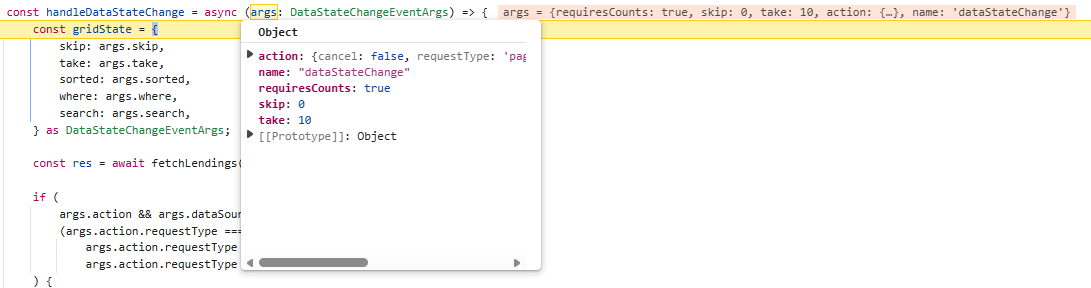
Enable Filtering
Filtering helps refine records by applying conditions on column values. It allows selecting specific values or using simple comparison options such as equals, greater than, or less than to display only the matching data.
Instructions:
- Enable filtering by setting the allowFiltering property to
trueand injecting theFilterService. - Customize filtering options using the filterSettings property.
Component TypeScript (client/src/app/app.component.ts):
import { Component } from '@angular/core';
import { CommonModule } from '@angular/common';
import { GridModule, PageService, FilterService } from '@syncfusion/ej2-angular-grids';
import type { FilterSettingsModel } from '@syncfusion/ej2-grids';

@Component({
  selector: 'app-root',
  standalone: true,
  imports: [CommonModule, GridModule],
  providers: [PageService, FilterService],
  templateUrl: './app.component.html',
  styleUrl: './app.component.css'
})
export class AppComponent {
  public pageSettings = { pageSize: 10 };
  public filterSettings: FilterSettingsModel = { type: 'Excel' };
}
Component Template (client/src/app/app.component.html):
<ejs-grid [dataSource]="data" [allowPaging]="true" [pageSettings]="pageSettings" [allowFiltering]="true" [filterSettings]="filterSettings" (dataStateChange)="dataStateChange($event)">
</ejs-grid>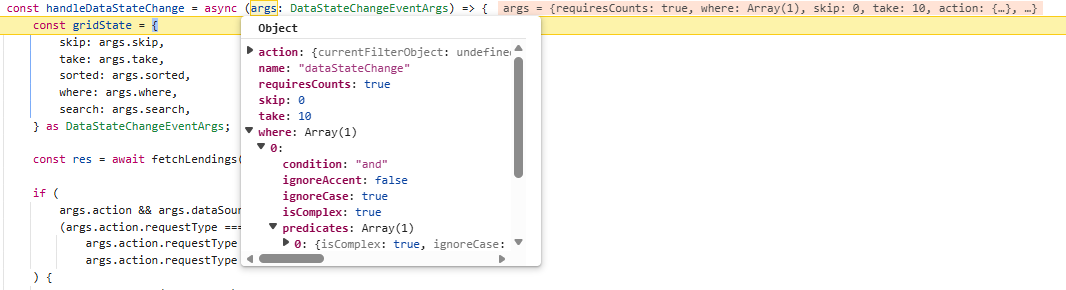
Enable Searching
Searching allows locating rows by supplying a term that can be checked against one or more fields, making it easy to find relevant records quickly.
Instructions:
- Enable searching by adding
Searchto the Grid’s toolbar property and injecting theToolbarService.
Component TypeScript (client/src/app/app.component.ts):
import { Component } from '@angular/core';
import { CommonModule } from '@angular/common';
import { GridModule, PageService, FilterService, ToolbarService } from '@syncfusion/ej2-angular-grids';
import type { ToolbarItems } from '@syncfusion/ej2-grids';

@Component({
  selector: 'app-root',
  standalone: true,
  imports: [CommonModule, GridModule],
  providers: [PageService, FilterService, ToolbarService],
  templateUrl: './app.component.html',
  styleUrl: './app.component.css'
})
export class AppComponent {
  public pageSettings = { pageSize: 10 };
  public toolbar: ToolbarItems[] = ['Search'];
}
Component Template (client/src/app/app.component.html):
<ejs-grid [dataSource]="data" [allowPaging]="true" [pageSettings]="pageSettings" [toolbar]="toolbar" (dataStateChange)="dataStateChange($event)">
</ejs-grid>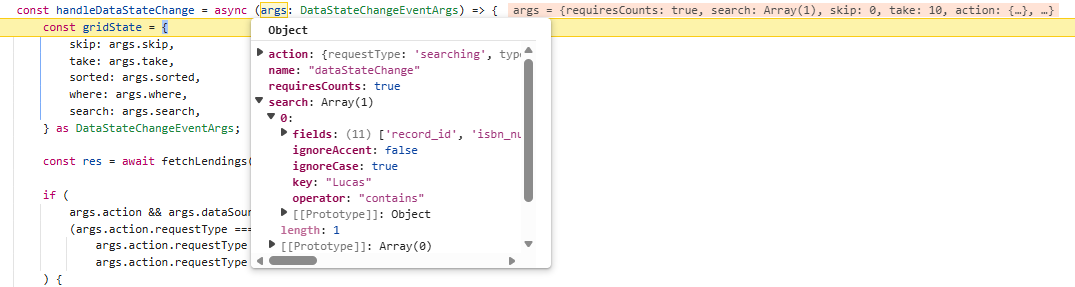
Enable Sorting
Sorting allows records to be organized by clicking on column headers to arrange data in ascending or descending order.
Instructions:
- Enable sorting by setting the allowSorting property to
trueand injecting theSortService.
Component TypeScript (client/src/app/app.component.ts):
import { Component } from '@angular/core';
import { CommonModule } from '@angular/common';
import { GridModule, PageService, SortService } from '@syncfusion/ej2-angular-grids';

@Component({
  selector: 'app-root',
  standalone: true,
  imports: [CommonModule, GridModule],
  providers: [PageService, SortService],
  templateUrl: './app.component.html',
  styleUrl: './app.component.css'
})
export class AppComponent {
  public pageSettings = { pageSize: 10 };
}
Component Template (client/src/app/app.component.html):
<ejs-grid [dataSource]="data" [allowPaging]="true" [pageSettings]="pageSettings" [allowSorting]="true" (dataStateChange)="dataStateChange($event)">
</ejs-grid>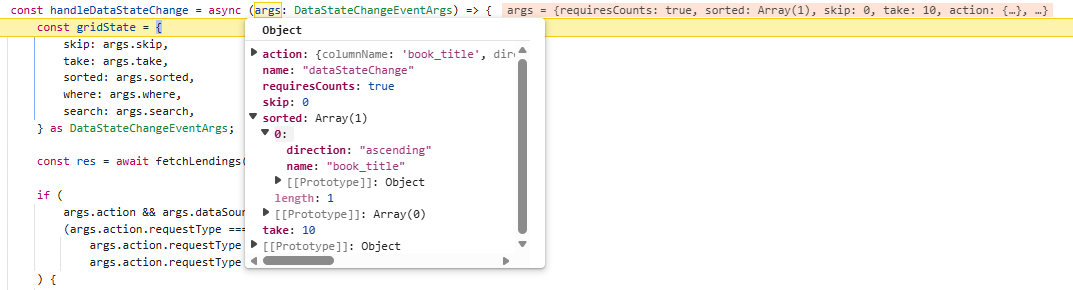
Performing CRUD operations
CRUD operations allow creating, updating, and deleting rows directly in the Grid, with changes persisted to the database through DRF.
Instructions:
-
Enable editing by configuring the Grid’s editSettings with the required properties such as allowAdding, allowEditing, and allowDeleting.
-
Ensure that the
Add,Edit,Delete,Update, andCancelitems are added to thetoolbar.
Component TypeScript (client/src/app/app.component.ts):
import { Component } from '@angular/core';
import { CommonModule } from '@angular/common';
import { GridModule, PageService, EditService, ToolbarService } from '@syncfusion/ej2-angular-grids';
import type { EditSettingsModel, ToolbarItems } from '@syncfusion/ej2-grids';

@Component({
  selector: 'app-root',
  standalone: true,
  imports: [CommonModule, GridModule],
  providers: [PageService, EditService, ToolbarService],
  templateUrl: './app.component.html',
  styleUrl: './app.component.css'
})
export class AppComponent {
  public pageSettings = { pageSize: 10 };
  public toolbar: ToolbarItems[] = ['Add', 'Edit', 'Delete', 'Update', 'Cancel'];
  public editSettings: EditSettingsModel = {
    allowAdding: true,
    allowEditing: true,
    allowDeleting: true,
  };
}
Component Template (client/src/app/app.component.html):
<ejs-grid [dataSource]="data" [allowPaging]="true" [pageSettings]="pageSettings" [toolbar]="toolbar" [editSettings]="editSettings" (dataStateChange)="dataStateChange($event)" (dataSourceChanged)="dataSourceChanged($event)">
</ejs-grid>
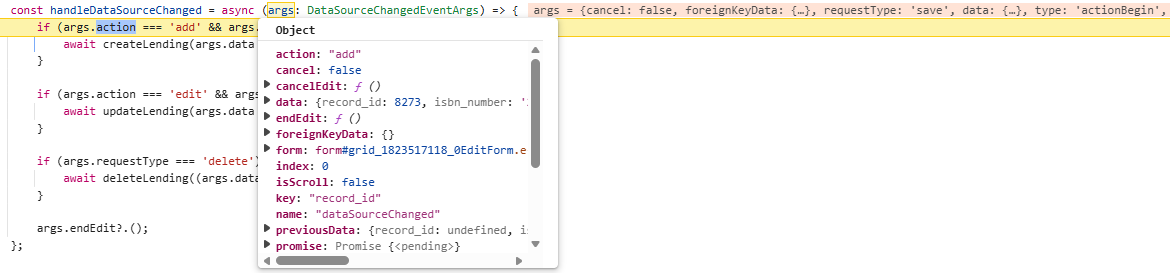
Inserted data passed to the server through the dataSourceChanged event arguments in the Grid:
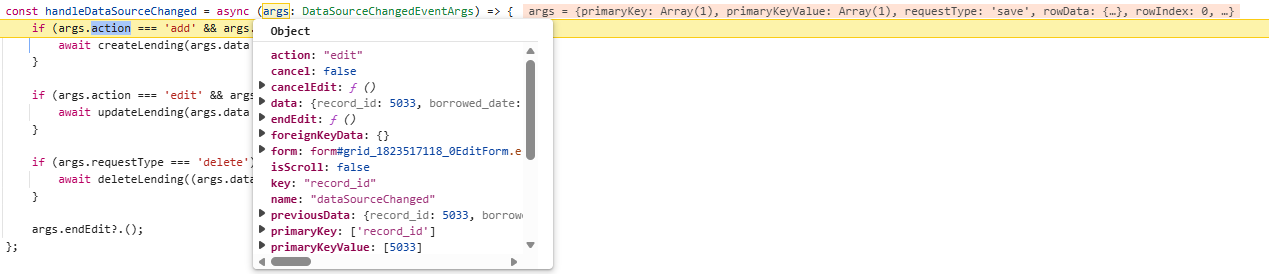
Updated data passed to the server through the dataSourceChanged event arguments in the Grid:
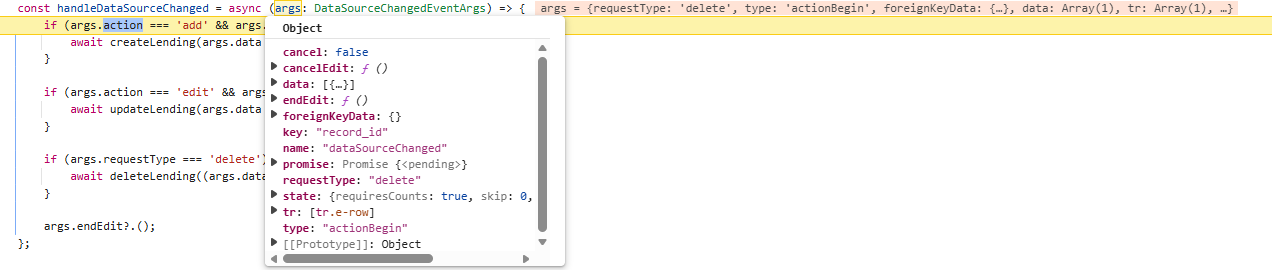
Deleted data passed to the server through the dataSourceChanged event arguments in the Grid:
Running the application
Open a terminal or Command Prompt. Start the Django server first, and then run the Angular client.
Run the Django server
- Open the first terminal and navigate to the django_server folder from the project root.
- Run the following commands to start the server.
python manage.py makemigrations
python manage.py migrate
python manage.py runserver 8000
The server will start on http://localhost:8000 and the lendings endpoint is http://localhost:8000/api/lendings.
Run the Angular client
Execute the below commands in a new terminal to run the Angular application:
ng serve --openThen open the browser and navigate to http://localhost:4200.
The complete folder structure looks like below:
├── client
│   ├── public
│   ├── src
│   │   ├── app
│   │   │   ├── app.component.css
│   │   │   ├── app.component.html
│   │   │   ├── app.component.ts
│   │   │   └── app.config.ts
│   │   ├── services
│   │   │   └── apiClient.ts
│   │   ├── index.html
│   │   ├── main.ts
│   │   └── styles.css
│   ├── angular.json
│   ├── package.json
│   ├── tsconfig.json
│   └── tsconfig.app.json
└── django_server
    ├── library
    │   ├── admin.py
    │   ├── apps.py
    │   ├── models.py
    │   ├── serializers.py
    │   ├── views.py
    │   └── migrations
    ├── server
    │   ├── asgi.py
    │   ├── settings.py
    │   ├── urls.py
    │   └── wsgi.py
    ├── manage.py
    └── requirements.txt
Complete sample repository
For a complete working implementation of this example, refer the GitHub repository.
The application now offers a reliable, scalable solution for managing book lending records with a robust Django REST API on Microsoft SQL Server and a Angular Data Grid front end.