AI Integration with Syncfusion React A2UI
This page shows the production wiring between a Syncfusion A2UI React host and a remote A2UI v0.9 agent that speaks JSON-RPC 2.0 over HTTP. The Getting Started page showed how to render a Syncfusion surface from a static A2UI v0.9 message list. This page covers the next step: connecting your React app to a remote, A2UI-compatible agent so the agent’s responses drive the surface in real time, and the user’s interactions inside the surface are forwarded back to the agent.
Syncfusion A2UI for React is currently in preview (beta) and is published on npm. The A2UI v0.9 wire format is stable, but the package API, catalog id, and Zod schemas may evolve before the first stable release. See the Overview for the full preview terms.
Prerequisites
The following tools and runtime are required to build and run an A2UI-integrated Syncfusion React application.
| Tool | Version |
|---|---|
| Node.js | 18 LTS or higher |
React supported versions
| React version | Minimum @syncfusion/ej2-react-* version |
|---|---|
| React v19 | 29.1.33 and above |
| React v18 | 20.2.36 and above |
| React v17 | 18.3.50 and above |
You also need:
- An existing React app that already uses Syncfusion A2UI for React package and renders a static surface as described in the Getting Started page.
- A running A2UI v0.9-compatible agent exposed over HTTP that accepts JSON-RPC 2.0
message/sendrequests. The reference implementation is thesyncfusion-a2ui-agentADK, which ships ready-to-run example agents you can launch locally. The example below targets the bundled Contoso Dynamics demo athttp://localhost:10004; replace it with the URL of your own agent. - A registered Syncfusion license key. See License key generation and License key registration.
What “AI integration” means here
The Syncfusion A2UI for React package is the rendering half of an A2UI flow. The agent half (the LLM, the tool-calling loop, the JSON-RPC server) is a separate concern. To wire the two together, your host app needs to:
-
Send the user’s prompt to the agent as a JSON-RPC
message/sendrequest whoseparams.message.parts[0]is{ text: query }. -
Receive the agent’s response as a JSON-RPC envelope whose
result.artifacts[0].parts[0].data.a2uiEnvelopeis an array of A2UI v0.9 messages (createSurface,updateComponents,updateDataModel, …). -
Pass that array to
processor.processMessages(messages). The processor validates each message, builds aSurfaceModel, and emits it ononSurfaceCreated. -
Forward component interactions to the agent. The
MessageProcessortakes anactionHandleras the second constructor argument; whenever the user clicks a button, sorts a grid, picks a date, or selects a row, the adapter calls your handler with the action payload. Forward that payload to the agent as a newmessage/sendrequest whoseparams.message.parts[0]is{ data: action }, and the cycle repeats.
How it works
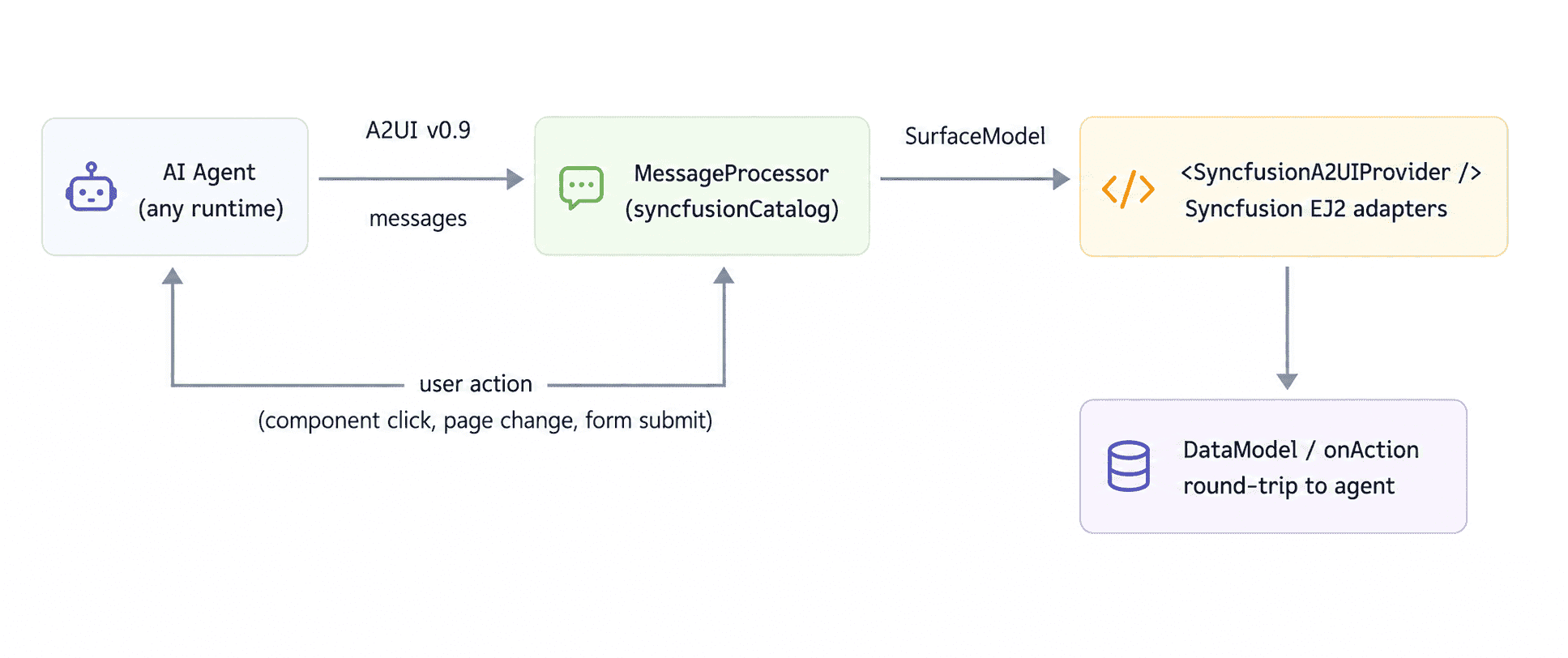
Figure: End-to-end A2UI message processing workflow.
The diagram from the Overview applies here too, with one extra back arrow: every component action flows back to the agent as a message/send request whose params.message.parts[0] is { data: action }. The agent decides what to do next, update the same surface (updateComponents / updateDataModel) or replace it (createSurface on a different surfaceId), and returns a new a2uiEnvelope. The cycle repeats for as long as the surface is active.
Connect to a remote A2UI agent
Replace the contents of src/App.tsx and src/App.css with the snippets below. They build on the Getting Started example and add a small chat input, a JSON-RPC message/send request, and the round-trip back to the agent on every user interaction inside the surface.
import { useEffect, useRef, useState } from 'react';
import {
    syncfusionCatalog,
    SyncfusionA2UIProvider,
} from '@syncfusion/ej2-react-a2ui';
import { MessageProcessor } from '@a2ui/web_core/v0_9';
import { TextBoxComponent } from '@syncfusion/ej2-react-inputs';
import { ButtonComponent } from '@syncfusion/ej2-react-buttons';
import './App.css';

const AGENT_URL = 'http://localhost:10004';

function App() {
    const [surface, setSurface] = useState(null);
    const [query, setQuery] = useState('');
    const [loading, setLoading] = useState(false);

    const processorRef = useRef(null);

    if (!processorRef.current) {
        processorRef.current = new MessageProcessor(
            [syncfusionCatalog],
            async (action) => {
                const res = await fetch(AGENT_URL, {
                    method: 'POST',
                    headers: { 'content-type': 'application/json' },
                    body: JSON.stringify({
                        jsonrpc: '2.0',
                        id: `req-${Date.now()}`,
                        method: 'message/send',
                        params: {
                            message: {
                                kind: 'message',
                                messageId: `msg-${Date.now()}`,
                                role: 'user',
                                parts: [{ data: action }],
                            },
                        },
                    }),
                });
                const envelope = await res.json();
                const messages = envelope?.result?.artifacts?.[0]?.parts?.[0]?.data?.a2uiEnvelope;
                if (messages) processorRef.current.processMessages(messages);
            },
        );
    }

    const processor = processorRef.current;

    useEffect(() => {
        const sub = processor.onSurfaceCreated(setSurface);
        return () => sub.unsubscribe();
    }, [processor]);

    const sendQuery = async () => {
        if (!query.trim()) return;
        setLoading(true);
        setSurface(null);
        try {
            const res = await fetch(AGENT_URL, {
                method: 'POST',
                headers: { 'content-type': 'application/json' },
                body: JSON.stringify({
                    jsonrpc: '2.0',
                    id: `req-${Date.now()}`,
                    method: 'message/send',
                    params: {
                        message: {
                            kind: 'message',
                            messageId: `msg-${Date.now()}`,
                            role: 'user',
                            parts: [{ text: query }],
                        },
                    },
                }),
            });
            const envelope = await res.json();
            const messages = envelope?.result?.artifacts?.[0]?.parts?.[0]?.data?.a2uiEnvelope;
            if (messages) processor.processMessages(messages);
        } finally {
            setLoading(false);
        }
    };

    return (
        <div>
            <div className="a2ui-chat">
                <TextBoxComponent
                    value={query}
                    change={(e) => setQuery(String(e.value ?? ''))}
                    placeholder="Ask the agent something…"
                    floatLabelType="Auto"
                />
                <ButtonComponent
                    onClick={sendQuery}
                    disabled={loading}
                    isPrimary={true}
                    content={loading ? 'Sending…' : 'Send'}
                />
            </div>
            {surface && <SyncfusionA2UIProvider surface={surface} />}
        </div>
    );
}
export default App;.a2ui-chat {
display: flex;
gap: 8px;
padding: 16px;
align-items: end;
}
.a2ui-chat .e-input-group {
flex: 1;
}Import the component styles
The stylesheets imported on the Getting Started page cover the components used in the static example. For an agent-driven app, add an @import line in src/App.css for every Syncfusion component family the agent might generate; A2UI surfaces are dynamic, so missing stylesheets turn into poor widgets at runtime.
For example, if your chat often surfaces text inputs and buttons, append to src/App.css:
@import "@syncfusion/ej2-tailwind3-theme/styles/inputs/index.css";
@import "@syncfusion/ej2-tailwind3-theme/styles/textbox/index.css";
@import "@syncfusion/ej2-tailwind3-theme/styles/buttons/index.css";
If you are using a different theme (@syncfusion/ej2-material-theme, @syncfusion/ej2-fluent2-theme, @syncfusion/ej2-material3-theme, @syncfusion/ej2-bootstrap5-theme), replace tailwind3 with the matching package name. See the Syncfusion EJ2 theme package and import the stylesheets for every component the agent can render.
How the round-trip works
-
Initial prompt. The user types a query (“Show me last quarter’s sales by region”) and clicks Send.
sendQuery()POSTs a JSON-RPCmessage/sendrequest whoseparams.message.parts[0]is{ text: query }toAGENT_URL. -
Agent response. The agent runs the LLM, decides which A2UI components to render, and returns a JSON-RPC envelope whose
result.artifacts[0].parts[0].data.a2uiEnvelopeis an array of A2UI v0.9 messages (typicallycreateSurface→updateComponents→updateDataModel). -
Process the messages.
processor.processMessages(messages)validates each message against the bundled Zod schemas, builds aSurfaceModel, and firesonSurfaceCreated.<SyncfusionA2UIProvider/>renders the surface. -
User interacts. When the user clicks a button, sorts the grid, picks a date, or selects a row, the matching Syncfusion adapter calls the
actionHandlerpassed to theMessageProcessorconstructor with the action payload. -
Forward to agent. The handler POSTs the action back to the agent as a new
message/sendrequest whoseparams.message.parts[0]is{ data: action }. The agent decides what to do next, update the same surface (updateComponents/updateDataModel), or replace it with a new one (createSurfaceon a differentsurfaceId), and returns a newa2uiEnvelope. The cycle repeats.
Things to customize
-
Agent URL. The example uses the default
http://localhost:10004(the Contoso Dynamics demo’s default port). Replace it with the URL of your own agent, or read it from an environment variable such asimport.meta.env.VITE_AGENT_URL. Add the URL to a.envfile:# .env VITE_AGENT_URL=http://localhost:10004 - Authentication. Most production agents require a bearer token, an API key, or a session cookie. Add an Authorization header (or whatever your agent expects) to both fetch calls before deploying.
-
Error handling. The example does not include comprehensive error handling. In production, wrap both fetch calls in
try/catchblocks, surface the error to the user (for example with a<SyncfusionMessage severity="Error" />), and clear loading even when the request fails. -
Pre-locked designs. If you want the agent to always echo the same surface structure, paste the Composer’s A2UI v0.9 JSON into
examples/designs/and bind it withagent.set_design(...). See Build the SkyBook Sample for the full pattern. -
Styling. The example uses a small
.a2ui-chatclass inApp.cssfor the input and button. Move any production styling into your own design system or theme. -
Multiple surfaces. A single
MessageProcessorcan hold many surfaces at once (one persurfaceId). Subscribe toonSurfaceCreatedwith aMap<surfaceId, SurfaceModel>if your agent emits more than one surface in the same response.
Run the agent
The example agent referenced above is the Contoso Dynamics demo that ships in the syncfusion-a2ui-agent repository. To run it locally:
# 1. Clone the agent repo
git clone https://github.com/syncfusion/syncfusion-a2ui-agent.git
cd syncfusion-a2ui-agent

# 2. Install the ADK and the example package
#    Use `python -m pip` instead of `pip` so the command works on every
#    platform (Windows, macOS, Linux), even if `pip` is not on PATH.
#    On Windows, use `py -m pip …` if `python` is not on PATH.
python -m pip install -e ".[dev]"
python -m pip install -e examples

# 3. Configure your AI provider credentials
cp examples/.env.example examples/.env
# Open examples/.env and fill in AZURE_API_KEY, AZURE_API_BASE, MODEL_NAME, etc.

# 4. Start the agent as an A2A server on http://localhost:10004
python examples/generic_demo_agent.py --serve
Which example should I run? Two ship with the repository:
| Example | Port | Use it for |
|---|---|---|
python examples/generic_demo_agent.py --serve |
10004 |
Contoso Dynamics enterprise dashboards, grounded on demo_examples.json (employees, sales, inventory, calendar events). The default choice for the snippet above. |
python examples/flight_booking_agent.py --serve |
10006 |
SkyWave Airlines three-stage flight booking workflow (search → results → booking & confirmation). See Build the SkyBook Sample for the end-to-end walkthrough. |
The snippet above targets port 10004 (Contoso). If you switch to the SkyWave example, change AGENT_URL to http://localhost:10006.
The agent boots an HTTP server that speaks JSON-RPC 2.0 message/send over /. Leave the terminal running and start the React app in a second terminal.
Run the application
In the project where the Syncfusion A2UI for React package is installed, start the React app:
npm run devOpen the generated local URL (typically, http://localhost:5173/) in the browser.
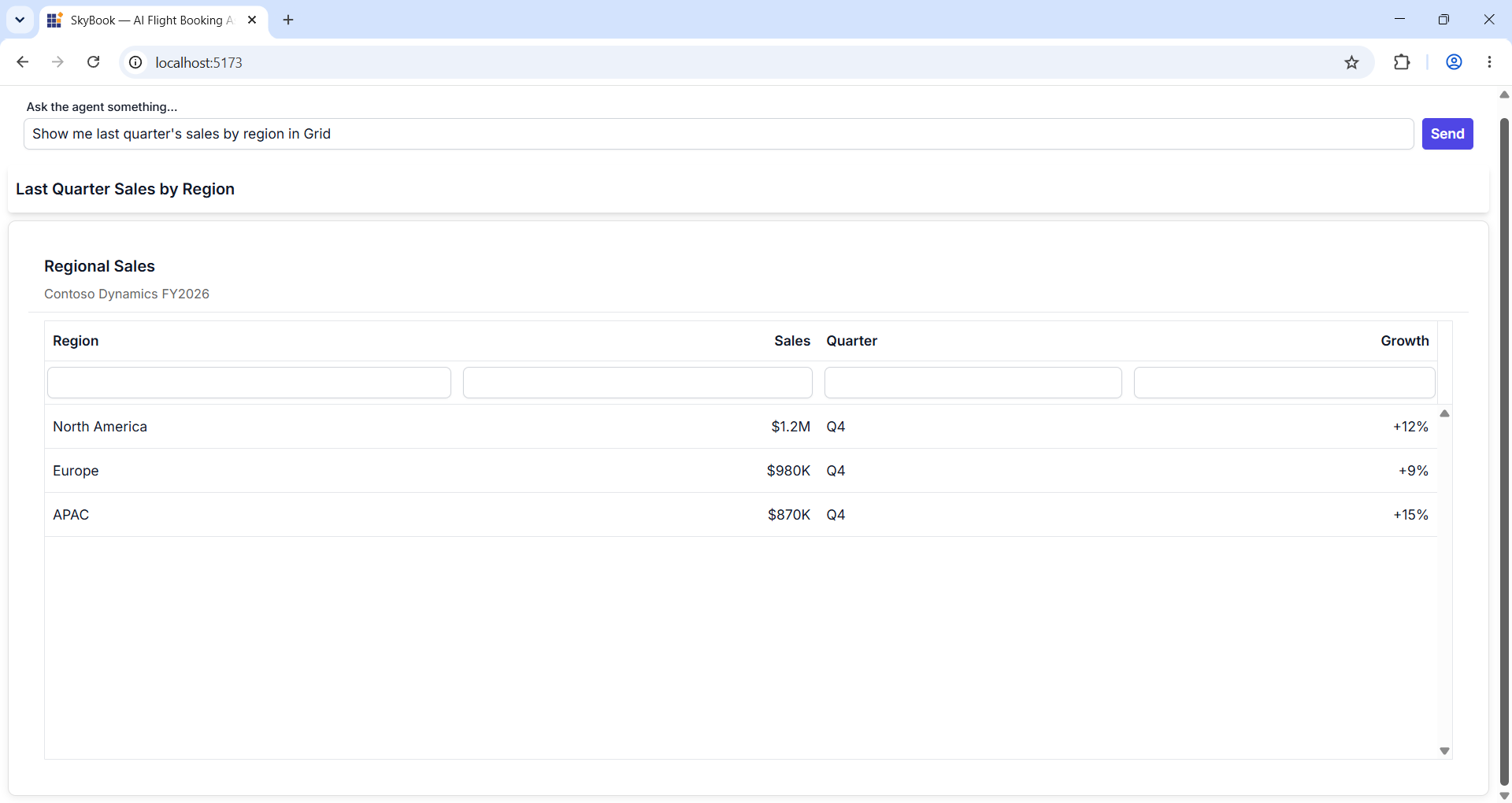
Type a query such as “Show me last quarter’s sales by region” and press Send. The agent’s response renders as a working Syncfusion surface inside the page; any interaction you perform in that surface (clicks, sorts, row selections) is sent back to the agent in real time.
Verify the integration
Confirm the React app, the agent, and the JSON-RPC round-trip are wired up end-to-end:
- The agent terminal prints the listening URL (default
http://localhost:10004). The browser console shows no errors when the React app loads. - Type a query such as “Show me last quarter’s sales by region” and click Send. The Network tab shows a
POSTtoAGENT_URLwith a JSON-RPC body whoseparams.message.parts[0]is{ text: query }, and a200 OKresponse whoseresult.artifacts[0].parts[0].data.a2uiEnvelopeis an array. - The matching Syncfusion widget (chart, grid, KPI tile, etc.) renders in the page within a few seconds. No Zod-validation error in the console.
- Click a button or sort a column inside the surface. The Network tab shows a second
POSTtoAGENT_URL, this time withparams.message.parts[0]shaped as{ data: { ... } }, and the surface updates (or is replaced with a new one) based on the agent’s reply. - Stop the agent process (Ctrl+C). Repeat the same query; the fetch should reject with a network error and the surface should not silently freeze — your
try/catchhandler should surface the error to the user.
If any step fails, check both terminals for stack traces. Common causes at this point: wrong AGENT_URL, agent process not running, missing stylesheet for the generated component, or the message handler missing the actionHandler arg to MessageProcessor.
Common questions
Most errors and edge cases are covered in A2UI Composer Common Questions. Quick picks for this page:
-
Why am I seeing “No root component found”? — every surface must include
{ "id": "root", "component": "Column", ... }. -
Why does the same prompt produce a different layout each time? — bind a design file via
agent.set_design(...)so the structure is locked across requests. -
Why does the SkyBook app in my shell not connect to the agent? — confirm
VITE_AGENT_URLmatches the port the agent is listening on.