Register Syncfusion® License Key in ReactJS Application
25 Aug 20267 minutes to read
The Syncfusion® license key must be registered if your project uses Syncfusion® ReactJS packages. The generated license key is a string that needs to be registered after any Syncfusion® ReactJS reference.
Syncfusion® license validation is performed offline during application execution and does not require internet access. Apps registered with a Syncfusion® license key can be deployed on any system without an internet connection.
Generate the Syncfusion® license key and register it using one of the following methods:
Register Syncfusion® License Key in the Project
Register the license key in the index.js file of the React project:
import React from 'react';
import ReactDOM from 'react-dom';
import './index.css';
import App from './App';
import reportWebVitals from './reportWebVitals';
import { registerLicense } from '@syncfusion/ej2-base';

// Registering Syncfusion license key
registerLicense('Replace your generated license key here');

ReactDOM.render(
  <React.StrictMode>
    <App />
  </React.StrictMode>,
  document.getElementById('root')
);
License key registration is required only from 2022 Vol 1 (v20.1.0.47) onwards for Essential® JavaScript 2 products.
Register Syncfusion® License Key Using the npx Command
Register the Syncfusion® license key through the npx command using one of the following methods:
- Register the license key with the license file
- Register the license key with the environment variable
If both the license text file and the environment variable are used for license registration, priority is given to the
syncfusion-license.txtfile. To use the environment variable for license registration, remove the license text file from the application.
Register the License Key with the License File
The following steps show how to register the Syncfusion® license key using a license text file:
-
Create a
syncfusion-license.txtfile in the application root directory and paste the license key. -
Open the command prompt in the application root directory and activate the license key using the following command:
```bash npx syncfusion-license activate ``` -
Once the Syncfusion® license key is activated, the following console message will appear:
License message:
(INFO) Syncfusion® License imported successfully. -
Now run the application. If you encounter a license validation error, refer to this link to resolve it. Also, find the most frequently asked license registration questions at this link.
If you don’t want to use the license text file in the application, refer to this section to use an environment variable and register the Syncfusion® license key. Also, check out common licensing FAQs while registering the license key using the npx command from this link.
Register the License Key with the Environment Variable
You can set the environment variable SYNCFUSION_LICENSE in your system and paste the license key as its value. This can be used in all applications on your machine.
The following steps show how to set the environment variable in different operating systems and register the Syncfusion® license key:
- Set the environment variable in different operating systems as shown below:
Windows
-
Open the command prompt and use the setx command to add the new environment variable:
setx SYNCFUSION_LICENSE "license key"
Mac
-
Open the terminal and use the
envcommand to view the variables list. -
Set the environment variable using the following command:
echo 'export SYNCFUSION_LICENSE="license key"' >> ~/.bash_profile -
To modify the environment variable in the bash profile, use the following command:
nano .bash_profile -
Once modified, press
Ctrl+Xto exit, then pressYandEnterto save the changes. -
Close the terminal and reopen it to see the environment variable changes using the
envcommand.
Linux
-
Open the terminal and use the
envcommand to view the variables list. -
Set or modify the environment variable using the following command:
export SYNCFUSION_LICENSE='license key' -
Once the
SYNCFUSION_LICENSEenvironment variable is set, restart the IDE or application terminal before using the license activation command. -
Open the command prompt in the application root directory and activate the license key using the following command:
npx syncfusion-license activate -
Once the Syncfusion® license key is activated, the following console message will appear:
License message:
(INFO) Syncfusion® License imported successfully. -
Now run the application. If you encounter a license validation error, refer to this link to resolve it. Also, find the most frequently asked license registration questions at this link.
Register Syncfusion® License Key in CI Services
The following sections show how to use an environment variable in CI services.
GitHub Actions
-
Create a new Repository Secret or an Organization Secret. Set the name of the secret to
SYNCFUSION_LICENSEand use the license key as the value. -
Add the Syncfusion® license activation command after running npm install or yarn:
  steps:
  - name: Install node modules
    run: npm install

  - name: Activate Syncfusion License
    run: npx syncfusion-license activate
    env:
      SYNCFUSION_LICENSE: $
Azure Pipelines (YAML)
-
Create a new User-defined Variable named
SYNCFUSION_LICENSE. Use the license key as the value. -
Add the Syncfusion® license activation command after running npm install or yarn.
The following example shows the syntax for Windows build agents:
pool:
  vmImage: 'windows-latest'

steps:
- script: call npm install
  displayName: 'Install node modules'

- script: call npx syncfusion-license activate
  displayName: 'Activate Syncfusion License'
  env:
    SYNCFUSION_LICENSE: $(SYNCFUSION_LICENSE)
The following example shows the syntax for Linux build agents:
pool:
  vmImage: 'ubuntu-latest'

steps:
  - script: npm install
    displayName: 'Install node modules'

  - script: npx syncfusion-license activate
    displayName: 'Activate Syncfusion License'
    env:
      SYNCFUSION_LICENSE: $(SYNCFUSION_LICENSE)
Azure Pipelines (Classic)
-
Create a new User-defined Variable named
SYNCFUSION_LICENSE. Use the license key as the value. -
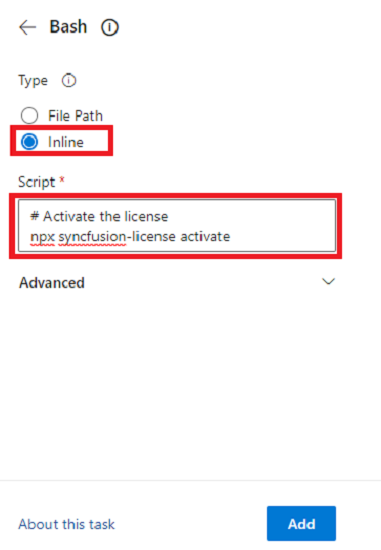
Add the Syncfusion® license activation command after running npm install or yarn using a bash task:
  # Activate the license
 npx syncfusion-license activate
Register Multiple License Keys
If you need to register multiple Syncfusion® license keys in your application, you can do so by separating each key with a semicolon. This is useful when your application uses multiple Syncfusion® products or editions.
Format: key1;key2;key3
Example:
registerLicense('license-key-1-here;license-key-2-here');When registering multiple keys, ensure there are no spaces before or after the semicolon separator.