How can I help you?
Getting Started with React Schedule Component in Preact Framework
13 Apr 20264 minutes to read
This article provides a step-by-step guide for setting up a Preact project and integrating the Syncfusion® React Schedule component.
Preact is a fast and lightweight JavaScript library for building user interfaces. It’s often used as an alternative to larger frameworks like React. The key difference is that Preact is designed to be smaller in size and faster in performance, making it a good choice for projects where file size and load times are critical factors.
Prerequisites
System requirements for Syncfusion® React UI components
Set up the Preact project
Create a new Preact project using the initialization command:
npm init preactor
yarn init preactUsing one of the above commands will lead you to set up additional configurations for the project, as below:
Project name
Specify the project name as my-project.
T  Preact - Fast 3kB alternative to React with the same modern API
|
*  Project directory:
|  my-project
—
Project language
Choose JavaScript as the framework variant to build this Preact project using JavaScript and React.
T  Preact - Fast 3kB alternative to React with the same modern API
|
*  Project language:
|  > JavaScript
|    TypeScript
—
Configuration options
Respond to the following prompts with the default selections:
T  Preact - Fast 3kB alternative to React with the same modern API
|
*  Use router?
|    Yes / > No
—
|
*  Prerender app (SSG)?
|    Yes / > No
—
|
*  Use ESLint?
|    Yes / > No
—
Navigate to project
Once setup is complete, navigate to your project directory:
cd my-projectNow that my-project is ready to run with default settings, let’s add Syncfusion® components to the project.
Add the Syncfusion® React packages
Syncfusion® React component packages are available at npmjs.com.
This article uses the React Schedule component as an example. To use the React Schedule component in the project, the @syncfusion/ej2-react-schedule package needs to be installed using the following command:
npm install @syncfusion/ej2-react-schedule --saveor
yarn add @syncfusion/ej2-react-scheduleImport Syncfusion® CSS styles
You can import themes for the Syncfusion® React component in various ways, such as using CSS or SASS styles from npm packages, CDN, CRG and Theme Studio. Refer to themes topic to know more about built-in themes and different ways to refer to theme’s in a React project.
In this article, the Material 3 theme is applied using CSS styles, which are available in installed packages. The necessary Material 3 CSS styles for the Schedule component and its dependents were imported into the src/style.css file.
@import "../node_modules/@syncfusion/ej2-base/styles/material3.css";
@import "../node_modules/@syncfusion/ej2-buttons/styles/material3.css";
@import "../node_modules/@syncfusion/ej2-calendars/styles/material3.css";
@import "../node_modules/@syncfusion/ej2-dropdowns/styles/material3.css";
@import "../node_modules/@syncfusion/ej2-inputs/styles/material3.css";
@import "../node_modules/@syncfusion/ej2-lists/styles/material3.css";
@import "../node_modules/@syncfusion/ej2-navigations/styles/material3.css";
@import "../node_modules/@syncfusion/ej2-popups/styles/material3.css";
@import "../node_modules/@syncfusion/ej2-splitbuttons/styles/material3.css";
@import "../node_modules/@syncfusion/ej2-react-schedule/styles/material3.css";
The order of importing CSS styles should be in line with its dependency graph.
Add the Syncfusion® React component
Follow the below steps to add the React Schedule component to your Preact project:
Step 1: Import Schedule components
In the src/index.jsx file, import the necessary Schedule components:
import { ScheduleComponent, Day, Week, WorkWeek, Month, Agenda, Inject } from '@syncfusion/ej2-react-schedule';Step 2: Define and render the Schedule
Create the Schedule component and inject the required view services.
import { render } from 'preact';
import { ScheduleComponent, Day, Week, WorkWeek, Month, Agenda, Inject } from '@syncfusion/ej2-react-schedule';
import './style.css';

export function App() {

  return (
    <ScheduleComponent>
      <Inject services={[Day, Week, WorkWeek, Month, Agenda]}/>
    </ScheduleComponent>
  );
}

render(<App />, document.getElementById('app'));
Run the project
To run the project, use the following command:
npm run devor
yarn run devThe output will appear as follows:
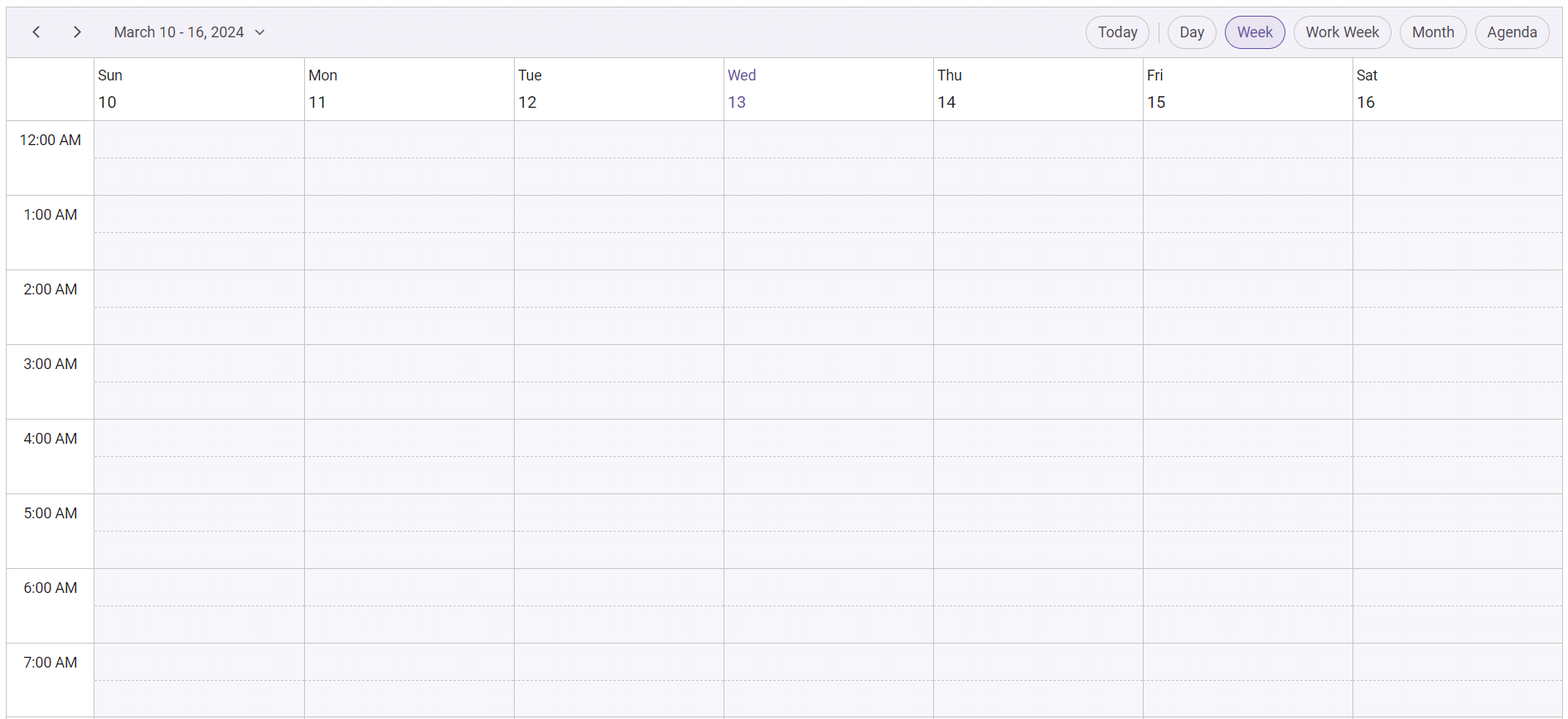
Please find the sample in this GitHub location