How can I help you?
Getting Started with the React Gantt Component in the Preact Framework
6 Feb 20266 minutes to read
This article outlines the steps required to set up a Preact project and integrate Syncfusion® React Gantt Chart component.
Preact is a fast, lightweight JavaScript library that provides a modern API similar to React. It is optimized for minimal file size and fast performance, making it well-suited for projects where load time and bundle size are important.
Prerequisites
System requirements for Syncfusion® React UI components
Set up the Preact project
To create a new Preact project, use one of the commands that are specific to either NPM or Yarn.
npm init preact@latestor
yarn create preactUsing one of the above commands will lead you to set up additional configurations for the project, as below:
Step 1: Define the project name - You can specify the name of the project directly. Let’s specify the name of the project as my-project for this article.
T  Preact - Fast 3kB alternative to React with the same modern API
|
*  Project directory:
|  my-project
—
Step 2: Choose the project language - Select JavaScript as the framework variant to build this Preact project using JavaScript and React.
T  Preact - Fast 3kB alternative to React with the same modern API
|
*  Project language:
|  > JavaScript
|    TypeScript
—
Step 3: Configure project options - Configure the project as shown below for this article.
T  Preact - Fast 3kB alternative to React with the same modern API
|
*  Use router?
|    Yes / > No
—
|
*  Prerender app (SSG)?
|    Yes / > No
—
|
*  Use ESLint?
|    Yes / > No
—
Step 4: Navigate to the project directory - After completing the above steps to create my-project, navigate to the project directory using the following command:
cd my-projectEnsure your HTML has a mount point for the app. For example, in index.html add:
<div id="app"></div>Now that my-project is ready to run with default settings, let’s add Syncfusion® components to the project.
Install Syncfusion® React packages
Syncfusion® React component packages are available at npmjs.com. To use Syncfusion® React components in the project, install the corresponding npm package.
This guide uses the React Gantt Chart component as an example. To use the React Gantt Chart component in the project, the @syncfusion/ej2-react-gantt package needs to be installed using the following command:
npm install @syncfusion/ej2-react-gantt --saveor
yarn add @syncfusion/ej2-react-ganttImport Syncfusion® CSS styles
Themes for Syncfusion® React components can be added using CSS or SASS styles in the npm packages. Additional options are available via CDN or the Theme Studio. See the themes documentation for full details.
This example uses the Tailwind 3 theme, imported in the src/style.css file:
@import '../node_modules/@syncfusion/ej2-base/styles/tailwind3.css';
@import '../node_modules/@syncfusion/ej2-buttons/styles/tailwind3.css';
@import '../node_modules/@syncfusion/ej2-calendars/styles/tailwind3.css';
@import '../node_modules/@syncfusion/ej2-dropdowns/styles/tailwind3.css';
@import '../node_modules/@syncfusion/ej2-gantt/styles/tailwind3.css';
@import '../node_modules/@syncfusion/ej2-grids/styles/tailwind3.css';
@import '../node_modules/@syncfusion/ej2-inputs/styles/tailwind3.css';
@import '../node_modules/@syncfusion/ej2-layouts/styles/tailwind3.css';
@import '../node_modules/@syncfusion/ej2-lists/styles/tailwind3.css';
@import '../node_modules/@syncfusion/ej2-navigations/styles/tailwind3.css';
@import '../node_modules/@syncfusion/ej2-popups/styles/tailwind3.css';
@import '../node_modules/@syncfusion/ej2-richtexteditor/styles/tailwind3.css';
@import '../node_modules/@syncfusion/ej2-treegrid/styles/tailwind3.css';
The order of importing CSS styles should be in line with its dependency graph. The Gantt Chart component requires CSS from multiple packages because it depends on other Syncfusion components for its full functionality.
Add a Syncfusion® React component
Follow the below steps to add the React Gantt Chart component to the Preact project:
Step 1: Import the Gantt Chart component and its required directives in the src/index.jsx file.
import { GanttComponent } from '@syncfusion/ej2-react-gantt';Step 2: Define the Gantt Chart component with the dataSource property and column definitions. Declare the values for the dataSource property.
import { GanttComponent } from '@syncfusion/ej2-react-gantt';
import { render } from 'preact';
import './style.css';
function App () {
	const GanttData = [
		{
			TaskID: 1,
			TaskName: 'Project Initiation',
			StartDate: new Date('04/02/2019'),
			EndDate: new Date('04/21/2019'),
		},
		{ TaskID: 2, TaskName: 'Identify Site location', StartDate: new Date('04/02/2019'), Duration: 4, ParentId: 1, Progress: 50 },
		{ TaskID: 3, TaskName: 'Perform Soil test', StartDate: new Date('04/02/2019'), Duration: 4, ParentId: 1, Progress: 50 },
		{ TaskID: 4, TaskName: 'Soil test approval', StartDate: new Date('04/02/2019'), Duration: 4, ParentId: 1, Progress: 50 },
		{
			TaskID: 5,
			TaskName: 'Project Estimation',
			StartDate: new Date('04/02/2019'),
			EndDate: new Date('04/21/2019'),
		},
		{ TaskID: 6, TaskName: 'Develop floor plan for estimation', StartDate: new Date('04/04/2019'), Duration: 3, ParentId: 5, Progress: 50 },
		{ TaskID: 7, TaskName: 'List materials', StartDate: new Date('04/04/2019'), Duration: 3,  ParentId: 5, Progress: 50 },
		{ TaskID: 8, TaskName: 'Estimation approval', StartDate: new Date('04/04/2019'), Duration: 3,  ParentId: 5, Progress: 50 }
	];
    const taskFields= {
        id: 'TaskID',
        name: 'TaskName',
        startDate: 'StartDate',
        duration: 'Duration',
        progress: 'Progress',
        parentID:'ParentId',
    };
        return (
            <GanttComponent dataSource={GanttData} height="450px" taskFields={taskFields}/>
        );
   }
render(<App />, document.getElementById('app'));
Run the project
To run the project, use the following command:
npm run devor
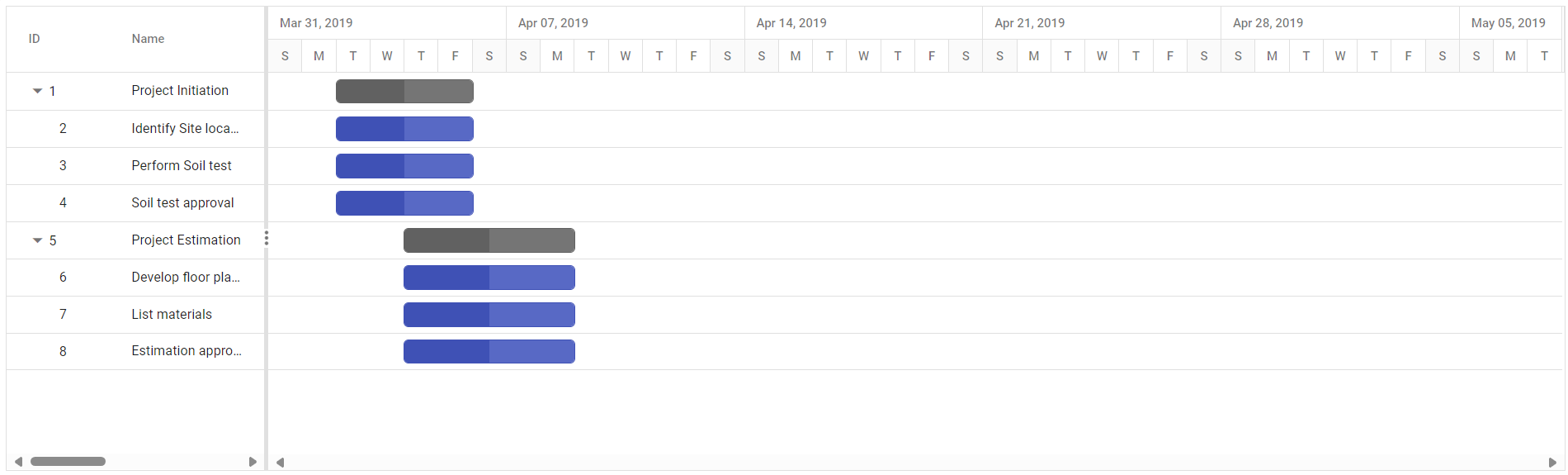
yarn run devThe output will appear as follows: