Getting Started with ASP.NET CORE Toast
21 Aug 20263 minutes to read
This section briefly explains how to include the ASP.NET Core Toast control in an ASP.NET Core application using Visual Studio.
Create an ASP.NET Core Web App with Razor Pages
Create an ASP.NET Core Web App using Visual Studio via Microsoft Templates or the Syncfusion® ASP.NET Core Extension. For detailed instructions, refer to the ASP.NET Core Web App Getting Started documentation.
Install the required ASP.NET Core packages
To add the ASP.NET Core Toast control in the app, open the NuGet package manager in Visual Studio (Tools → NuGet Package Manager → Manage NuGet Packages for Solution), search for and install the Syncfusion.AspNetCore.Notifications and Syncfusion.AspNetCore.Themes packages. All Syncfusion ASP.NET Core packages are available in nuget.org. See the NuGet packages topic for details.
Alternatively, you can install the same packages using the Package Manager Console with the following commands.
Install-Package Syncfusion.AspNetCore.Notifications -Version 35.1.37
Install-Package Syncfusion.AspNetCore.Themes -Version 35.1.37
Add the ASP.NET Core Tag Helpers
After the packages are installed, open the ~/Pages/_ViewImports.cshtml file and import the Syncfusion.AspNetCore.Base and Syncfusion.AspNetCore.Notifications Tag Helpers.
@addTagHelper *, Syncfusion.AspNetCore.Base
@addTagHelper *, Syncfusion.AspNetCore.Notifications
Add stylesheet and script resources
The theme stylesheet and script can be referenced from Static Web Assets. Include the stylesheet and script references inside the <head> of ~/Pages/Shared/_Layout.cshtml.
<head>
    ...
    <!-- Syncfusion ASP.NET Core controls styles -->
    <link rel="stylesheet" href="_content/Syncfusion.AspNetCore.Themes/styles/fluent2.css" />
    <!-- Syncfusion ASP.NET Core Toast control script -->
    <script src="_content/Syncfusion.AspNetCore.Notifications/scripts/sf-toast.min.js"></script>
</head>
Register the Script Manager
Open the ~/Pages/Shared/_Layout.cshtml file and register the script manager <ejs-scripts> at the end of the <body> element as follows.
<body>
    ...
    <!-- Syncfusion ASP.NET Core Script Manager -->
    <ejs-scripts></ejs-scripts>
</body>
Add ASP.NET Core Toast control
Add the ASP.NET Core Toast control in the ~/Pages/Index.cshtml file.
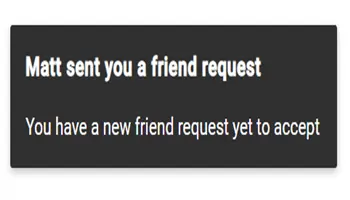
<ejs-toast id="element" title="Matt sent you a friend request" content="You have a new friend request yet to accept"></ejs-toast>
<script type="text/javascript">
    setTimeout(
        () => {
            var toastObj = document.getElementById('element').ej2_instances[0];
            toastObj.target = document.body;
            toastObj.show();
        }, 1000);
</script>
Run the application
Press Ctrl+F5 (Windows) or ⌘+F5 (macOS) to launch the application. The ASP.NET Core Toast will render in your default web browser.