Getting Started with ASP.NET Core Kanban Control
3 Nov 202513 minutes to read
This section briefly explains about how to include ASP.NET Core Kanban control in your ASP.NET Core application using Visual Studio.
Ready to streamline your Syncfusion® ASP.NET Core development? Discover the full potential of Syncfusion® ASP.NET Core controls with Syncfusion® AI Coding Assistant. Effortlessly integrate, configure, and enhance your projects with intelligent, context-aware code suggestions, streamlined setups, and real-time insights—all seamlessly integrated into your preferred AI-powered IDEs like Visual Studio, Visual Studio Code, Cursor, Syncfusion® CodeStudio and more. Explore Syncfusion® AI Coding Assistant
Prerequisites
System requirements for ASP.NET Core controls
Create ASP.NET Core web application with Razor pages
Install ASP.NET Core package in the application
To add ASP.NET Core controls in the application, open the NuGet package manager in Visual Studio (Tools → NuGet Package Manager → Manage NuGet Packages for Solution), search for Syncfusion.EJ2.AspNet.Core and then install it. Alternatively, you can utilize the following package manager command to achieve the same.
Install-Package Syncfusion.EJ2.AspNet.Core -Version 34.1.29NOTE
Syncfusion® ASP.NET Core controls are available in nuget.org. Refer to NuGet packages topic to learn more about installing NuGet packages in various OS environments. The Syncfusion.EJ2.AspNet.Core NuGet package has dependencies, Newtonsoft.Json for JSON serialization and Syncfusion.Licensing for validating Syncfusion® license key.
Add Syncfusion® ASP.NET Core Tag Helper
Open ~/Pages/_ViewImports.cshtml file and import the Syncfusion.EJ2 TagHelper.
@addTagHelper *, Syncfusion.EJ2Add stylesheet and script resources
Here, the theme and script is referred using CDN inside the <head> of ~/Pages/Shared/_Layout.cshtml file as follows,
<head>
    ...
    <!-- Syncfusion ASP.NET Core controls styles -->
    <link rel="stylesheet" href="https://cdn.syncfusion.com/ej2/34.1.29/fluent.css" />
    <!-- Syncfusion ASP.NET Core controls scripts -->
    <script src="https://cdn.syncfusion.com/ej2/34.1.29/dist/ej2.min.js"></script>
</head>
NOTE
Checkout the Themes topic to learn different ways (CDN, NPM package, and CRG) to refer styles in ASP.NET Core application, and to have the expected appearance for Syncfusion® ASP.NET Core controls.
NOTE
Checkout the Adding Script Reference topic to learn different approaches for adding script references in your ASP.NET Core application.
Register Syncfusion® Script Manager
Also, register the script manager <ejs-script> at the end of <body> in the ASP.NET Core application as follows.
<body>
    ...
    <!-- Syncfusion ASP.NET Core Script Manager -->
    <ejs-scripts></ejs-scripts>
</body>
Add ASP.NET Core Kanban control
Now, add the Syncfusion® ASP.NET Core Kanban tag helper in ~/Pages/Index.cshtml page.
<ejs-kanban id="Kanban">
    <e-kanban-columns>
        <e-kanban-column headerText="To Do" keyField="Open"></e-kanban-column>
        <e-kanban-column headerText="In Progress" keyField="InProgress"></e-kanban-column>
        <e-kanban-column headerText="Testing" keyField="Testing"></e-kanban-column>
        <e-kanban-column headerText="Done" keyField="Close"></e-kanban-column>
    </e-kanban-columns>
    <e-kanban-cardsettings headerField="Id" contentField="Summary"></e-kanban-cardsettings>
</ejs-kanban>
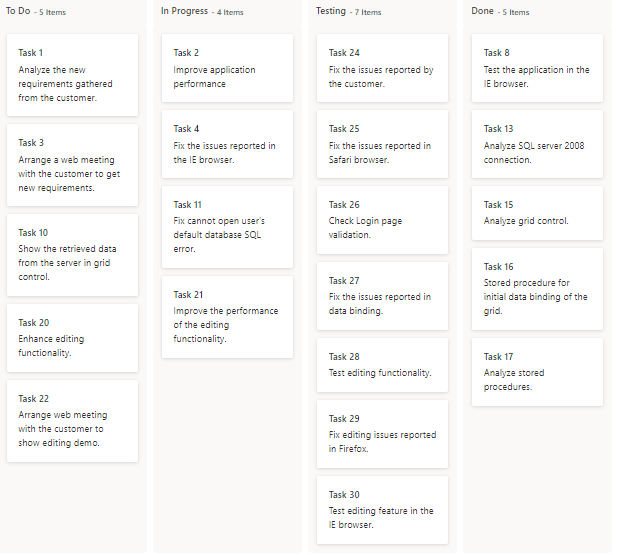
Press Ctrl+F5 (Windows) or ⌘+F5 (macOS) to run the app. Then, the Syncfusion® ASP.NET Core Kanban control will be rendered in the default web browser.

Populating cards
To populate the empty Kanban with cards, define the list or remote data using the dataSource property. To define dataSource, the mandatory fields in the list should be relevant to keyField. In the following example, you can see the cards defined with default fields such as ID, Summary, and Status.
Enable swimlane
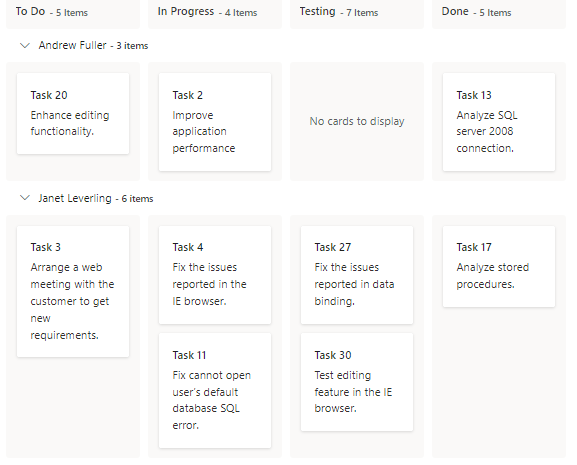
Swimlane can be enabled by mapping the tags swimlaneSettings.keyField to appropriate column name in dataSource. This enables the grouping of the cards based on the mapped column values.
@{
    ...
    List<KanbanDataModels> TaskDetails = new List<KanbanDataModels>();
    TaskDetails.Add(new KanbanDataModels { Id = "Task 1", Title = "Task  - 29001", Status = "Open", Summary = "Analyze the new requirements gathered from the customer.", Type = "Story", Priority = "Low", Tags = "Analyze,Customer", Estimate = 3.5, Assignee = "Nancy Davloio", RankId = 1, Color = "#8b447a" });
    TaskDetails.Add(new KanbanDataModels { Id = "Task 2", Title = "Task  - 29002", Status = "InProgress", Summary = "Improve application performance", Type = "Improvement", Priority = "Normal", Tags = "Improvement", Estimate = 6, Assignee = "Andrew Fuller", RankId = 1, Color = "#7d7297" });
    TaskDetails.Add(new KanbanDataModels { Id = "Task 3", Title = "Task  - 29003", Status = "Open", Summary = "Arrange a web meeting with the customer to get new requirements.", Type = "Others", Priority = "Critical", Tags = "Meeting", Estimate = 5.5, Assignee = "Janet Leverling", RankId = 2, Color = "#27AE60" });
    TaskDetails.Add(new KanbanDataModels { Id = "Task 4", Title = "Task  - 29004", Status = "InProgress", Summary = "Fix the issues reported in the IE browser.", Type = "Bug", Priority = "Release Breaker", Tags = "IE", Estimate = 2.5, Assignee = "Janet Leverling", RankId = 2, Color = "#cc0000" });
    TaskDetails.Add(new KanbanDataModels { Id = "Task 5", Title = "Task  - 29005", Status = "Review", Summary = "Fix the issues reported by the customer.", Type = "Bug", Priority = "Low", Tags = "Customer", Estimate = 3.5, Assignee = "Steven walker", RankId = 1, Color = "#cc0000" });
    TaskDetails.Add(new KanbanDataModels { Id = "Task 6", Title = "Task  - 29007", Status = "Validate", Summary = "Validate new requirements", Type = "Improvement", Priority = "Low", Tags = "Validation", Estimate = 1.5, Assignee = "Robert King", RankId = 1, Color = "#7d7297" });
    TaskDetails.Add(new KanbanDataModels { Id = "Task 7", Title = "Task  - 29009", Status = "Review", Summary = "Fix the issues reported in Safari browser.", Type = "Bug", Priority = "Release Breaker", Tags = "Fix,Safari", Estimate = 1.5, Assignee = "Nancy Davloio", RankId = 2, Color = "#cc0000" });
    TaskDetails.Add(new KanbanDataModels { Id = "Task 8", Title = "Task  - 29010", Status = "Close", Summary = "Test the application in the IE browser.", Type = "Story", Priority = "Low", Tags = "Review,IE", Estimate = 5.5, Assignee = "Margaret hamilt", RankId = 3, Color = "#8b447a" });
    TaskDetails.Add(new KanbanDataModels { Id = "Task 9", Title = "Task  - 29011", Status = "Validate", Summary = "Validate the issues reported by the customer.", Type = "Story", Priority = "High", Tags = "Validation,Fix", Estimate = 1, Assignee = "Steven walker", RankId = 1, Color = "#8b447a" });
    TaskDetails.Add(new KanbanDataModels { Id = "Task 10", Title = "Task  - 29015", Status = "Open", Summary = "Show the retrieved data from the server in grid control.", Type = "Story", Priority = "High", Tags = "Database,SQL", Estimate = 5.5, Assignee = "Margaret hamilt", RankId = 4, Color = "#8b447a" });
    TaskDetails.Add(new KanbanDataModels { Id = "Task 11", Title = "Task  - 29016", Status = "InProgress", Summary = "Fix cannot open user’s default database SQL error.", Priority = "Critical", Type = "Bug", Tags = "Database,Sql2008", Estimate = 2.5, Assignee = "Janet Leverling", RankId = 4, Color = "#cc0000" });
    TaskDetails.Add(new KanbanDataModels { Id = "Task 12", Title = "Task  - 29017", Status = "Review", Summary = "Fix the issues reported in data binding.", Type = "Story", Priority = "Normal", Tags = "Databinding", Estimate = 3.5, Assignee = "Janet Leverling", RankId = 4, Color = "#8b447a" });
    TaskDetails.Add(new KanbanDataModels { Id = "Task 13", Title = "Task  - 29018", Status = "Close", Summary = "Analyze SQL server 2008 connection.", Type = "Story", Priority = "Release Breaker", Tags = "Grid,Sql", Estimate = 2, Assignee = "Andrew Fuller", RankId = 4, Color = "#8b447a" });
    TaskDetails.Add(new KanbanDataModels { Id = "Task 14", Title = "Task  - 29019", Status = "Validate", Summary = "Validate databinding issues.", Type = "Story", Priority = "Low", Tags = "Validation", Estimate = 1.5, Assignee = "Margaret hamilt", RankId = 1, Color = "#8b447a" });
    TaskDetails.Add(new KanbanDataModels { Id = "Task 15", Title = "Task  - 29020", Status = "Close", Summary = "Analyze grid control.", Type = "Story", Priority = "High", Tags = "Analyze", Estimate = 2.5, Assignee = "Margaret hamilt", RankId = 5, Color = "#8b447a" });
    TaskDetails.Add(new KanbanDataModels { Id = "Task 16", Title = "Task  - 29021", Status = "Close", Summary = "Stored procedure for initial data binding of the grid.", Type = "Others", Priority = "Release Breaker", Tags = "Databinding", Estimate = 1.5, Assignee = "Steven walker", RankId = 6, Color = "#27AE60" });
    TaskDetails.Add(new KanbanDataModels { Id = "Task 17", Title = "Task  - 29022", Status = "Close", Summary = "Analyze stored procedures.", Type = "Story", Priority = "Release Breaker", Tags = "Procedures", Estimate = 5.5, Assignee = "Janet Leverling", RankId = 7, Color = "#8b447a" });
    TaskDetails.Add(new KanbanDataModels { Id = "Task 18", Title = "Task  - 29023", Status = "Validate", Summary = "Validate editing issues.", Type = "Story", Priority = "Critical", Tags = "Editing", Estimate = 1, Assignee = "Nancy Davloio", RankId = 1, Color = "#8b447a" });
    TaskDetails.Add(new KanbanDataModels { Id = "Task 19", Title = "Task  - 29024", Status = "Review", Summary = "Test editing functionality.", Type = "Story", Priority = "Normal", Tags = "Editing,Test", Estimate = 0.5, Assignee = "Nancy Davloio", RankId = 5, Color = "#8b447a" });
    TaskDetails.Add(new KanbanDataModels { Id = "Task 20", Title = "Task  - 29025", Status = "Open", Summary = "Enhance editing functionality.", Type = "Improvement", Priority = "Low", Tags = "Editing", Estimate = 3.5, Assignee = "Andrew Fuller", RankId = 5, Color = "#7d7297" });
    TaskDetails.Add(new KanbanDataModels { Id = "Task 21", Title = "Task  - 29026", Status = "InProgress", Summary = "Improve the performance of the editing functionality.", Type = "Epic", Priority = "High", Tags = "Performance", Estimate = 6, Assignee = "Nancy Davloio", RankId = 5, Color = "#6d7492" });
    TaskDetails.Add(new KanbanDataModels { Id = "Task 22", Title = "Task  - 29027", Status = "Open", Summary = "Arrange web meeting with the customer to show editing demo.", Type = "Others", Priority = "High", Tags = "Meeting,Editing", Estimate = 5.5, Assignee = "Steven walker", RankId = 6, Color = "#27AE60" });
    TaskDetails.Add(new KanbanDataModels { Id = "Task 23", Title = "Task  - 29029", Status = "Review", Summary = "Fix the editing issues reported by the customer.", Type = "Bug", Priority = "Low", Tags = "Editing,Fix", Estimate = 3.5, Assignee = "Janet Leverling", RankId = 6, Color = "#cc0000" });
    TaskDetails.Add(new KanbanDataModels { Id = "Task 24", Title = "Task  - 29030", Status = "Testing", Summary = "Fix the issues reported by the customer.", Type = "Bug", Priority = "Critical", Tags = "Customer", Estimate = 3.5, Assignee = "Steven walker", RankId = 1 });
    TaskDetails.Add(new KanbanDataModels { Id = "Task 25", Title = "Task  - 29031", Status = "Testing", Summary = "Fix the issues reported in Safari browser.", Type = "Bug", Priority = "Release Breaker", Tags = "Fix,Safari", Estimate = 1.5, Assignee = "Nancy Davloio", RankId = 2 });
    TaskDetails.Add(new KanbanDataModels { Id = "Task 26", Title = "Task  - 29032", Status = "Testing", Summary = "Check Login page validation.", Type = "Story", Priority = "Release Breaker", Tags = "Testing", Estimate = 0.5, Assignee = "Michael Suyama", RankId = 3 });
    TaskDetails.Add(new KanbanDataModels { Id = "Task 27", Title = "Task  - 29033", Status = "Testing", Summary = "Fix the issues reported in data binding.", Type = "Story", Priority = "Normal", Tags = "Databinding", Estimate = 3.5, Assignee = "Janet Leverling", RankId = 4 });
    TaskDetails.Add(new KanbanDataModels { Id = "Task 28", Title = "Task  - 29034", Status = "Testing", Summary = "Test editing functionality.", Type = "Story", Priority = "Normal", Tags = "Editing,Test", Estimate = 0.5, Assignee = "Nancy Davloio", RankId = 5 });
    TaskDetails.Add(new KanbanDataModels { Id = "Task 29", Title = "Task  - 29035", Status = "Testing", Summary = "Fix editing issues reported in Firefox.", Type = "Bug", Priority = "Critical", Tags = "Editing,Fix", Estimate = 1.5, Assignee = "Robert King", RankId = 7 });
    TaskDetails.Add(new KanbanDataModels { Id = "Task 30", Title = "Task  - 29036", Status = "Testing", Summary = "Test editing feature in the IE browser.", Type = "Story", Priority = "Normal", Tags = "Testing", Estimate = 5.5, Assignee = "Janet Leverling", RankId = 10 });
}

<ejs-kanban id="Kanban" keyField="Status" dataSource="@TaskDetails">
    <e-kanban-columns>
        <e-kanban-column headerText="To Do" keyField="Open"></e-kanban-column>
        <e-kanban-column headerText="In Progress" keyField="InProgress"></e-kanban-column>
        <e-kanban-column headerText="Testing" keyField="Testing"></e-kanban-column>
        <e-kanban-column headerText="Done" keyField="Close"></e-kanban-column>
    </e-kanban-columns>
    <e-kanban-swimlanesettings keyField="Assignee"></e-kanban-swimlanesettings>
    <e-kanban-cardsettings headerField="Id" contentField="Summary"></e-kanban-cardsettings>
</ejs-kanban>
public class KanbanDataModels
{
public string Id { get; set; }
public string Title { get; set; }
public string Status { get; set; }
public string Summary { get; set; }
public string Type { get; set; }
public string Priority { get; set; }
public string Tags { get; set; }
public Double Estimate { get; set; }
public string Assignee { get; set; }
public int RankId { get; set; }
public string Color { get; set; }
}
NOTE