Getting Started with ASP.NET Core Form Renderer
07 Aug 202611 minutes to read
The Form Renderer is a powerful, schema-driven component that enables you to build and render complex forms with ease using a structured JSON schema definition. It streamlines form creation, customization, and data capture by letting you define form layouts, fields, and validation declaratively and then render them through a simple component property binding.
This section briefly explains how to include the ASP.NET Core Form Renderer in an ASP.NET Core application using Visual Studio.
Prerequisites
System requirements for ASP.NET Core controls
Create an ASP.NET Core Web App with Razor Pages
Create an ASP.NET Core Web App using Visual Studio via Microsoft Templates or the ASP.NET Core Extension.
Run the following command to create a new ASP.NET Core Web App.
dotnet new webapp -o RazorPagesFormRenderer
code -r RazorPagesFormRenderer
Alternatively, create an ASP.NET Core Web App using Visual Studio Code via Microsoft Templates or the ASP.NET Core Extension, or the C# Dev Kit extension.
Install the required ASP.NET Core packages
Install the Syncfusion.AspNetCore.FormRenderer and Syncfusion.AspNetCore.Themes NuGet packages. All Syncfusion ASP.NET Core packages are available on nuget.org. See the NuGet packages topic for more details.
- Go to Tools → NuGet Package Manager → Manage NuGet Packages for Solution.
- Search the required NuGet packages (
Syncfusion.AspNetCore.FormRendererandSyncfusion.AspNetCore.Themes) and install them.
Alternatively, you can install the same packages using the Package Manager Console with the following commands.
Install-Package Syncfusion.AspNetCore.FormRenderer -Version 35.1.37
Install-Package Syncfusion.AspNetCore.Themes -Version 35.1.37
Open the terminal and run the following commands.
dotnet add package Syncfusion.AspNetCore.FormRenderer --version 35.1.37
dotnet add package Syncfusion.AspNetCore.Themes --version 35.1.37
Add ASP.NET Core tag helpers
After the packages are installed, open the ~/Pages/_ViewImports.cshtml file and import the Syncfusion.AspNetCore.FormRenderer and Syncfusion.AspNetCore.Base tag helpers.
@addTagHelper *, Syncfusion.AspNetCore.FormRenderer
@addTagHelper *, Syncfusion.AspNetCore.Base
Add stylesheet and script resources
The theme stylesheet and script can be referenced from NuGet through Static Web Assets. Include the stylesheet and script references inside the <head> of the ~/Pages/Shared/_Layout.cshtml file.
<head>
    ...
    <link rel="stylesheet" href="_content/Syncfusion.AspNetCore.Themes/styles/fluent2.css" />
    <script src="_content/Syncfusion.AspNetCore.FormRenderer/scripts/sf-formrenderer.min.js"></script>
</head>
Register the script manager
Open the ~/Pages/Shared/_Layout.cshtml file and register the script manager (<ejs-scripts>) at the end of the <body> element as shown below.
<body>
    ...
    <!-- Syncfusion ASP.NET Core Script Manager -->
    <ejs-scripts></ejs-scripts>
</body>
Add ASP.NET Core Form Renderer
Now, add the Syncfusion® ASP.NET Core Form Renderer tag helper in the ~/Pages/FormRenderer/Default.cshtml page.
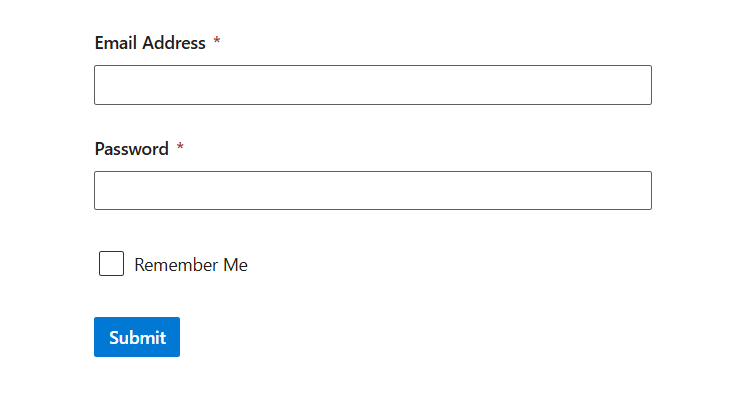
The Form Renderer control builds a form from a JSON-based Schema and renders the matching EJ2 input controls automatically. The schema has three parts: Properties (the form fields), Layout (how the fields are arranged in panels and tables), and Settings (form-level options such as name and width). In this example, a Login Form is built with an email address, password, a remember checkbox, and a Submit button.
Create the page model
Add the following code to define the model that provides the schema for the Form Renderer component’s schema property.
@page
@model FormRenderer.DefaultModel
@using Syncfusion.EJ2.FormRenderer

<ejs-formrenderer id="registrationForm" schema="Model.FormSchema"></ejs-formrenderer>
public class DefaultModel : PageModel
{
public Schema FormSchema { get; set; }
public void OnGet()
{
FormSchema = new Schema
{
Version = "0.1.0",
Properties = new Dictionary<string, BaseProperty>
{
["emailAddress"] = new TextboxProperty { Id = "t1", Name = "emailAddress", Type = "string", Label = "Email Address", TextboxType = "email", Required = true, Widget = "textbox" },
["password"] = new TextboxProperty { Id = "t2", Name = "password", Type = "string", Label = "Password", TextboxType = "password", Required = true, MinLength = 6, Widget = "textbox" },
["rememberMe"] = new CheckboxProperty { Id = "c1", Name = "rememberMe", Type = "boolean", Label = "Remember Me", Widget = "checkbox" },
["submit"] = new SubmitButtonProperty { Id = "s1", Name = "submit", Type = "button", Label = "Submit", ButtonType = "submit", Widget = "button", Style = "primary", Disabled = false }
},
Layout = new List<LayoutNode>
{
new LayoutNode { Type="field", PropertyId="emailAddress" },
new LayoutNode { Type="field", PropertyId="password" },
new LayoutNode { Type="field", PropertyId="rememberMe" },
new LayoutNode { Type="field", PropertyId="submit" }
},
Settings = new SchemaSettings { Name = "Login Form" }
};
}
}
public abstract class BaseProperty
{
[JsonProperty("id")] public string Id { get; set; }
[JsonProperty("name")] public string Name { get; set; }
[JsonProperty("type")] public string Type { get; set; }
[JsonProperty("label")] public string Label { get; set; }
[JsonProperty("widget")] public string Widget { get; set; }
[JsonProperty("size")] public string Size { get; set; }
}
public class TextboxProperty : BaseProperty
{
[JsonProperty("textboxType")] public string TextboxType { get; set; }
[JsonProperty("required")] public bool Required { get; set; }
[JsonProperty("minLength")] public int? MinLength { get; set; }
}
public class CheckboxProperty : BaseProperty { }
public class SubmitButtonProperty : BaseProperty
{
[JsonProperty("buttonType")] public string ButtonType { get; set; }
[JsonProperty("style")] public string Style { get; set; }
[JsonProperty("disabled")] public bool Disabled { get; set; }
}
public class Schema
{
[JsonProperty("version")] public string Version { get; set; }
[JsonProperty("properties")] public Dictionary<string, BaseProperty> Properties { get; set; }
[JsonProperty("layout")] public List<LayoutNode> Layout { get; set; }
[JsonProperty("settings")] public SchemaSettings Settings { get; set; }
}
public class SchemaSettings { [JsonProperty("name")] public string Name { get; set; } }
public class LayoutNode { [JsonProperty("type")] public string Type { get; set; } [JsonProperty("propertyId")] public string PropertyId { get; set; } }Run the application
Press Ctrl+F5 (Windows) or ⌘+F5 (macOS) to launch the application. The ASP.NET Core Form Renderer will render in your default web browser.