How can I help you?
Visual Studio Code Extensions
3 Feb 20262 minutes to read
Create project
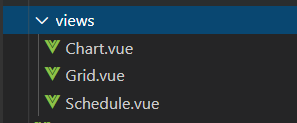
Syncfusion® provides project templates for Visual Studio Code to create Syncfusion® web applications. The Syncfusion® Web Project template creates applications with the selected framework (React, Pure React, Angular, and Vue), required Syncfusion® npm packages, component render code for the Grid, Chart, and Scheduler components, and styles to simplify development with Syncfusion® components.
The Syncfusion® Visual Studio Code project template is supported from v18.3.0.47.
The steps below describe how to create Syncfusion® web applications using Visual Studio Code:
- In Visual Studio Code, open the command palette by pressing Ctrl+Shift+P. The Visual Studio Code palette opens, search the word Syncfusion®, so you can get the templates provided.

-
Select Syncfusion® Web Template Studio: Launch and then press enter, Template Studio wizard for configuring the Syncfusion® Web app will appear. Provide the require Project Name and Path to create the new Syncfusion® Web application along with any one of the Framework (React, Pure React, Angular, and Vue).
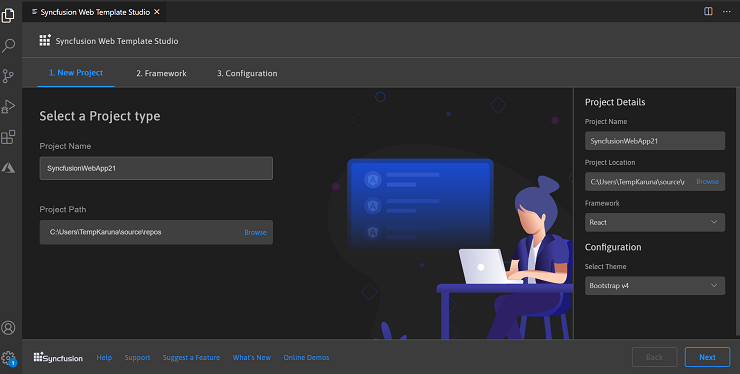
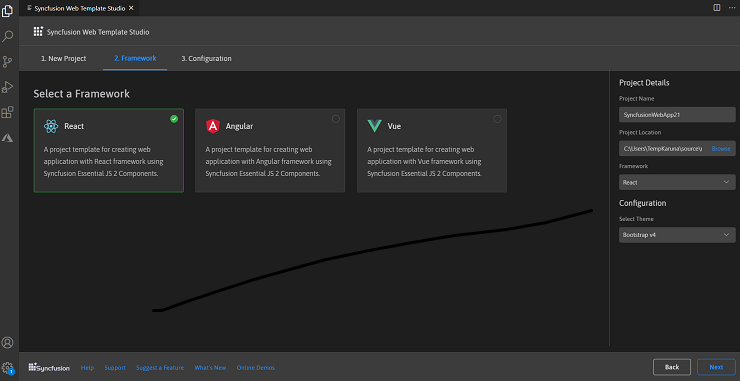
- Click either Next or Framework tab, and the Framework types will be appears. Choose any one of the Framework:
- React
- Pure React
- Angular
-
Vue
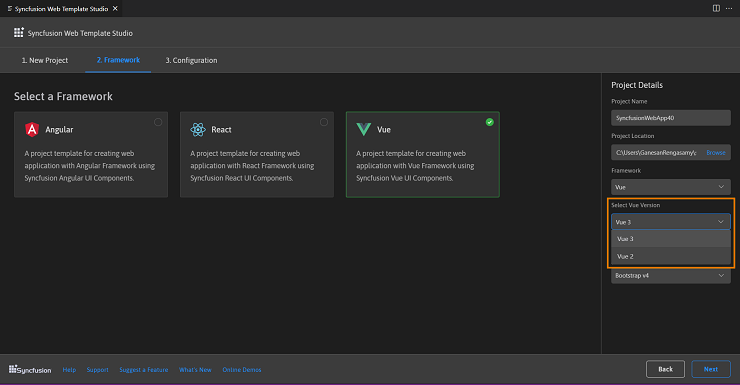
If you choose the Vue framework, the Select Vue Version option will appear in the Project Details section. You can create the Vue application using either the Vue 3 or Vue 2 versions.
-
Click either Next or the Configuration tab, and the Configuration section will be loaded. Choose the preferred theme and then click Create. The project will be created.
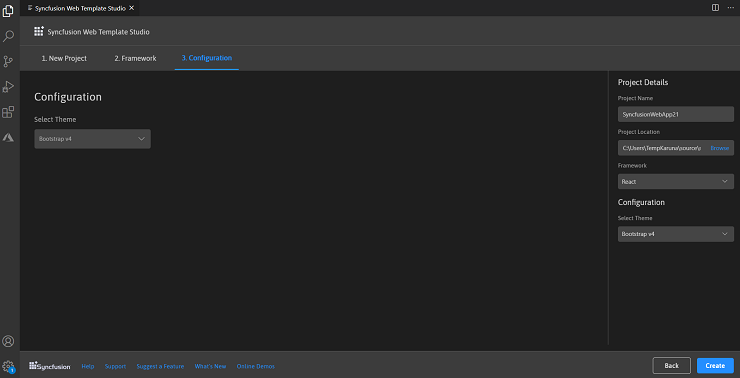
-
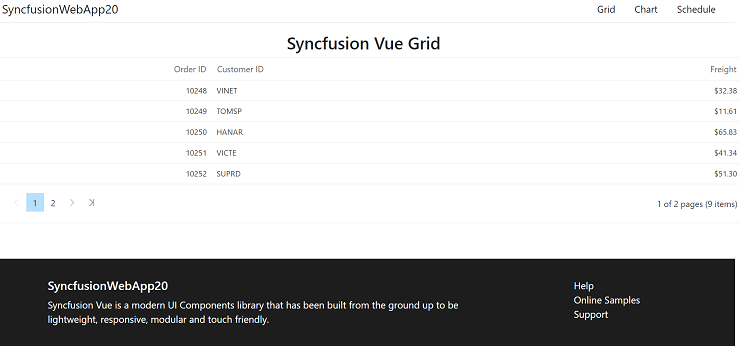
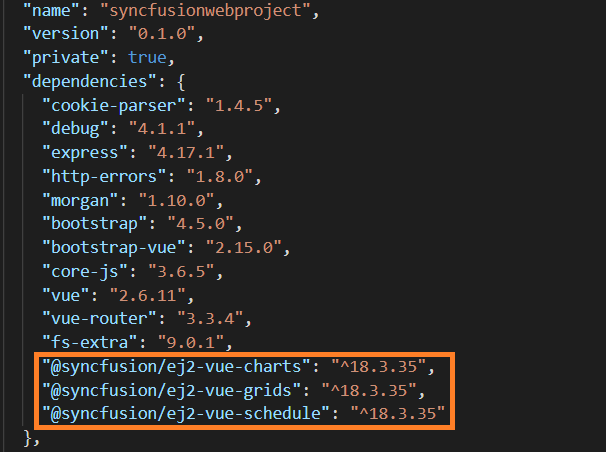
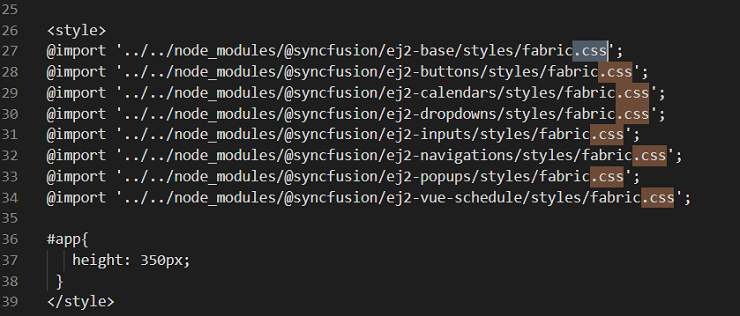
The created Syncfusion® Web App is configured with the Syncfusion® NPM packages, styles, and the component render code for the Syncfusion® component added.
Run the application
-
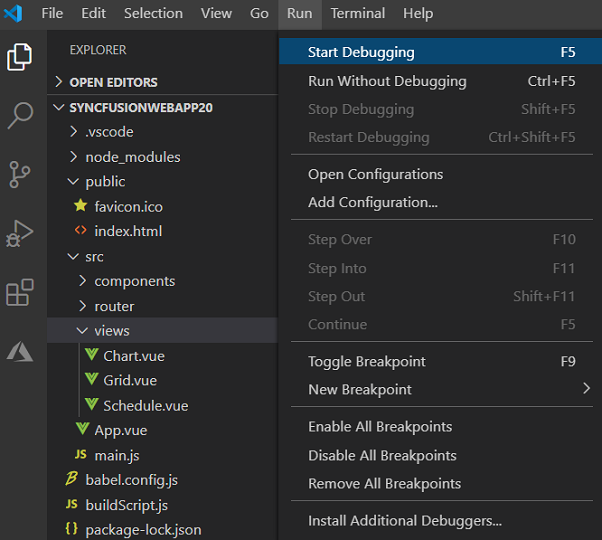
Press F5 or navigate to Run > Start Debugging.
-
After compilation completes, open the provided localhost URL in a browser to view the application output.