How can I help you?
Getting Started with Syncfusion SpeedDial Component in Vue 3
10 Feb 20269 minutes to read
This article provides a step-by-step guide for setting up a Vite project with a JavaScript environment and integrating the Syncfusion® Vue SpeedDial component using the Composition API / Options API.
The Composition API is a new feature introduced in Vue.js 3 that provides an alternative way to organize and reuse component logic. It allows developers to write components as functions that use smaller, reusable functions called composition functions to manage their properties and behavior.
The Options API is the traditional way of writing Vue.js components, where the component logic is organized into a series of options that define the component’s properties and behavior. These options include data, methods, computed properties, watchers, life-cycle hooks, and more.
To get started quickly with Vue 3 Speed dial, you can check out this video:
Prerequisites
System requirements for Syncfusion® Vue UI components
Set up the Vite project
A recommended approach for beginning with Vue is to scaffold a project using Vite. To create a new Vite project, use one of the commands that are specific to either NPM or Yarn.
npm create vite@latestor
yarn create viteUsing one of the above commands will lead you to set up additional configurations for the project as below:
1.Define the project name: We can specify the name of the project directly. Let’s specify the name of the project as my-project for this article.
? Project name: » my-project2.Select Vue as the framework. It will create a Vue 3 project.
? Select a framework: » - Use arrow-keys. Return to submit.
Vanilla
> Vue
  React
  Preact
  Lit
  Svelte
  Others
3.Choose JavaScript as the framework variant to build this Vite project using JavaScript and Vue.
? Select a variant: » - Use arrow-keys. Return to submit.
> JavaScript
  TypeScript
  Customize with create-vue ↗
  Nuxt ↗
4.Roll-down is Vite’s new experimental faster bundler (rust-based, replacing roll-up). Choose No uses the stable, proven roll-up-based Vite (recommended for most users)
Use rolldown-vite (Experimental)? No5.Install dependencies and start the dev server.
Install with npm and start now?: YesSince you selected Yes, the development server should start automatically. If you selected No, please follow these steps to set up and start the project manually:
cd my-project
npm install
or
cd my-project
yarn install
Now that my-project is ready to run with default settings, let’s add Syncfusion® components to the project.
Add Syncfusion® Vue packages
Syncfusion® Vue component packages are available at npmjs.com. To use Syncfusion® Vue components in the project, install the corresponding npm package.
This article uses the Vue Speed Dial component as an example. To use the Vue Speed Dial component in the project, the @syncfusion/ej2-vue-buttons package needs to be installed using the following command:
npm install @syncfusion/ej2-vue-buttons --saveor
yarn add @syncfusion/ej2-vue-buttonsImport Syncfusion® CSS styles
Syncfusion® components require CSS stylesheets to display correctly. You can import themes in various ways, such as using CSS or SASS styles from npm packages, CDN, CRG, and Theme Studio. Refer to themes topic to learn more about built-in themes and different ways to reference themes in a Vue project.
In this article, Material3 theme is applied using CSS styles, which are available in installed packages. The necessary Material3 CSS styles for the SpeedDial component and its dependents were imported into the <style> section of src/App.vue file.
<style>
    @import '../node_modules/@syncfusion/ej2-base/styles/material.css';
    @import '../node_modules/@syncfusion/ej2-buttons/styles/material.css';
</style>
The order of CSS imports matters. Import base styles first, then component-specific styles. Missing CSS imports can result in misaligned layouts, buttons without styling, or missing visual elements in popups and dialogs.
Add Syncfusion® Vue component
Follow the below steps to add the Vue Speed Dial component using Composition API or Options API:
- First, import and register the SpeedDial component and its child directives in the
scriptsection of the src/App.vue file. If you are using theComposition API, you should add thesetupattribute to thescripttag to indicate that Vue will be using theComposition API.
<script setup>
    import { SpeedDialComponent as ejsSpeeddial } from "@syncfusion/ej2-vue-buttons";
</script><script>
import { SpeedDialComponent } from "@syncfusion/ej2-vue-buttons";
//Component registration
export default {
name: "App",
components: {
"ejs-speeddial": SpeedDialComponent
}
}
</script>- In the
templatesection, define the Speed Dial component with the items property
<template>
    <div id="targetElement" style="position:relative;min-height:350px;min-width: 350px;border:1px solid;">
        <ejs-speeddial id='speeddial'  content='Edit' target='#targetElement' :items='items'></ejs-speeddial>
    </div>
</template>- Declare the values for the
itemsproperty in thescriptsection.
<script setup>
const items = [
    {
        text: 'Cut'
    },
    {
        text: 'Copy'
    },
    {
        text: 'Paste'
    }];
</script><script>
data () {
return {
items:[
{
text: 'Cut'
},
{
text: 'Copy'
},
{
text: 'Paste'
}]
};
}
</script>Here is the summarized code for the above steps in the src/App.vue file:
<template>
    <div id="targetElement" style="position:relative;min-height:350px;min-width: 350px;border:1px solid;">
        <ejs-speeddial id='speeddial'  content='Edit' target='#targetElement' :items='items' @click="click"></ejs-speeddial>
    </div>
</template>

<script setup>
import { SpeedDialComponent as ejsSpeeddial } from "@syncfusion/ej2-vue-buttons";
const items = [
    {
        text: 'Cut'
    },
    {
        text: 'Copy'
    },
    {
        text: 'Paste'
    }];
</script>

<style>
@import "../node_modules/@syncfusion/ej2-base/styles/material.css";
@import "../node_modules/@syncfusion/ej2-vue-buttons/styles/material.css";
</style><template>
<div id="targetElement" style="position:relative;min-height:350px;min-width:350px;border:1px solid;">
<ejs-speeddial id='speeddial' content='Edit' target='#targetElement' :items='items'></ejs-speeddial>
</div>
</template>
<script>
import { SpeedDialComponent } from "@syncfusion/ej2-vue-buttons";
export default {
name: "App",
components: {
"ejs-speeddial": SpeedDialComponent
},
data () {
return {
items:[
{
text: 'Cut'
},
{
text: 'Copy'
},
{
text: 'Paste'
}]
};
}
}
</script>
<style>
@import '../node_modules/@syncfusion/ej2-base/styles/material.css';
@import '../node_modules/@syncfusion/ej2-buttons/styles/material.css';
</style>Run the project
To run the project, use the following command:
npm run devor
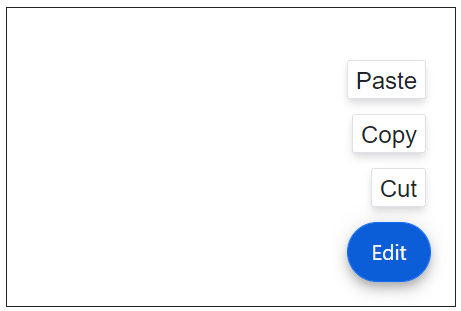
yarn run devThe output will appear as follows: