How can I help you?
Getting Started with React Button component
27 Feb 20264 minutes to read
This section explains the steps required to create a simple React Button component and demonstrate its basic usage in a React environment.
Ready to streamline your Syncfusion® React development? Discover the full potential of Syncfusion® React components with Syncfusion® AI Coding Assistant. Effortlessly integrate, configure, and enhance your projects with intelligent, context-aware code suggestions, streamlined setups, and real-time insights—all seamlessly integrated into your preferred AI-powered IDEs like VS Code, Cursor, Syncfusion® CodeStudio and more. Explore Syncfusion® AI Coding Assistant.
To get started quickly with React Button, you can watch this video:
Setup for local development
Easily set up a React application using create-vite-app, which provides a faster development environment, smaller bundle sizes, and optimized builds compared to traditional tools like create-react-app. For detailed steps, refer to the Vite installation instructions. Vite sets up your environment using JavaScript and optimizes your application for production.
Note: To create a React application using
create-react-app, refer to this documentation for more details.
To create a new React application, run the following command.
npm create vite@latest my-appThis command will prompt you for a few settings for the new project, such as selecting a framework and a variant.
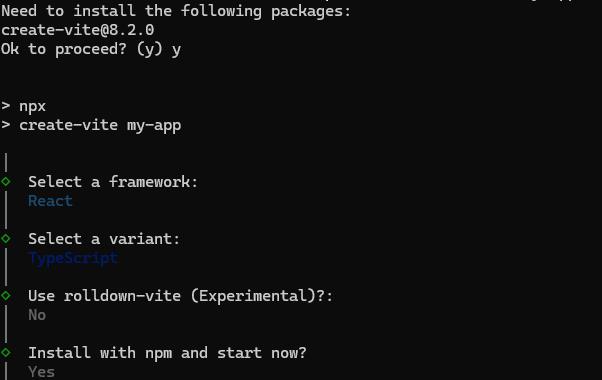
To set up a React application in TypeScript environment, run the following command.
npm create vite@latest my-app -- --template react-ts
cd my-app
npm run dev
To set up a React application in JavaScript environment, run the following command.
npm create vite@latest my-app -- --template react
cd my-app
npm run dev
Adding Syncfusion® Button packages
All the available Essential® JS 2 packages are published in the npmjs.com public registry.
To install the Button component, use the following command
npm install @syncfusion/ej2-react-buttons --saveThe –save will instruct NPM to include the Button package inside of the dependencies section of the package.json.
Adding CSS reference
The following CSS files are available in the ../node_modules/@syncfusion package folder. Add these as references in src/App.css.
@import "../node_modules/@syncfusion/ej2-base/styles/tailwind3.css";
@import "../node_modules/@syncfusion/ej2-react-buttons/styles/tailwind3.css";
To refer App.css in the application then import it in the src/App.tsx file.
Adding Button component
The React Button component can be added to the application by following these steps. To get started, add the Button component to the src/App.tsx file using the following code.
The following button code should be placed in the src/App.tsx file.
import { ButtonComponent } from '@syncfusion/ej2-react-buttons';
import * as React from 'react';
import './App.css';

function App() {
  return ( <div>
    <ButtonComponent>Button</ButtonComponent>
  </div>
  );
};
export default App;
Run the application
Run the npm run dev command in the terminal to start the development server. This command compiles your code and serves the application locally, opening it in the browser.
npm run devThe output appears as follows.
import { enableRipple } from '@syncfusion/ej2-base';
import { ButtonComponent } from '@syncfusion/ej2-react-buttons';
import * as React from 'react';
import * as ReactDom from 'react-dom';
enableRipple(true);
// To render Button.
function App() {
    return (<ButtonComponent>Button</ButtonComponent>);
}
export default App;
ReactDom.render(<App />, document.getElementById('button'));
import { enableRipple } from '@syncfusion/ej2-base';
import { ButtonComponent } from '@syncfusion/ej2-react-buttons';
import * as React from 'react';
import * as ReactDom from 'react-dom';
enableRipple(true);
// To render Button.
function App() {
return (
<ButtonComponent>Button</ButtonComponent>
);
}
export default App;
ReactDom.render(<App />,document.getElementById('button'));Refer to the React Button feature tour page for its groundbreaking feature representations. You can also explore our React Button component example that shows how to render the Button in React.