Getting Started with Syncfusion Angular A2UI
14 Sep 202612 minutes to read
This section walks through creating a simple Angular app that renders a Syncfusion EJ2 Angular component from a list of A2UI v0.9 messages using the Syncfusion A2UI for Angular package. The example below uses a DataGrid for illustration, but the same pattern — define an A2UI v0.9 message list, feed it to a MessageProcessor configured with syncfusionCatalog, and render the result with <syncfusion-a2ui-provider> — works for every component in the catalog (Chart, Scheduler, Calendar, RichTextEditor, Diagram, Spreadsheet and more).
Prerequisites
The following tools and runtime are required to build and run a Syncfusion A2UI Angular application.
| Tool | Version |
|---|---|
| Angular | 21 or higher |
| Angular CLI | 21 or higher |
| Node.js | 22 or higher, Recommended: Latest Version |
Angular supported versions
| Angular version | Minimum @syncfusion/ej2-angular-* version |
|---|---|
| Angular v21 | 35.1.37 and above |
Set up a development environment
To set up an Angular application quickly, use the Angular CLI, which scaffolds a workspace, generates components, builds, and serves the app.
To create a new Angular application, run one of the following commands based on your preferred styling and routing setup:
Angular with CSS
ng new my-app --style=css --routing=falseAngular with SCSS
ng new my-app --style=scss --routing=falseBoth commands scaffold an Angular workspace named my-app with the selected styling and no routing module. If you omit the flags, the Angular CLI walks you through the choices interactively.
After the scaffold completes, install the dependencies and start the dev server once to confirm the project is wired up:
cd my-app
npm install
npm start
(or ng serve, if npm start is not configured). Verify the dev server starts (the terminal prints a http://localhost:4200/ URL), then stop it and proceed to the next step. You do not need to navigate again; the cd my-app above already places you in the project directory.
Install the Syncfusion A2UI Angular package
The Syncfusion A2UI for Angular package is published to the npm registry. It bundles the A2UI v0.9 runtime, all Syncfusion EJ2 Angular adapters, and Zod as regular dependencies, so a single install line is enough:
npm install @syncfusion/ej2-angular-a2uiInstall a Syncfusion theme package
Themes for Syncfusion Angular components can be applied using CSS or SASS files from the npm theme packages, CDN, CRG, or Theme Studio.
This guide uses the Tailwind 3 theme as an example. In this package, each component includes an index.css file that automatically loads all the required dependency styles. To install the Tailwind 3 theme package, use the following command:
npm install @syncfusion/ej2-tailwind3-themeReplace
@syncfusion/ej2-tailwind3-themewith the theme package that matches your design system.
Clear Angular’s default styles
By default, Angular projects include a src/styles.css file with default styles. These default styles may conflict with Syncfusion component styles. Clear all content from src/styles.css to prevent style conflicts.
Import the component styles
The required styles for each component family the agent will render are imported in the src/styles.css file. The example below imports the stylesheet for the DataGrid used in the getting-started code sample; add an @import line for every additional component family the agent may use (chips, buttons, schedule, chart, etc.):
@import "@syncfusion/ej2-tailwind3-theme/styles/grid/index.css";Render your first Syncfusion A2UI surface
Replace the contents of src/app/app.component.ts and src/app/app.component.html with the snippets below. They wire up the MessageProcessor with syncfusionCatalog, subscribe to onSurfaceCreated, and process three A2UI v0.9 messages that together render a DataGrid with two employee rows.
import {
  ChangeDetectionStrategy,
  Component,
  signal,
} from '@angular/core';
import { ButtonComponent } from '@syncfusion/ej2-angular-buttons';
import { SyncfusionA2UIProvider } from '@syncfusion/ej2-angular-a2ui';

@Component({
  standalone: true,
  selector: 'app-root',
  imports: [ButtonComponent, SyncfusionA2UIProvider],
  changeDetection: ChangeDetectionStrategy.OnPush,
  styleUrl: './app.css',
  template: `
    @if (!messages()) {
      <div class="a2ui-chat">
        <button ejs-button [isPrimary]="true" (click)="renderGrid()">
          Render Employee Grid
        </button>
      </div>
    }

    @if (messages(); as msgs) {
      <syncfusion-a2ui-provider
        [messages]="msgs"
        [dataContextPath]="'/'"
        (onError)="onBoundaryError($event)"
      />
    }
  `,
})
export class AppComponent {
  protected readonly messages = signal<unknown[] | null>(null);

  protected renderGrid(): void {
    this.messages.set([
      {
        version: 'v0.9',
        createSurface: {
          surfaceId: 'surface-1',
          catalogId: 'syncfusion-a2ui-catalog',
        },
      },
      {
        version: 'v0.9',
        updateComponents: {
          surfaceId: 'surface-1',
          components: [
            { id: 'root', component: 'Column', children: ['grid1'] },
            {
              id: 'grid1',
              component: 'SyncfusionGrid',
              width: '100%',
              height: '320px',
              dataSource: { path: '/rows' },
              allowSorting: true,
              columns: [
                { field: 'id', headerText: 'Employee ID', width: 140 },
                { field: 'name', headerText: 'Name', width: 180 },
                { field: 'department', headerText: 'Department', width: 160 },
              ],
            },
          ],
        },
      },
      {
        version: 'v0.9',
        updateDataModel: {
          surfaceId: 'surface-1',
          path: '/rows',
          value: [
            { id: 'EMP001', name: 'Emma Johnson', department: 'Engineering' },
            { id: 'EMP002', name: 'James Wilson', department: 'Sales' },
          ],
        },
      },
    ]);
  }

  protected onBoundaryError(event: Event): void {
    const detail = (event as CustomEvent<unknown>).detail;
    const message =
      detail instanceof Error
        ? detail.message
        : typeof detail === 'string'
          ? detail
          : (event as ErrorEvent).message ?? event.type;
    console.error('[A2UI] surface render error:', message);
  }
}
import {
ApplicationConfig,
provideBrowserGlobalErrorListeners,
} from '@angular/core';
import { provideRouter } from '@angular/router';
import {
A2UI_RENDERER_CONFIG,
A2uiRendererService,
} from '@a2ui/angular/v0_9';
import { syncfusionCatalog } from '@syncfusion/ej2-angular-a2ui';
import { routes } from './app.routes';
export const appConfig: ApplicationConfig = {
providers: [
provideBrowserGlobalErrorListeners(),
provideRouter(routes),
{
provide: A2UI_RENDERER_CONFIG,
useValue: {
catalogs: [syncfusionCatalog],
actionHandler: (action: unknown): void => {
console.log('[Sample-1] surface action:', action);
},
},
},
A2uiRendererService,
],
};Based on the configuration of your angular app, update the
src/app.config.tsandmain.tsfiles.
What the snippet does, in order:
- Imports the
SyncfusionA2UIProviderandsyncfusionCatalogfrom the package, plus theMessageProcessorand types from@a2ui/web_core/v0_9and@a2ui/angular/v0_9. - Declares a static MESSAGES array with three A2UI v0.9 messages: a
createSurface, anupdateComponentsthat adds aColumncontaining aSyncfusionDataGrid, and anupdateDataModelthat supplies the grid’s rows. - Creates the
MessageProcessoronce during component initialization so it survives re-renders, and registerssyncfusionCatalogas the catalog it should resolve components against. - In the life cycle hook (
ngOnInit), subscribes toonSurfaceCreated(so the latestSurfaceModellands in component state) and immediately callsprocessor.processMessages(MESSAGES)to render the surface. - Renders the surface with
<syncfusion-a2ui-provider [surface]="surface"></syncfusion-a2ui-provider>. The provider is generic, swapSyncfusionDataGridfor any other component in the catalog (SyncfusionChart,SyncfusionScheduler,SyncfusionCalendar,SyncfusionTextBox, …) and the same pipeline renders it.
Run the application
Run the application using the following command:
npm startOpen the generated local URL (typically, http://localhost:4200/) in the browser.
Click Render Employee Grid. The sample grid renders as follows:
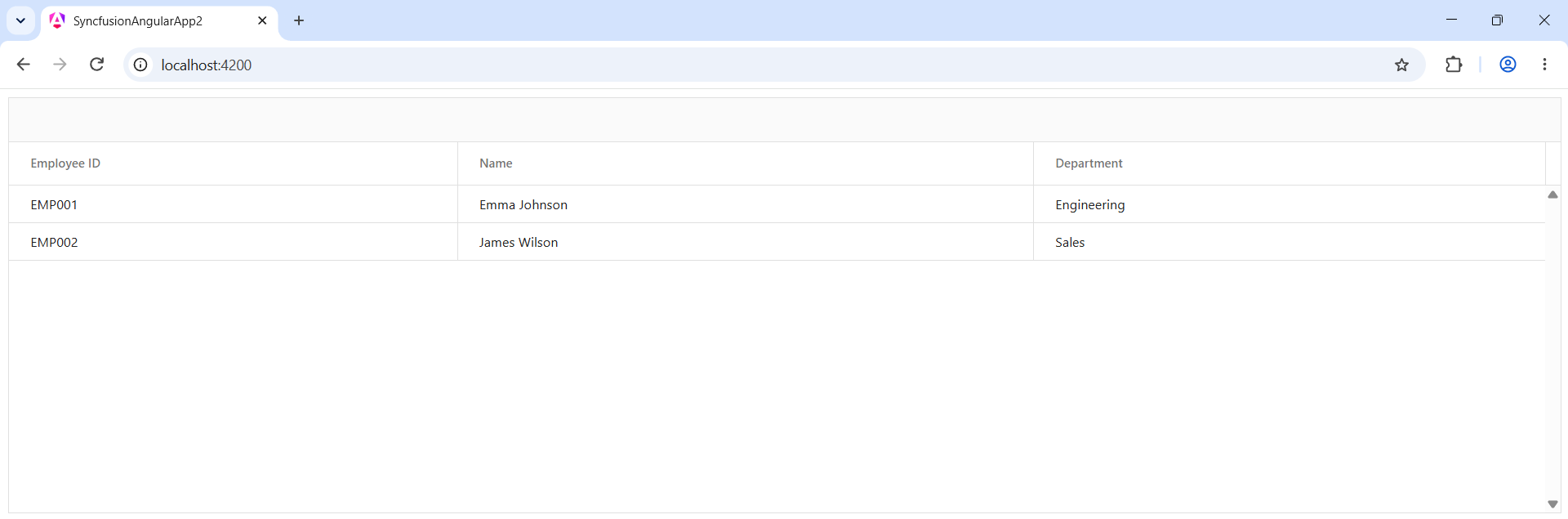
The application displays a Syncfusion EJ2 DataGrid with the two employee rows, paging, and sorting enabled, rendered entirely from the static A2UI v0.9 message list above.
Verify the application
Confirm the surface is wired up end-to-end:
- The browser loads the dev URL without console errors.
- Clicking Render Employee Grid triggers a surface render — the DataGrid appears with two rows, ID and Name columns, plus the grid features such as sorting, searching, and paging
- Resize a column header, change a page, or sort a column. Each interaction should be smooth, with no Angular warnings in the browser console.
- Open the browser DevTools Network tab and reload the page — verify that no data requests leave the browser when the grid renders. This proves the
MessageProcessorsynthesized the surface entirely from the staticMESSAGESarray insrc/app/app.component.ts, with no external backend in the loop.
If any step fails, check the browser console for Zod-schema validation errors — most failures at this point are caused by a miscopying MESSAGES array or a missing syncfusionCatalog registration.
Register the Syncfusion license key
Syncfusion® EJ2 Angular components require a valid license key to be registered before they render without a trial-license watermark. The A2UI adapters call into the same EJ2 components under the hood, so a registered key is required even when the UI itself is generated by an agent.
For instructions on generating and registering a license key, see: