How can I help you?
Installing Syncfusion® JavaScript – EJ2 Mac Installer
2 Feb 20262 minutes to read
Steps to resolve the warning message in Catalina OS or later
While running Essential® Studio JavaScript - EJ2 Mac Installer on Catalina MacOS or later, the below alert will be displayed.
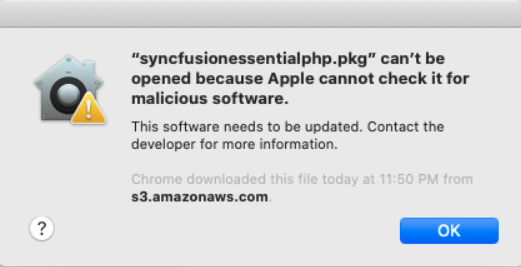
If you receive this alert, follow the below steps for the easiest solution.
- Right-click the downloaded DMG file.
-
Select Open With and choose DiskImageMounter (Default). The following pop-up appears.

- When you click “Open” the installer window will be opened.
Step-by-Step Installation
The steps below show how to install the Essential® Studio JavaScript - EJ2 Mac installer.
-
Locate the downloaded dmg file and open the file by double click on it.

-
This action will automatically mount the disk image and create a virtual drive on your desktop or in the Finder sidebar.

-
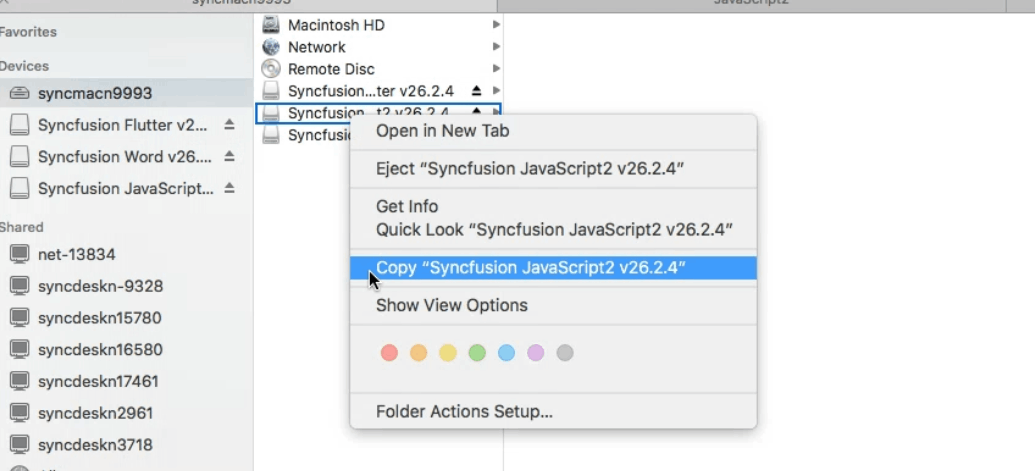
Copy the mounted disk file.
-
And paste it in “Applications” folder shortcut.

NOTE
The Unlock key is not required to install the Mac installer. The Syncfusion® Essential® Studio JavaScript - EJ2 Mac installer can be used for development purposes without registering the Unlock key.
-
Now you can open the folder to explore the Syncfusion® Essential® Studio Mac installer.

-
To remove the DMG file, Right-click on the virtual drive on your desktop or in the Finder sidebar and select “Eject.” Also delete the folder from the Applications.

License key registration in samples
After installation, a license key is required to run the demo source included with the Mac installer. To learn how to register a license key for the JavaScript – EJ2 Mac installer, refer to the following topics: