How can I help you?
Getting started with Angular Context menu component
6 Feb 202610 minutes to read
This section explains how to create a simple ContextMenu and demonstrates basic usage of the ContextMenu component in an Angular environment. The ContextMenu component displays a contextual menu that appears when users right-click or perform touch-and-hold actions, providing relevant actions for the selected content.
Dependencies
The following dependencies are required to use the Angular ContextMenu component in your application:
@syncfusion/ej2-angular-navigations
    ├── @syncfusion/ej2-angular-base
    └── @syncfusion/ej2-navigations
        ├── @syncfusion/ej2-base
        ├── @syncfusion/ej2-data
        ├── @syncfusion/ej2-lists
        ├── @syncfusion/ej2-inputs
        ├── @syncfusion/ej2-splitbuttons
        └── @syncfusion/ej2-popups
            └── @syncfusion/ej2-buttons
Setup Angular Environment
You can use Angular CLI to setup your Angular applications. To install Angular CLI use the following command:
npm install -g @angular/cli
Angular 21 Standalone Architecture: Standalone components are the default in Angular 21. This guide uses the modern standalone architecture. If you need more information about the standalone architecture, refer to the Standalone Guide.
Installing a specific version
To install a particular version of Angular CLI, use:
npm install -g @angular/[email protected]Create a new application
With Angular CLI installed, execute this command to generate a new application:
ng new syncfusion-angular-app- This command will prompt you to configure settings like enabling Angular routing and choosing a stylesheet format.
? Which stylesheet format would you like to use? (Use arrow keys)
> CSS             [ https://developer.mozilla.org/docs/Web/CSS                     ]
  Sass (SCSS)     [ https://sass-lang.com/documentation/syntax#scss                ]
  Sass (Indented) [ https://sass-lang.com/documentation/syntax#the-indented-syntax ]
Less [ http://lesscss.org ]- By default, a CSS-based application is created. Use SCSS if required:
ng new syncfusion-angular-app --style=scss- During project setup, when prompted for the Server-side rendering (SSR) option, choose the appropriate configuration.

- Select the required AI tool or ‘none’ if you do not need any AI tool.
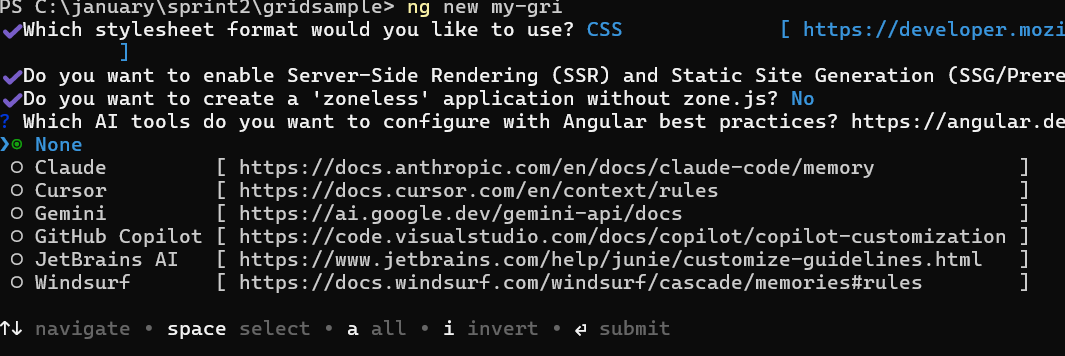
- Navigate to your newly created application directory:
cd syncfusion-angular-appNote: In Angular 19 and below, it uses
app.component.ts,app.component.html,app.component.cssetc. In Angular 20+, the CLI generates a simpler structure withsrc/app/app.ts,app.html, andapp.css(no.component.suffixes).
Installing Syncfusion® ContextMenu Package
Syncfusion® packages are distributed in npm as @syncfusion scoped packages. You can get all the Angular Syncfusion® packages from npm link.
Currently, Syncfusion® provides two types of package structures for Angular components:
- Ivy library distribution package format
- Angular compatibility compiler (Angular’s legacy compilation and rendering pipeline) package.
Ivy Library Distribution Package
Syncfusion® Angular packages(>=20.2.36) have been moved to the Ivy distribution to support the Angular Ivy rendering engine and the packages are compatible with Angular version 12 and above. To download the package use the command below:
Add @syncfusion/ej2-angular-navigations package to the application.
npm install @syncfusion/ej2-angular-navigations --saveAngular Compatibility Compiled Package (ngcc)
For Angular versions below 12, you can use the legacy (ngcc) package of the Syncfusion® Angular components. To download the ngcc package use the command below:
Add @syncfusion/ej2-angular-navigations@ngcc package to the application.
npm install @syncfusion/ej2-angular-navigations@ngcc --saveTo mention the ngcc package in the package.json file, add the suffix -ngcc with the package version as follows:
@syncfusion/ej2-angular-navigations:"20.2.38-ngcc"Note: If the ngcc tag is not specified while installing the package, the Ivy Library Package will be installed and this package will throw a warning.
Adding Syncfusion® ContextMenu Component
Modify the template in app.component.ts file with ejs-contextmenu to render the ContextMenu component. The options contain menuItem and target properties that define the menu content and the element where the ContextMenu will appear.
import { ContextMenuModule } from '@syncfusion/ej2-angular-navigations'
import { Component } from '@angular/core';
import { MenuItemModel } from '@syncfusion/ej2-navigations';

@Component({
imports: [
  ContextMenuModule
],
standalone: true,
selector: 'app-root',
template: `<!--target element-->
  <div id="target">Right click / Touch hold to open the ContextMenu</div>
  <!-- To Render ContextMenu. -->
    <ejs-contextmenu id='contextmenu' target='#target' [items]= 'menuItems'></ejs-contextmenu>`
})

export class AppComponent {
  public menuItems: MenuItemModel[] = [
  {
      text: 'Cut'
  },
  {
      text: 'Copy'
  },
  {
      text: 'Paste'
  }];
}
Adding CSS Reference
Add ContextMenu component’s styles as given below in style.css. The Material3 theme is used in this example, but other themes are available.
@import '../node_modules/@syncfusion/ej2-navigations/styles/material3.css';

/* Context Menu target */
#target {
    border: 1px dashed;
    height: 150px;
    padding: 10px;
    position: relative;
    text-align: justify;
    color: gray;
    user-select: none;
}
Running the Application
Run the application in the browser using the following command:
ng serve
The following example shows a basic ContextMenu component.
import { NgModule } from '@angular/core'
import { BrowserModule } from '@angular/platform-browser'
import { ContextMenuModule } from '@syncfusion/ej2-angular-navigations'
import { enableRipple } from '@syncfusion/ej2-base'


import { Component } from '@angular/core';
import { MenuItemModel } from '@syncfusion/ej2-navigations';

@Component({
imports: [

        ContextMenuModule
    ],


standalone: true,
  selector: 'app-root',
  template: `<div class="e-section-control">
            <!--target element-->
            <div id="target">Right click / Touch hold to open the ContextMenu</div>

            <!-- To Render ContextMenu. -->
            <ejs-contextmenu id='contextmenu' target='#target' [items]= 'menuItems'></ejs-contextmenu>
            </div>`
})

export class AppComponent {
    public menuItems: MenuItemModel[] = [
    {
        text: 'Cut'
    },
    {
        text: 'Copy'
    },
    {
        text: 'Paste'
    }];
}
import { bootstrapApplication } from '@angular/platform-browser';
import { AppComponent } from './app.component';
import 'zone.js';
bootstrapApplication(AppComponent).catch((err) => console.error(err));Rendering Items with Separator
The Separators are horizontal lines used to separate menu items. You cannot select separators. You can enable separators to group menu items using the separator property. Cut, Copy, and Paste menu items are grouped using the separator property in the following sample.
import { NgModule } from '@angular/core'
import { BrowserModule } from '@angular/platform-browser'
import { ContextMenuModule } from '@syncfusion/ej2-angular-navigations'
import { enableRipple } from '@syncfusion/ej2-base'


import { Component } from '@angular/core';
import { MenuItemModel } from '@syncfusion/ej2-navigations';

@Component({
imports: [

        ContextMenuModule
    ],


standalone: true,
  selector: 'app-root',
  template: `<div class="e-section-control">
            <div id="target">Right click / Touch hold to open the ContextMenu</div>
            <ejs-contextmenu id='contextmenu' target='#target' [items]= 'menuItems'></ejs-contextmenu>
            </div>`
})

export class AppComponent {
    public menuItems: MenuItemModel[] = [
        {
            text: 'Cut'
        },
        {
            text: 'Copy'
        },
        {
            text: 'Paste'
        },
        {
            separator: true
        },
        {
            text: 'Font'
        },
        {
            text: 'Paragraph'
        }
        ];
}
import { bootstrapApplication } from '@angular/platform-browser';
import { AppComponent } from './app.component';
import 'zone.js';
bootstrapApplication(AppComponent).catch((err) => console.error(err));The
separatorproperty should not be given along with the other fields in theMenuItem.