How can I help you?
Getting Started with the Vue Maskedtextbox Component in Vue 2
10 Feb 202610 minutes to read
This article provides a step-by-step guide for setting up a Vue 2 project using Vue-CLI and integrating the Syncfusion® Vue MaskedTextBox component.
Prerequisites
System requirements for Syncfusion® Vue UI components
Setup the Vue 2 project
To generate a Vue 2 project using Vue-CLI, use the vue create command. Follow these steps to install Vue CLI and create a new project:
npm install -g @vue/cli
vue create quickstart
cd quickstart
npm run serve
or
yarn global add @vue/cli
vue create quickstart
cd quickstart
yarn run serve
When creating a new project, choose the option Default ([Vue 2] babel, eslint) from the menu.
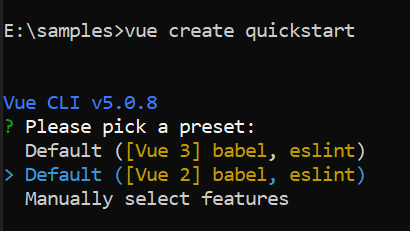
Once the quickstart project is set up with default settings, proceed to add Syncfusion® components to the project.
Add Syncfusion® Vue packages
Syncfusion® packages are available at npmjs.com. To use Vue components, install the required npm package.
This article uses the Vue Maskedtextbox component as an example. Install the @syncfusion/ej2-vue-inputs package by running the following command:
npm install @syncfusion/ej2-vue-inputs --saveor
yarn add @syncfusion/ej2-vue-inputsImport Syncfusion® CSS styles
Syncfusion® components require CSS stylesheets to display correctly. You can import themes in various ways, such as using CSS or SASS styles from npm packages, CDN, CRG, and Theme Studio. Refer to themes topic to learn more about built-in themes and different ways to reference themes in a Vue project.
In this article, the Material3 theme is applied using CSS styles, which are available in installed packages. The necessary Material3 CSS styles for the MaskedTextBox component and its dependents were imported into the <style> section of the src/App.vue file.
<style>
@import "../node_modules/@syncfusion/ej2-base/styles/material.css";
@import "../node_modules/@syncfusion/ej2-vue-inputs/styles/material.css";
</style>
The order of CSS imports matters. Import base styles first, then component-specific styles. Missing CSS imports can result in misaligned layouts, buttons without styling, or missing visual elements in popups and dialogs.
Add Syncfusion® Vue component
Follow the below steps to add the Vue MaskedTextBox component:
1. First, import and register the MaskedTextBox component in the script section of the src/App.vue file.
<script setup>
import { MaskedTextBoxComponent as EjsMaskedtextbox} from "@syncfusion/ej2-vue-inputs";
</script><script>
import { MaskedTextBoxComponent } from "@syncfusion/ej2-vue-inputs";
export default {
name: "App",
components: {
"ejs-maskedtextbox':":MaskedTextBoxComponent
}
}
</script>Adding MaskedTextBox component
Add the EJ2 Vue MaskedTextBox using <ejs-maskedtextbox> to the <template> section of the App.vue file in src directory, the content attribute of the MaskedTextBox component is provided as name in data option in the <script> section.
<template>
    <div class="control_wrapper">
      <div class="control-label">MaskedTextbox
      </div>
      <ejs-maskedtextbox></ejs-maskedtextbox>
    </div>
</template>
<script setup>
import { MaskedTextBoxComponent as EjsMaskedtextbox } from "@syncfusion/ej2-vue-inputs";
</script><template>
<div class="control_wrapper">
<div class="control-label">MaskedTextbox
</div>
<ejs-maskedtextbox></ejs-maskedtextbox>
</div>
</template>
<script>
import { MaskedTextBoxComponent } from "@syncfusion/ej2-vue-inputs";
export default {
name: "App",
components: {
"ejs-maskedtextbox":MaskedTextboxComponent
},
data () {
return {}
}
}
</script>Set the mask
You can set the mask to the MaskedTextBox to validate the user input by using the mask property. To know more about the usage of mask and configuration, refer to this link.
The following example demonstrates the usage of mask element 0 that allows any single digit from 0 to 9.
<template>
    <div class="control_wrapper">
        <div class="control-label">MaskedTextBox
        </div>
        <ejs-maskedtextbox mask="000-000-0000"></ejs-maskedtextbox>
    </div>
</template>

<script setup>
import { MaskedTextBoxComponent as EjsMaskedtextbox } from "@syncfusion/ej2-vue-inputs";
</script><template>
<div class="control_wrapper">
<div class="control-label">MaskedTextBox
</div>
<ejs-maskedtextbox mask="000-000-0000"></ejs-maskedtextbox>
</div>
</template>
<script>
import { MaskedTextBoxComponent } from "@syncfusion/ej2-vue-inputs";
export default {
name: "App",
components: {
"ejs-maskedtextbox":MaskedTextboxComponent
},
}
</script>Here is the summarized code for the above steps in the src/App.vue file:
<template>
  <div id="app">
    <div class='wrap'>
        <ejs-maskedtextbox mask='000-000-0000' placeholder='MaskedTextBox' floatLabelType='Always'></ejs-maskedtextbox>
    </div>
  </div>
</template>
<script setup>
import { MaskedTextBoxComponent as EjsMaskedtextbox } from "@syncfusion/ej2-vue-inputs";

</script >
<style>
  @import "../node_modules/@syncfusion/ej2-base/styles/material.css";
  @import "../node_modules/@syncfusion/ej2-vue-inputs/styles/material.css";
 .wrap {
    margin: 0 auto;
    width: 240px;
}
</style><template>
<div id="app">
<div class='wrap'>
<ejs-maskedtextbox mask='000-000-0000' placeholder='MaskedTextBox' floatLabelType='Always'></ejs-maskedtextbox>
</div>
</div>
</template>
<script>
import { MaskedTextBoxComponent } from "@syncfusion/ej2-vue-inputs";
export default {
name: "App",
components: {
"ejs-maskedtextbox": MaskedTextBoxComponent
},
data() {
return {}
}
}
</script>
<style>
@import "../node_modules/@syncfusion/ej2-base/styles/material.css";
@import "../node_modules/@syncfusion/ej2-vue-inputs/styles/material.css";
.wrap {
margin: 0 auto;
width: 240px;
}
</style>Run the project
To run the project, use the following command:
npm run serveor
yarn run serveModel binding
In MaskedTextBox, the value property supports model binding functionality.
The following example demonstrates model binding functionality with the MaskedTextBox and HTML input element.
<template>
  <div id="app">
  <div class='wrap'>
        <div class='e-input-group' style='margin-bottom:30px'>
        <input class='e-input' type='text' v-model='value' placeholder='Mobile Number'  />
        </div>
        <div>
           <ejs-maskedtextbox v-model="value" :value="value" mask='000-000-0000'></ejs-maskedtextbox>
        </div>
    </div>
  </div>
</template>
<script setup>
import { MaskedTextBoxComponent as EjsMaskedtextbox} from "@syncfusion/ej2-vue-inputs";
import {ref} from 'vue';

const value=ref(null);

</script>
<style>
  @import "../node_modules/@syncfusion/ej2-base/styles/material.css";
  @import "../node_modules/@syncfusion/ej2-vue-inputs/styles/material.css";
 .wrap {
  margin: 35px auto;
  width: 240px;
}
</style><template>
<div id="app">
<div class='wrap'>
<div class='e-input-group' style='margin-bottom:30px'>
<input class='e-input' type='text' v-model='value' placeholder='Mobile Number' />
</div>
<div>
<ejs-maskedtextbox v-model="value" :value="value" mask='000-000-0000'></ejs-maskedtextbox>
</div>
</div>
</div>
</template>
<script>
import { MaskedTextBoxComponent } from "@syncfusion/ej2-vue-inputs";
export default {
name: "App",
components: {
"ejs-maskedtextbox": MaskedTextBoxComponent
},
data() {
return {
value: ''
}
}
}
</script>
<style>
@import "../node_modules/@syncfusion/ej2-base/styles/material.css";
@import "../node_modules/@syncfusion/ej2-vue-inputs/styles/material.css";
.wrap {
margin: 35px auto;
width: 240px;
}
</style>