Installation using the offline installer
17 Aug 20268 minutes to read
This guide explains how to install the Syncfusion® Essential® JavaScript - EJ2 offline installer on Windows, either through the installer UI or in silent mode from the command line.
If you do not yet have the installer, refer to the Download section to obtain the trial or licensed version.
Prerequisites
- A Windows machine with administrator privileges.
- The downloaded offline installer (
.exeor.zip). - A valid Syncfusion® account (for Login to Install) or a Syncfusion® unlock key (for Use Unlock Key).
- For the Install Demos option, the target install location must be writable. If Controlled folder access is enabled on Windows, see Common Installation Errors.
The frameworks supported by this installer:
- JavaScript
- Angular
- React
- Vue
- JavaScript (ES5)
Installing with the UI
The steps below describe how to install the Essential® Studio JavaScript – EJ2 installer.
-
Open the Syncfusion® JavaScript – EJ2 offline installer file from the downloaded location by double-clicking it. The Installer Wizard automatically opens and extracts the package.
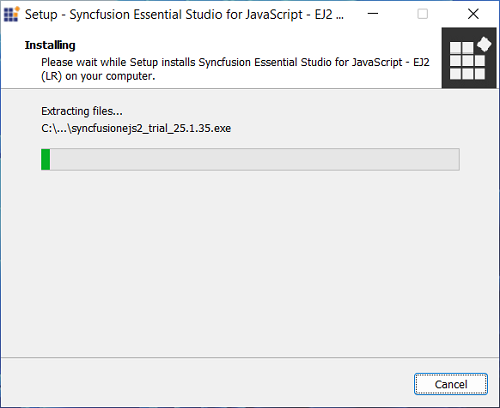
The Installer wizard displays a dialog showing the package extraction progress.
-
To unlock the Syncfusion® offline installer, choose one of the following options:
- Login to Install
- Use Unlock Key
Login to Install
Enter the Syncfusion® email address and password. If you do not have a Syncfusion® account, click Create an account to sign up. If you have forgotten the password, click Forgot Password to reset it. After entering credentials, click Next.
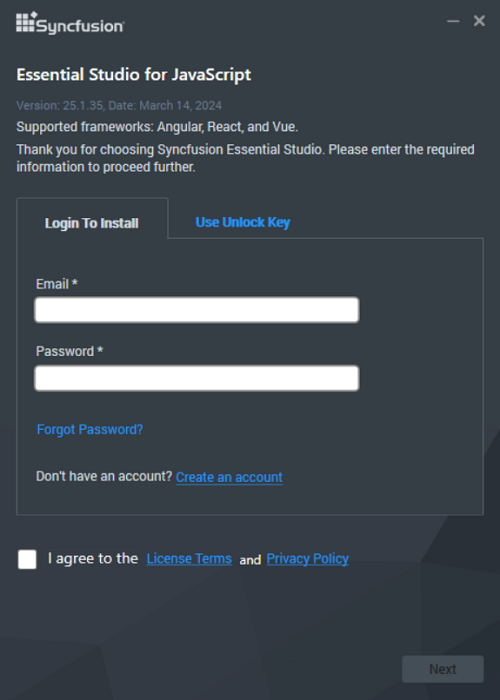
Use Unlock Key
Unlock keys are platform- and version-specific. Use either a Syncfusion® licensed or trial unlock key to unlock the Syncfusion® JavaScript – EJ2 installer. The trial unlock key is only valid for 30 days; the installer will not accept an expired trial key.
To learn how to generate an unlock key for both trial and licensed products, see this Knowledge Base article.
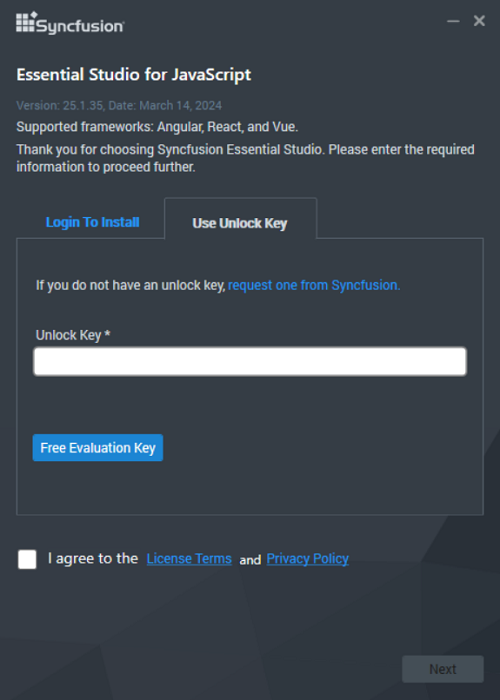
-
After reading the License Terms and Privacy Policy, check the I agree to the License Terms and Privacy Policy check box. Click Next.
-
Change the install and samples locations here. You can also change the Additional settings (described below). Click Next / Install to install with the default settings.
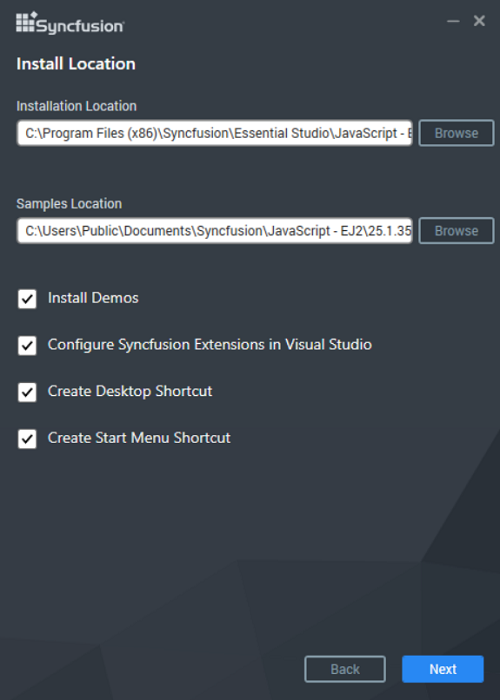
Additional Settings
- Select the Install Demos check box to install Syncfusion® samples, or leave the check box unchecked if you do not want to install samples.
- Select the Configure Syncfusion® Extensions in Visual Studio check box to configure the Syncfusion® Extensions in Visual Studio. Clear this check box if you do not want to configure the extensions.
- Check the Create Desktop Shortcut check box to add a desktop shortcut for Syncfusion® Control Panel.
- Check the Create Start Menu Shortcut check box to add a shortcut to the start menu for Syncfusion® Control Panel.
-
If previous versions of the current product are installed, the Uninstall Previous Version(s) wizard is displayed. Select each version you want to uninstall, then click Proceed.
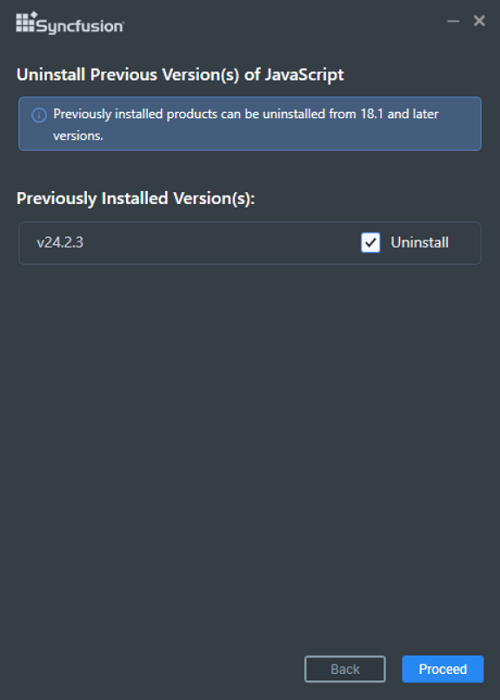
From the 2021 Volume 1 release, Syncfusion® has added the option to uninstall previous versions from 18.1 onward while installing the new version.
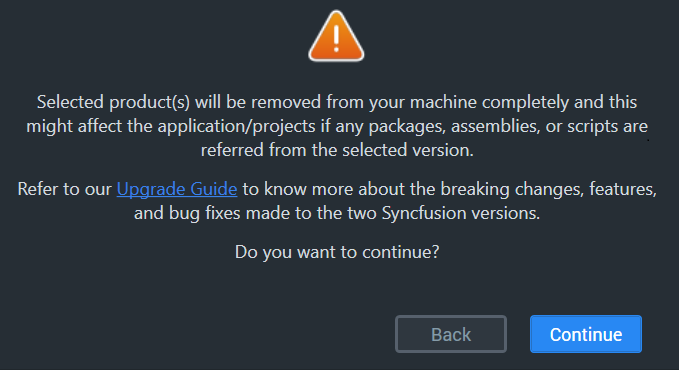
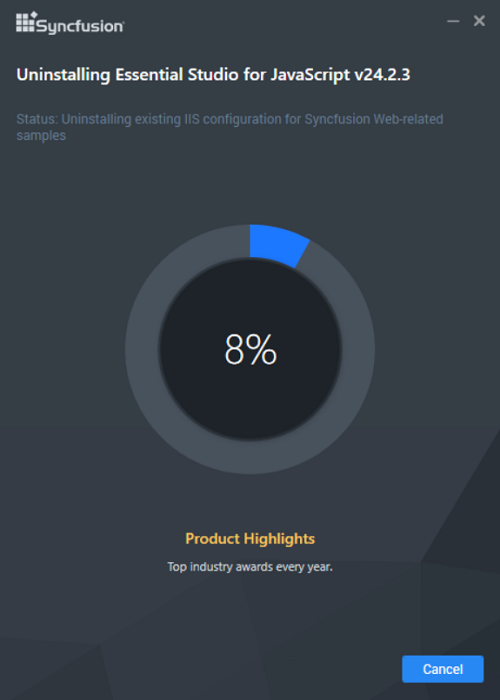
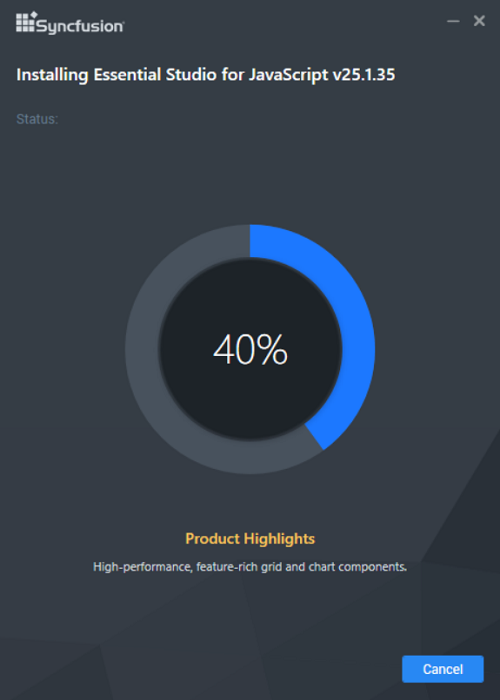
If any version is selected to uninstall, a confirmation screen will appear. If you click Continue, the Progress screen will display the uninstall and install progress respectively. If no versions are chosen to be uninstalled, only the installation progress is displayed.Confirmation Alert
Uninstall Progress
Install Progress
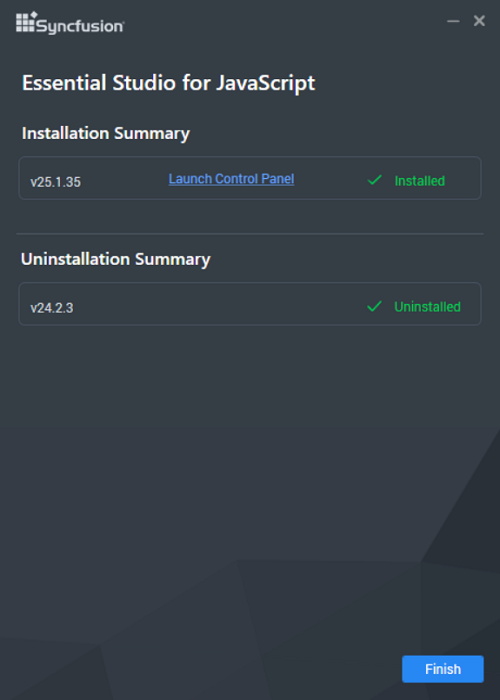
The Completed screen is displayed once the JavaScript – EJ2 product is installed. If any version is selected to uninstall, the completed screen displays both install and uninstall status.
-
After installation, click the Launch Control Panel link to open the Syncfusion® Control Panel.
-
Click Finish. Your system has been installed with the Syncfusion® Essential® Studio JavaScript – EJ2 product.
Installing in silent mode
The Syncfusion® Essential® Studio JavaScript – EJ2 installer supports installation and uninstallation via the command line in silent mode.
Command line installation
To install through the command line in silent mode:
- Run the Syncfusion® JavaScript – EJ2 installer by double-clicking it. The Installer Wizard opens and extracts the package.
- The
syncfusionejs2_<version>.exefile is extracted into the Windows Temp directory. - Open the Temp folder by running
%temp%in the Run dialog (Win + R). Thesyncfusionejs2_<version>.exefile is located in one of the subfolders. - Copy the extracted
syncfusionejs2_<version>.exefile to a local drive. - Exit the Installer Wizard.
-
Run Command Prompt as an administrator, then run the installer with the following arguments.
Syntax
"installer file path\SyncfusionEssentialStudio<product>_<version>.exe" /Install silent /UNLOCKKEY:"<product unlock key>" [/log "<log file path>"] [/InstallPath:<install location>] [/InstallSamples:true|false] [/InstallAssemblies:true|false] [/UninstallExistAssemblies:true|false] [/InstallToolbox:true|false]Arguments inside square brackets are optional.
Example
"D:\Temp\syncfusionejs2_20.2.0.36.exe" /Install silent /UNLOCKKEY:"your-unlock-key" /log "C:\Temp\EssentialStudioPlatform.log" /InstallPath:"C:\Syncfusion\20.2.0.36" /InstallSamples:true /InstallAssemblies:true /UninstallExistAssemblies:true /InstallToolbox:trueReplace
20.2.0.36with the Essential® Studio version, and replaceyour-unlock-keywith the unlock key for that version. -
Essential® Studio for JavaScript (Essential® JS 2) is installed.
To confirm the install, check the Syncfusion® Control Panel entry, or run the following PowerShell command to verify the installed version:
 Get-ItemProperty HKLM:\Software\Microsoft\Windows\CurrentVersion\Uninstall\* |
   Where-Object { $_.DisplayName -like 'Syncfusion*JavaScript*' } |
   Select-Object DisplayName, DisplayVersion
A successful silent install returns exit code
0. Other exit codes indicate an error; see the log file specified by/logfor details.
Command line uninstallation
Syncfusion® Essential® JavaScript – EJ2 can also be uninstalled silently using the command line.
- Run the Syncfusion® JavaScript – EJ2 installer by double-clicking it. The Installer Wizard opens and extracts the package.
- The
syncfusionejs2_<version>.exefile is extracted into the Temp directory. - Open the Temp folder by running
%temp%. Thesyncfusionejs2_<version>.exefile is located in one of the subfolders. - Copy the extracted
syncfusionejs2_<version>.exefile to a local drive. - Exit the Installer Wizard.
-
Run Command Prompt as an administrator, then run the installer with the following arguments.
Syntax
"copied installer file path\syncfusionejs2_<version>.exe" /uninstall silentExample
"D:\Temp\syncfusionejs2_20.2.0.36.exe" /uninstall silent - Essential® Studio for JavaScript (Essential® JS 2) is uninstalled.
Troubleshooting
| Issue | Possible Cause | Suggested Fix |
|---|---|---|
| Installer fails with “Another installation is in progress.” | Another MSI installation is currently running. | End the running msiexec.exe process in Task Manager, or wait for the other install to finish. See Common Installation Errors. |
| “Controlled folder access seems to be enabled” alert. | Windows Controlled folder access is blocking the install/samples location. | Allow access for the installer in Windows Security → Virus & threat protection → Manage ransomware protection, or install to a non-protected folder. |
| Login to Install fails with an invalid credentials error. | Wrong account, or the account does not own a license. | Verify the account owns a Syncfusion® license, or use the Use Unlock Key option instead. |
| Silent install reports a non-zero exit code. | Invalid arguments, missing unlock key, or path issues. | Re-run with /log "<log file path>" and inspect the log for the exact error. |
| The “I agree to the License Terms and Privacy Policy” check box is disabled. | The license text has not been scrolled to the end. | Scroll the license text to the bottom before checking the box. |
For additional help, see Common Installation Errors.