Common installation errors
17 Aug 20264 minutes to read
This article describes common installation errors, their causes, and solutions. The errors below apply to the Syncfusion® Essential® JavaScript - EJ2 web and offline installers on Windows.
- Unlocking the license installer using the trial key
- License has expired
- Unable to find a valid license or trial
- Unable to install because of another installation
- Unable to install due to controlled folder access
Unlocking the license installer using the trial key
Error message: Sorry, the provided unlock key is a trial unlock key and cannot be used to unlock the licensed version of our Essential® Studio for JavaScript installer.
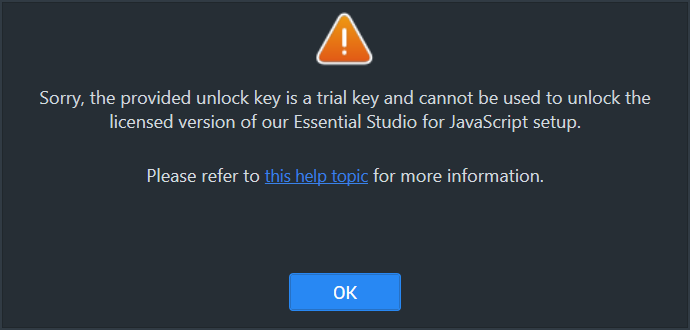
Applies to: Licensed (web and offline) installer on Windows.
Reason
You are attempting to use a trial unlock key to unlock the licensed installer.
Suggested solution
- Only a licensed unlock key can unlock a licensed installer. Use the licensed unlock key when prompted by the installer.
- To generate the licensed unlock key, refer to this article.
- After obtaining the key, re-run the installer and enter it on the Unlock Key screen.
License has expired
Error message: Your license for Syncfusion® Essential® Studio for JavaScript – EJ2 has been expired since {date}. Please renew your subscription and try again.
Online Installer
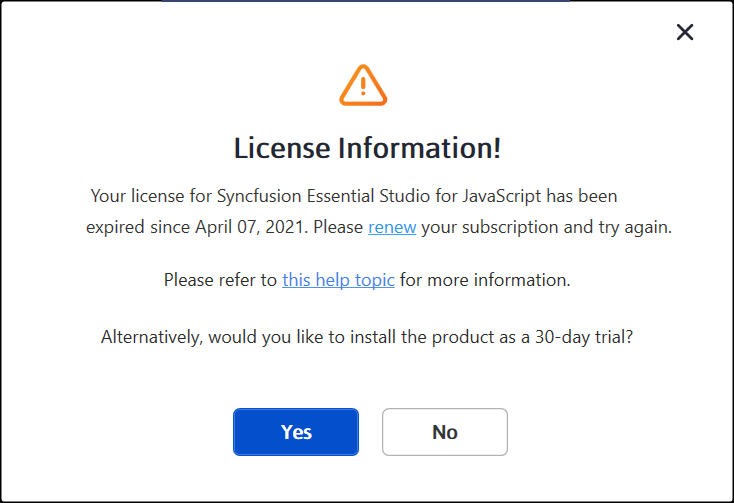
Applies to: Online installer on Windows.
Reason
This error appears if the license has expired.
Suggested solution
Choose from the following options:
- Renew the subscription from the renewals page.
- Obtain a new license from the Syncfusion sales page.
- Contact the sales team at [email protected].
- Extend the 30-day trial period after the trial license expires. For steps, see the trial extension guide.
- After renewing or purchasing, re-run the installer and enter the new unlock key to apply the license.
Unable to find a valid license or trial
Error message: Sorry, we are unable to find a valid license or trial for Essential® Studio for JavaScript – EJ2 under your account.
Offline Installer
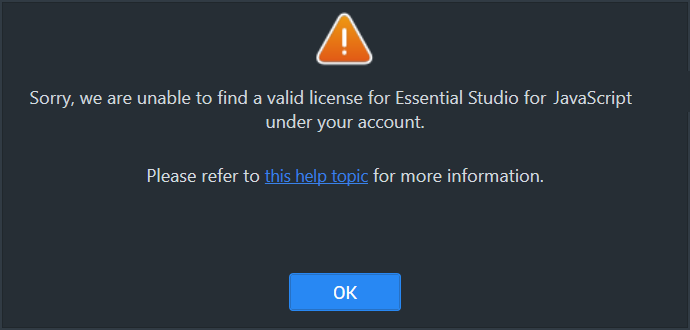
Online Installer
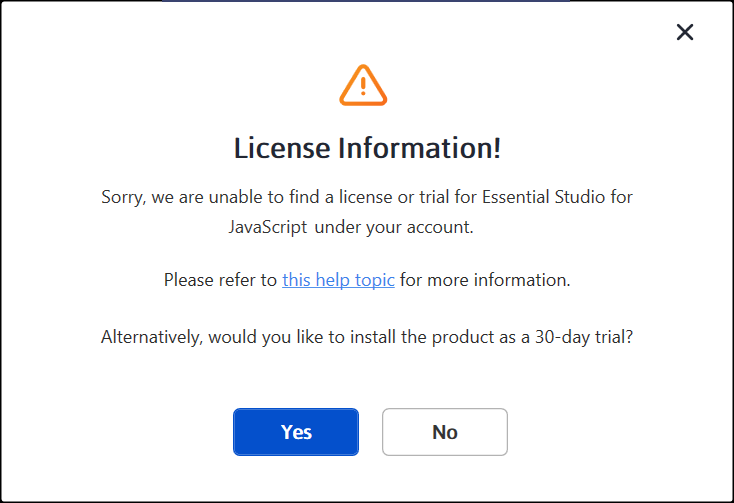
Applies to: Both online and offline installers on Windows (Syncfusion® Essential® Studio, EJ2 platform).
Reason
The following are possible causes of this error:
- Trial period has expired.
- No license or active trial exists.
- User is not the license holder.
- Account administrator has not assigned a license.
Suggested solution
Choose from the following options:
- Obtain a new license from the Syncfusion sales page.
- Contact the account administrator to verify that a license is assigned to your account.
- Send an email to client [email protected] to request a license.
- Contact the sales team at [email protected] for assistance.
Unable to install because another installation is in progress
Error message: Another installation is in progress. You cannot start this installation without completing all other currently active installations. Click cancel to end this installer or retry to attempt after currently active installation completed to install again.
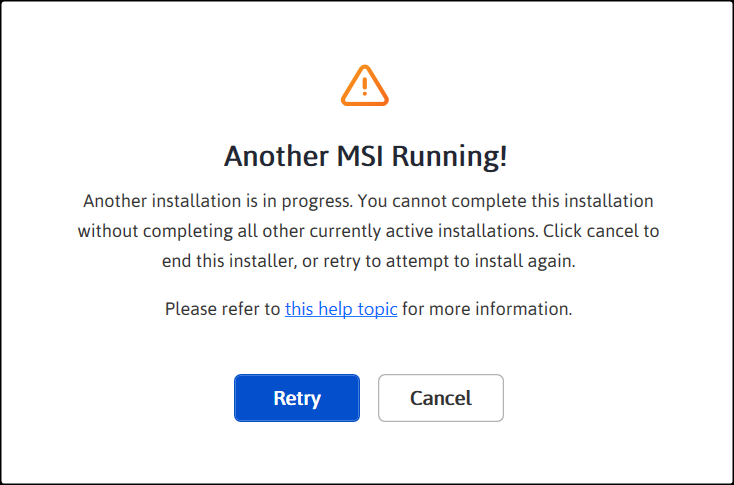
Applies to: Windows installers (online and offline) using MSI-based setup.
Reason
You are trying to install when another installation is already running on your machine.
Suggested solution
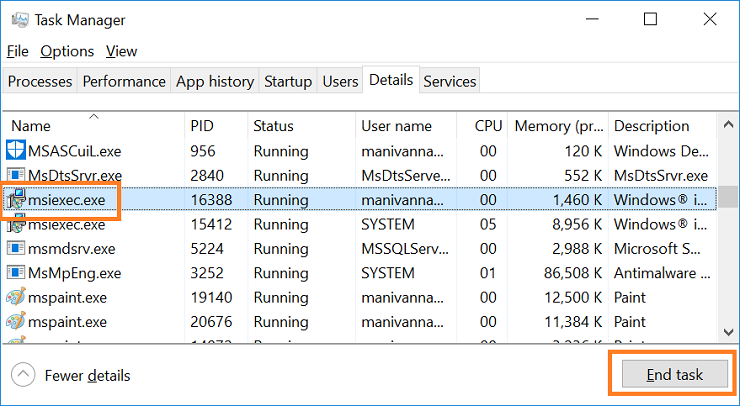
End the active msiexec.exe process through Windows Task Manager, then run the Syncfusion® installer again. If the problem persists, restart the computer and retry.
- Open the Windows Task Manager.
- Go to the Details tab.
-
Select msiexec.exe and click End task.
- If the issue persists, restart the computer and run the Syncfusion® installer again.
Unable to install due to controlled folder access
Offline Installer
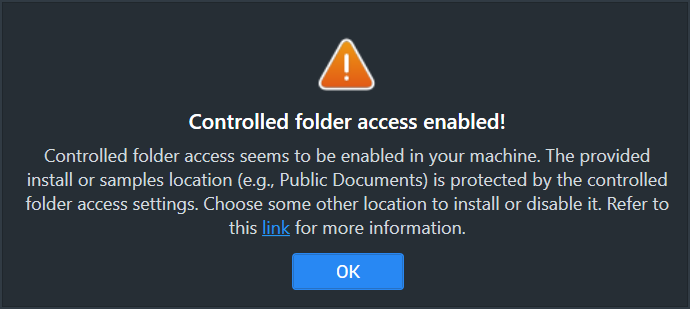
Error message: Controlled folder access seems to be enabled in your machine. The provided install or samples location (e.g., Public Documents) is protected by the controlled folder access settings.
Online Installer
Error message: Controlled folder access seems to be enabled in your machine. The provided install, samples, or download location (e.g., Public Documents) is protected by the controlled folder access settings.
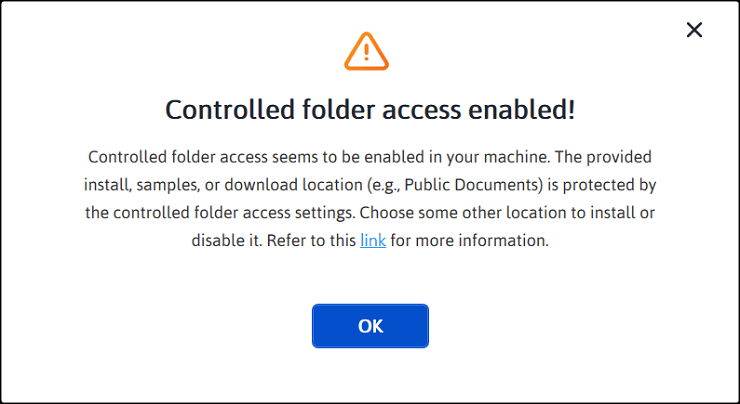
Applies to: Windows installers (online and offline) when installing into protected folders such as Public Documents.
Reason
You have enabled controlled folder access on your computer, which prevents the installer from writing to protected directories.
Suggested solution
Choose one of the following options.
Option 1: Allow access or disable Controlled folder access
- By default, the Syncfusion® demos are installed in the Public Documents folder.
- With Controlled folder access enabled, the installer cannot write to the Documents folder. If you need to install the demos there, follow the steps in this Microsoft support article to either allow the installer access or disable Controlled folder access.
- You can re-enable Controlled folder access after installing the Syncfusion® setup.
Option 2: Install to a different directory
- If you do not want to disable Controlled folder access, run the installer and choose a non-protected location (for example,
C:\Syncfusion\) on the install location screen for both the Syncfusion® setup and the samples.