LayoutsRight ChevronHeader
Header - Image

Header

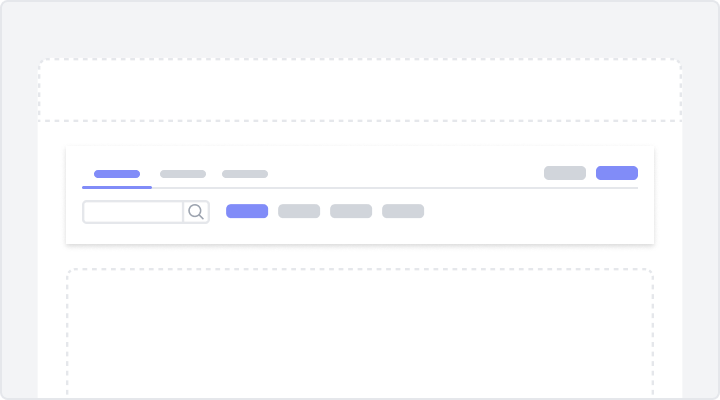
Page headers provide a structured layout for efficient navigation and interaction. Their key features include breadcrumbs, tabs for categorization, buttons for quick access to common actions, and filters to refine displayed data. Their design ensures clarity, intuitive usability, and seamless functionality across various contexts.
Header with Tabs for NavigationFigma LogoGet FigmaGo to Figma
In this demo, the page header features a bold section title at the top left, with horizontally aligned tabs below it for switching categories. A settings icon at the top right allows users to manage preferences.
Figma LogoGet FigmaGo to Figma
Desktop View
Tablet View
Mobile View
Toggle between Light and Dark Mode
Loading Indicator
Section Header with Navigation BarsFigma LogoGet FigmaGo to Figma
In this demo, the page header includes a section title and tabs for navigating categories. On the right, buttons are provided for managing files and folders, and a badge below them displays the total document count for easy tracking.
Figma LogoGet FigmaGo to Figma
Desktop View
Tablet View
Mobile View
Toggle between Light and Dark Mode
Loading Indicator
Tabbed Header with Filters and Search OptionsFigma LogoGet FigmaGo to Figma
In this demo, the page header organizes content under tabs that include a category name and a corresponding count badge. A search bar and filter button on the right allow users to quickly find the employees they’re looking for.
Figma LogoGet FigmaGo to Figma
Desktop View
Tablet View
Mobile View
Toggle between Light and Dark Mode
Loading Indicator
Header with Filters and Choice SelectionsFigma LogoGet FigmaGo to Figma
In this demo, the page header displays a title and categorized status tabs with count badges. Below the tabs, prominent filter and clear buttons, along with choice chips, are included for refining views.
Figma LogoGet FigmaGo to Figma
Desktop View
Tablet View
Mobile View
Toggle between Light and Dark Mode
Loading Indicator
Categorized Header with Tabs and ActionsFigma LogoGet FigmaGo to Figma
In this demo, the header features a profile section on the left that includes a profile icon and the user’s name. Next to them, contextual tabs are provided for navigation, and on the right, buttons provide quick access to essential functionalities.
Figma LogoGet FigmaGo to Figma
Desktop View
Tablet View
Mobile View
Toggle between Light and Dark Mode
Loading Indicator
Tabbed Header with Filters and RefinementsFigma LogoGet FigmaGo to Figma
In this demo, the page header features navigational tabs with content counts. Below the tabs, a search bar and preconfigured filters are provided for refining data, while buttons on the right provide additional filter customization options.
Figma LogoGet FigmaGo to Figma
Desktop View
Tablet View
Mobile View
Toggle between Light and Dark Mode
Loading Indicator
Header with Breadcrumbs, Collaboration, and Action ControlsFigma LogoGet FigmaGo to Figma
In this demo, the header features a breadcrumb for navigation at the top and action icons for collaboration and sharing on the right. Below the header, a content section provides a clear title, a brief description, and buttons for refreshing data and adding new reports.
Figma LogoGet FigmaGo to Figma
Desktop View
Tablet View
Mobile View
Toggle between Light and Dark Mode
Loading Indicator
Breadcrumb Header with Status ToggleFigma LogoGet FigmaGo to Figma
In this demo, the header displays a workflow hierarchy via a breadcrumb for easy navigation. A toggle below allows users to manage the workflow status, while action controls on the right provide options for reviewing and executing the workflow.
Figma LogoGet FigmaGo to Figma
Desktop View
Tablet View
Mobile View
Toggle between Light and Dark Mode
Loading Indicator
Filtered Breadcrumb Header with Action OptionsFigma LogoGet FigmaGo to Figma
In this demo, the page header includes a breadcrumb for navigation, providing users with context and location within the app. A filter button is prominently placed next to it for refining displayed data, while an action button on the right allows users to add new items or perform other operations.
Figma LogoGet FigmaGo to Figma
Desktop View
Tablet View
Mobile View
Toggle between Light and Dark Mode
Loading Indicator
Page Header with Breadcrumb and ActionsFigma LogoGet FigmaGo to Figma
In this demo, the page header features a breadcrumb navigation bar that helps users understand their current location within the app. Action buttons on the right provide access to additional resources and user interaction options. Below the header, a title highlights the focus area and a button to its right allows further exploration.
Figma LogoGet FigmaGo to Figma
Desktop View
Tablet View
Mobile View
Toggle between Light and Dark Mode
Loading Indicator
Breadcrumb Header with Navigation TabsFigma LogoGet FigmaGo to Figma
In this demo, the header features a breadcrumb for navigation and a prominent title above it to establish the user’s location within the app. Below these, tabs organize content into sections, with a clear indicator highlighting the active tab.
Figma LogoGet FigmaGo to Figma
Desktop View
Tablet View
Mobile View
Toggle between Light and Dark Mode
Loading Indicator
Header with Date Filters and ActionsFigma LogoGet FigmaGo to Figma
In this demo, the page header includes a title on the left and a button on the right. Below, date pickers and a dropdown that includes predefined range filters enable efficient data navigation and filtering. A button to the right of the dropdown lets users perform a key operation.
Figma LogoGet FigmaGo to Figma
Desktop View
Tablet View
Mobile View
Toggle between Light and Dark Mode
Loading Indicator
Navigation Header with Filters and Reset OptionsFigma LogoGet FigmaGo to Figma
In this demo, the header features a title on the left and navigation arrows above it for users to move between sections. A button at the top right provides instant access to a key action. Below, input fields and dropdown filters allow users to customize their view, while a reset button lets users clear all selections for a fresh start.
Figma LogoGet FigmaGo to Figma
Desktop View
Tablet View
Mobile View
Toggle between Light and Dark Mode
Loading Indicator