LayoutsRight ChevronFilter Panel
Filter Panel - Image

Filter Panel

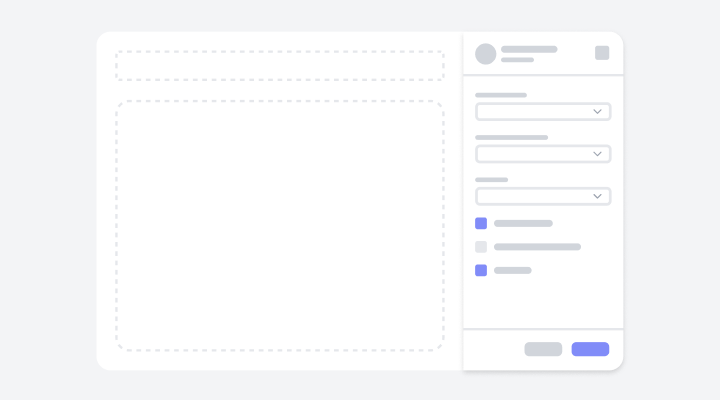
A filter block is a user interface element designed to refine search results or data views through a structured layout. It features dropdown menus, sliders, toggles, and input fields, and facilitates easy customization. The design prioritizes clarity, efficiency, and a seamless user experience, ensuring users can quickly and intuitively narrow down selections.
Basic Filter Panel with DropdownsFigma LogoGet FigmaGo to Figma
In this demo, the filter panel provides dropdown inputs for basic filtering, enabling users to refine results effortlessly. A footer with a prominent action button ensures quick and straightforward application of filters.
Figma LogoGet FigmaGo to Figma
Desktop View
Tablet View
Mobile View
Toggle between Light and Dark Mode
Loading Indicator
Conditional Query Filter PanelFigma LogoGet FigmaGo to Figma
In this demo, the filter panel includes dropdowns for setting conditions, providing precise data refinement. Action buttons are at the bottom, enabling quick application or saving of filters.
Figma LogoGet FigmaGo to Figma
Desktop View
Tablet View
Mobile View
Toggle between Light and Dark Mode
Loading Indicator
Filter Panel with Footer ActionsFigma LogoGet FigmaGo to Figma
In this demo, the filter panel features grouped dropdowns for data refinement, allowing users to organize filters logically. A sticky footer keeps action buttons prominently visible.
Figma LogoGet FigmaGo to Figma
Desktop View
Tablet View
Mobile View
Toggle between Light and Dark Mode
Loading Indicator
Tabbed Content Filter PanelFigma LogoGet FigmaGo to Figma
In this demo, the filter panel organizes filters across multiple tabs. Each tab contains dropdowns and input fields to refine data based on specific categories or criteria.
Figma LogoGet FigmaGo to Figma
Desktop View
Tablet View
Mobile View
Toggle between Light and Dark Mode
Loading Indicator
Filter Panel with Multi-Selection CheckboxesFigma LogoGet FigmaGo to Figma
In this demo, the filter panel uses checkboxes for multi-option selection, allowing users to select multiple criteria. Toggles provide additional refinement options, while action buttons enable the quick application of filters.
Figma LogoGet FigmaGo to Figma
Desktop View
Tablet View
Mobile View
Toggle between Light and Dark Mode
Loading Indicator
Searchable Filter Panel with InputsFigma LogoGet FigmaGo to Figma
In this demo, the filter panel combines search inputs with dropdowns, allowing users to filter data efficiently and with precision. The layout emphasizes clarity, making it easy to navigate and use.
Figma LogoGet FigmaGo to Figma
Desktop View
Tablet View
Mobile View
Toggle between Light and Dark Mode
Loading Indicator
Interactive Filter Panel with ChipsFigma LogoGet FigmaGo to Figma
In this demo, the filter panel incorporates chip inputs for interactive, multi-option selection, along with radio listings for precise filtering. Toggles, a rating filter, and action buttons complete the design, providing an intuitive and efficient filtering experience.
Figma LogoGet FigmaGo to Figma
Desktop View
Tablet View
Mobile View
Toggle between Light and Dark Mode
Loading Indicator
Accordion Filter PanelFigma LogoGet FigmaGo to Figma
In this demo, the filter panel organizes filters within accordion sections, enhancing space utilization and clarity. Each section reveals checkboxes, toggles, and radio buttons, providing users with detailed and customizable filtering options.
Figma LogoGet FigmaGo to Figma
Desktop View
Tablet View
Mobile View
Toggle between Light and Dark Mode
Loading Indicator