How can I help you?
Installing Syncfusion® JavaScript - EJ2 Mac Installer
2 Feb 20263 minutes to read
Resolving Security Warnings on macOS Catalina or Later
When running the Essential Studio® JavaScript - EJ2 Mac Installer on macOS Catalina or later, you may encounter the following security alert:
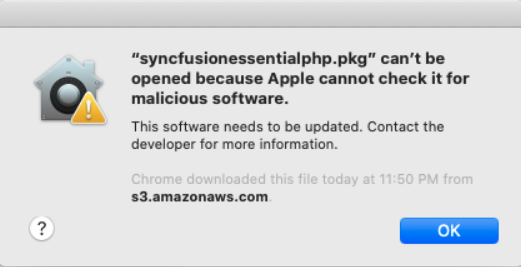
If this alert appears, follow these steps:
- Right-click the downloaded DMG file.
-
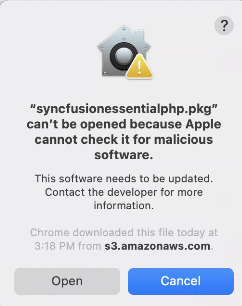
Select Open With and choose DiskImageMounter (Default). The following dialog appears:
-
Click Open to proceed with mounting the installer.
- If macOS still prevents the installer from opening, open System Preferences > Security & Privacy > General, locate the blocked app message, and click Open Anyway. Then repeat step 3.
Step-by-Step Installation
Follow the steps below to install the Essential Studio® JavaScript - EJ2 Mac installer:
-
Locate the downloaded DMG file and double-click it to mount the disk image.
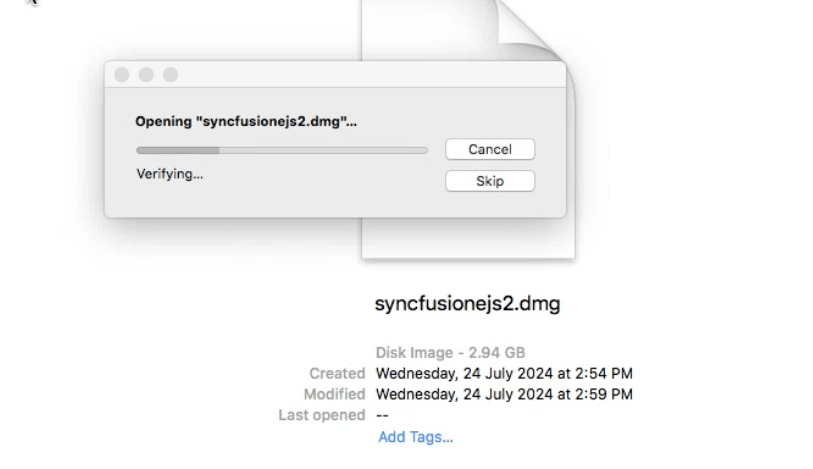
-
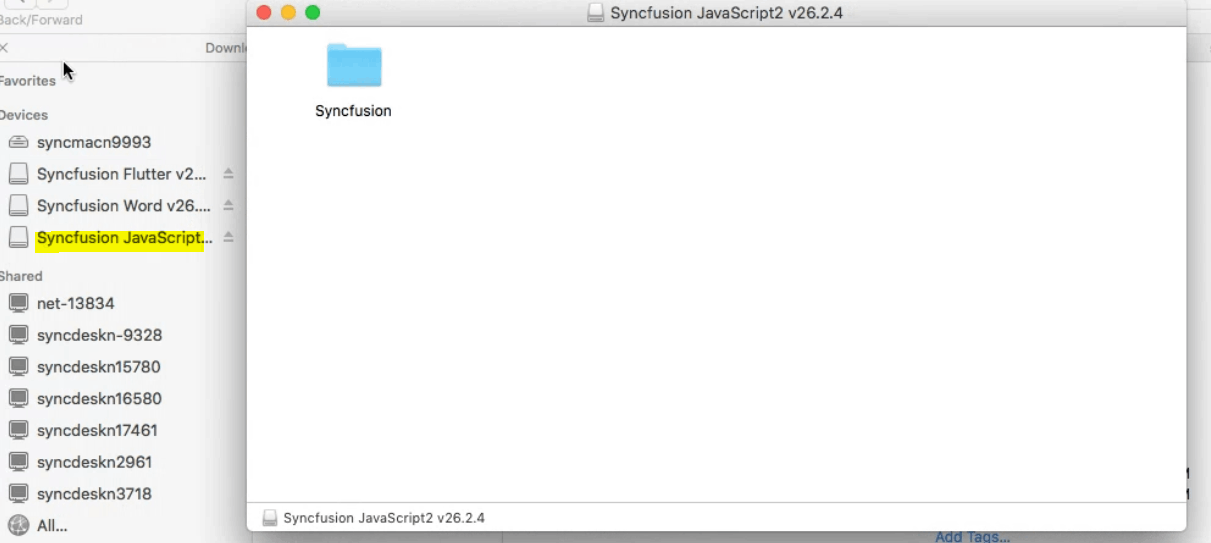
The disk image will automatically mount, creating a virtual drive on your desktop or in the Finder sidebar, displaying the installer contents.
-
Drag the Syncfusion application icon to the Applications folder shortcut within the installer window.
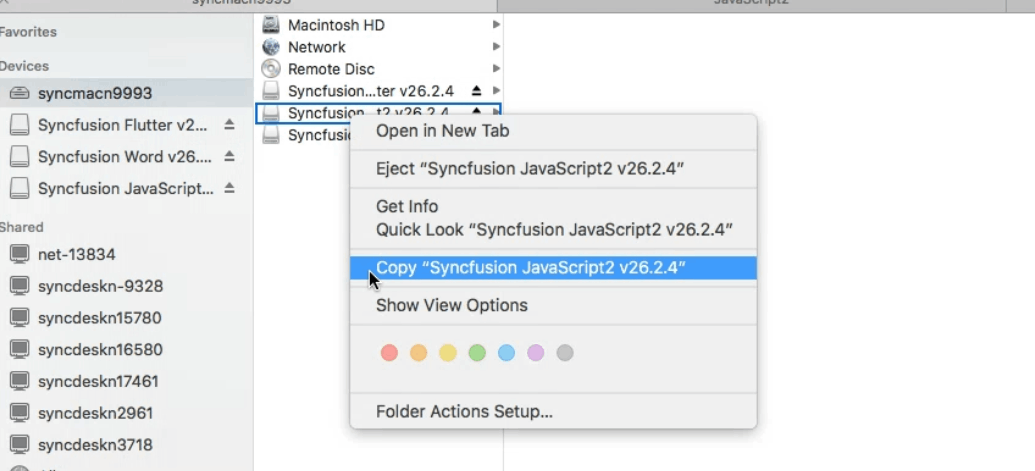
-
The application will be copied to your Applications folder, completing the installation.

No unlock key is required to install the Mac installer. However, a license key is required to use the Syncfusion® Essential Studio JavaScript - EJ2 components in your applications (see License Key Registration below).
-
Navigate to the Applications folder to access the installed Syncfusion® Essential Studio® content, including demos and documentation.
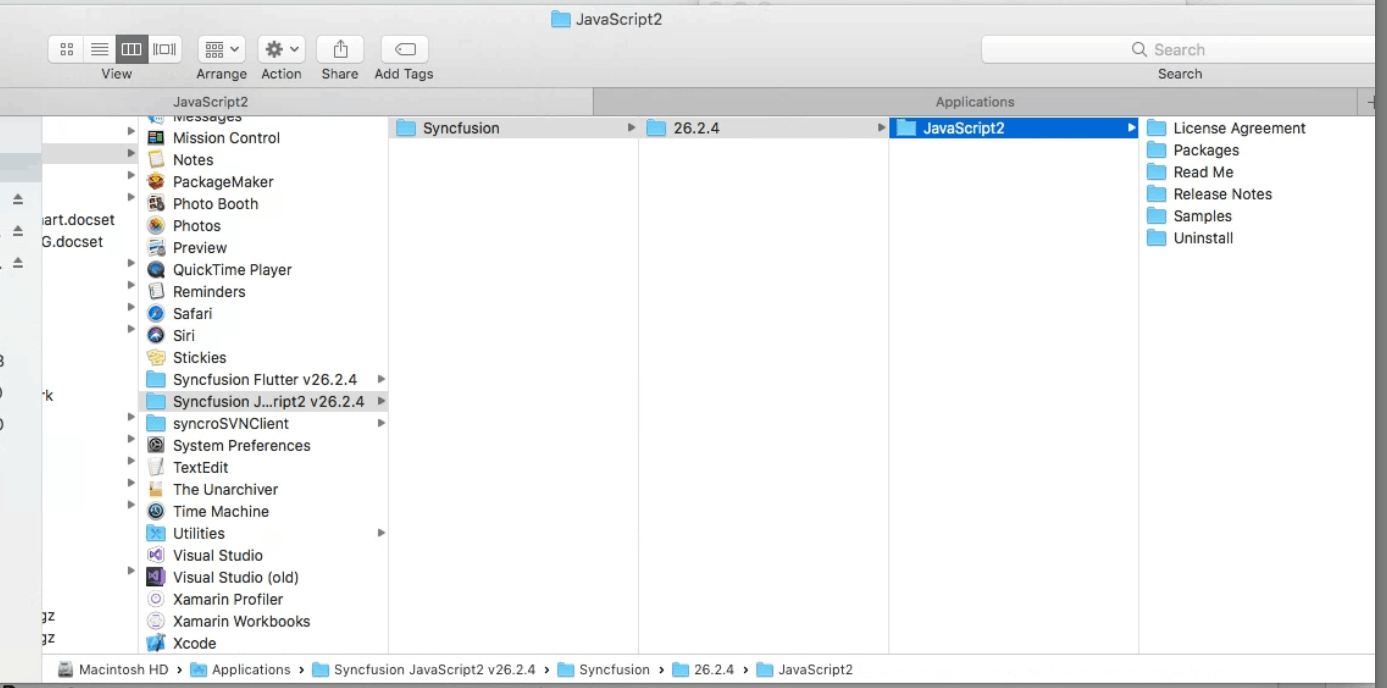
-
After installation is complete, you can eject the DMG file by right-clicking the virtual drive on your desktop or in the Finder sidebar and selecting Eject. You may also delete the downloaded DMG file if desired.
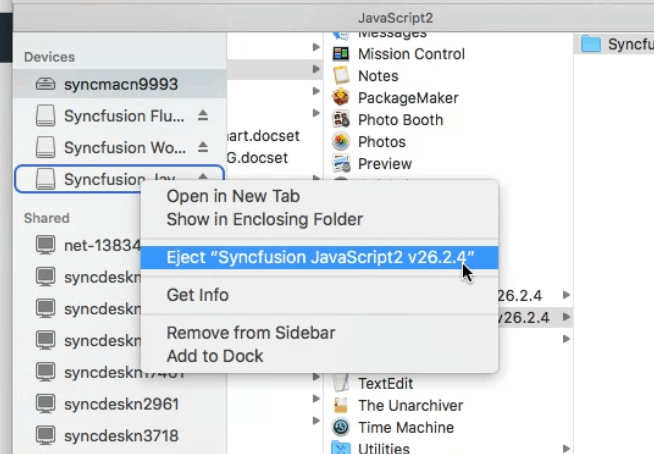
The installed application remains in your Applications folder and is not affected by ejecting or deleting the DMG file.
License Key Registration in Samples
After installation, a license key is required to run the demo source included in the Mac installer. For instructions on registering the license key for JavaScript - EJ2, refer to the following topics:
System Requirements
The Syncfusion® JavaScript - EJ2 Mac installer is compatible with:
- macOS 10.13 (High Sierra) or later
- Node.js 14.x or later (LTS recommended) (for running demos and using npm packages)
For the latest system requirements, refer to the Syncfusion system requirements documentation.