Common Installation Errors for Syncfusion® React Components
This article describes the most common installation errors, their causes, and suggested solutions.
- Unlocking the license installer using the trial key
- License expiration
- Unable to find a valid license or trial
- Unable to install because of another installation
- Unable to install due to controlled folder access
Unlocking the license installer using the trial key
Error Message: Sorry, the provided unlock key is a trial unlock key and cannot be used to unlock the licensed version of our Essential Studio® for JavaScript installer.
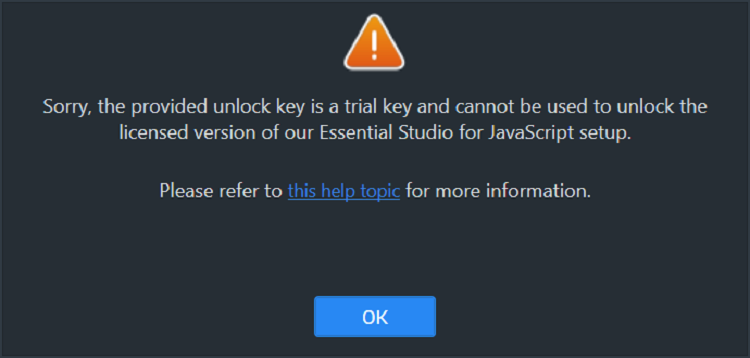
Reason:
You are trying to use a trial unlock key to unlock the licensed installer. Trial unlock keys can only unlock the trial installer.
Suggested Solution:
Only a licensed unlock key can unlock the licensed installer. To generate a licensed unlock key, refer to the How to generate an unlock key for Essential Studio products article.
License expiration
Error Message: Your license for Syncfusion® Essential Studio® for JavaScript - EJ2 expired on {date}. Please renew your subscription and try again.
The
{date}placeholder is replaced with the actual expiration date in the error message you see in the installer.
Offline installer:
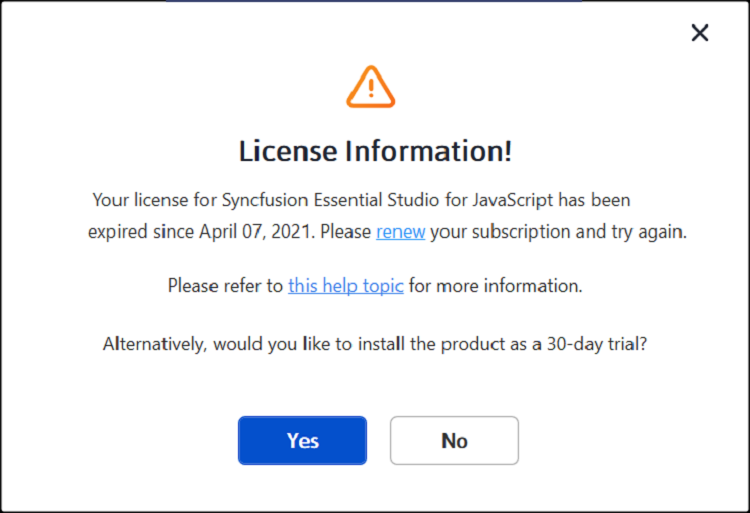
Web installer:
Reason:
This error appears when the license associated with the account has expired.
Suggested Solution:
Choose one of the following options:
- Renew your subscription.
- Purchase a new license.
- Contact the sales team at [email protected].
- Contact support or sales to request options for extending the 30-day trial period.
Unable to find a valid license or trial
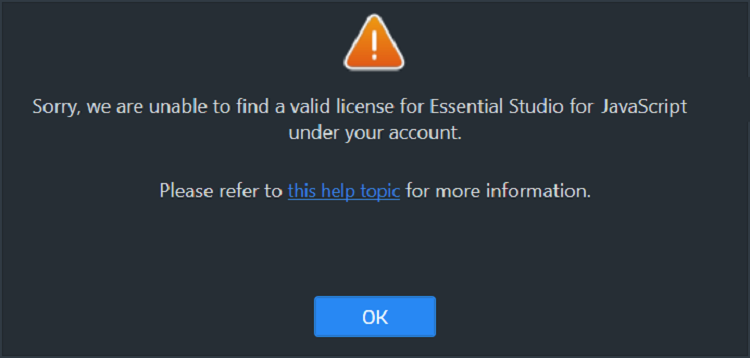
Error Message: Sorry, we are unable to find a valid license or trial for Essential Studio® for JavaScript - EJ2 under your account.
Offline installer:
Web installer:
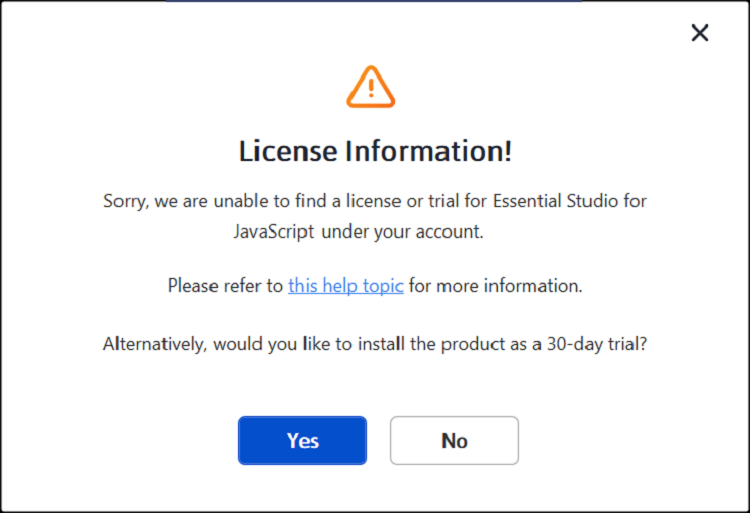
Reason:
Possible causes of this error include:
- The trial period has expired.
- There is no license or active trial associated with the account.
- The current user is not the license holder.
- The account administrator has not assigned a license to the user.
- You are signed in with a different Syncfusion account than the one holding the license or trial.
Suggested Solution:
- Purchase a new license.
- Contact the account administrator to verify license assignment.
- Email [email protected] to request license assignment.
- Sign out and sign in with the Syncfusion account that holds the active license or trial.
- Contact the sales team at [email protected].
Unable to install because of another installation
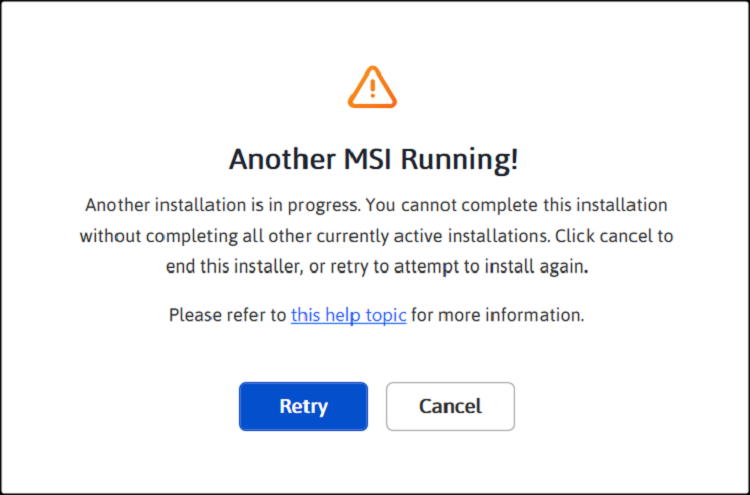
Error Message: Another installation is in progress. You cannot start this installation without completing all other currently active installations. Click cancel to end this installer or retry to attempt after currently active installation completed to install again.
Reason:
You are trying to install while another Microsoft Installer (msiexec.exe) transaction is already running on your machine. The Syncfusion® installer requires exclusive access to the Windows Installer service.
Suggested Solution:
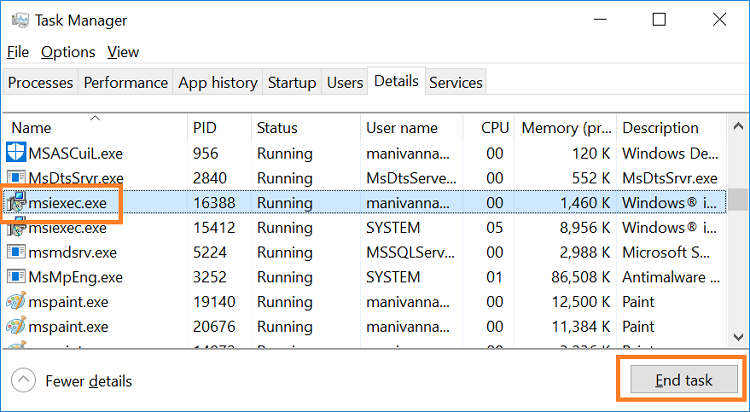
If possible, save work and restart the computer before attempting to terminate installer processes. If an immediate termination is required, end the msiexec.exe process and retry the Syncfusion® installer.
- Open the Windows Task Manager.
- Go to the Details tab.
- Select all
msiexec.exeentries and click End task. (Multiplemsiexec.exeprocesses may exist; end each one.) - Retry the Syncfusion® installer.
Unable to install due to controlled folder access
Offline installer:
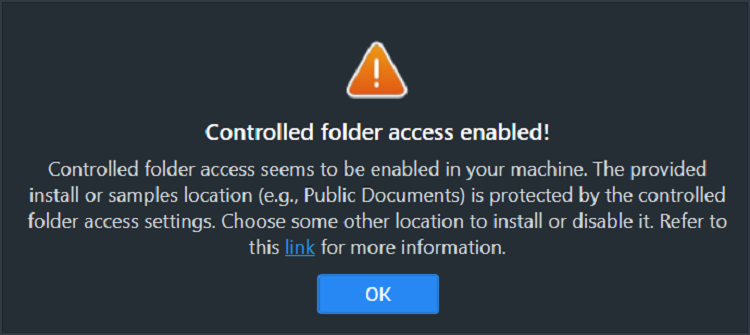
Error Message: Controlled folder access appears to be enabled on your machine. The chosen install or samples location (for example, Public Documents) is protected by controlled folder access settings.
Web installer:
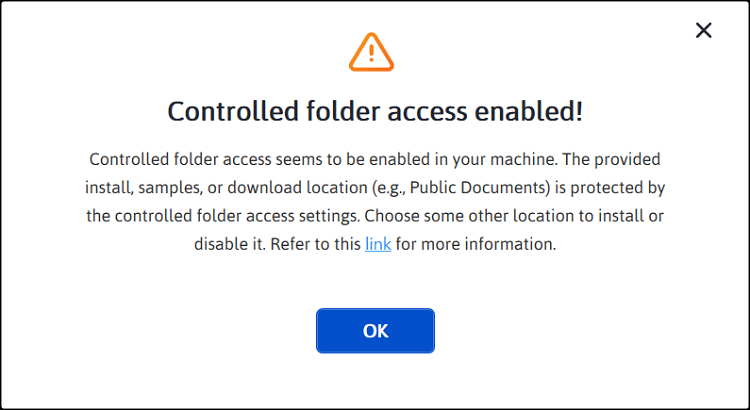
Error Message: Controlled folder access seems to be enabled in your machine. The provided install, samples, or download location (e.g., Public Documents) is protected by the controlled folder access settings.
Reason:
Controlled folder access is enabled on the computer and is preventing the installer from writing to protected locations such as C:\Users\Public\Documents.
Suggested Solution:
Option 1: Temporarily disable controlled folder access
- By default, demos are installed in the
C:\Users\Public\Documentsfolder. - When controlled folder access is enabled, demos cannot be installed in the Documents folder.
- To allow installation in the Documents folder, follow the steps in the Microsoft article Allow an app to access controlled folders to temporarily disable controlled folder access or allow the installer.
- Re-enable controlled folder access after the Syncfusion® setup completes, if desired.
Option 2: Change the installation directory
If you do not want to disable controlled folder access, install the demos in another directory that is not protected by controlled folder access.
- On the installer Configuration step, click Browse next to Install Location and select a folder that is not protected (for example,
C:\Syncfusion). - Click Browse next to Samples Location and select an unprotected folder as well.
- Click Next to continue with the installation.
Insufficient disk space
Error Message: There is not enough space on the disk to extract the package. Free up some space and try again.
Reason:
The drive selected for installation does not have enough free space to hold the extracted installer, the installed content, and the demos.
Suggested Solution:
- Free up space on the target drive (or use a drive with at least 4 GB of free space).
- On the installer Configuration step, change the Install Location, Demos Location, and Download Location (web installer) to a drive with sufficient space.
- Retry the installation.
NPM peer-dependency or invalid-package errors
Error Message: npm install fails with EINVALIDPKG, peer dependencies..., or EINVALIDTAG errors when consuming Syncfusion® NPM packages.
Reason:
Common causes include an outdated Node.js / npm version, an unsupported React version, or an invalid tag such as @latest versus @dev.
Suggested Solution:
- Verify that Node.js 18.x or later is installed (
node --version). -
Clear the npm cache and reinstall:
npm cache clean --force rm -rf node_modules package-lock.json npm install - Make sure the package name and version match the values listed in the Syncfusion NPM registration guide.
- If the error persists, see the Finding installation logs section below to capture npm logs for support.
Finding installation logs
If the installer fails before the progress page is shown, the log file can help Syncfusion® support diagnose the issue.
- Press Win + R, type
%temp%, and press Enter to open the Temp folder. - Sort by Date modified to find the most recent log file. Installer logs are typically named
SyncfusionInstaller*.logorMSI*.log. - Attach the most recent log file to your support request.
For NPM-related issues, also include the output of npm install --verbose to capture the npm debug log.
Need additional help
If you encounter installation errors not covered in this article, contact Syncfusion® support:
- Email [email protected].
- Refer to the Syncfusion Knowledge Base for additional troubleshooting articles.
- Submit a ticket through the Syncfusion support portal.