Getting Started with the React Block Editor Component
25 Jul 20262 minutes to read
This section explains how to create a simple Block Editor and configure its available functionalities in the React environment.
Create a React Application
Run the following commands to set up a React application:
npm create vite@latest my-app -- --template react-tsThis command prompts you to configure the React application. Select the options as shown below.
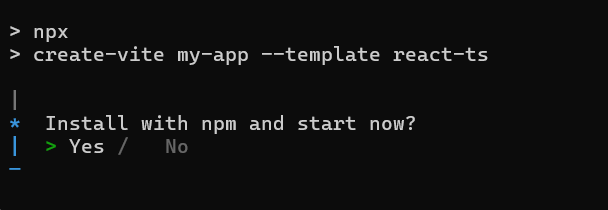
As Syncfusion packages are not installed yet, currently, the No option will be selected. Then, navigate to the project directory and install the dependencies using the following commands:
cd my-app
npm install
Note: To set up a React application with Nextjs or Remix, refer to this documentation for more details.
Adding Syncfusion® Block Editor Packages
All available Essential® JS 2 packages are published in the npmjs.com public registry.
To install the Block Editor component package, use the following command:
npm install @syncfusion/ej2-react-blockeditor --saveAdding a CSS Reference
Syncfusion provides multiple themes for the Block Editor component. For a complete list of available themes, refer to the themes packages.
To install the tailwind3 theme package, use the following command:
npm install @syncfusion/ej2-tailwind3-theme --saveImport the required CSS theme files for the Block Editor and its dependencies in your src/App.css file.
@import '../node_modules/@syncfusion/ej2-tailwind3-theme/styles/blockeditor/index.css';IMPORTANT
To apply the application-specific styles correctly, import App.css into src/App.tsx and remove all the default styles from src/index.css.
Add the Block Editor Component
Now, You can add the Block Editor component to your application. Replace the default contents of src/App.tsx with the following code, which uses the <BlockEditorComponent> directive to render the editor.
// Import the BlockEditor.
import { BlockEditorComponent } from '@syncfusion/ej2-react-blockeditor';
import * as React from 'react';
import './App.css';
// To render BlockEditor.
function App() {
  return (
    <BlockEditorComponent id="block-editor"></BlockEditorComponent>
  );
}
export default App;
// Import the BlockEditor.
import { BlockEditorComponent } from '@syncfusion/ej2-react-blockeditor';
import * as React from 'react';
import './App.css';
// To render BlockEditor.
function App() {
return (
<BlockEditorComponent id="block-editor"></BlockEditorComponent>
);
}
export default App;@import '../node_modules/@syncfusion/ej2-tailwind3-theme/styles/blockeditor/index.css';Note: This guide assumes React 18+. The Vite template mounts the app into a
<div id="root">element inindex.htmlviasrc/main.tsxusingcreateRoot. Ensure yourmain.tsxrenders theAppcomponent into that node.
Run the application
Now, run the npm run dev command in your terminal to start the development server.
npm run dev