Theme Studio Overview
20 Aug 20263 minutes to read
Theme Studio for Essential® JS 2 can be used to customize a new theme from an existing theme. It doesn’t support with Data visualization controls like Chart, Diagram, Gauge, Range Navigator, Maps.
Customizing theme color from theme studio
The Essential® JS 2 themes are developed in the SCSS environment. Each theme contains a unique set of common variables that define the color scheme and styling properties. When these common variable values are modified, the changes reflect across all Syncfusion® JavaScript controls. All Syncfusion® JavaScript control styles derive from these theme-based common variables. The Theme Studio application provides an intuitive interface for customizing these theme-based colors without requiring direct SCSS editing.
Step 1: Navigate to the theme studio application at Themestudio.
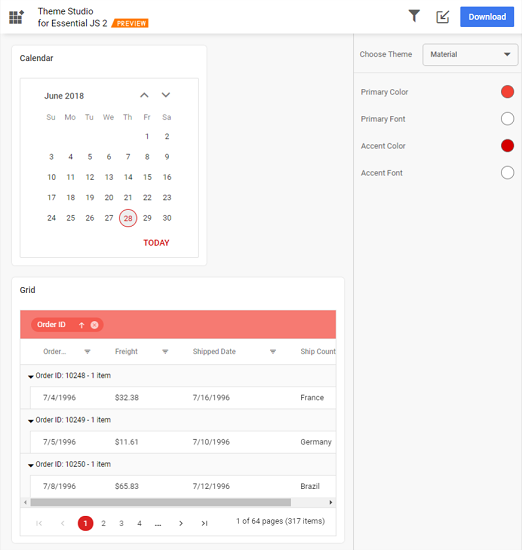
Step 2: The Theme Studio application page is divided into two sections: the controls preview section on the left, and the theme customization section on the right.

Step 3: Click the color pickers in the theme customization section to select the desired colors.
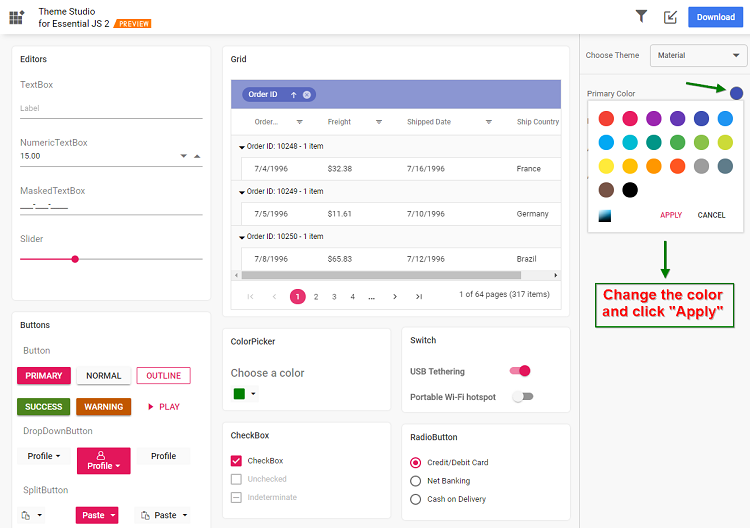
Step 4: The Syncfusion® JavaScript UI controls will be rendered with the newly selected colors in the preview section after selecting the custom colors from the pickers.
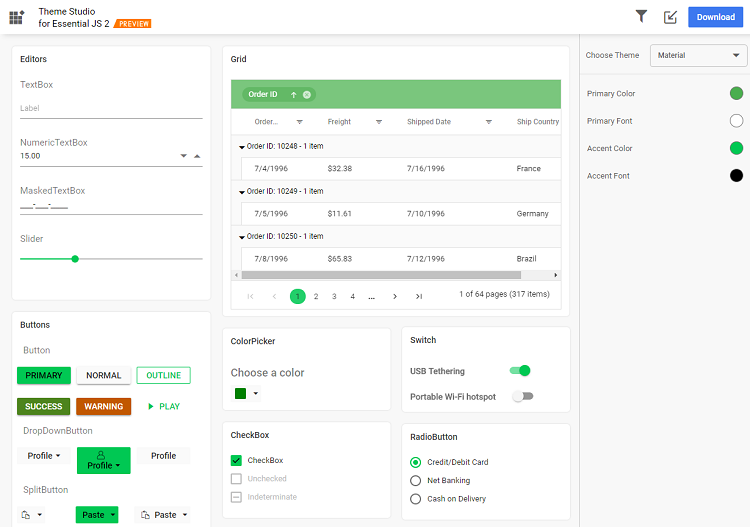
Filtering a specific list of controls
Using the theme studio, you can apply custom themes to a list of specific controls. This option is useful when you have integrated a selective list of Syncfusion® JavaScript UI controls in your application. The theme studio will filter the selected controls and customize the final output for those controls’ styles alone, reducing the final output file size.
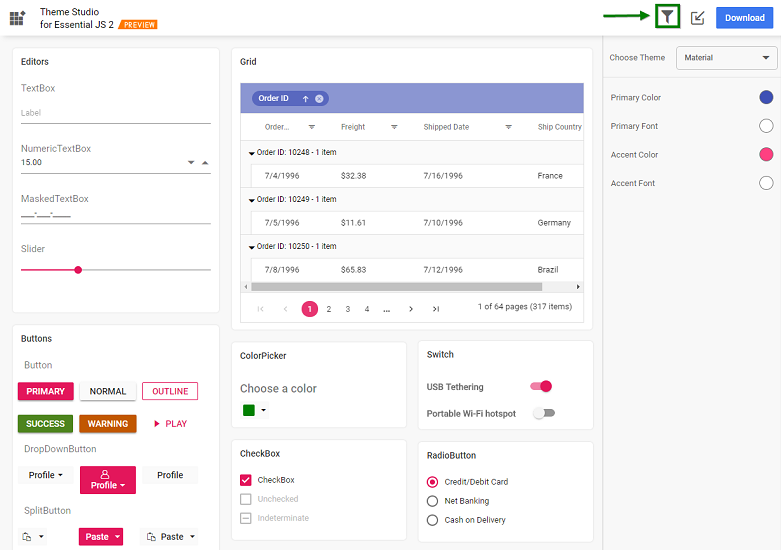
Step 1: Click the Filter icon in the top right corner and select the controls whose theme you want to customize.
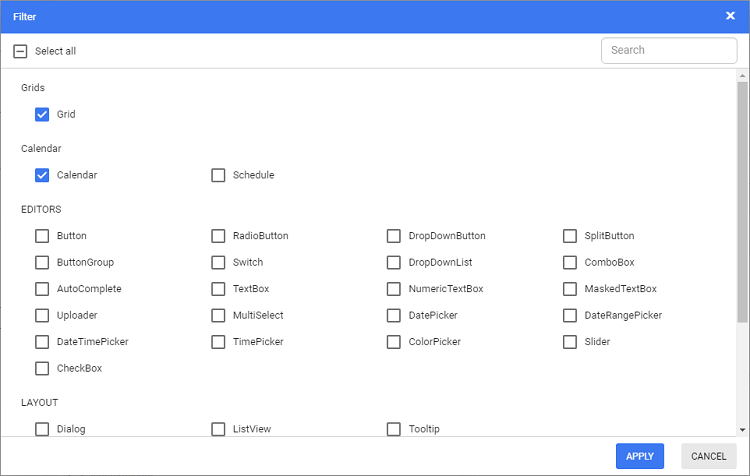
Step 2: Click the Apply button in the Filter dialog. Now, only the selected controls will be rendered in the controls preview section.
Step 3: Now the colors in the theme customization section can be customized for the selected controls.
Download the customized theme
The custom styles can be downloaded after customizing the theme colors.
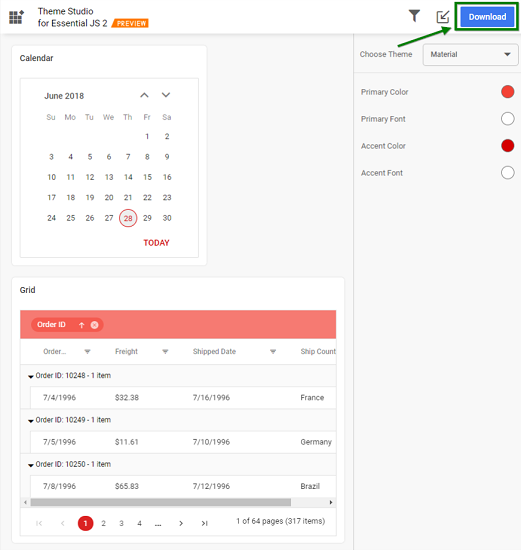
Step 1: Click the Download button in the top right corner. The Download dialog will open.
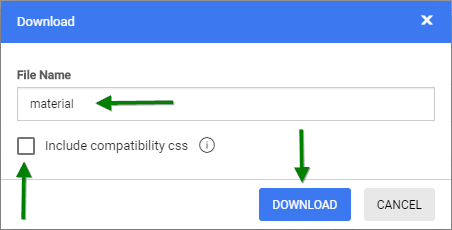
Step 2: Assign a theme name in the File Name field and click the Download button. If your application uses both Essential® JS 1 and Essential® JS 2 controls, then select the Include compatibility css check box before downloading the theme. This option will generate the custom theme for Essential® JS 2 compatibility styles, which are compatible as Essential® JS 1 styles. Refer this link for more details about Essential® JS 1 and Essential® JS 2 compatibility.
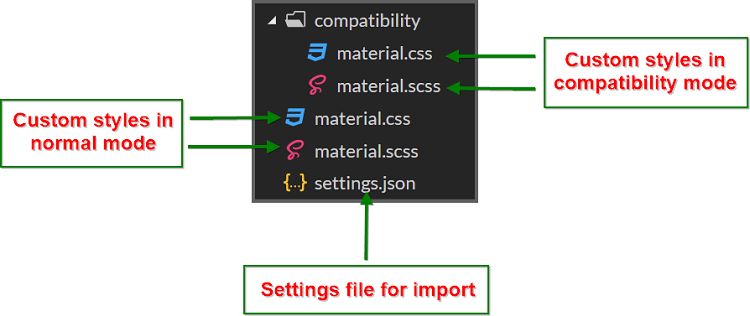
Step 3: The download styles will come as a zip file that contains SCSS and CSS files for the selected Syncfusion® JavaScript UI controls. The current settings are stored in the settings.json file.
Using customized theme in a web application
You can directly use the customized CSS file in the web application.
Step 1: Copy/paste the customized CSS file from the download folder into your application at any folder. Example: styles\{file-name}.css.
Step 2: Refer the customized CSS file reference in the index.html or shared/_layout.cshtml main page head section.
    <head>
        <link href="styles/{file-name}.css" rel="stylesheet"/>
    </head>
If the web application uses both Essential® JS 1 and Essential® JS 2 controls, copy and paste the customized CSS file from the
compatibilityfolder in the download location.
Import previously changed settings into the theme studio
When the application theme and UI design need to be updated in the future, there is no need to customize the Syncfusion® JavaScript UI controls from scratch in the Theme Studio. Simply import the previously exported settings.json file to review and update the stored settings in the Theme Studio application.
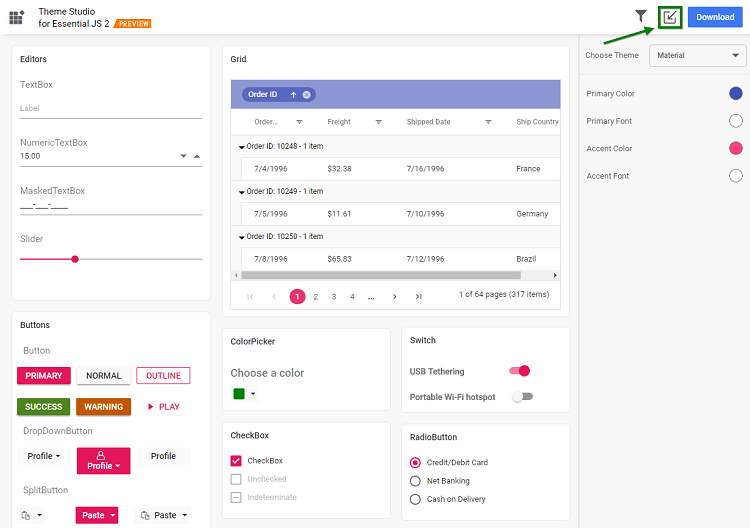
Step 1: Click the Import icon in the top right corner.
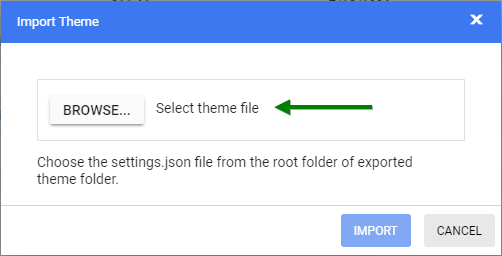
Step 2: The Import Theme dialog will open. Click the Browse button and select a settings.json file you exported previously.
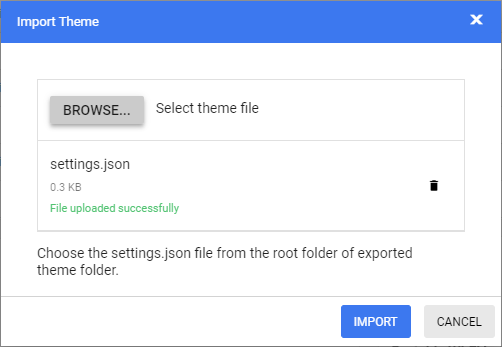
Step 3: Click the Import button.
Step 4: The stored data will be reflected in the theme studio application. Now you can change the theme colors based on your latest design and export the theme again.
Step 5: The exported file will contain your latest changes. You can just replace the older custom style with the newer one to refresh your application.