Connector interaction in EJ2 TypeScript Diagram
22 Mar 202519 minutes to read
Connectors can be selected, dragged, and routed over the diagram page.
Select and unSelect connector.
A connector can be selected, simply just by clicking on it.
A connector can be selected at runtime by using the Select method and clear the selection in the diagram using the ClearSelection. The following code explains how to select and clear selection in the diagram.
import { Diagram, ConnectorModel } from '@syncfusion/ej2-diagrams';
let connectors: ConnectorModel[] = [
  {
    // Name of the connector
    id: 'connector1',
    style: {
      strokeColor: '#6BA5D7',
      fill: '#6BA5D7',
      strokeWidth: 2,
    },
    targetDecorator: {
      style: {
        fill: '#6BA5D7',
        strokeColor: '#6BA5D7',
      },
    },
    // Sets source and target points
    sourcePoint: {
      x: 100,
      y: 100,
    },
    targetPoint: {
      x: 200,
      y: 200,
    },
  },
];
let diagram: Diagram = new Diagram({
  width: '100%',
  height: '600px',
  connectors: connectors,
});
diagram.appendTo('#element');

(document.getElementById('select') as HTMLInputElement).onclick = () => {
  diagram.select([diagram.connectors[0]]);
};
(document.getElementById('unSelect') as HTMLInputElement).onclick = () => {
  diagram.clearSelection();
};
<!DOCTYPE html>
<html lang="en">
<head>
<title>EJ2 Diagram</title>
<meta charset="utf-8" />
<meta name="viewport" content="width=device-width, initial-scale=1.0" />
<meta name="description" content="Typescript UI Controls" />
<meta name="author" content="Syncfusion" />
<link href="index.css" rel="stylesheet" />
<script src="https://cdnjs.cloudflare.com/ajax/libs/systemjs/0.19.38/system.js"></script>
<link href="https://cdn.syncfusion.com/ej2/32.1.19/ej2-base/styles/material.css" rel="stylesheet" />
<link href="https://cdn.syncfusion.com/ej2/32.1.19/ej2-buttons/styles/material.css" rel="stylesheet" />
<link href="https://cdn.syncfusion.com/ej2/32.1.19/ej2-popups/styles/material.css" rel="stylesheet" />
<link href="https://cdn.syncfusion.com/ej2/32.1.19/ej2-splitbuttons/styles/material.css" rel="stylesheet" />
<link href="https://cdn.syncfusion.com/ej2/32.1.19/ej2-diagrams/styles/material.css" rel="stylesheet" />
<link href="https://cdn.syncfusion.com/ej2/32.1.19/ej2-navigations/styles/fabric.css" rel="stylesheet" />
<script src="systemjs.config.js"></script>
<script src="https://cdn.syncfusion.com/ej2/syncfusion-helper.js" type ="text/javascript"></script>
</head>
<body>
<div id='loader'>Loading....</div>
<div id='container'>
<input type="button" id="select" value="select" />
<input type="button" id="unSelect" value="unSelect" />
<div id='element'></div>
</div>
</body>
</html>Drag Connector
Connector can be dragged by just clicking on the connector and dragging.
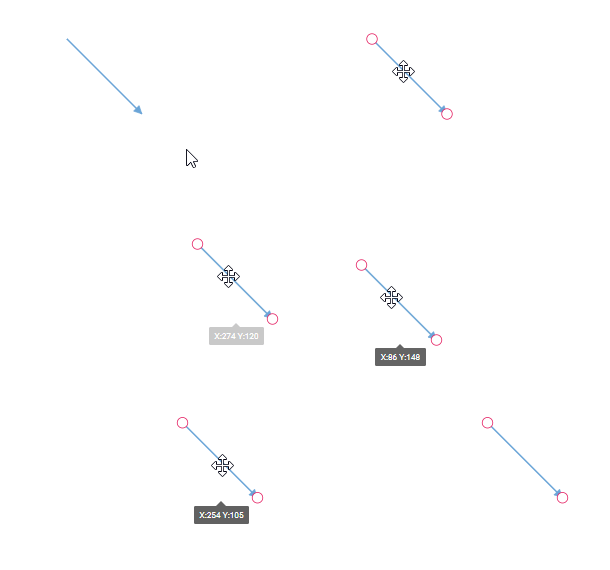
A connector can be dragged at runtime by using the Drag method. The following code explains how to drag the connector by using the drag method.
import { Diagram, ConnectorModel } from '@syncfusion/ej2-diagrams';
let connectors: ConnectorModel[] = [
  {
    // Name of the connector
    id: 'connector1',
    style: {
      strokeColor: '#6BA5D7',
      fill: '#6BA5D7',
      strokeWidth: 2,
    },
    targetDecorator: {
      style: {
        fill: '#6BA5D7',
        strokeColor: '#6BA5D7',
      },
    },
    // Sets source and target points
    sourcePoint: {
      x: 100,
      y: 100,
    },
    targetPoint: {
      x: 200,
      y: 200,
    },
  },
];
let diagram: Diagram = new Diagram({
  width: '100%',
  height: '600px',
  connectors: connectors,
});
diagram.appendTo('#element');

(document.getElementById('drag') as HTMLInputElement).onclick = () => {
  let connector = diagram.connectors[0];
  diagram.drag(connector, 20, 20);
};
<!DOCTYPE html>
<html lang="en">
<head>
<title>EJ2 Diagram</title>
<meta charset="utf-8" />
<meta name="viewport" content="width=device-width, initial-scale=1.0" />
<meta name="description" content="Typescript UI Controls" />
<meta name="author" content="Syncfusion" />
<link href="index.css" rel="stylesheet" />
<script src="https://cdnjs.cloudflare.com/ajax/libs/systemjs/0.19.38/system.js"></script>
<link href="https://cdn.syncfusion.com/ej2/32.1.19/ej2-base/styles/material.css" rel="stylesheet" />
<link href="https://cdn.syncfusion.com/ej2/32.1.19/ej2-buttons/styles/material.css" rel="stylesheet" />
<link href="https://cdn.syncfusion.com/ej2/32.1.19/ej2-popups/styles/material.css" rel="stylesheet" />
<link href="https://cdn.syncfusion.com/ej2/32.1.19/ej2-splitbuttons/styles/material.css" rel="stylesheet" />
<link href="https://cdn.syncfusion.com/ej2/32.1.19/ej2-diagrams/styles/material.css" rel="stylesheet" />
<link href="https://cdn.syncfusion.com/ej2/32.1.19/ej2-navigations/styles/fabric.css" rel="stylesheet" />
<script src="systemjs.config.js"></script>
<script src="https://cdn.syncfusion.com/ej2/syncfusion-helper.js" type ="text/javascript"></script>
</head>
<body>
<div id='loader'>Loading....</div>
<div id='container'>
<input type="button" id="drag" value="drag" />
<div id='element'></div>
</div>
</body>
</html>End point dragging
The connector can be selected by clicking it. When the connector is selected, circles will be added on the starting and ending of the connector that is represented by Thumbs. Clicking and dragging those handles helps you to adjust the source and target points.
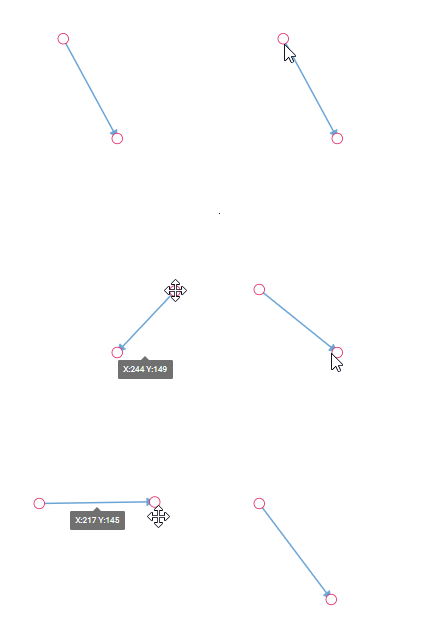
You can also update the endPoints of diagram by using dragSourceEnd and dragTargetEnd methods of diagram.
The following code example shows the ways to drag connector end point at runtime.
import { Diagram, ConnectorModel } from '@syncfusion/ej2-diagrams';
let connectors: ConnectorModel[] = [
  {
    // Name of the connector
    id: 'connector1',
    style: {
      strokeColor: '#6BA5D7',
      fill: '#6BA5D7',
      strokeWidth: 2,
    },
    targetDecorator: {
      style: {
        fill: '#6BA5D7',
        strokeColor: '#6BA5D7',
      },
    },
    // Sets source and target points
    sourcePoint: {
      x: 100,
      y: 100,
    },
    targetPoint: {
      x: 200,
      y: 200,
    },
  },
];
let diagram: Diagram = new Diagram({
  width: '100%',
  height: '600px',
  connectors: connectors,
});
diagram.appendTo('#element');

(document.getElementById('sourcePoint') as HTMLInputElement).onclick = () => {
  let connector = diagram.connectors[0];
  connector.sourcePoint = {x:300,y:100};
  diagram.dataBind();
};
(document.getElementById('targetPoint') as HTMLInputElement).onclick = () => {
    let connector = diagram.connectors[0];
    connector.targetPoint = {x:300,y:200};
    diagram.dataBind();
  };

  (document.getElementById('dragSourceEnd') as HTMLInputElement).onclick = () => {
    /**
     * parameter 1 - connector whose source point needs to be moved.
     * parameter 2 - A number representing the horizontal distance by which the source point should be moved.
     * parameter 3 - A number representing the vertical distance by which the source point should be moved.
     */
    diagram.dragSourceEnd(diagram.connectors[0], 50, 50);
  };

  (document.getElementById('dragTargetEnd') as HTMLInputElement).onclick = () => {
    /**
     * parameter 1 - connector whose target point needs to be moved.
     * parameter 2 - A number representing the horizontal distance by which the target point should be moved.
     * parameter 3 - A number representing the vertical distance by which the target point should be moved.
     */
    diagram.dragTargetEnd(diagram.connectors[0], 50, 50);
  };
<!DOCTYPE html>
<html lang="en">
<head>
<title>EJ2 Diagram</title>
<meta charset="utf-8" />
<meta name="viewport" content="width=device-width, initial-scale=1.0" />
<meta name="description" content="Typescript UI Controls" />
<meta name="author" content="Syncfusion" />
<link href="index.css" rel="stylesheet" />
<script src="https://cdnjs.cloudflare.com/ajax/libs/systemjs/0.19.38/system.js"></script>
<link href="https://cdn.syncfusion.com/ej2/32.1.19/ej2-base/styles/material.css" rel="stylesheet" />
<link href="https://cdn.syncfusion.com/ej2/32.1.19/ej2-buttons/styles/material.css" rel="stylesheet" />
<link href="https://cdn.syncfusion.com/ej2/32.1.19/ej2-popups/styles/material.css" rel="stylesheet" />
<link href="https://cdn.syncfusion.com/ej2/32.1.19/ej2-splitbuttons/styles/material.css" rel="stylesheet" />
<link href="https://cdn.syncfusion.com/ej2/32.1.19/ej2-diagrams/styles/material.css" rel="stylesheet" />
<link href="https://cdn.syncfusion.com/ej2/32.1.19/ej2-navigations/styles/fabric.css" rel="stylesheet" />
<script src="systemjs.config.js"></script>
<script src="https://cdn.syncfusion.com/ej2/syncfusion-helper.js" type ="text/javascript"></script>
</head>
<body>
<div id='loader'>Loading....</div>
<div id='container'>
<input type="button" id="sourcePoint" value="sourcePoint" />
<input type="button" id="targetPoint" value="targetPoint" />
<input type="button" value="dragSourceEnd" id="dragSourceEnd" />
<input type="button" value="dragTargetEnd" id="dragTargetEnd" />
<div id='element'></div>
</div>
</body>
</html>Segment editing
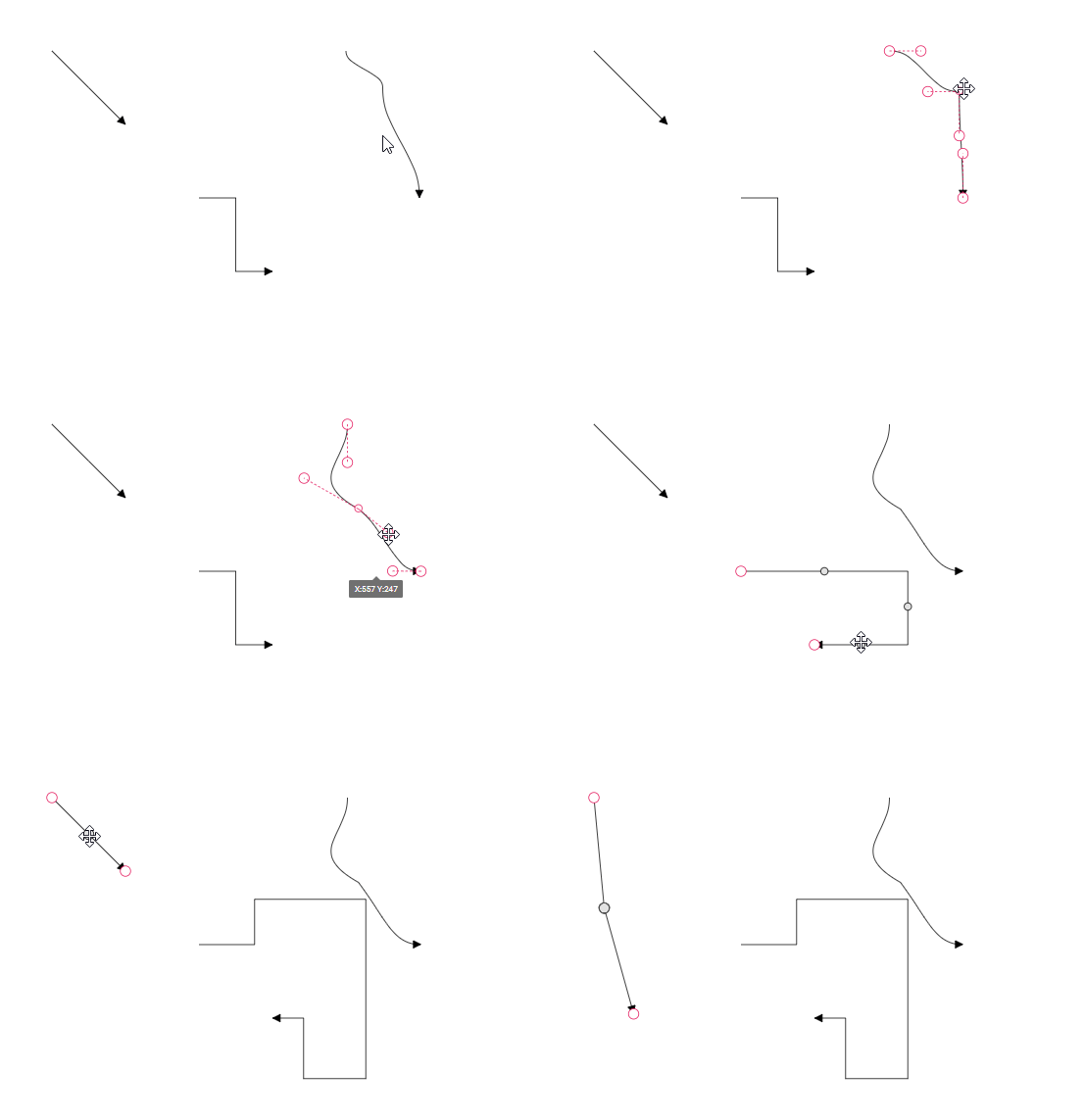
Diagram allows you to edit connector segments at runtime. To enable this feature, you need to activate the DragSegmentThumb constraint for the connector.
{
connector.constraints =
      ConnectorConstraints.Default | ConnectorConstraints.DragSegmentThumb;
}
NOTE
To edit a connector segment, you need to inject the
ConnectorEditingmodule into the diagram.
Flip
The diagram Provides support to flip the connector. The flip is performed to give the mirrored image of the original element.
The flip types are as follows:
-
HorizontalFlip
Horizontalis used to interchange the connector source and target x points. -
VerticalFlip
Verticalis used to interchange the connector source and target y points. -
Both
Bothis used to interchange the source point as target point and target point as source point
.
import {
    ConnectorModel,
    NodeModel,
    BasicShapeModel,
    Diagram,
  } from '@syncfusion/ej2-diagrams';

  let connectors: ConnectorModel[] = [
    {
      id: 'connector1',
      //Flip
      flip: 'Horizontal',
      style: {
        strokeColor: '#6BA5D7',
        fill: '#6BA5D7',
        strokeWidth: 2,
      },
      targetDecorator: {
        style: {
          fill: '#6BA5D7',
          strokeColor: '#6BA5D7',
        },
      },
      annotations: [{ content: 'Horizontal Flip' }],
      sourcePoint: { x: 100, y: 100 },
      targetPoint: { x: 200, y: 200 },
    },
    {
      id: 'connector2',
      //Flip
      flip: 'Vertical',
      style: {
        strokeColor: '#6BA5D7',
        fill: '#6BA5D7',
        strokeWidth: 2,
      },
      targetDecorator: {
        style: {
          fill: '#6BA5D7',
          strokeColor: '#6BA5D7',
        },
      },
      annotations: [{ content: 'Vertical Flip' }],
      sourcePoint: { x: 300, y: 100 },
      targetPoint: { x: 400, y: 200 },
    },
    {
      id: 'connector3',
      //Flip
      flip: 'Both',
      style: {
        strokeColor: '#6BA5D7',
        fill: '#6BA5D7',
        strokeWidth: 2,
      },
      targetDecorator: {
        style: {
          fill: '#6BA5D7',
          strokeColor: '#6BA5D7',
        },
      },
      annotations: [{ content: 'Both Flip' }],
      sourcePoint: { x: 500, y: 100 },
      targetPoint: { x: 600, y: 200 },
    },
  ];

  let diagram: Diagram = new Diagram({
    width: '100%',
    height: 900,
    connectors: connectors,
  });
  diagram.appendTo('#element');
<!DOCTYPE html>
<html lang="en">
<head>
<title>EJ2 Diagram</title>
<meta charset="utf-8" />
<meta name="viewport" content="width=device-width, initial-scale=1.0" />
<meta name="description" content="Typescript UI Controls" />
<meta name="author" content="Syncfusion" />
<link href="index.css" rel="stylesheet" />
<script src="https://cdnjs.cloudflare.com/ajax/libs/systemjs/0.19.38/system.js"></script>
<link href="https://cdn.syncfusion.com/ej2/32.1.19/ej2-base/styles/material.css" rel="stylesheet" />
<link href="https://cdn.syncfusion.com/ej2/32.1.19/ej2-buttons/styles/material.css" rel="stylesheet" />
<link href="https://cdn.syncfusion.com/ej2/32.1.19/ej2-popups/styles/material.css" rel="stylesheet" />
<link href="https://cdn.syncfusion.com/ej2/32.1.19/ej2-splitbuttons/styles/material.css" rel="stylesheet" />
<link href="https://cdn.syncfusion.com/ej2/32.1.19/ej2-diagrams/styles/material.css" rel="stylesheet" />
<link href="https://cdn.syncfusion.com/ej2/32.1.19/ej2-navigations/styles/fabric.css" rel="stylesheet" />
<script src="systemjs.config.js"></script>
<script src="https://cdn.syncfusion.com/ej2/syncfusion-helper.js" type ="text/javascript"></script>
</head>
<body>
<div id='loader'>Loading....</div>
<div id='container'>
<div id='element'></div>
</div>
</body>
</html>NOTE
The flip is not applicable when the connectors connect in nodes