Getting Started with EJ2 TypeScript Circular Gauge
12 Aug 20264 minutes to read
This document explains how to create a Circular Gauge and configure its pointer value in TypeScript using the Essential JS 2 webpack quickstart seed repository.
This application uses the
webpack.config.jsconfiguration provided by the quickstart repository. For information about webpack and its features, refer to the webpack getting-started guide.
Prerequisites
Before you begin, ensure that the following software is installed:
- Node.js
- Visual Studio Code or another text editor
- Git for cloning the quickstart repository
- A modern web browser such as Chrome, Edge, Firefox, or Safari
Register your Syncfusion license key before initializing the control. For more information, refer to the license key registration documentation.
Dependencies
The Circular Gauge control is available in the @syncfusion/ej2-circulargauge package.
The following dependencies are required:
|-- @syncfusion/ej2-circulargauge
    |-- @syncfusion/ej2-base
    |-- @syncfusion/ej2-svg-base
    |-- @syncfusion/ej2-pdf-export
Compatible package versions are resolved from the package.json file in the quickstart project. Keep all Syncfusion package versions consistent to avoid dependency conflicts.
Quick Setup
Step 1: Open a Terminal
Open the command prompt and navigate to the directory where you want to create the project.
-
For Windows: Open Command Prompt (cmd) or PowerShell and use the
cdcommand to navigate to your desired directory. -
For macOS/Linux: Open Terminal and use the
cdcommand to navigate to your desired directory.
Step 2: Clone the Quickstart Repository
Run the following command to clone the Syncfusion JavaScript quickstart project:
git clone https://github.com/SyncfusionExamples/ej2-quickstart-webpack ej2-quickstartStep 3: Navigate to the Project Folder
Navigate to the cloned project directory:
cd ej2-quickstartStep 4: Install the Required Packages
The quickstart application includes its required packages in the project-root package.json file.
Run the following command to install the project dependencies:
npm installStep 5: Add the Circular Gauge Container
Open the src/index.html file. Preserve the existing content generated by the seed project and add a div element with the ID element inside the body element.
<!DOCTYPE html>
<html lang="en">

<head>
    <title>Essential JS 2 Circular Gauge</title>
    <meta charset="utf-8">
    <meta name="viewport" content="width=device-width, initial-scale=1.0">
    <meta name="description" content="Syncfusion Circular Gauge TypeScript example">
    <meta name="author" content="Syncfusion">
    <!-- Preserve the existing head content from the seed template. -->
</head>

<body>
    <h1>Syncfusion Circular Gauge</h1>
    <!-- Container for the Circular Gauge. -->
    <div id="element"></div>
</body>

</html>
The webpack configuration supplied by the quickstart project compiles the TypeScript entry file and loads the generated bundle in this page.
Step 6: Initialize the Circular Gauge
Open the src/app/app.ts file and add the following code:
import { CircularGauge } from '@syncfusion/ej2-circulargauge';

let gauge: CircularGauge = new CircularGauge();
gauge.appendTo('#element');
The CircularGauge constructor creates the component and the appendTo() method attaches the Circular gauge instance to the DOM element with the ID element.
Step 7: Run the Application
Run the following command from the project root:
npm run startWait for webpack to finish compiling the application. If the browser does not open automatically, open the local URL displayed in the terminal.
The project commonly runs at:
http://localhost:4000/The exact port can vary based on the webpack development-server configuration.
To stop the development server, press Ctrl+C in the terminal.
Output
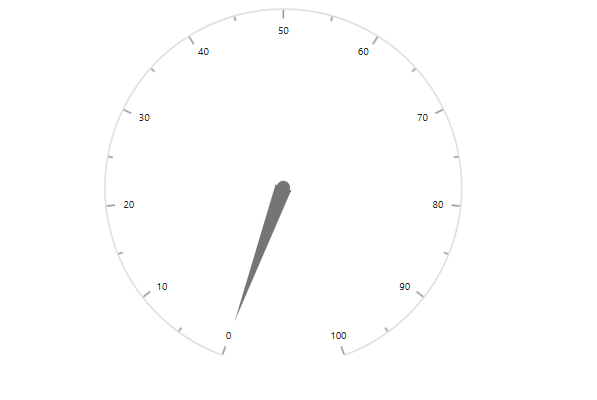
The following screenshot shows the output of the Syncfusion Circular Gauge quick start application:
Troubleshooting
-
The repository cannot be cloned. Verify that Git is installed, confirm your internet connection, and run
git --version. -
npm installfails. Verify that Node.js and npm are installed, and runnode --versionandnpm --version. -
Cannot find module '@syncfusion/ej2-circulargauge'. Re-runnpm installfrom the project root. For a custom project, install the package withnpm install @syncfusion/ej2-circulargauge. -
The TypeScript application does not compile. Ensure that all Syncfusion packages use compatible versions and review the complete error by running
npm run build. - The page is blank. Check the browser console for errors and confirm that webpack completed the build successfully.
-
The gauge is not displayed. Ensure that the HTML container ID is
elementand thatappendTo('#element')uses the same ID.