Getting Started with ASP.NET MVC TreeMap
7 Aug 20266 minutes to read
This section briefly explains about how to include ASP.NET MVC TreeMap control in your ASP.NET MVC application using Visual Studio.
Prerequisites
System requirements for ASP.NET MVC controls
Create ASP.NET MVC application with HTML helper
Install ASP.NET MVC package in the application
To add ASP.NET MVC controls in the application, open the NuGet package manager in Visual Studio (Tools → NuGet Package Manager → Manage NuGet Packages for Solution), search for Syncfusion.EJ2.MVC5 and then install it.
Install-Package Syncfusion.EJ2.MVC5 -Version 34.2.2NOTE
Syncfusion® ASP.NET MVC controls are available in nuget.org. Refer to NuGet packages topic to learn more about installing NuGet packages in various OS environments. The Syncfusion.EJ2.MVC5 NuGet package has dependencies, Newtonsoft.Json for JSON serialization and Syncfusion.Licensing for validating Syncfusion® license key.
Add namespace
Add Syncfusion.EJ2 namespace reference in Web.config under Views folder.
<namespaces>
    <add namespace="Syncfusion.EJ2"/>
</namespaces>
NOTE
Checkout the Adding Script Reference topic to learn different approaches for adding script references in your ASP.NET MVC application.
Add script resources
Here, the script is referred using CDN inside the <head> of ~/Pages/Shared/_Layout.cshtml file as follows,
<head>
    ...
    <!-- Syncfusion ASP.NET MVC controls scripts -->
    <script src="https://cdn.syncfusion.com/ej2/34.2.2/dist/ej2.min.js"></script>
</head>
NOTE
Checkout the Adding Script Reference topic to learn different approaches for adding script references in your ASP.NET MVC application.
Register Syncfusion® script manager
Also, register the script manager EJS().ScriptManager() at the end of <body> in the ~/Pages/Shared/_Layout.cshtml file as follows.
<body>
...
    <!-- Syncfusion ASP.NET MVC Script Manager -->
    @Html.EJS().ScriptManager()
</body>
Add ASP.NET MVC TreeMap control
Now, add the Syncfusion® ASP.NET MVC TreeMap control in ~/Views/Home/Index.cshtml page.
<h2> Essential JS 2 for ASP.NET MVC TreeMap </h2>

<div id="container">
    @Html.EJS().TreeMap("container").Load("load").WeightValuePath("Count").LeafItemSettings(leaf=>leaf.LabelPath("State")).Render()
</div>
<script>
    function load(args)
    {
        var data = [
            { Title: 'State wise International Airport count in South America', State: "Brazil", Count: 25 },
            { Title: 'State wise International Airport count in South America', State: "Colombia", Count: 12 },
            { Title: 'State wise International Airport count in South America', State: "Argentina", Count: 9 },
            { Title: 'State wise International Airport count in South America', State: "Ecuador", Count: 7 },
            { Title: 'State wise International Airport count in South America', State: "Chile", Count: 6 },
            { Title: 'State wise International Airport count in South America', State: "Peru", Count: 3 },
            { Title: 'State wise International Airport count in South America', State: "Venezuela", Count: 3 },
            { Title: 'State wise International Airport count in South America', State: "Bolivia", Count: 2 },
            { Title: 'State wise International Airport count in South America', State: "Paraguay", Count: 2 },
            { Title: 'State wise International Airport count in South America', State: "Uruguay", Count: 2 },
            { Title: 'State wise International Airport count in South America', State: "Falkland Islands", Count: 1 },
            { Title: 'State wise International Airport count in South America', State: "French Guiana", Count: 1 },
            { Title: 'State wise International Airport count in South America', State: "Guyana", Count: 1 },
            { Title: 'State wise International Airport count in South America', State: "Suriname", Count: 1 },
        ];
        args.treemap.dataSource = data;
    }
</script>
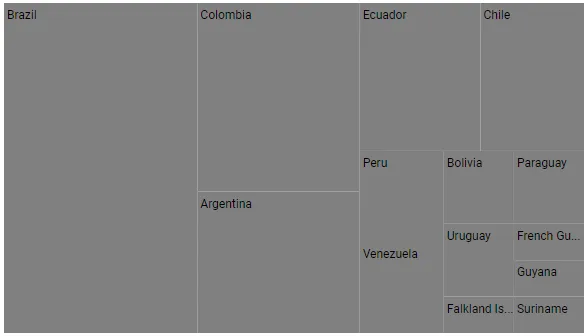
Press Ctrl+F5 (Windows) or ⌘+F5 (macOS) to run the app. Then, the Syncfusion® ASP.NET MVC TreeMap control will be rendered in the default web browser.
NOTE