PostgreSQL Data Binding in ASP.NET MVC Pivot Table
28 Aug 202610 minutes to read
This section describes how to consume data from PostgreSQL database using Microsoft Npgsql and bind it to the Pivot Table via a Web API controller.
Creating a Web API Service to Fetch PostgreSQL Data
Follow these steps to create a Web API service that retrieves data from a PostgreSQL database and prepares it for the Pivot Table.
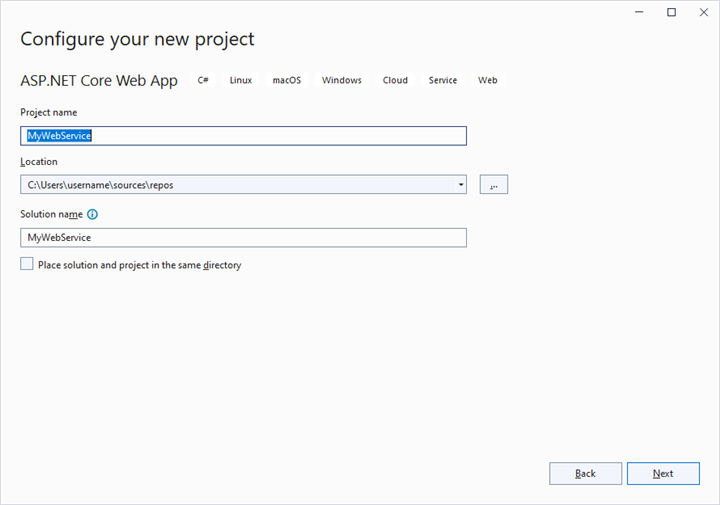
Step 1: Create an ASP.NET Core Web Application
- Open Visual Studio and create a new ASP.NET Core Web App project named MyWebService. Select the Web API project template (for example, ASP.NET Core Web API in Visual Studio 2022) so the project is configured with controllers and Swagger by default.
- Follow the official Microsoft documentation for detailed instructions on creating an ASP.NET Core Web application.
- Before proceeding, ensure that a PostgreSQL Server instance is running locally (or reachable on the network) and that the
mydbdatabase andtablenametable exist with sample data. The connection string and table name used later in this walkthrough assume the example dataset from the walkthrough’s GitHub sample.
Step 2: Install the PostgreSQL NuGet Package
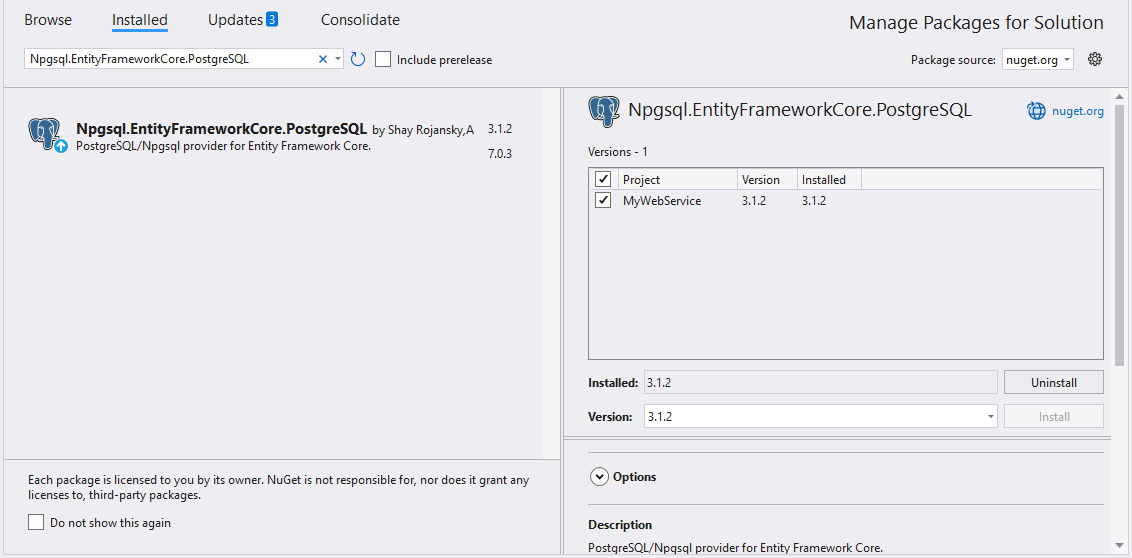
To enable PostgreSQL database connectivity, install the raw ADO.NET provider used by the controller code in this walkthrough:
- Open the NuGet Package Manager in your project solution and search for Npgsql (the raw ADO.NET provider for PostgreSQL).
- Install the Npgsql package to add PostgreSQL support. Use
Npgsqlversion 8.x (or later) to match this walkthrough; pin the version if you want reproducible builds.
Step 3: Create a Web API Controller
- Under the Controllers folder, create a new Web API controller named PivotController.cs.
- This controller facilitates data communication between the PostgreSQL database and the Pivot Table.
Step 4: Connect to PostgreSQL and Retrieve Data
In the PivotController.cs file, use the Npgsql library to connect to a PostgreSQL database and retrieve data for the Pivot Table.
-
Establish Connection: Use NpgsqlConnection with a valid connection string (e.g.,
Server=localhost;Database=mydb;User Id=myuser;Password=mypassword;) to connect to the PostgreSQL database. For production, registerNpgsqlDataSource(or a connection factory) as a singleton in the application’s dependency-injection container rather than opening a new connection per request, and useusingblocks to deterministically dispose connections, commands, and adapters. -
Query and Fetch Data: Execute a SQL query (e.g.,
SELECT * FROM tablename) using NpgsqlCommand to retrieve data for the Pivot Table. - Structure the Data: Use NpgsqlDataAdapter’s Fill method to populate query results into a DataTable for JSON serialization.
    using Microsoft.AspNetCore.Mvc;
    using Newtonsoft.Json;
    using System.Data;
    using Npgsql;

    namespace MyWebService.Controllers
    {
        [ApiController]
        [Route("[controller]")]
        public class PivotController : ControllerBase
        {
            public dynamic GetPostgreSQLResult()
            {
                // Replace with your own connection string.
                NpgsqlConnection connection = new NpgsqlConnection("<Enter your valid connection string here>");
                connection.Open();
                NpgsqlCommand cmd = new NpgsqlCommand("SELECT * FROM tablename", connection);
                NpgsqlDataAdapter da = new NpgsqlDataAdapter(cmd);
                DataTable dt = new DataTable();
                da.Fill(dt);
                connection.Close();
                return dt;
            }
        }
    }
Step 5: Serialize Data to JSON
In the PivotController.cs file, define a Get method that calls GetPostgreSQLResult to retrieve data from the PostgreSQL database as a DataTable. Then, use JsonConvert.SerializeObject from the Newtonsoft.Json library to convert the DataTable into JSON format. This JSON data will be used by the Pivot Table component.
Ensure the
Newtonsoft.JsonNuGet package (version 13.x or later) is installed in your project before usingJsonConvert.
    using Microsoft.AspNetCore.Mvc;
    using Newtonsoft.Json;
    using System.Data;
    using Npgsql;

    namespace MyWebService.Controllers
    {
        [ApiController]
        [Route("[controller]")]
        public class PivotController : ControllerBase
        {
            [HttpGet(Name = "GetPostgreSQLResult")]
            public object Get()
            {
                return JsonConvert.SerializeObject(GetPostgreSQLResult());
            }

            public dynamic GetPostgreSQLResult()
            {
                // Replace with your own connection string.
                NpgsqlConnection connection = new NpgsqlConnection("<Enter your valid connection string here>");
                connection.Open();
                NpgsqlCommand cmd = new NpgsqlCommand("SELECT * FROM tablename", connection);
                NpgsqlDataAdapter da = new NpgsqlDataAdapter(cmd);
                DataTable dt = new DataTable();
                da.Fill(dt);
                connection.Close();
                return dt;
            }
        }
    }
Step 6: Run the Web API Service
- In Visual Studio, set MyWebService as the startup project and press F5 (or run
dotnet runfrom the project folder). The actual listening ports are read fromlaunchSettings.json; both HTTP and HTTPS endpoints are printed in the console. - The application will be hosted at
https://localhost:44378/(the port number may vary based on your configuration). Note the exact URL printed by the runtime so you can reference it from the ASP.NET MVC project.
Step 7: Access the JSON Data
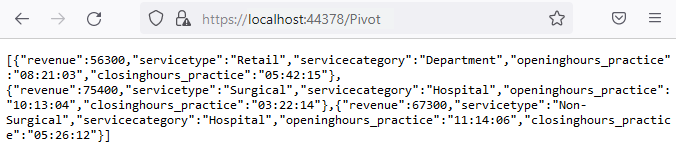
- Access the Web API endpoint at
https://localhost:44378/Pivotto view the JSON data retrieved from the PostgreSQL database. - The browser displays the JSON data, as shown in the image below, ready for use by the Pivot Table.
Connecting the Pivot Table to a PostgreSQL Database Using the Web API Service
This section explains how to connect the Pivot Table component to a PostgreSQL database by retrieving data from the Web API service created in the previous section. Ensure that the Web API service from the previous section is still running before proceeding.
Step 1: Set up the ASP.NET MVC project
- Set up a basic ASP.NET MVC Pivot Table by following the Getting Started documentation.
- Ensure your ASP.NET MVC project is configured with the necessary EJ2 Pivot Table dependencies.
Step 2: Configure the Web API URL in the Pivot Table
- In the ~/Views/Home/Index.cshtml file, map the Web API URL (
https://localhost:44378/Pivot) to the Pivot Table using the Url property within the PivotViewDataSourceSettings. - Below is the sample code to configure the Pivot Table to fetch data from the Web API:
@Html.EJS().PivotView("PivotView").Height("300").DataSourceSettings(
     dataSource => dataSource.Url("https://localhost:44378/Pivot"
     )
     //Other codes here...
     ).Render()
Step 3: Define the Pivot Table Report
- Configure the Pivot Table report in the ~/Views/Home/Index.cshtml file to structure the data retrieved from the PostgreSQL database.
- Add fields to the
rows,columns,values, andfiltersproperties of PivotViewDataSourceSettings to define the report structure, specifying how data fields are organized and aggregated in the Pivot Table. - Enable the field list by setting the ShowFieldList property to true on the
PivotViewcomponent (not on the data source settings) and including theFieldListmodule in the services section. This allows users to dynamically add or rearrange fields across the columns, rows, and values axes using an interactive user interface. Note:EnableSortingis a property of thePivotViewcomponent; the sample above demonstrates the equivalent MVC builder usage for the data source settings.
Here’s the updated sample code for ~/Views/Home/Index.cshtml with the report configuration and field list support:
@Html.EJS().PivotView("PivotView").Height("300").DataSourceSettings(
        dataSource => dataSource.Url("https://localhost:44378/Pivot"
        ).ExpandAll(false).EnableSorting(true)
    .Rows(rows =>
    {
        rows.Name("servicetype").Add(); rows.Name("servicecategory").Add();
    }).Columns(columns =>
    {
        columns.Name("openinghours_practice").Add(); columns.Name("closinghours_practice").Add();
    }).Values(values =>
    {
        values.Name("revenue").Add();
    })).ShowFieldList(true).Render()
Step 4: Run and Verify the Pivot Table
- Run the ASP.NET MVC application.
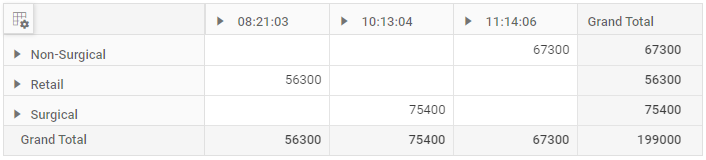
- The Pivot Table will display the data fetched from the PostgreSQL database via the Web API, structured according to the defined report.
- The resulting Pivot Table will look like this:
Additional Resources
Explore a complete example of the ASP.NET MVC Pivot Table integrated with an ASP.NET Core Web Application to fetch data from a PostgreSQL database in this GitHub repository.