Dimensions in ASP.NET Core Linear Gauge
7 Aug 20262 minutes to read
Size for Linear Gauge
The height and width of the Linear Gauge can be set using the Height and Width properties in ejs-lineargauge.
In Pixel
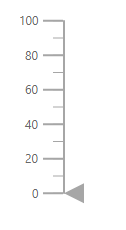
The size of the Linear Gauge can be set in pixel as demonstrated below.
@using Syncfusion.EJ2.LinearGauge;

<ejs-lineargauge id="linear" Width="650px" Height="350px"></ejs-lineargauge>
using System;
using System.Collections.Generic;
using System.Diagnostics;
using System.Linq;
using System.Threading.Tasks;
using Microsoft.AspNetCore.Mvc;
using EJ2_Core_Application.Models;
using Newtonsoft.Json;
using Syncfusion.EJ2.Charts;
using Syncfusion.EJ2.LinearGauge;
namespace EJ2_Core_Application.Controllers
{
public class HomeController : Controller
{
public IActionResult Index()
{
return View();
}
}
}
In Percentage
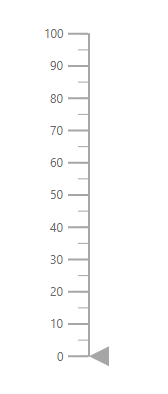
By setting value in percentage, Linear Gauge receives its dimension matching to its parent. For example, when the height is set as 50%, Linear Gauge renders to half of the parent height. The Linear Gauge will be responsive when the width is set as 100%.
@using Syncfusion.EJ2.LinearGauge;

<ejs-lineargauge id="linear" Width="100%" Height="50%"></ejs-lineargauge>
using System;
using System.Collections.Generic;
using System.Diagnostics;
using System.Linq;
using System.Threading.Tasks;
using Microsoft.AspNetCore.Mvc;
using EJ2_Core_Application.Models;
using Newtonsoft.Json;
using Syncfusion.EJ2.Charts;
using Syncfusion.EJ2.LinearGauge;
namespace EJ2_Core_Application.Controllers
{
public class HomeController : Controller
{
public IActionResult Index()
{
return View();
}
}
}
NOTE
When the component’s size is not specified, the height will be 450px and the width will be the same as the parent element’s width.