Getting Started with ASP.NET Core 3D Circular Chart
7 Aug 20265 minutes to read
This section briefly explains how to include the ASP.NET Core 3D Circular Charts control in your ASP.NET Core application using Visual Studio.
Create an ASP.NET Core Web App with Razor Pages
Create an ASP.NET Core Web App using Visual Studio via Microsoft Templates or the Syncfusion® ASP.NET Core Extension. For detailed instructions, refer to the ASP.NET Core Web App Getting Started documentation.
Install the required ASP.NET Core package
To add ASP.NET Core 3D Circular Charts control in the app, open the NuGet package manager in Visual Studio (Tools → NuGet Package Manager → Manage NuGet Packages for Solution), search for and install the Syncfusion.AspNetCore.CircularChart3D package. All Syncfusion ASP.NET Core packages are available in nuget.org. See the NuGet packages topic for details.
Alternatively, you can install the same package using the Package Manager Console with the following command.
Install-Package Syncfusion.AspNetCore.CircularChart3D -Version 34.2.2Add the ASP.NET Core Tag Helpers
After the package is installed, open the ~/Pages/_ViewImports.cshtml file and import the Syncfusion.AspNetCore.Base and Syncfusion.AspNetCore.Charts Tag Helpers.
@addTagHelper *, Syncfusion.AspNetCore.Base
@addTagHelper *, Syncfusion.AspNetCore.Charts
Add script resources
Include the script reference inside the <head> of ~/Pages/Shared/_Layout.cshtml.
<head>
    ...
    <!-- ASP.NET Core controls scripts -->
    <script src="_content/Syncfusion.AspNetCore.Charts/scripts/sf-circular3d.min.js"></script>
</head>
Register the script manager
Open the ~/Pages/Shared/_Layout.cshtml file and register the script manager <ejs-scripts> at the end of the <body> element as follows.
<body>
    ...
    <!-- ASP.NET Core Script Manager -->
    <ejs-scripts></ejs-scripts>
</body>
Add ASP.NET Core 3D Circular Charts control
Add the ASP.NET Core 3D Circular Charts control in the ~/Pages/Index.cshtml file.
<ejs-circularchart3d id="container" title="Browser Market Shares in November 2023" tilt="-45">
    <e-circularchart3d-legendsettings visible="true" position="@Syncfusion.EJ2.Charts.LegendPosition.Right">
    </e-circularchart3d-legendsettings>
    <e-circularchart3d-series-collection>
        <e-circularchart3d-series dataSource="@circularData" xName="X" yName="Y">
            <e-circularchart3d-series-datalabel visible="true" name="X"
            position="@Syncfusion.EJ2.Charts.CircularChart3DLabelPosition.Outside">
                <e-font fontWeight="600"></e-font>
                <e-connectorstyle length="40px"></e-connectorstyle>
            </e-circularchart3d-series-datalabel>
        </e-circularchart3d-series>
    </e-circularchart3d-series-collection>
</ejs-circularchart3d>
Pie Series
By default, the pie series will be rendered when assigning the JSON data to the series using the dataSource property. Map the field names in the JSON data to the xName and yName properties of the series.
@{

    List<CircularChartData> circularData = new List<CircularChartData>
    {
        new CircularChartData { X = "Chrome",            Y = 62.92 },
        new CircularChartData { X = "Internet Explorer", Y = 6.12  },
        new CircularChartData { X = "Opera",             Y = 3.15  },
        new CircularChartData { X = "Edge",              Y = 5.5   },
        new CircularChartData { X = "Safari",            Y = 19.97 },
        new CircularChartData { X = "Others",            Y = 2.34  }
    };
}

<ejs-circularchart3d id="container" title="Browser Market Shares in November 2023" tilt="-45">
    <e-circularchart3d-legendsettings visible="true" position="@Syncfusion.EJ2.Charts.LegendPosition.Right">
    </e-circularchart3d-legendsettings>
    <e-circularchart3d-series-collection>
        <e-circularchart3d-series dataSource="@circularData" xName="X" yName="Y">
            <e-circularchart3d-series-datalabel visible="true" position="@Syncfusion.EJ2.Charts.CircularChart3DLabelPosition.Outside" name="X">
                <e-font fontWeight="600"></e-font>
                <e-connectorstyle length="40px"></e-connectorstyle>
            </e-circularchart3d-series-datalabel>
        </e-circularchart3d-series>
    </e-circularchart3d-series-collection>
</ejs-circularchart3d>
public class CircularChartData
{
public string X;
public double Y;
}Run the application
Press Ctrl+F5 (Windows) or ⌘+F5 (macOS) to launch the application. The ASP.NET Core 3D Circular Charts control will render in your default web browser.
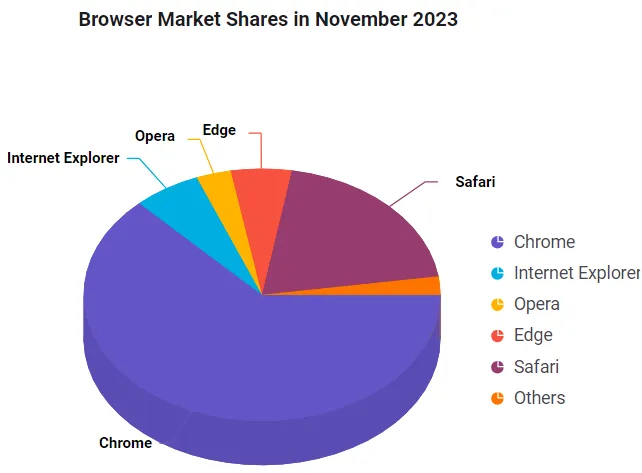
View Sample in GitHub.