Styles and Appearance in Angular TreeView Component
16 Dec 20256 minutes to read
The following content provides the exact CSS structure that can be used to modify the component’s appearance based on the user preference.
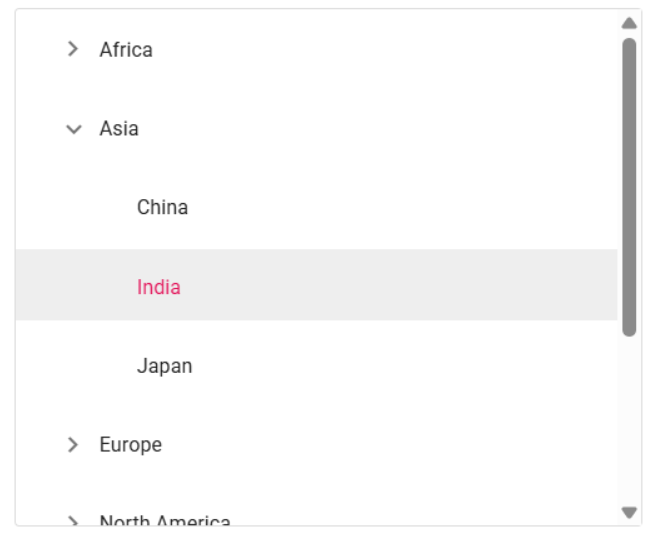
Customizing the height of TreeView nodes
Use the following CSS to customize the TreeView nodes.
.e-treeview .e-list-item {
        line-height: 45px;
}
.e-treeview .e-fullrow {
        height: 45px;
}
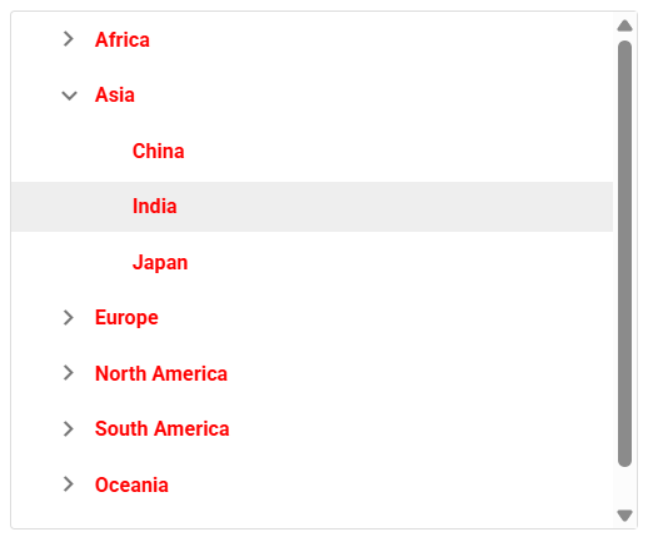
Customizing the text of TreeView nodes
Use the following CSS to customize the text of TreeView nodes.
.e-treeview .e-list-text {
        font-weight: bold;
        color:yellow !important;
}
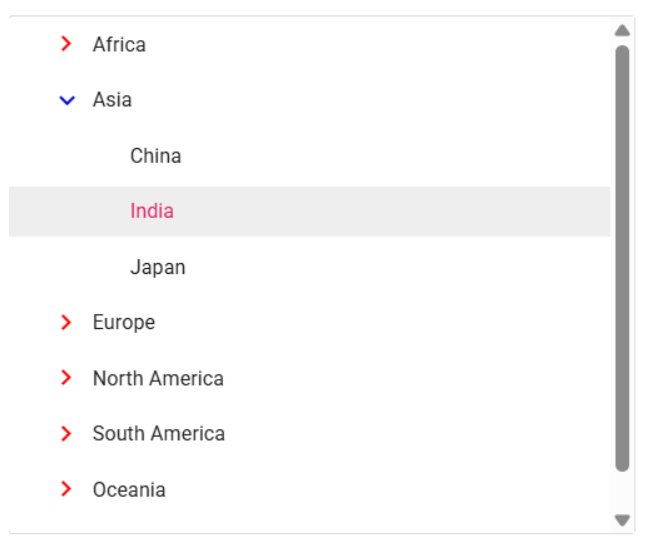
Customizing the TreeView expand and collapse icons
Use the following CSS to customize the TreeView expand and collapse icons.
.e-treeview .e-icon-expandable {
        color: red;
}
.e-treeview .e-icon-collapsible {
        color: black;
}
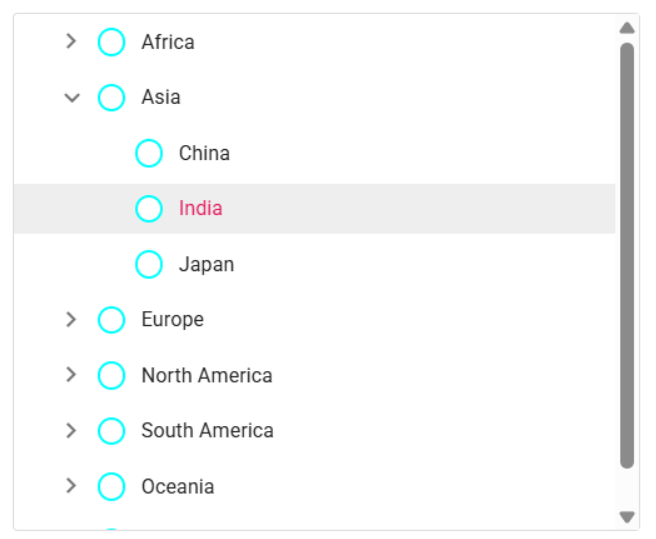
Customizing the TreeView checkboxes
Use the following CSS to customize the TreeView checkboxes.
.e-checkbox-wrapper .e-frame {
    border:aqua solid 2px !important;
    border-radius: 50% !important;
}
.e-checkbox-wrapper:hover .e-frame{
    border:black solid 2px !important;
    border-radius:50% !important;
}
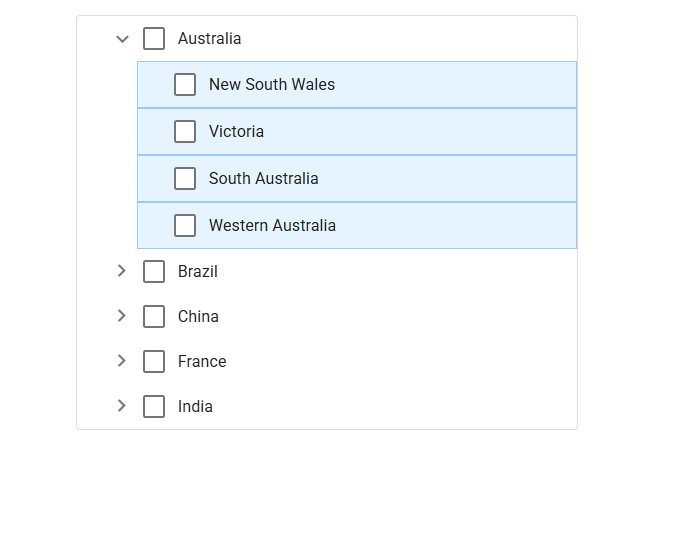
Customizing the TreeView nodes based on levels
Use the following CSS to customize the TreeView nodes based on levels.
.e-treeview .e-level-2 > .e-text-content {
     background: #E6F4FF;
     border: 1px solid #99C9FF;
}
Customizing the TreeView using HtmlAttributes
The htmlAttributes property of the TreeView component allows you to define a mapping field for applying custom HTML attributes to individual TreeView nodes.
By using attributes, you can customize specific nodes effectively. For instance, in the given example, a ‘child-node’ class is added to a specific node, allowing you to customize the corresponding node via CSS.
.child-node {
  font-weight: bold;
  background-color: aqua;
}import { NgModule } from '@angular/core'
import { BrowserModule } from '@angular/platform-browser'
import { FormsModule } from '@angular/forms'
import { TreeViewModule } from '@syncfusion/ej2-angular-navigations'
import { Component } from '@angular/core';
@Component({
imports: [
FormsModule, TreeViewModule
],
standalone: true,
selector: 'app-root',
styleUrls: ['./app.component.css'],
template: `<div id='treeparent'><ejs-treeview id='treeelement' [fields]='field'></ejs-treeview></div>`
})
export class AppComponent {
constructor() {
}
// defined the array of data
public hierarchicalData: Object[] = [
{
id: '01', name: 'Music', expanded: true,
htmlAttributes: { class: 'child-node' },
subChild: [
{ id: '01-01', name: 'Gouttes.mp3' },
]
},
{
id: '02', name: 'Videos',
subChild: [
{ id: '02-01', name: 'Naturals.mp4' },
{ id: '02-02', name: 'Wild.mpeg' }
]
},
{
id: '03', name: 'Documents',
subChild: [
{ id: '03-01', name: 'Environment Pollution.docx' },
{ id: '03-02', name: 'Global Water, Sanitation, & Hygiene.docx' },
{ id: '03-03', name: 'Global Warming.ppt' },
{ id: '03-02', name: 'Social Network.pdf' },
{ id: '03-03', name: 'Youth Empowerment.pdf' },
]
}
];
public field: Object = { dataSource: this.hierarchicalData, id: 'id', text: 'name', child: 'subChild', htmlAttributes: 'htmlAttributes' };
}@import 'node_modules/@syncfusion/ej2-base/styles/material3.css';
@import 'node_modules/@syncfusion/ej2-inputs/styles/material3.css';
@import 'node_modules/@syncfusion/ej2-buttons/styles/material3.css';
@import 'node_modules/@syncfusion/ej2-angular-base/styles/material3.css';
@import 'node_modules/@syncfusion/ej2-angular-navigations/styles/material3.css';
@import 'node_modules/@syncfusion/ej2-angular-inputs/styles/material3.css';
.child-node {
font-weight: bold;
background-color: aqua;
}import { bootstrapApplication } from '@angular/platform-browser';
import { AppComponent } from './app.component';
import 'zone.js';
bootstrapApplication(AppComponent).catch((err) => console.error(err));