How can I help you?
Getting started with Syncfusion Angular Scheduler and MongoDB
23 Jun 202615 minutes to read
The Syncfusion Angular Scheduler combined with MongoDB provides a robust, scalable, and flexible data-driven application architecture suitable for modern event-management systems.
MongoDB’s schema-less design seamlessly supports complex scheduling data, making it ideal for storing events, resources, recurrence rules, and user-specific calendar configurations.
What is MongoDB?
MongoDB is a highly scalable, document-oriented NoSQL database designed to store and manage large volumes of flexible, JSON-like data. It enables developers to work with dynamic schemas, making it easy to model complex and evolving application data without rigid table structures.
Overview
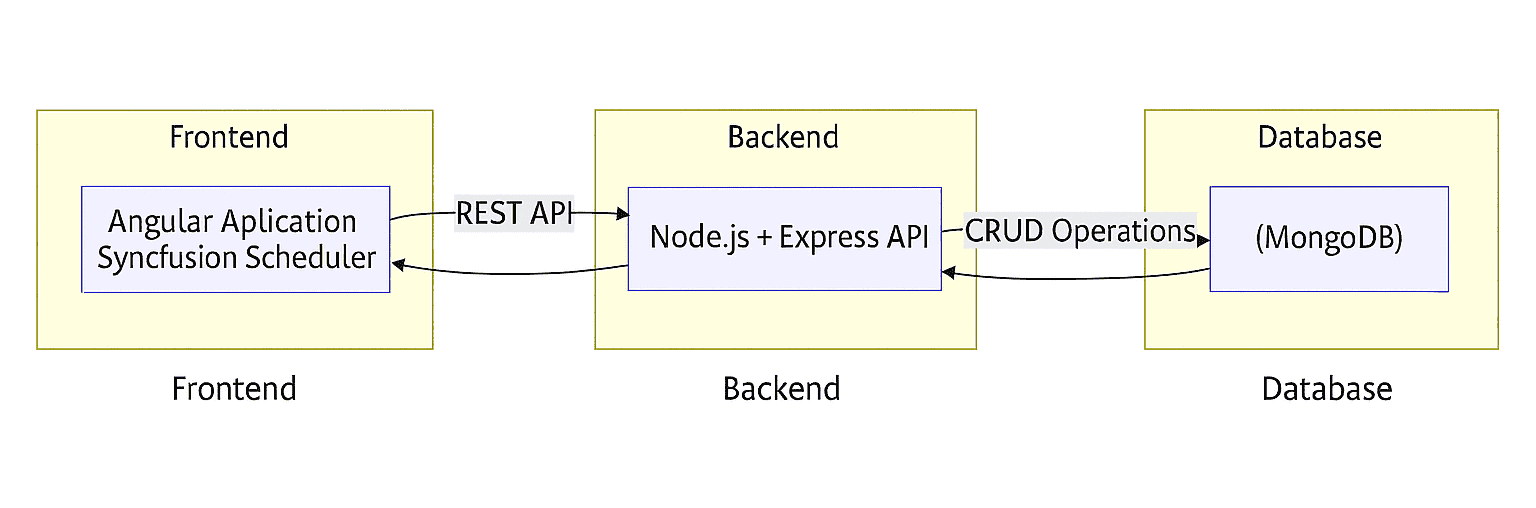
This integration enables full CRUD (Create, Read, Update, Delete) operations for calendar events using:
- Frontend: Angular + Syncfusion Angular Scheduler
- Backend: Node.js + Express
- Database: MongoDB
- Communication: REST APIs via Syncfusion DataManager
Users can create, edit, and delete appointments in the Scheduler UI, with all changes persisted in MongoDB.
Prerequisites
Before getting started, ensure the following prerequisites are met:
-
Node.js ≥ 20.19.0
Required for optimal performance and full compatibility with MongoDB Node.js Driver v7.0 and modern ES features. -
MongoDB (Latest Stable Version)
Required for storing and retrieving application data. Supports both local installation and MongoDB Atlas. -
Angular CLI (v17+ recommended)
To install Angular CLI, run the following command.
npm install -g @angular/cliArchitecture Diagram
Database Setup
Follow the steps below to set up the MongoDB database for the application:
-
Download the MongoDB Community Edition from the official website: MongoDB
-
Install MongoDB by following the platform‑specific installation instructions (Windows / macOS / Linux).
-
Launch MongoDB Compass after successful installation.
-
Open MongoDB Compass and connect the default connection string:
mongodb://localhost:27017
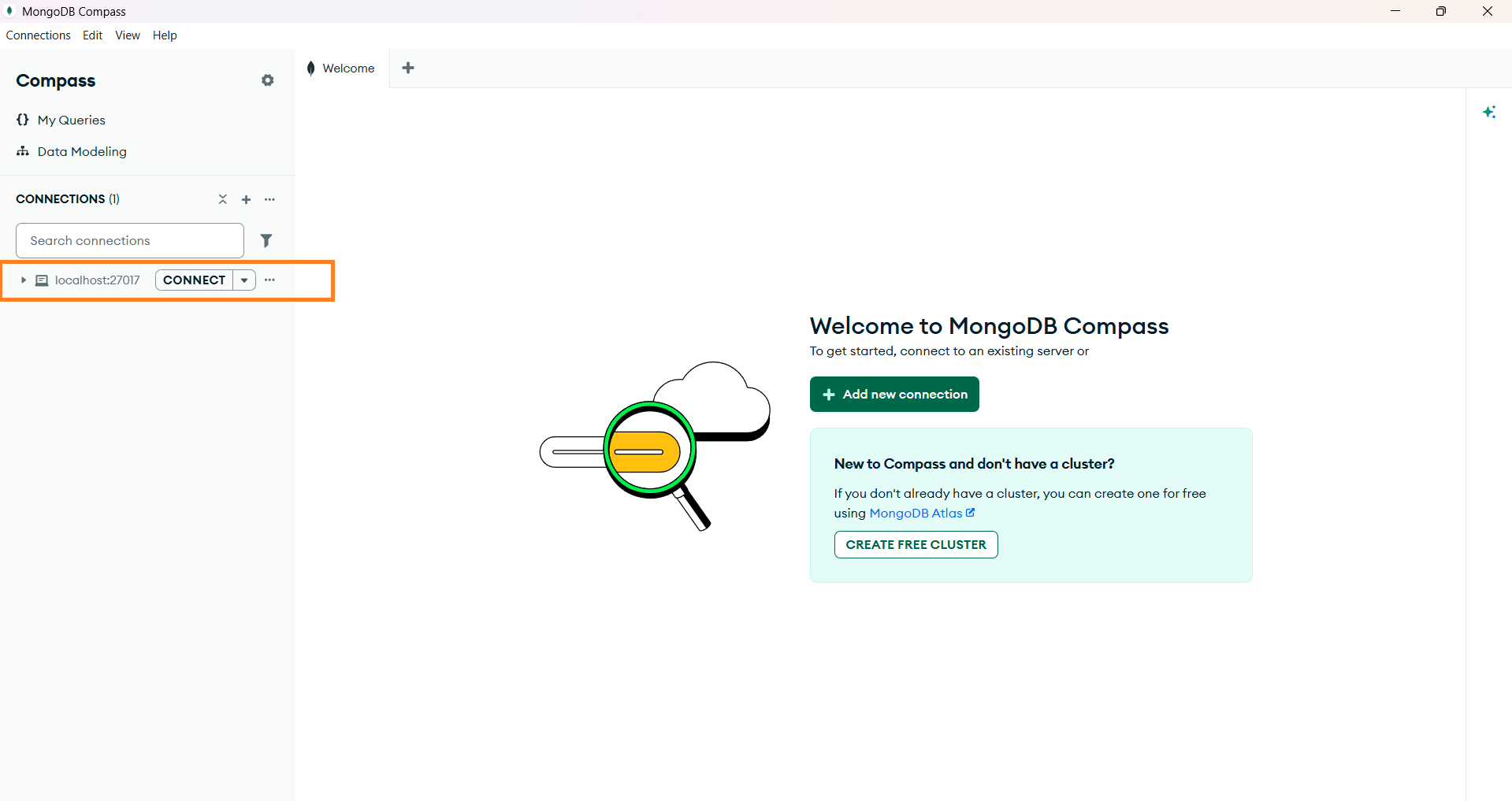
Image illustrating the MongoDB connection string -
Create a new Database
mydband a CollectionScheduleDatain default connection string.
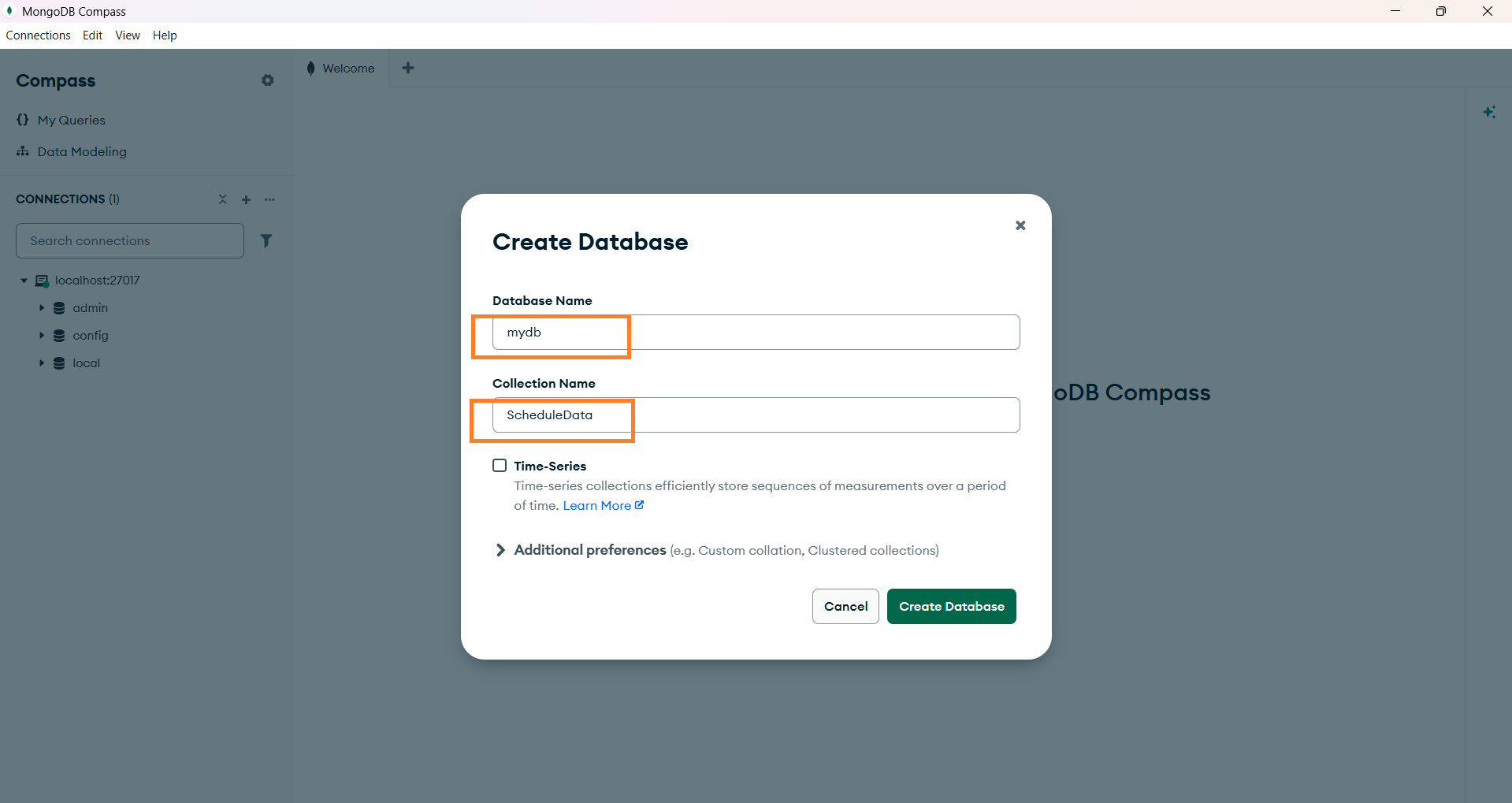
Image illustrating the MongoDB database & collection -
Confirm that MongoDB Compass shows the database in the connected state, as illustrated in the screenshot.
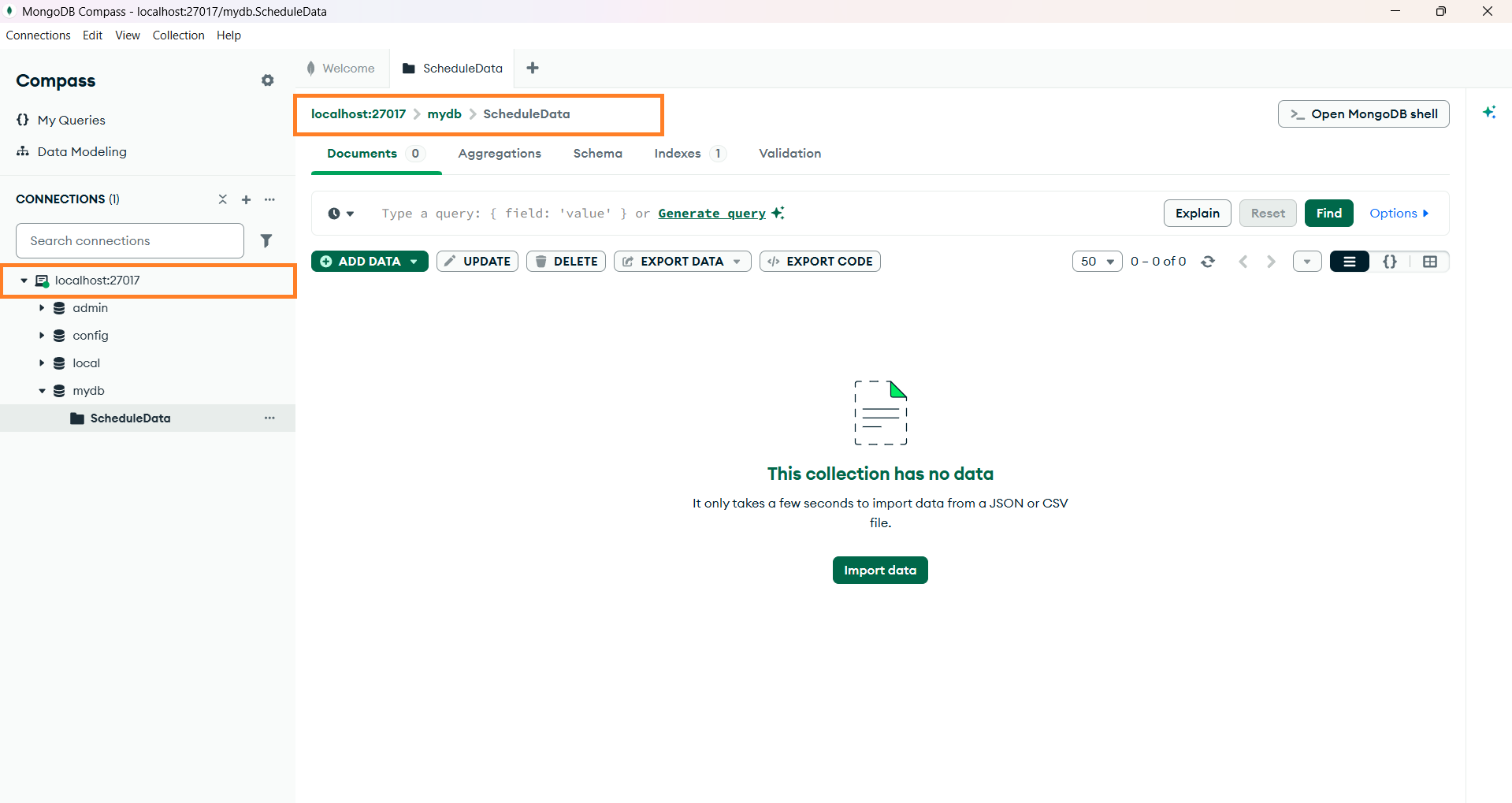
Image illustrating the MongoDB connectivity
Create an Angular Application
To create a new Angular application, use Angular CLI — it provides a modern, optimized build system with faster builds, hot reload (HMR), and an improved developer experience.
ng new angular-app
cd angular-app
The Angular application is now created with default settings.
Next, we will proceed with integrating Syncfusion® Angular Scheduler component into the project after setting up the server.
Create a Server Application
Step 1: Install required libraries
To set up the backend for the application, Install the required packages and make a new directory for server in the Angular project folder itself.
npm install express mongodb cors- Express – A minimal and flexible web framework used to build API endpoints
- MongoDB (Node.js Driver) – The official MongoDB driver that allows your server to communicate with the database
- CORS – A package that enables your application (running on a different port) to access the server’s API
mkdir serverStep 2: Create a file server.js
Create a new file named server.js inside the directory server created above and add the following code to set up the server.
const { MongoClient } = require('mongodb');
const express = require('express');
const cors = require('cors');
const app = express();
const mongoUrl = 'mongodb://127.0.0.1:27017/';
const PORT = 5000;

app.use(express.json());
app.use(express.urlencoded({ extended: false }));

// CORS configuration
app.use(cors({
    origin: 'http://localhost:4200',
    methods: ['GET', 'POST', 'PUT', 'PATCH', 'DELETE'],
    allowedHeaders: ['Content-Type'],
    credentials: false
}));

app.listen(PORT, () => {
    console.log(`✅ Server running on http://localhost:${PORT}`);
});

(async () => {
    const client = new MongoClient(mongoUrl);
    await client.connect();
    const db = client.db('mydb');
    const collection = db.collection('ScheduleData');

    // Fetch all scheduler events
    app.post('/GetData', async (req, res) => {
        try {
            const data = await collection.find({}).toArray();
            res.json(data);
        } catch (err) {
            res.status(500).json({ error: err.message });
        }
    });

    // Handle batch CRUD operations
    app.post('/BatchData', async (req, res) => {
        try {
            const body = req.body;
            let events = [];

            // INSERT
            if (body.action === 'insert' || (body.added && body.added.length)) {
                events = body.added || [body.value];
                for (const e of events) {
                e.StartTime = new Date(e.StartTime);
                e.EndTime = new Date(e.EndTime);
                await collection.insertOne(e);
                }
            }

            // UPDATE
            if (body.action === 'update' || (body.changed && body.changed.length)) {
                events = body.changed || [body.value];
                for (const e of events) {
                delete e._id; // Critical: remove _id to avoid immutable field error
                e.StartTime = new Date(e.StartTime);
                e.EndTime = new Date(e.EndTime);
                await collection.updateOne(
                    { Id: e.Id },
                    { $set: e }
                );
                }
            }

            // DELETE
            if (body.action === 'remove' || (body.deleted && body.deleted.length)) {
                events = body.deleted || [{ Id: body.key }];
                for (const e of events) {
                await collection.deleteOne({ Id: e.Id });
                }
            }
            res.json(body);
        }
        catch (err) {
            res.status(500).json({ error: err.message });
        }
    });
})();
Here database name is mydb and collection name is ScheduleData, both were previously created during the database setup process.
Step 3: Add server script to package.json
To enable running the Node.js backend directly from the Angular project’s root, add the following script inside your root package.json under the “scripts” section.
"scripts": {
    "server": "node ./server/server.js"
}
Integrating Syncfusion Angular Scheduler
This section integrates Syncfusion Angular Scheduler to the above created application.
Step 1: Install required libraries
Install the required Syncfusion Angular Scheduler package by the following command.
npm install @syncfusion/ej2-angular-scheduleStep 2: Add CSS references
Add CSS references for the Schedule in src/styles.css.
@import '../node_modules/@syncfusion/ej2-base/styles/material.css';
@import '../node_modules/@syncfusion/ej2-buttons/styles/material.css';
@import '../node_modules/@syncfusion/ej2-calendars/styles/material.css';
@import '../node_modules/@syncfusion/ej2-dropdowns/styles/material.css';
@import '../node_modules/@syncfusion/ej2-inputs/styles/material.css';
@import '../node_modules/@syncfusion/ej2-lists/styles/material.css';
@import '../node_modules/@syncfusion/ej2-popups/styles/material.css';
@import '../node_modules/@syncfusion/ej2-navigations/styles/material.css';
@import '../node_modules/@syncfusion/ej2-angular-schedule/styles/material.css';
Step 3: Add the Schedule component
In the src/app/app.ts file, use the following code snippet to render the Syncfusion Angular Schedule component.
import { Component } from '@angular/core';
import { ScheduleModule, DayService, WeekService, WorkWeekService, MonthService, AgendaService } from '@syncfusion/ej2-angular-schedule';

@Component({
selector: 'app-root',
templateUrl: 'app.html',
imports: [ScheduleModule],
providers: [DayService, WeekService, WorkWeekService, MonthService, AgendaService],
})

export class App {
    // you can add functionalities here....
}
Create a template for the component in src/app/app.html and make reference in src/app/app.ts.
<ejs-schedule width="100%" height="550px"></ejs-schedule>Step 4: Perform CRUD operations using Syncfusion’s DataManager URL Adaptor
This connects the scheduler to your backend through REST endpoints and enables create, read, update, and delete from the UI.
import { Component, OnInit } from '@angular/core';
import { ScheduleModule, EventSettingsModel, DayService, WeekService, WorkWeekService, MonthService, AgendaService } from '@syncfusion/ej2-angular-schedule';
import { DataManager, UrlAdaptor } from '@syncfusion/ej2-data';

@Component({
selector: 'app-root',
templateUrl: 'app.html',
imports: [ScheduleModule],
providers: [DayService, WeekService, WorkWeekService, MonthService, AgendaService],
})

export class App implements OnInit {
    private dataManager: DataManager = new DataManager({
        url: 'http://localhost:5000/GetData',
        crudUrl: 'http://localhost:5000/BatchData',
        adaptor: new UrlAdaptor,
        crossDomain: true
    });
    public eventSettings: EventSettingsModel = { dataSource: this.dataManager };
    public selectedDate: Date | undefined;
    ngOnInit(): void {
            this.selectedDate = new Date(2026, 0, 1);
    }
}
Modify the template of the component to perform CRUD operations.
<ejs-schedule #scheduleObj width="100%" height="550px" [eventSettings]='eventSettings' [selectedDate]="selectedDate"></ejs-schedule>- The Scheduler is connected to a backend service using Syncfusion’s DataManager, a powerful data-handling component built to seamlessly manage remote data operations.
- DataManager is configured with two API endpoints:
- url → to read event data
- crudUrl → to handle create, update, and delete actions
- The UrlAdaptor ensures standard REST-style communication with your server.
- Once this is set, the Scheduler automatically sends requests when users add, edit, drag, resize, or delete events.
- The server processes these operations and returns updated event data, allowing the Scheduler to stay perfectly in sync with the backend.
Run the Application
Step 1: Start the backend server
From the project directory angular-app/, start the backend server.
npm run serverOnce started, the Node.js backend will be available at: http://localhost:5000/
Step 2: Start the Angular application
Open a new terminal window from the same angular-app/ directory and run the Angular application.
npm startAfter the build completes, the Angular application will run at: http://localhost:4200/
You can now create, read, update, and delete events directly in the Syncfusion Angular Scheduler.
All changes will be reflected in the connected MongoDB database in real time.
Output Preview
Syncfusion Angular Scheduler
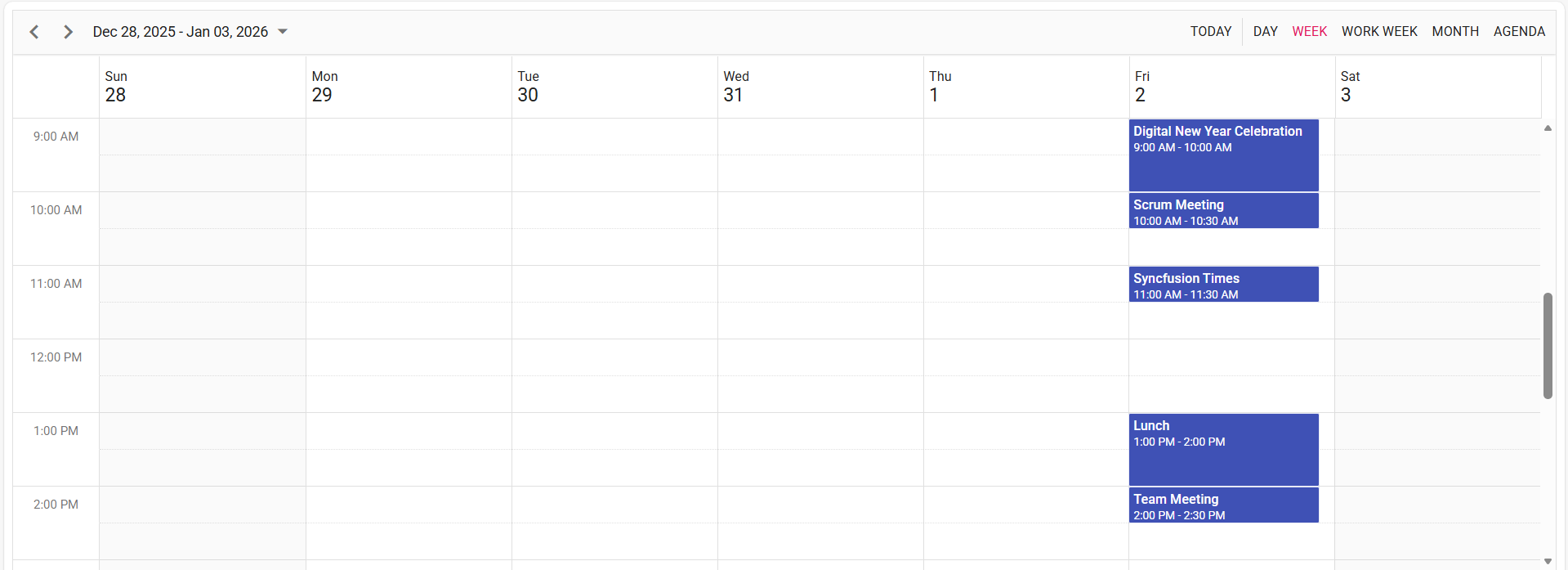
Image illustrating the Syncfusion Angular Scheduler
Syncfusion Angular Scheduler Events in MongoDB
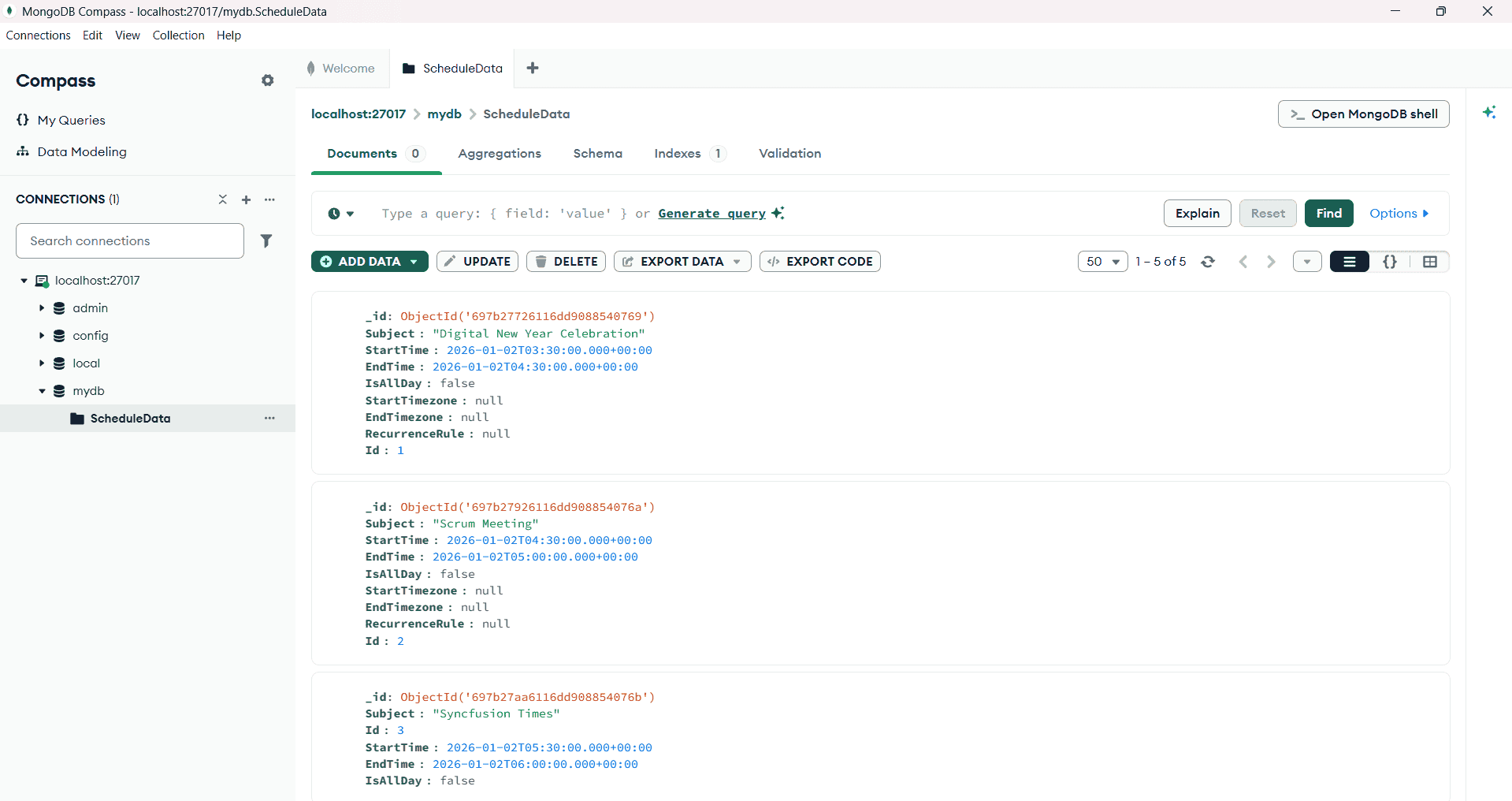
Image illustrating the Syncfusion Angular Scheduler Events in MongoDB
Common Pitfalls & Solutions
-
CORS blocked: Register app.use(cors(…)) before routes, and match origin with your Angular dev URL (http://localhost:4200). Enable credentials only if you send cookies/Authorization and configure headers in DataManager.
-
Dates stored as strings: Convert StartTime/EndTime to Date objects on the server before inserting/updating. Otherwise, Scheduler rendering/timezone math may be off.
-
Immutable _id on update: Remove _id from payload prior to updateOne (MongoDB forbids changing _id).
-
Missing CSS → broken editor/pickers: Include Scheduler CSS (via ng add or styles.css) per getting‑started docs.
Please find the sample in this GitHub location