How can I help you?
Getting Started with Angular and Electron with Syncfusion Scheduler
26 Feb 20266 minutes to read
This guide explains how to build a basic Angular application using a standalone component structure with the Electron framework and integrate the Syncfusion® Schedule component.
Prerequisites
Before getting started, ensure the following software is installed:
- Angular version 17 or later
- TypeScript version 5.4 or later
- Electron CLI version 34.0.0 or later
If the Electron CLI is not installed, refer to the Electron package for installation instructions.
Set Up Angular Environment
Refer to the Setting up the local environment and workspace guide for Angular setup instructions.
Create an Angular Application
ng new my-appInstall the Electron framework with the following command:
npm install -g electronNote: See the getting started guide to learn more about Electron installation.
Installing Syncfusion® Schedule package
Syncfusion® packages are available on npm under the @syncfusion scope. Explore all Angular Syncfusion® packages here.
To install the Schedule package, execute the following command:
npm install @syncfusion/ej2-angular-schedule --saveAdding CSS References
To incorporate styles for the Schedule component, add the following imports to styles.css:
@import '../node_modules/@syncfusion/ej2-base/styles/material3.css';
@import '../node_modules/@syncfusion/ej2-buttons/styles/material3.css';
@import '../node_modules/@syncfusion/ej2-calendars/styles/material3.css';
@import '../node_modules/@syncfusion/ej2-dropdowns/styles/material3.css';
@import '../node_modules/@syncfusion/ej2-inputs/styles/material3.css';
@import '../node_modules/@syncfusion/ej2-lists/styles/material3.css';
@import '../node_modules/@syncfusion/ej2-popups/styles/material3.css';
@import '../node_modules/@syncfusion/ej2-navigations/styles/material3.css';
@import '../node_modules/@syncfusion/ej2-angular-schedule/styles/material3.css';
Adding Syncfusion® Schedule Component
To integrate the Syncfusion® Schedule component, update the template in app.ts.
import { Component } from '@angular/core';
import { CommonModule } from '@angular/common';
import {
  ScheduleModule,
  EventSettingsModel,
  View,
  DayService,
  WeekService,
  WorkWeekService,
  MonthService,
  AgendaService
} from '@syncfusion/ej2-angular-schedule';

@Component({
  selector: 'app-root',
  standalone: true,
  imports: [CommonModule, ScheduleModule],
  providers: [DayService, WeekService, WorkWeekService, MonthService, AgendaService],
  template: `
    <h2>Syncfusion Scheduler</h2>

    <ejs-schedule
      width="100%"
      height="650px"
      [selectedDate]="selectedDate"
      [currentView]="currentView"
      [eventSettings]="eventSettings"
    >
      <e-views>
        <e-view option="Day"></e-view>
        <e-view option="Week"></e-view>
        <e-view option="WorkWeek"></e-view>
        <e-view option="Month"></e-view>
        <e-view option="Agenda"></e-view>
      </e-views>
    </ejs-schedule>
  `
})
export class App {
  public selectedDate: Date = new Date(2026, 1, 4); // Feb 4, 2026
  public currentView: View = 'Week';

  private data: object[] = [
    {
      Id: 1,
      Subject: 'Syncfusion Meeting',
      StartTime: new Date(2026, 1, 4, 10, 0),
      EndTime: new Date(2026, 1, 4, 11, 0)
    },
    {
      Id: 2,
      Subject: 'Meeting',
      StartTime: new Date(2026, 1, 5, 14, 0),
      EndTime: new Date(2026, 1, 5, 15, 30)
    }
  ];

  public eventSettings: EventSettingsModel = {
    dataSource: this.data,
    allowAdding: true,
    allowEditing: true,
    allowDeleting: true
  };
}
Create main.js File
Create a main.js file in your project’s root directory and add the following code:
const { app, BrowserWindow } = require('electron');
const path = require('node:path');

function createWindow() {
  const win = new BrowserWindow({
    width: 1100,
    height: 800
  });

  // Load Angular build output (common location)
  win.loadFile(path.join(__dirname, 'dist', 'my-app', 'browser', 'index.html'));

  // Optional
  win.webContents.openDevTools();
}

app.whenReady().then(() => {
  createWindow();

  app.on('activate', () => {
    if (BrowserWindow.getAllWindows().length === 0) createWindow();
  });
});

app.on('window-all-closed', () => {
  if (process.platform !== 'darwin') app.quit();
});
Update index.html
In /src/index.html, change <base href="/"> to <base href="./"> to ensure Electron locates the built Angular files correctly.
Update package.json
Modify package.json to include the main entry and update scripts:
{
  "main": "main.js",
  "scripts": {
    "ng": "ng",
    "start": "ng serve",
    "build": "ng build",
    "watch": "ng build --watch --configuration development",
    "test": "ng test",
    "electron-build": "ng build --configuration production",
    "electron": "electron ."
  }
}
Running the application
To build and launch the application, execute these commands sequentially:
npm run electron-build
npm run electron
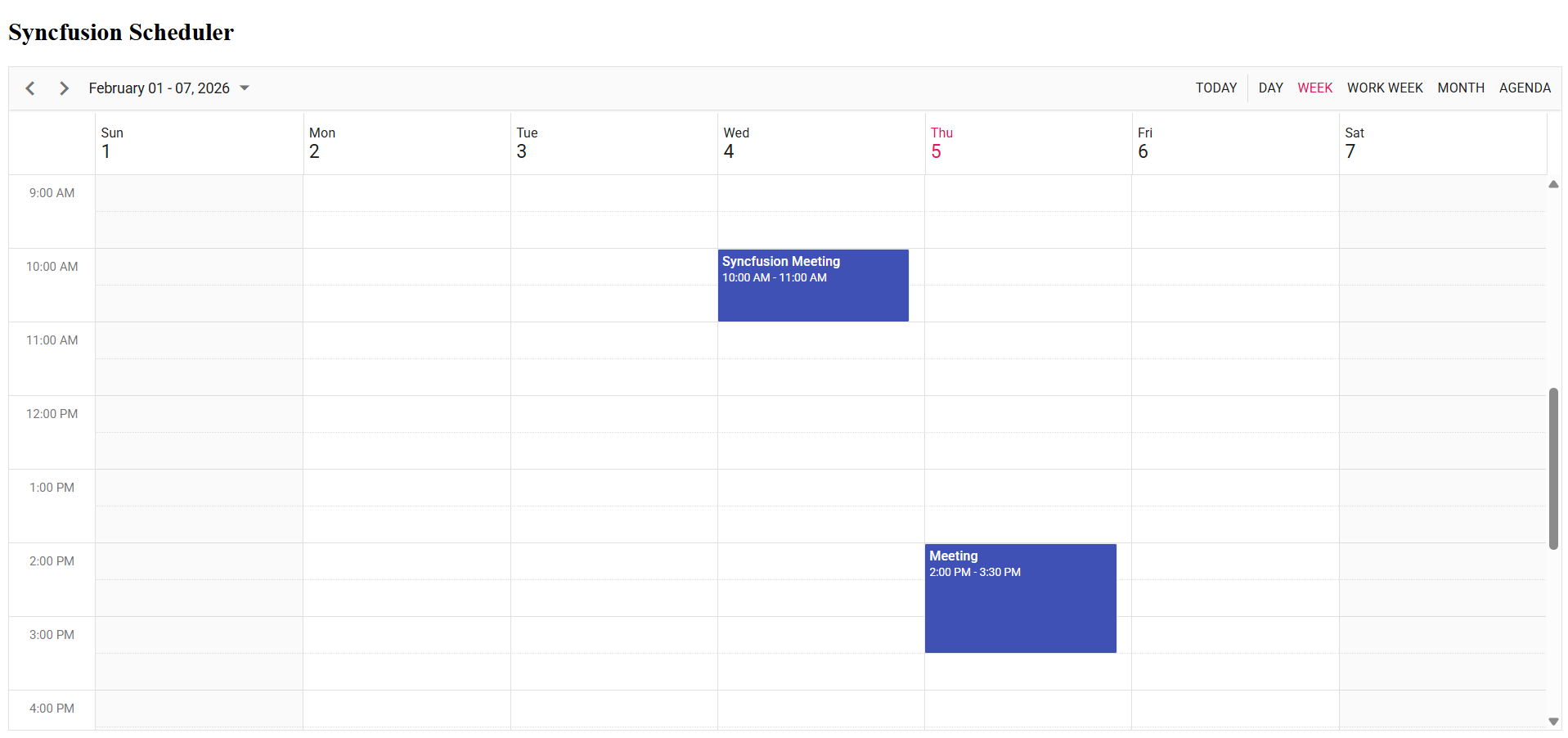
The Syncfusion® Essential® JS 2 Schedule component will render within the Electron window.
Output
Note: For a complete example, see the Angular sample with Electron in GitHub.
Troubleshooting
Problem:
Angular Bundle Exceeded Maximum Budget Error
Solution:
Change the budget of the maximumWarning and maximumError size to high.
"maximumWarning": "5MB",
"maximumError": "6MB"