Insert Images in the Angular Rich Text Editor Component
22 Jul 202624 minutes to read
The Rich Text Editor allows to insert images in your content from online sources as well as local computer. For inserting an image to the Rich Text Editor, the following list of options have been provided in the insertImageSettings
Configuring the image toolbar item
The image feature is enabled by adding the Image item to the toolbar using the toolbarSettings.items property.
To use Image feature, inject
ImageServicein the provider section.
The following example demonstrates configuring the Image toolbar item:
import { RichTextEditorModule, QuickToolbarSettingsModel, ToolbarSettingsModel } from '@syncfusion/ej2-angular-richtexteditor';
import { Component } from '@angular/core';
import { ToolbarService, LinkService, ImageService, HtmlEditorService, AudioService, QuickToolbarService, TableService, PasteCleanupService } from '@syncfusion/ej2-angular-richtexteditor';
@Component({
imports: [RichTextEditorModule],
standalone: true,
selector: 'app-root',
template: `<ejs-richtexteditor id='editor' [toolbarSettings]='tools' [quickToolbarSettings]='quickToolbarSettings' [value]='value'>
</ejs-richtexteditor>`,
providers: [ToolbarService, LinkService, ImageService, HtmlEditorService, AudioService, QuickToolbarService, TableService, PasteCleanupService]
})
export class AppComponent {
public value: string = "<p>The Rich Text Editor component is WYSIWYG (\"what you see is what you get\") editor that provides the best user experience to create and update the content. Users can format their content using standard toolbar commands.</p><p><b>Key features:</b></p><ul><li><p>Provides <IFRAME> and <DIV> modes</p></li><li><p>Capable of handling markdown editing.</p></li><li><p>Contains a modular library to load the necessary functionality on demand.</p></li><li><p>Provides a fully customizable toolbar.</p></li><li><p>Provides HTML view to edit the source directly for developers.</p></li><li><p>Supports third-party library integration.</p></li><li><p>Allows preview of modified content before saving it.</p></li><li><p>Handles images, hyperlinks, video, hyperlinks, uploads, etc.</p></li><li><p>Contains undo/redo manager.</p></li><li><p>Creates bulleted and numbered lists.</p></li></ul>";
public tools: ToolbarSettingsModel = {
items: ['Image']
};
quickToolbarSettings: QuickToolbarSettingsModel = {
image: [
'Replace', 'Align', 'WrapText', 'Caption', 'Remove', 'InsertLink', 'OpenImageLink', '-',
'EditImageLink', 'RemoveImageLink', 'Display', 'AltText', 'Dimension'
]
};
}import { bootstrapApplication } from '@angular/platform-browser';
import { AppComponent } from './app.component';
import 'zone.js';
bootstrapApplication(AppComponent).catch((err) => console.error(err));Supported image save formats
The images can be saved as Blob or Base64 URL by using the insertImageSettings.saveFormat property, which is of enum type, and the generated URL will be set to the src attribute of the <source> tag.
The default
saveFormatproperty is set toBlobformat.
<img src="blob:http://ej2.syncfusion.com/3ab56a6e-ec0d-490f-85a5-f0aeb0ad8879">

<img src="data:image/jpeg;base64,iVBORw0KGgoAAAANSUhEUgAAADAAAAAwCAYAAABXAvmHA">
The code snippet below illustrates the configuration of the insertImageSettings.saveFormat property in the Rich Text Editor.
import { RichTextEditorModule, ToolbarSettingsModel } from '@syncfusion/ej2-angular-richtexteditor';
import { Component } from '@angular/core';
import { ToolbarService, LinkService, ImageService, HtmlEditorService, ImageSettingsModel } from '@syncfusion/ej2-angular-richtexteditor';

@Component({
    imports: [RichTextEditorModule],
    standalone: true,
    selector: 'app-root',
    template: `<ejs-richtexteditor id='editor' [toolbarSettings]='tools' [insertImageSettings]='imageSettingsModel'>
  </ejs-richtexteditor>`,
    providers: [ToolbarService, LinkService, ImageService, HtmlEditorService]
})
export class AppComponent {
    public tools: ToolbarSettingsModel = {
        items: ['Image']
    };
    public imageSettingsModel: ImageSettingsModel = {
        saveFormat: 'Base64'
    }
}
import { bootstrapApplication } from '@angular/platform-browser';
import { AppComponent } from './app.component';
import 'zone.js';
bootstrapApplication(AppComponent).catch((err) => console.error(err));Inserting images from web URLs
The Image toolbar item opens a dialog with an input field for inserting images from a web URL. The provided URL is set as the src attribute of the <img> tag.
Uploading images from local machine
The image dialog includes a browse option to select images from a local machine, which are then inserted into the editor’s content.
File manager integration for image insertion
To insert images from a file manager, enable the FileManager tool on the editor’s toolbar. This tool initiates a dialog where you can upload new images and choose from existing ones, facilitating smooth image insertion into your content.
To integrate the file manager into the Rich Text Editor, follow these steps:
- Configure the
FileManagertoolbar item in thetoolbarSettingsAPIitemsproperty. - Set the enable property to
truein the fileManagerSettings property to ensure the file browser appears upon clicking theFileManagertoolbar item.
Rich Text Editor features are segregated into individual feature-wise modules. To use the file browser tool, configure
FileManagerServicein providers.
Maximum file size restriction
You can restrict the image uploaded from the local machine when the uploaded image file size is greater than the allowed size by using the maxFileSize property. By default, the maximum file size is 30000000 bytes.
In the following example, the image size has been validated before uploading and determined whether the image has been uploaded or not.
import { Component } from '@angular/core';
import { RichTextEditorModule, ToolbarService, QuickToolbarService, LinkService, HtmlEditorService, VideoService, ImageService, TableService, PasteCleanupService } from '@syncfusion/ej2-angular-richtexteditor';

@Component( {
    imports: [RichTextEditorModule],
    standalone: true,
    selector: 'app-root',
    template: `<ejs-richtexteditor [toolbarSettings]="toolbarSettings" [insertImageSettings]="insertImageSettings"></ejs-richtexteditor>`,
    providers: [ToolbarService, LinkService, ImageService, HtmlEditorService, QuickToolbarService, AudioService, TableService, PasteCleanupService],
} )

export class AppComponent {
    private toolbarSettings: ToolbarSettingsModel = {
       items: [ 'Image', 'Bold', 'Italic', 'Underline', '|', 'Formats', 'Alignments', 'Blockquote', 'OrderedList', 'UnorderedList', '|', 'CreateLink', 'CreateTable', '|', 'SourceCode', '|', 'Undo', 'Redo' ]
    };
    private  insertImageSettings: ImageSettingsModel = {
        maxFileSize: 30000000
    };
}
Saving images to the server
Upload the selected image to a specified destination using the controller action specified in insertImageSettings.saveUrl. Ensure to map this method name appropriately and provide the required destination path through the insertImageSettings.path properties.
Configure insertImageSettings.removeUrl to point to the endpoint responsible for deleting image files.
Set the insertImageSettings.saveFormat property to determine whether the image should be saved as Blob or Base64, aligning with your application’s requirements.
import { Component } from '@angular/core';
import { ToolbarService, QuickToolbarService, LinkService, HtmlEditorService, ImageService,} from '@syncfusion/ej2-angular-richtexteditor';
import { UploadingEventArgs } from '@syncfusion/ej2-angular-inputs';

@Component({
  selector: 'app-root',
  template: `<ejs-richtexteditor [toolbarSettings]="toolbarSettings" [insertImageSettings]="insertImageSettings"></ejs-richtexteditor>`,
  providers: [ToolbarService, QuickToolbarService, LinkService, ImageService, HtmlEditorService],
})

export class AppComponent {
  public toolbarSettings: object = {
    items: ['Image']
  };
  public insertImageSettings: Object = {
    saveUrl: "[SERVICE_HOSTED_PATH]/api/Home/SaveImage",
    path: "[SERVICE_HOSTED_PATH]/Uploads/"
  };
}
Server-side action in ASP.NET Core:
public class HomeController : Controller
    {
        private IHostingEnvironment hostingEnv;

        public HomeController(IHostingEnvironment env)
        {
            hostingEnv = env;
        }

        public IActionResult Index()
        {
            return View();
        }

        [AcceptVerbs("Post")]
        public void SaveImage(IList<IFormFile> UploadFiles)
        {
            try
            {
                foreach (IFormFile file in UploadFiles)
                {
                    if (UploadFiles != null)
                    {
                        string filename = ContentDispositionHeaderValue.Parse(file.ContentDisposition).FileName.Trim('"');
                        filename = hostingEnv.WebRootPath + "\\Uploads" + $@"\{filename}";

                        // Create a new directory, if it does not exist
                        if (!Directory.Exists(hostingEnv.WebRootPath + "\\Uploads"))
                        {
                            Directory.CreateDirectory(hostingEnv.WebRootPath + "\\Uploads");
                        }

                        if (!System.IO.File.Exists(filename))
                        {
                            using (FileStream fs = System.IO.File.Create(filename))
                            {
                                file.CopyTo(fs);
                                fs.Flush();
                            }
                            Response.StatusCode = 200;
                        }
                    }
                }
            }
            catch (Exception)
            {
                Response.StatusCode = 204;
            }
        }

        [ResponseCache(Duration = 0, Location = ResponseCacheLocation.None, NoStore = true)]
        public IActionResult Error()
        {
            return View(new ErrorViewModel { RequestId = Activity.Current?.Id ?? HttpContext.TraceIdentifier });
        }
    }
Rename images before inserting
You can use the insertImageSettings property, to specify the server handler to upload the selected image. Then by binding the imageUploadSuccess event, you can receive the modified file name from the server and update it in the Rich Text Editor’s insert image dialog.
Refer the section Rename images before inserting it in Rich Text Editor for code snippets and examples.
Secure image upload with authentication
You can add additional data with the image uploaded from the Rich Text Editor on the client side, which can even be received on the server side. By using the imageUploading event and it’s arguments you can access the current request and set the request header within this event. On the server side, you can fetch the custom headers by accessing the form collection from the current request, which retrieves the values sent using the POST method.
By default, it doesn’t support the
UseDefaultCredentialsproperty, you can manually append the default credentials with the upload request.
import { Component } from '@angular/core';
import { ToolbarService, QuickToolbarService, LinkService, HtmlEditorService, ImageService,} from '@syncfusion/ej2-angular-richtexteditor';
import { UploadingEventArgs } from '@syncfusion/ej2-angular-inputs';

@Component({
  selector: 'app-root',
  template: `<ejs-richtexteditor id='editor' [toolbarSettings]='toolbarSettings' [insertImageSettings] = 'insertImageSettings' (imageUploading) = 'onImageUpload($event)' >
    </ejs-richtexteditor>`,
  providers: [ ToolbarService, QuickToolbarService, LinkService, ImageService, HtmlEditorService ],
})

export class AppComponent {
  public toolbarSettings: object = {
    items: ['Image'],
  };
  public insertImageSettings: Object = {
    saveUrl: "[SERVICE_HOSTED_PATH]/api/uploadbox/SaveFiles",
    path: "[SERVICE_HOSTED_PATH]/Files/"
  };
  public onImageUpload = (args: UploadingEventArgs) => {
    args.currentRequest.setRequestHeader('Authorization', 'Syncfusion');
  };
}
public void SaveFiles(IList<IFormFile> UploadFiles)
{
string currentPath = Request.Form["Authorization"].ToString();
}Image replacement functionality
The quickToolbarSettings.imageReplace option allows replacing an inserted image using the quick toolbar, using a web URL or the browse option in the image dialog.
Deleting images
To delete an image, select it and click the Remove button in the quick toolbar. This removes the image from the editor and, if configured, from the server using insertImageSettings.removeUrl.
Once you select the image from the local machine, the URL for the image will be generated. You can remove the image from the service location by clicking the cross icon in the audio dialog.
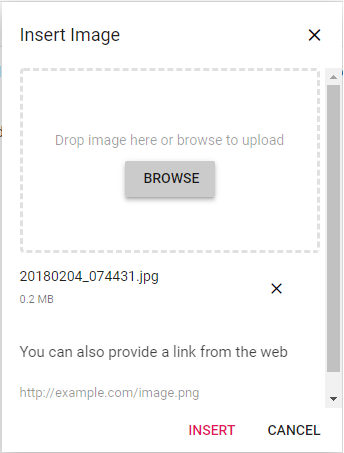
The following sample explains, how to configure the removeUrl to remove a saved image from the remote service location, when the image is removed using the Insert Image dialog.
import { Component } from '@angular/core';
import { RichTextEditorModule, ToolbarService, LinkService, ImageService, HtmlEditorService, QuickToolbarService, TableService, PasteCleanupService, ToolbarSettingsModel, ImageSettingsModel } from '@syncfusion/ej2-angular-richtexteditor';
@Component({
imports: [
RichTextEditorModule
],
standalone: true,
selector: 'app-root',
template: `<ejs-richtexteditor [toolbarSettings]='toolbarSettings' [insertImageSettings]='insertImageSettings' [(value)]='value'></ejs-richtexteditor>`,
providers: [ToolbarService, LinkService, ImageService, HtmlEditorService, QuickToolbarService, TableService, PasteCleanupService]
})
export class AppComponent {
public value: string = "<p>The Rich Text Editor is a WYSIWYG (\"what you see is what you get\") editor useful for creating and editing content, and returning valid <a href=\"https://ej2.syncfusion.com/home/\" target=\"_blank\">HTML markup</a> or <a href=\"https://ej2.syncfusion.com/home/\" target=\"_blank\">markdown</a> of the content.</p><p><b>Key features:</b></p><ul><li><p>Provides <IFRAME> and <DIV> modes.</p></li><li><p>Capable of handling markdown editing.</p></li><li><p>Contains a modular library to load the necessary functionality on demand.</p></li><li><p>Provides a fully customizable toolbar.</p></li><li><p>Provides HTML view to edit the source directly for developers.</p></li><li><p>Supports third-party library integration.</p></li><li><p>Allows preview of modified content before saving it.</p></li><li><p>Handles images, hyperlinks, videos, uploads, etc.</p></li></ul>";
public toolbarSettings: ToolbarSettingsModel = {
items: ['Image']
};
public insertImageSettings: ImageSettingsModel = {
saveUrl: 'https://services.syncfusion.com/angular/production/api/RichTextEditor/SaveFile',
removeUrl: 'https://services.syncfusion.com/angular/production/api/RichTextEditor/DeleteFile'
};
}import { bootstrapApplication } from '@angular/platform-browser';
import { AppComponent } from './app.component';
import 'zone.js';
bootstrapApplication(AppComponent).catch((err) => console.error(err));Deleting images from server using keyboard and quick toolbar actions
In the Rich Text Editor, deleting images using the Delete or Backspace keys, or the Quick Toolbar’s Remove button, removes the image from the editor content not from the server.
This behavior is intentional, allowing undo/redo operations to function properly without breaking references to previously uploaded images.
To explicitly remove images from the server, use the afterImageDelete event. This event is triggered after an image is removed from the content and provides the src URL of the image, which can be used to initiate a request to your server for deleting the corresponding file.
The following sample demonstrates how to use the afterImageDelete event in Rich Text Editor to delete images from the server after they are removed from the editor content:
import { Component } from '@angular/core';
import { ToolbarService, LinkService, ImageService, QuickToolbarService, RichTextEditorModule, PasteCleanupService, ImageSettingsModel,} from '@syncfusion/ej2-angular-richtexteditor';
import { HtmlEditorService, RichTextEditorComponent,} from '@syncfusion/ej2-angular-richtexteditor';

@Component({
  imports: [RichTextEditorModule],
  standalone: true,
  selector: 'app-root',
  template: ` <ejs-richtexteditor #imageRTE id="imageRTE" (toolbarClick)="onToolbarClick($event)" [insertImageSettings]="insertImageSettings" (afterImageDelete)="afterImageDelete($event)" ></ejs-richtexteditor>`,
  providers: [ ToolbarService, LinkService, ImageService, HtmlEditorService, QuickToolbarService, PasteCleanupService,],
})
export class AppComponent {
  private rteObj: RichTextEditorComponent;

  public insertImageSettings: ImageSettingsModel = {
    saveUrl: '[SERVICE_HOSTED_PATH]/api/RichTextEditor/SaveFile',
    removeUrl: '[SERVICE_HOSTED_PATH]/api/RichTextEditor/DeleteFile',
    path: '[SERVICE_HOSTED_PATH]/RichTextEditor/',
  };
  public afterImageDelete(args: any): void {
    if (args && args.src) {
      const src = args.src;
      const fileName = src.split('/').pop();
      const dummyFile = new File([''], fileName);
      const formData = new FormData();
      formData.append('UploadFiles', dummyFile);
      fetch(this.insertImageSettings.removeUrl, {
        method: 'POST',
        body: formData,
      })
        .then((response) => {
          if (!response.ok) throw new Error('Server responded with an error');
          console.log('Image deleted successfully:', fileName);
        })
        .catch((error) => {
          console.error('Image deletion failed:', error);
        });
    }
  }
}
Adjusting image dimensions
The insertImageSettings.width and insertImageSettings.height of the insertImageSettings properties set default dimensions for inserted images.
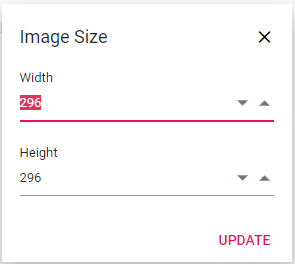
The quick toolbar’s Change Size option opens a dialog to adjust width and height in pixels.
Adding captions and Alt text
The quickToolbarSettings property enables adding captions and alt text:
- Image Caption
- Alternative Text
Selecting Image Caption wraps the image in a caption container where you can enter caption text directly within the editor. When the caption option is toggled, any caption text you have added is preserved so you can continue editing without losing content.
The Alternative Text option lets you provide descriptive text that appears when an image cannot be displayed in the Rich Text Editor.
Configuring image display position
Sets the default display for an image when it is inserted in the Rich Text Editor using display field in insertImageSettings. It has two possible options: ‘inline’ and ‘block’.
import { Component } from '@angular/core';
import { RichTextEditorModule, ToolbarService, LinkService, ImageService, HtmlEditorService, QuickToolbarService, TableService, PasteCleanupService } from '@syncfusion/ej2-angular-richtexteditor';

@Component({
    imports: [
        RichTextEditorModule
    ],
    standalone: true,
    selector: 'app-root',
    template: `<ejs-richtexteditor #imageRTE id='imageRTE' [insertImageSettings]='insertImageSettings' [(value)]='value'></ejs-richtexteditor>`,
    providers: [ToolbarService, LinkService, ImageService, HtmlEditorService, QuickToolbarService, TableService, PasteCleanupService]
})

export class AppComponent {
    public value: string = "<p>Rich Text Editor allows you to insert images from online sources as well as your local computer into your content.</p><p><b>Get started with Quick Toolbar by clicking on the image</b></p><p>Custom styles can be applied to the selected image inside the Rich Text Editor through the quick toolbar.</p><img id=\"rteImageID\" style=\"width:300px; height:300px; transform:rotate(0deg);\" alt=\"Logo\" src=\"https://ej2.syncfusion.com/demos/src/rich-text-editor/images/RTEImage-Feather.png\">";
    public insertImageSettings = {
        display: 'inline'
    };
}
import { bootstrapApplication } from '@angular/platform-browser';
import { AppComponent } from './app.component';
import 'zone.js';
bootstrapApplication(AppComponent).catch((err) => console.error(err));Configuring image alignment
Images in the Rich Text Editor can be aligned using the alignment options in the image quick toolbar. To enable alignment, the Align item needs to be added to the image quickToolbarSettings. When an alignment option is applied, the editor sets the image’s display style to block. This allows the image to behave as a block-level element within the content layout and align based on the selected option (left, center, or right).
import { Component } from '@angular/core';
import { RichTextEditorModule, ToolbarService, LinkService, ImageService, HtmlEditorService, QuickToolbarService, QuickToolbarSettingsModel, ToolbarSettingsModel  } from '@syncfusion/ej2-angular-richtexteditor';

@Component({
    imports: [RichTextEditorModule],
    standalone: true,
    selector: 'app-root',
    template: `<ejs-richtexteditor id='imageAlignRTE' [toolbarSettings]="toolbarSettings" [quickToolbarSettings]="quickToolbarSettings"></ejs-richtexteditor>`,
    providers: [ToolbarService, LinkService, ImageService, HtmlEditorService, QuickToolbarService]
})
export class AppComponent {
    public toolbarSettings: ToolbarSettingsModel = {
        items: ['Image']
    };
    quickToolbarSettings: QuickToolbarSettingsModel = {
        image: ['AltText', 'Caption', '|', 'Align', 'Display', '|', 'Dimension', 'Remove']
    };
}
import { bootstrapApplication } from '@angular/platform-browser';
import { AppComponent } from './app.component';
import 'zone.js';
bootstrapApplication(AppComponent).catch((err) => console.error(err));@import 'node_modules/@syncfusion/ej2-base/styles/tailwind3.css';
@import 'node_modules/@syncfusion/ej2-icons/styles/tailwind3.css';
@import 'node_modules/@syncfusion/ej2-buttons/styles/tailwind3.css';
@import 'node_modules/@syncfusion/ej2-splitbuttons/styles/tailwind3.css';
@import 'node_modules/@syncfusion/ej2-inputs/styles/tailwind3.css';
@import 'node_modules/@syncfusion/ej2-lists/styles/tailwind3.css';
@import 'node_modules/@syncfusion/ej2-navigations/styles/tailwind3.css';
@import 'node_modules/@syncfusion/ej2-popups/styles/tailwind3.css';
@import 'node_modules/@syncfusion/ej2-richtexteditor/styles/tailwind3.css';Text wrapping around images
The Rich Text Editor provides control over how text flows around images using the WrapText options available in the image quick toolbar. To enable these options, the WrapText item needs to be added to the image quickToolbarSettings. The WrapText item provides options to float an image to the left or right, letting adjacent text flow alongside the image for more compact and flexible layouts.
import { Component } from '@angular/core';
import { RichTextEditorModule, ToolbarService, LinkService, ImageService, HtmlEditorService, QuickToolbarService, ToolbarSettingsModel, QuickToolbarSettingsModel } from '@syncfusion/ej2-angular-richtexteditor';

@Component({
    imports: [RichTextEditorModule],
    standalone: true,
    selector: 'app-root',
    template: `<ejs-richtexteditor id='imageWrapRTE' [toolbarSettings]="toolbarSettings" [quickToolbarSettings]="quickToolbarSettings"></ejs-richtexteditor>`,
    providers: [ToolbarService, LinkService, ImageService, HtmlEditorService, QuickToolbarService]
})
export class AppComponent {
    public toolbarSettings: ToolbarSettingsModel = {
        items: ['Image']
    };
    quickToolbarSettings: QuickToolbarSettingsModel = {
        image: ['AltText', 'Caption', '|', 'Display', 'WrapText', '|', 'InsertLink', 'RemoveImageLink']
    };
}
import { bootstrapApplication } from '@angular/platform-browser';
import { AppComponent } from './app.component';
import 'zone.js';
bootstrapApplication(AppComponent).catch((err) => console.error(err));@import 'node_modules/@syncfusion/ej2-base/styles/tailwind3.css';
@import 'node_modules/@syncfusion/ej2-icons/styles/tailwind3.css';
@import 'node_modules/@syncfusion/ej2-buttons/styles/tailwind3.css';
@import 'node_modules/@syncfusion/ej2-splitbuttons/styles/tailwind3.css';
@import 'node_modules/@syncfusion/ej2-inputs/styles/tailwind3.css';
@import 'node_modules/@syncfusion/ej2-lists/styles/tailwind3.css';
@import 'node_modules/@syncfusion/ej2-navigations/styles/tailwind3.css';
@import 'node_modules/@syncfusion/ej2-popups/styles/tailwind3.css';
@import 'node_modules/@syncfusion/ej2-richtexteditor/styles/tailwind3.css';Hyperlinking images
Images can serve as hyperlinks. The quick toolbar provides options to edit, remove, or open the link. For further details about link, see the link documentation.
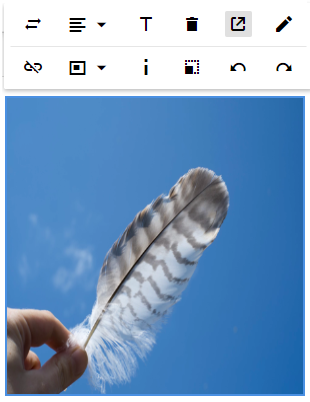
Image resizing
Rich Text Editor has a built-in image inserting support. The resize points will be appearing on each corner of image when focus. So, users can resize the image using mouse points or thumb through the resize points easily. Also, the resize calculation will be done based on aspect ratio for consistent scaling.

Configuring allowed image types
The insertImageSettings.allowedTypes property restricts uploaded image formats. By default, the Rich Text Editor allows the JPG, JPEG, and PNG formats. You can configure this formats as follows.
    insertImageSettings: {
      allowedTypes: ['.jpg', '.png', '.jpeg']
    }
Paste images into the editor
The Rich Text Editor supports pasting images directly into the editor content. You can paste single or multiple images from your file system directly into the editor.
Drag and drop image insertion
By default, the Rich Text Editor allows you to insert images by drag-and-drop from the local file system such as Windows Explorer into the content editor area. And, you can upload the images to the server before inserting into the editor by configuring the saveUrl property. The images can be repositioned anywhere within the editor area by dragging and dropping the image.
In the following sample, you can see feature demo.
import { Component } from '@angular/core';
import { RichTextEditorModule, ToolbarService, LinkService, ImageService, HtmlEditorService, QuickToolbarService, TableService, PasteCleanupService } from '@syncfusion/ej2-angular-richtexteditor';
@Component({
imports: [
RichTextEditorModule
],
standalone: true,
selector: 'app-root',
template: `<ejs-richtexteditor [insertImageSettings]='insertImageSettings' [(value)]='value'></ejs-richtexteditor>`,
providers: [ToolbarService, LinkService, ImageService, HtmlEditorService, QuickToolbarService, TableService, PasteCleanupService]
})
export class AppComponent {
public value: string = "<p>The Rich Text Editor component is a WYSIWYG ('what you see is what you get') editor that provides the best user experience for creating and updating content. Users can format their content using standard toolbar commands.</p><p><b>Key features:</b></p><ul><li><p>Provides <IFRAME> and <DIV> modes.</p></li><li><p>Capable of handling markdown editing.</p></li><li><p>Contains a modular library to load the necessary functionality on demand.</p></li><li><p>Provides a fully customizable toolbar.</p></li><li><p>Provides HTML view to edit the source directly for developers.</p></li><li><p>Supports third-party library integration.</p></li><li><p>Allows preview of modified content before saving it.</p></li><li><p>Handles images, hyperlinks, videos, uploads, etc.</p></li><li><p>Contains undo/redo manager.</p></li><li><p>Creates bulleted and numbered lists.</p></li></ul>";
public insertImageSettings = {
saveUrl: 'https://services.syncfusion.com/angular/production/api/RichTextEditor/SaveFile'
};
}import { bootstrapApplication } from '@angular/platform-browser';
import { AppComponent } from './app.component';
import 'zone.js';
bootstrapApplication(AppComponent).catch((err) => console.error(err));Disabling image drag and drop
You can prevent drag-and-drop action by setting the actionBegin argument cancel value to true. The following code shows how to prevent the drag-and-drop.
    actionBegin: function (args: any): void {
        if(args.type === 'drop' || args.type === 'dragstart') {
            args.cancel =true;
        }
    }