Getting Started with Angular Progress Bar
11 Aug 20267 minutes to read
This section explains the steps required to create a Progress Bar and demonstrates the basic usage of the Progress Bar component. By the end of this guide, you will have a Progress Bar running in your Angular application.
Prerequisites
Ensure your development environment meets the System Requirements for Syncfusion® Angular UI Components, which covers supported Node.js, Angular, and @syncfusion/ej2-angular-progressbar versions.
You also need a modern code editor such as Visual Studio Code, Cursor, or Syncfusion® CodeStudio.
Dependencies
Below is the list of minimum dependencies required to use the Progress Bar component. Versions reflect the latest stable release at the time of writing.
    |-- @syncfusion/ej2-angular-progressbar
      |-- @syncfusion/ej2-base
      |-- @syncfusion/ej2-data
      |-- @syncfusion/ej2-svg-base
Setup the Angular application
A straightforward approach to begin with Angular is to create a new application using the Angular CLI. Install Angular CLI globally with the following command:
npm install -g @angular/cliVerify the installation:
ng versionAngular 21 Standalone Architecture: Standalone components are the default in Angular 21. This guide uses the modern standalone architecture. If you need more information about the standalone architecture, refer to the Standalone Guide.
Installing a specific version
To install a particular version of Angular CLI, use:
npm install -g @angular/[email protected]Create an Angular application
With Angular CLI installed, execute this command to generate a new application. When prompted, accept the default options unless you have a specific reason to change them.
ng new syncfusion-angular-app- This command prompts you to configure settings like enabling Angular routing and choosing a stylesheet format. Accept the defaults (no routing, CSS) to follow this guide.
? Which stylesheet format would you like to use? (Use arrow keys)
> CSS             [ https://developer.mozilla.org/docs/Web/CSS                     ]
  Sass (SCSS)     [ https://sass-lang.com/documentation/syntax#scss                ]
  Sass (Indented) [ https://sass-lang.com/documentation/syntax#the-indented-syntax ]
Less [ http://lesscss.org ]- By default, a CSS-based application is created. Use SCSS if required:
ng new syncfusion-angular-app --style=scss- During project setup, when prompted for the Server-side rendering (SSR) option, choose the appropriate configuration.

- Select the required AI tool, or ‘none’ if you do not need any AI tool.
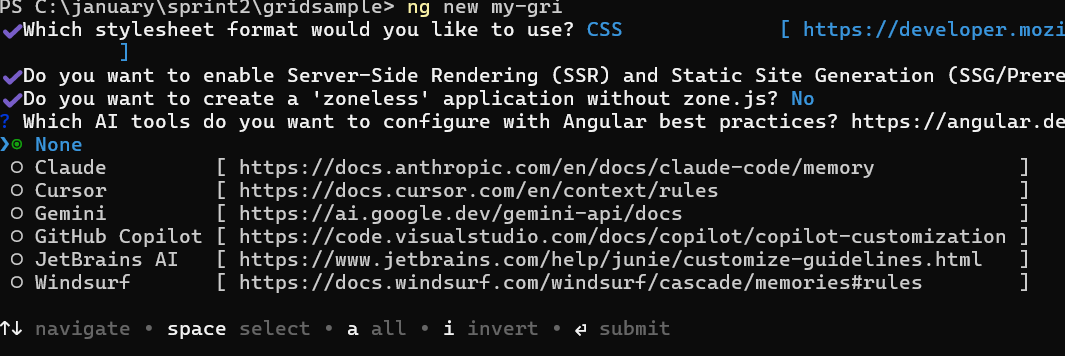
- Navigate to your newly created application directory:
cd syncfusion-angular-appIn Angular 19 and below, the CLI generates files named
app.component.ts,app.component.html,app.component.css, and so on. In Angular 20+, the structure is simpler:src/app/app.ts,app.html, andapp.css(no.component.suffixes).
Adding the Syncfusion® Angular Progress Bar package
To install the Syncfusion® Angular Progress Bar package, use the following command:
ng add @syncfusion/ej2-angular-progressbarThe ng add command installs the package, registers it in package.json, and configures the required entries in your workspace automatically.
If ng add is unavailable in your setup, install the package manually with:
npm install @syncfusion/ej2-angular-progressbarAdd the Progress Bar component
Open src/app/app.ts (Angular 21) or src/app/app.component.ts (Angular 19 and below) in your editor, then add the ejs-progressbar selector to the component’s template. The example below uses the inline template string approach.
import { Component } from '@angular/core';
import { ProgressBarModule } from '@syncfusion/ej2-angular-progressbar';

@Component({
    imports: [
        ProgressBarModule
    ],
    standalone: true,
    selector: 'app-root',
    // specifies the template string for the Progress Bar component
    template: `<ejs-progressbar id='percentage' value=50 type='Linear'></ejs-progressbar>`,
})
export class AppComponent { }
Run the application
Run the development server with ng serve. Alternatively, npm start works if a start script is configured in package.json.
ng serveModule Injection
The Progress Bar component offers additional features through injectable services. To use these features, import and register the required services in the component’s providers array.
The following service enhances the Progress Bar’s functionality:
-
ProgressAnnotationService- Inject this service to display additional information or labels within or around the Progress Bar.
This service should be injected into the providers section of the component.
import { Component } from '@angular/core';
import { ProgressBarModule, ProgressAnnotationService } from '@syncfusion/ej2-angular-progressbar';

@Component({
    imports: [
        ProgressBarModule
    ],
    providers: [ProgressAnnotationService],
    standalone: true,
    selector: 'app-root',
    template: `
            <ejs-progressbar id="percentage" type="Circular" [value]="75">
                <e-progressbar-annotations>
                    <e-progressbar-annotation
                        content="<div style='font-size:18px;font-weight:bold;'>75%</div>">
                    </e-progressbar-annotation>
                </e-progressbar-annotations>
            </ejs-progressbar>`,
})
export class AppComponent { }
Basic Progress Bar
The following example demonstrates a basic Progress Bar component:
import { Component } from '@angular/core';
import { ProgressBarModule } from '@syncfusion/ej2-angular-progressbar'
import { AnimationModel } from '@syncfusion/ej2-progressbar';

@Component({
    imports: [
        ProgressBarModule
    ],
    standalone: true,
    selector: 'my-app',
    // specifies the template string for the Progress Bar component
    template: `<ejs-progressbar id='percentage' type='Linear' height='160' [value]='value' [animation]='animation'></ejs-progressbar>`
})
export class AppComponent {
    public animation: AnimationModel = { enable: true, duration: 2000, delay: 0 };
    public value: number = 40;
}
import { bootstrapApplication } from '@angular/platform-browser';
import { AppComponent } from './app.component';
bootstrapApplication(AppComponent).catch((err) => console.error(err));Troubleshooting
-
ng addfails with “Package not found” - Ensure your npm registry is reachable and that@syncfusion/ej2-angular-progressbaris spelled correctly. -
Standalone component errors - Make sure
standalone: trueand theimports: [ProgressBarModule]array are present in the component decorator. -
Annotation service not working - Confirm that
ProgressAnnotationServiceis added to the component’sprovidersarray and that theannotationproperty is bound on the component.
See also
Ready to streamline your Syncfusion® Angular development? Discover the full potential of Syncfusion® Angular components with the Syncfusion® AI Coding Assistant. Effortlessly integrate, configure, and enhance your projects with intelligent, context-aware code suggestions, streamlined setups, and real-time insights—all seamlessly integrated into your preferred AI-powered IDEs like VS Code, Cursor, Syncfusion® CodeStudio, and more. Explore Syncfusion® AI Coding Assistant