Resize Columns in Angular Gantt Chart component
08 Oct 202624 minutes to read
The Angular Gantt Chart component enables dynamic column resizing by dragging column header edges. This feature enhances readability and layout flexibility, especially when working with large datasets. To enable this feature, set the allowResizing property to true in the Gantt configuration.
Column width can be adjusted by dragging the right edge of the header, with changes applied immediately.
To use the column resize feature, inject ResizeService in the providers array of the component. The service enables the drag-and-drop resize functionality at runtime.
import { Component, ViewEncapsulation, OnInit } from '@angular/core';
import { GanttModule, ResizeService } from '@syncfusion/ej2-angular-gantt';
import { GanttData } from './data';

@Component({
  selector: 'app-root',
  standalone: true,
  imports: [GanttModule],
  providers: [ResizeService],
  encapsulation: ViewEncapsulation.None,
  template: `
    <div style="margin-top: 20px;">
      <ejs-gantt #gantt height="430px" [allowResizing]="true" [dataSource]="data" [taskFields]="taskSettings" [treeColumnIndex]="1" [splitterSettings]="splitterSettings">
        <e-columns>
          <e-column field="TaskID" headerText="Task ID" textAlign="Right" width="90"></e-column>
          <e-column field="TaskName" headerText="Task Name" textAlign="Left" width="290"></e-column>
          <e-column field="StartDate" headerText="Start Date" textAlign="Right" width="120"></e-column>
          <e-column field="Duration" headerText="Duration" textAlign="Right" width="90"></e-column>
          <e-column field="Progress" headerText="Progress" textAlign="Right" width="120"></e-column>
        </e-columns>
      </ejs-gantt>
    </div>`
})

export class AppComponent implements OnInit {
  public data?: object[];
  public taskSettings?: object;
  public splitterSettings?: object;

  ngOnInit(): void {
    this.data = GanttData;
    this.taskSettings = {
      id: 'TaskID',
      name: 'TaskName',
      startDate: 'StartDate',
      duration: 'Duration',
      progress: 'Progress',
      child: 'subtasks'
    };
    this.splitterSettings = {
      position: '75%'
    };
  }
}
import { bootstrapApplication } from '@angular/platform-browser';
import { AppComponent } from './app.component';
bootstrapApplication(AppComponent).catch((err) => console.error(err));export let GanttData: Object[] = [
{
TaskID: 1,
TaskName: 'Project Initiation',
StartDate: new Date('04/02/2019'),
EndDate: new Date('04/21/2019'),
subtasks: [
{ TaskID: 2, TaskName: 'Identify Site location', StartDate: new Date('04/02/2019'), Duration: 4, Progress: 50, Verified: true },
{ TaskID: 3, TaskName: 'Perform Soil test', StartDate: new Date('04/02/2019'), Duration: 4, Progress: 50, },
{ TaskID: 4, TaskName: 'Soil test approval', StartDate: new Date('04/02/2019'), Duration: 4, Progress: 50, Verified: true },
]
},
{
TaskID: 5,
TaskName: 'Project Estimation',
StartDate: new Date('04/02/2019'),
EndDate: new Date('04/21/2019'),
subtasks: [
{ TaskID: 6, TaskName: 'Develop floor plan for estimation', StartDate: new Date('04/04/2019'), Duration: 3, Progress: 50, },
{ TaskID: 7, TaskName: 'List materials', StartDate: new Date('04/04/2019'), Duration: 3, Progress: 50, Verified: true},
{ TaskID: 8, TaskName: 'Estimation approval', StartDate: new Date('04/04/2019'), Duration: 3, Progress: 50, Verified: true }
]
},
];
- You can disable resizing for a particular column, by specifying columns.allowResizing to false.
- In RTL mode, you can click and drag the left edge of header cell to resize the column.
- The width property of the column can be set initially to define the default width of the column. However, when column resizing is enabled, you can override the default width by manually resizing the columns.
Restrict the resizing based on minimum and maximum width
The Gantt chart component allows restricting column resizing within a defined range to maintain layout consistency. This ensures column widths remain within the specified limits during resizing.
To enable this, set the minWidth and maxWidth properties in the column configuration.
The following example demonstrates how the TaskID column can be configured with a minimum width of 100 pixels and a maximum of 200 pixels, while the TaskName column can be set between 150 and 300 pixels.
import { Component, ViewEncapsulation, OnInit } from '@angular/core';
import { GanttModule, ResizeService } from '@syncfusion/ej2-angular-gantt';
import { GanttData } from './data';

@Component({
  selector: 'app-root',
  standalone: true,
  imports: [GanttModule],
  providers: [ResizeService],
  encapsulation: ViewEncapsulation.None,
  template: `
    <div style="margin-top: 20px;">
      <ejs-gantt height="430px" [allowResizing]="true" [dataSource]="data" [taskFields]="taskSettings" [treeColumnIndex]="1" [splitterSettings]="splitterSettings">
        <e-columns>
          <e-column field="TaskID" headerText="Task ID" textAlign="Right" width="90" [minWidth]="100" [maxWidth]="200"></e-column>
          <e-column field="TaskName" headerText="Task Name" textAlign="Left" width="290" [minWidth]="150" [maxWidth]="300"></e-column>
          <e-column field="StartDate" headerText="Start Date" textAlign="Right" width="120"></e-column>
          <e-column field="Duration" headerText="Duration" textAlign="Right" width="90"></e-column>
          <e-column field="Progress" headerText="Progress" textAlign="Right" width="120"></e-column>
        </e-columns>
      </ejs-gantt>
    </div>`
})

export class AppComponent implements OnInit {
  public data?: object[];
  public taskSettings?: object;
  public splitterSettings?: object;

  ngOnInit(): void {
    this.data = GanttData;
    this.taskSettings = {
      id: 'TaskID',
      name: 'TaskName',
      startDate: 'StartDate',
      duration: 'Duration',
      progress: 'Progress',
      child: 'subtasks'
    };
    this.splitterSettings = {
      position: '75%'
    };
  }
}
import { bootstrapApplication } from '@angular/platform-browser';
import { AppComponent } from './app.component';
bootstrapApplication(AppComponent).catch((err) => console.error(err));export let GanttData: Object[] = [
{
TaskID: 1,
TaskName: 'Project Initiation',
StartDate: new Date('04/02/2019'),
EndDate: new Date('04/21/2019'),
subtasks: [
{ TaskID: 2, TaskName: 'Identify Site location', StartDate: new Date('04/02/2019'), Duration: 4, Progress: 50, Verified: true },
{ TaskID: 3, TaskName: 'Perform Soil test', StartDate: new Date('04/02/2019'), Duration: 4, Progress: 50, },
{ TaskID: 4, TaskName: 'Soil test approval', StartDate: new Date('04/02/2019'), Duration: 4, Progress: 50, Verified: true },
]
},
{
TaskID: 5,
TaskName: 'Project Estimation',
StartDate: new Date('04/02/2019'),
EndDate: new Date('04/21/2019'),
subtasks: [
{ TaskID: 6, TaskName: 'Develop floor plan for estimation', StartDate: new Date('04/04/2019'), Duration: 3, Progress: 50, },
{ TaskID: 7, TaskName: 'List materials', StartDate: new Date('04/04/2019'), Duration: 3, Progress: 50, Verified: true},
{ TaskID: 8, TaskName: 'Estimation approval', StartDate: new Date('04/04/2019'), Duration: 3, Progress: 50, Verified: true }
]
},
];Prevent resizing for particular column
You can prevent resizing for a specific column in the Gantt Chart component to maintain a consistent column width. To disable resizing, set the allowResizing property of the respective column to false.
The following example demonstrates how to disable resizing for the TaskID column.
import { Component, ViewEncapsulation, ViewChild, OnInit } from '@angular/core';
import { GanttModule, GanttComponent, ResizeService } from '@syncfusion/ej2-angular-gantt';
import { GanttData } from './data';

@Component({
  selector: 'app-root',
  standalone: true,
  imports: [GanttModule],
  providers: [ResizeService],
  encapsulation: ViewEncapsulation.None,
  template: `
    <div style="margin-top: 20px;">
      <ejs-gantt height="430px" [allowResizing]="true" [dataSource]="data" [taskFields]="taskSettings" [treeColumnIndex]="1" [splitterSettings]="splitterSettings">
        <e-columns>
          <e-column field="TaskID" headerText="Task ID" [allowResizing]="false" textAlign="Right" width="90"></e-column>
          <e-column field="TaskName" headerText="Task Name" textAlign="Left" width="290"></e-column>
          <e-column field="StartDate" headerText="Start Date" textAlign="Right" width="120"></e-column>
          <e-column field="Duration" headerText="Duration" textAlign="Right" width="90"></e-column>
          <e-column field="Progress" headerText="Progress" textAlign="Right" width="120"></e-column>
        </e-columns>
      </ejs-gantt>
    </div>`
})

export class AppComponent implements OnInit {
  @ViewChild('gantt') public gantt?: GanttComponent;
  public data?: object[];
  public taskSettings?: object;
  public splitterSettings?: object;

  ngOnInit(): void {
    this.data = GanttData;
    this.taskSettings = {
      id: 'TaskID',
      name: 'TaskName',
      startDate: 'StartDate',
      duration: 'Duration',
      progress: 'Progress',
      child: 'subtasks'
    };
    this.splitterSettings = {
      position: '75%'
    };
  }
}
import { bootstrapApplication } from '@angular/platform-browser';
import { AppComponent } from './app.component';
bootstrapApplication(AppComponent).catch((err) => console.error(err));export let GanttData: Object[] = [
{
TaskID: 1,
TaskName: 'Project Initiation',
StartDate: new Date('04/02/2019'),
EndDate: new Date('04/21/2019'),
subtasks: [
{ TaskID: 2, TaskName: 'Identify Site location', StartDate: new Date('04/02/2019'), Duration: 4, Progress: 50, Verified: true },
{ TaskID: 3, TaskName: 'Perform Soil test', StartDate: new Date('04/02/2019'), Duration: 4, Progress: 50, },
{ TaskID: 4, TaskName: 'Soil test approval', StartDate: new Date('04/02/2019'), Duration: 4, Progress: 50, Verified: true },
]
},
{
TaskID: 5,
TaskName: 'Project Estimation',
StartDate: new Date('04/02/2019'),
EndDate: new Date('04/21/2019'),
subtasks: [
{ TaskID: 6, TaskName: 'Develop floor plan for estimation', StartDate: new Date('04/04/2019'), Duration: 3, Progress: 50, },
{ TaskID: 7, TaskName: 'List materials', StartDate: new Date('04/04/2019'), Duration: 3, Progress: 50, Verified: true},
{ TaskID: 8, TaskName: 'Estimation approval', StartDate: new Date('04/04/2019'), Duration: 3, Progress: 50, Verified: true }
]
},
];You can also prevent resizing by setting
args.cancelto true in the resizeStart event.
Column resizing modes
| The Angular Gantt Chart component supports two resizing modes that determine how column widths behave during resizing. These modes are configured using the resizeSettings.mode property (values: ‘Normal’ |
‘Auto’) of the underlying TreeGrid during the component’s load event or through direct property assignment. |
Available resizing modes:
-
Normal mode (
mode: 'Normal'): Columns retain their defined widths. If the total column width is less than the Gantt width, empty space appears to the right. If it exceeds, a horizontal scrollbar is shown. -
Auto mode (
mode: 'Auto'): Columns automatically expand or contract to fill the available space based on the Gantt width.
To apply a resizing mode, set the resizeSettings.mode property on the grid object inside the Gantt instance. This can be done during the load event or dynamically based on user interaction.
The following example demonstrates how to set the resizeSettings.mode to Normal or Auto based on the DropDownList change event.
import { Component, ViewEncapsulation, ViewChild, OnInit } from '@angular/core';
import { GanttModule, ResizeService, GanttComponent } from '@syncfusion/ej2-angular-gantt';
import { ChangeEventArgs, DropDownListAllModule } from '@syncfusion/ej2-angular-dropdowns';
import { ResizeMode } from '@syncfusion/ej2-angular-grids';
import { GanttData } from './data';

@Component({
  selector: 'app-root',
  standalone: true,
  imports: [GanttModule,DropDownListAllModule],
  providers: [ResizeService],
  encapsulation: ViewEncapsulation.None,
  template: `
    <div style="display: flex; align-items: center; margin-bottom: 10px;">
      <label style="padding-right: 10px;font-weight:bold">Change the resize mode:</label>
      <ejs-dropdownlist style="margin-top: 5px;" index="0" width="150" [dataSource]="ddlData" (change)="valueChange($event)">
      </ejs-dropdownlist>
    </div>
    <ejs-gantt #gantt height="430px" [allowResizing]="true" [dataSource]="data" [taskFields]="taskSettings" [treeColumnIndex]="1" [splitterSettings]="splitterSettings">
      <e-columns>
        <e-column field="TaskID" headerText="Task ID" textAlign="Right" width="90"></e-column>
        <e-column field="TaskName" headerText="Task Name" textAlign="Left" width="290"></e-column>
        <e-column field="StartDate" headerText="Start Date" textAlign="Right" width="120"></e-column>
        <e-column field="Duration" headerText="Duration" textAlign="Right" width="90"></e-column>
        <e-column field="Progress" headerText="Progress" textAlign="Right" width="120"></e-column>
      </e-columns>
    </ejs-gantt>`
})

export class AppComponent implements OnInit {
  @ViewChild('gantt') public ganttInstance?: GanttComponent;
  public data?: object[];
  public taskSettings?: object;
  public splitterSettings?: object;
  public ddlData: object[] = [
    { text: 'Normal', value: 'Normal' },
    { text: 'Auto', value: 'Auto' }
  ];

  ngOnInit(): void {
    this.data = GanttData;
    this.taskSettings = {
      id: 'TaskID',
      name: 'TaskName',
      startDate: 'StartDate',
      duration: 'Duration',
      progress: 'Progress',
      child: 'subtasks'
    };
    this.splitterSettings = {
      position: '75%'
    };
  }

  public valueChange(args: ChangeEventArgs): void {
    (this.ganttInstance as GanttComponent).treeGrid.grid.resizeSettings.mode = args.value as ResizeMode;
  }
}
import { bootstrapApplication } from '@angular/platform-browser';
import { AppComponent } from './app.component';
bootstrapApplication(AppComponent).catch((err) => console.error(err));export let GanttData: Object[] = [
{
TaskID: 1,
TaskName: 'Project Initiation',
StartDate: new Date('04/02/2019'),
EndDate: new Date('04/21/2019'),
subtasks: [
{ TaskID: 2, TaskName: 'Identify Site location', StartDate: new Date('04/02/2019'), Duration: 4, Progress: 50, Verified: true },
{ TaskID: 3, TaskName: 'Perform Soil test', StartDate: new Date('04/02/2019'), Duration: 4, Progress: 50, },
{ TaskID: 4, TaskName: 'Soil test approval', StartDate: new Date('04/02/2019'), Duration: 4, Progress: 50, Verified: true },
]
},
{
TaskID: 5,
TaskName: 'Project Estimation',
StartDate: new Date('04/02/2019'),
EndDate: new Date('04/21/2019'),
subtasks: [
{ TaskID: 6, TaskName: 'Develop floor plan for estimation', StartDate: new Date('04/04/2019'), Duration: 3, Progress: 50, },
{ TaskID: 7, TaskName: 'List materials', StartDate: new Date('04/04/2019'), Duration: 3, Progress: 50, Verified: true},
{ TaskID: 8, TaskName: 'Estimation approval', StartDate: new Date('04/04/2019'), Duration: 3, Progress: 50, Verified: true }
]
},
];When the autoFit property of grid object in Gantt instance is set to true, the Gantt will automatically adjust its column width based on the content inside them. In
normalresize mode, if theautoFitproperty is set to true, the Gantt will maintain any empty space that is left over after resizing the columns. However, inautoresize mode, the Gantt will ignore any empty space.
Resize columns programmatically
You can programmatically resize columns in the Angular Gantt Chart component by accessing the target column using the getColumnByField method and updating its width property. This is useful for implementing custom UI controls or dynamic layout adjustments. To reflect the change, call the refreshColumns method from the treeGrid object within the Gantt instance.
The following example demonstrates how to resize a column externally using the change event of the DropDownList component.
import { Component, ViewEncapsulation, ViewChild, OnInit } from '@angular/core';
import { GanttModule, ResizeService, GanttComponent } from '@syncfusion/ej2-angular-gantt';
import { DropDownListAllModule, DropDownListComponent } from '@syncfusion/ej2-angular-dropdowns';
import { TextBoxModule } from '@syncfusion/ej2-angular-inputs';
import { ButtonModule } from '@syncfusion/ej2-angular-buttons';
import { GanttData } from './data';

@Component({
  selector: 'app-root',
  standalone: true,
  imports: [ GanttModule, DropDownListAllModule, TextBoxModule, ButtonModule ],
  providers: [ResizeService],
  encapsulation: ViewEncapsulation.None,
  template: `
    <div style="display: flex; align-items: center; margin-bottom: 15px;">
      <label style="padding-right: 10px;font-weight:bold">Change the field:</label>
      <ejs-dropdownlist style="margin-top: 5px;" id="value" #dropdown index="0" width="120" [fields]="field" [dataSource]="ddlData">
      </ejs-dropdownlist>
    </div>
    <div style="margin-bottom: 20px;">
      <label style="padding-right: 10px;font-weight:bold">Enter the width:</label>
      <ejs-textbox #textbox required placeholder="Enter new width" width="120">
      </ejs-textbox>
      <button ejs-button id="button" (click)="onExternalResize()"> Resize
      </button>
    </div>
    <ejs-gantt #gantt height="430px" [dataSource]="data" [taskFields]="taskSettings" [treeColumnIndex]="1" [splitterSettings]="splitterSettings">
      <e-columns>
        <e-column field="TaskID" headerText="Task ID" textAlign="Right" width="90"></e-column>
        <e-column field="TaskName" headerText="Task Name" textAlign="Left" width="290"></e-column>
        <e-column field="StartDate" headerText="Start Date" textAlign="Right" width="120"></e-column>
        <e-column field="Duration" headerText="Duration" textAlign="Right" width="90"></e-column>
        <e-column field="Progress" headerText="Progress" textAlign="Right" width="120"></e-column>
      </e-columns>
    </ejs-gantt>`
})

export class AppComponent implements OnInit {
  @ViewChild('gantt') public ganttInstance?: GanttComponent;
  @ViewChild('dropdown') public dropDown?: DropDownListComponent;
  @ViewChild('textbox') public textbox?: any;
  public data?: object[];
  public taskSettings?: object;
  public splitterSettings?: object;
  public field: object = { text: 'text', value: 'value' };
  public ddlData: object[] = [
    { text: 'TaskID', value: 'TaskID' },
    { text: 'TaskName', value: 'TaskName' },
    { text: 'StartDate', value: 'StartDate' },
    { text: 'Duration', value: 'Duration' }
  ];

  ngOnInit(): void {
    this.data = GanttData;
    this.taskSettings = {
      id: 'TaskID',
      name: 'TaskName',
      startDate: 'StartDate',
      duration: 'Duration',
      progress: 'Progress',
      child: 'subtasks'
    };
    this.splitterSettings = {
      position: '75%'
    };
  }

  public onExternalResize(): void {
    const field = this.dropDown?.value as string;
    const newWidth = this.textbox?.element.value;
    if (field && newWidth && this.ganttInstance) {
      const column = this.ganttInstance.treeGrid.getColumnByField(field);
      if (column) {
        column.width = newWidth;
        this.ganttInstance.treeGrid.refreshColumns();
      }
    }
  }
}
import { bootstrapApplication } from '@angular/platform-browser';
import { AppComponent } from './app.component';
bootstrapApplication(AppComponent).catch((err) => console.error(err));export let GanttData: Object[] = [
{
TaskID: 1,
TaskName: 'Project Initiation',
StartDate: new Date('04/02/2019'),
EndDate: new Date('04/21/2019'),
subtasks: [
{ TaskID: 2, TaskName: 'Identify Site location', StartDate: new Date('04/02/2019'), Duration: 4, Progress: 50, Verified: true },
{ TaskID: 3, TaskName: 'Perform Soil test', StartDate: new Date('04/02/2019'), Duration: 4, Progress: 50, },
{ TaskID: 4, TaskName: 'Soil test approval', StartDate: new Date('04/02/2019'), Duration: 4, Progress: 50, Verified: true },
]
},
{
TaskID: 5,
TaskName: 'Project Estimation',
StartDate: new Date('04/02/2019'),
EndDate: new Date('04/21/2019'),
subtasks: [
{ TaskID: 6, TaskName: 'Develop floor plan for estimation', StartDate: new Date('04/04/2019'), Duration: 3, Progress: 50, },
{ TaskID: 7, TaskName: 'List materials', StartDate: new Date('04/04/2019'), Duration: 3, Progress: 50, Verified: true},
{ TaskID: 8, TaskName: 'Estimation approval', StartDate: new Date('04/04/2019'), Duration: 3, Progress: 50, Verified: true }
]
},
];The
refreshColumnsmethod oftreeGridobject in gantt instance is used to refresh the gantt after the column widths are updated. Column resizing externally is useful when you want to provide a custom interface to the user for resizing columns.
Customize column resizing behavior using events
You can control column resizing using resizeStart, resizing, and resizeStop events. Each event fires at a different stage of the resize operation, allowing you to customize behavior for different columns.
The following example demonstrates how to handle each resizing event separately in their respective event handlers:
-
resizeStart event handler: Cancels resizing for the TaskID column by setting
args.cancel = true. - resizing event handler: Prevents width changes for the Duration column during the resize operation.
- resizeStop event handler: Applies custom CSS styles to the TaskName column after resizing completes.
import { Component, ViewEncapsulation, ViewChild, OnInit } from '@angular/core';
import { GanttModule, ResizeService, GanttComponent } from '@syncfusion/ej2-angular-gantt';
import { ResizeArgs, Column } from '@syncfusion/ej2-angular-grids';
import { GanttData } from './data';

@Component({
  selector: 'app-root',
  standalone: true,
  imports: [GanttModule],
  providers: [ResizeService],
  encapsulation: ViewEncapsulation.None,
  template: `
    <div style="margin-left: 180px;">
      <p style="color: red;" id="message"></p>
    </div>
    <ejs-gantt #gantt height="430px" [dataSource]="data" [taskFields]="taskSettings" [splitterSettings]="splitterSettings" [allowResizing]="true" (resizeStart)="resizeStart($event)" (resizing)="resizing($event)" (resizeStop)="resizeStop($event)">
      <e-columns>
        <e-column field="TaskID" headerText="Task ID" textAlign="Right" width="90"></e-column>
        <e-column field="TaskName" headerText="Task Name" textAlign="Left" width="290"></e-column>
        <e-column field="StartDate" headerText="Start Date" textAlign="Right" width="120"></e-column>
        <e-column field="Duration" headerText="Duration" textAlign="Right" width="90"></e-column>
        <e-column field="Progress" headerText="Progress" textAlign="Right" width="120"></e-column>
      </e-columns>
    </ejs-gantt>`,
  styles: [`
    .e-gantt .e-headercell.customcss , .e-gantt .e-rowcell.customcss {
      background-color: rgb(43, 195, 226);
    }`
  ]
})

export class AppComponent implements OnInit {
  @ViewChild('gantt') public gantt?: GanttComponent;
  public data?: object[];
  public taskSettings?: object;
  public splitterSettings?: object;
  public message?: string;

  ngOnInit(): void {
    this.data = GanttData;
    this.taskSettings = {
      id: 'TaskID',
      name: 'TaskName',
      startDate: 'StartDate',
      duration: 'Duration',
      progress: 'Progress',
      child: 'subtasks'
    };
    this.splitterSettings = {
      position: '75%'
    };
  }

  public resizeStart(args: ResizeArgs): void {
    const field = (args.column as Column).field;
    this.message = `resizeStart event triggered and cancelled for ${field}`;
    if (field === 'TaskID') {
      args.cancel = true;
    }
  }

  public resizing(args: ResizeArgs): void {
    const field = (args.column as Column).field;
    this.message = `resizing event triggered and cancelled for ${field}`;
    if (field === 'Duration') {
      args.cancel = true;
    }
  }

  public resizeStop(args: ResizeArgs): void {
    this.message = `resizeStop event triggered`;
    const field = (args.column as Column).field;
    const index = (args.column as Column).index;
    const headerCell = this.gantt?.treeGrid.getColumnHeaderByField(field);
    if (headerCell) {
      headerCell.classList.add('customcss');
    }
    const columnCells = this.gantt?.treeGrid
      .getContentTable()
      .querySelectorAll(`[data-colindex="${index}"]`);
    columnCells?.forEach((cell: Element) => {
      (cell as HTMLElement).style.backgroundColor = 'rgb(43, 195, 226)';
    });
  }
}
import { bootstrapApplication } from '@angular/platform-browser';
import { AppComponent } from './app.component';
bootstrapApplication(AppComponent).catch((err) => console.error(err));export let GanttData: Object[] = [
{
TaskID: 1,
TaskName: 'Project Initiation',
StartDate: new Date('04/02/2019'),
EndDate: new Date('04/21/2019'),
subtasks: [
{ TaskID: 2, TaskName: 'Identify Site location', StartDate: new Date('04/02/2019'), Duration: 4, Progress: 50, Verified: true },
{ TaskID: 3, TaskName: 'Perform Soil test', StartDate: new Date('04/02/2019'), Duration: 4, Progress: 50, },
{ TaskID: 4, TaskName: 'Soil test approval', StartDate: new Date('04/02/2019'), Duration: 4, Progress: 50, Verified: true },
]
},
{
TaskID: 5,
TaskName: 'Project Estimation',
StartDate: new Date('04/02/2019'),
EndDate: new Date('04/21/2019'),
subtasks: [
{ TaskID: 6, TaskName: 'Develop floor plan for estimation', StartDate: new Date('04/04/2019'), Duration: 3, Progress: 50, },
{ TaskID: 7, TaskName: 'List materials', StartDate: new Date('04/04/2019'), Duration: 3, Progress: 50, Verified: true},
{ TaskID: 8, TaskName: 'Estimation approval', StartDate: new Date('04/04/2019'), Duration: 3, Progress: 50, Verified: true }
]
},
];The
ResizeArgsobject passed to the events contains information such as the current column width, new column width, column index, and the original event. The resizing event is triggered multiple times during a single resize operation, so be careful when performing heavy operations in this event.
Touch interaction
The Gantt Chart component automatically supports touch interactions for mobile devices when allowResizing is enabled.
Resizing columns on touch devices:
To resize a column on a touch-enabled device:
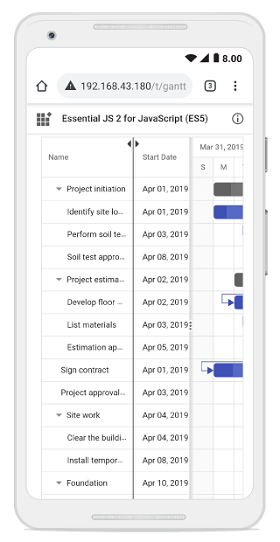
- Tap and hold on the right edge of the column header to activate the resize mode.
- A floating handler appears over the column border, indicating the resize is active.
- Drag the handler left or right to adjust the column width.
- Release your finger to apply the new width.
Note: Touch resizing works the same as desktop drag-and-drop. The column menu’s AutoFit option is also available on touch devices for quick width adjustments.
The screenshot below illustrates column resizing on a touch device.