Templates in Angular Form Builder component
22 Oct 20266 minutes to read
Templates can be used in the Form Builder control to display third-party components within the form. This feature lets you configure the form schema with the properties of the third-party component.
This section explains how to use templates in the Form Builder component.
Adding Templates
Templates can be added to the Form Builder by configuring the third-party control in the <e-toolboxitemsetting>.
Use the <e-toolboxitemsetting> directive inside <e-toolboxitemsettings> to define custom templates. Bind the type property to a FormWidgetType value to target a specific widget type, and define the custom UI using <ng-template #template>.
Multiple <e-toolboxitemsetting> entries can be added to register templates for different widget types.
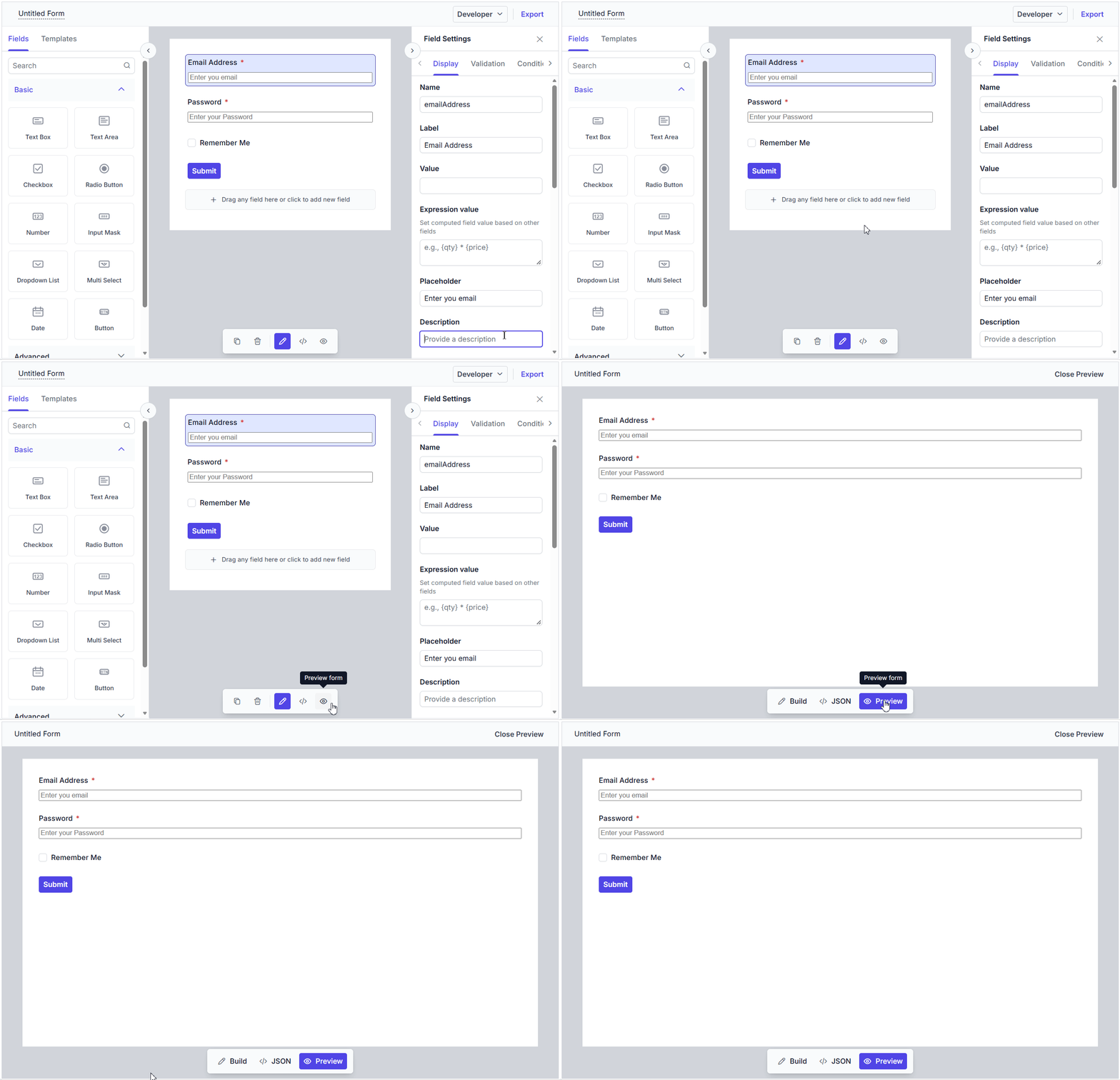
Once a field is dragged onto the design canvas, the custom template renders automatically.
import { Component, ViewChild } from '@angular/core';
import { FormBuilderComponent, Schema, FormBuilderModule, FormWidgetType, ToolboxItemSettingDirective, ToolboxItemSettingsDirective } from '@syncfusion/ej2-angular-form-builder';

@Component({
  selector: 'app-root',
  standalone: true,
  imports: [FormBuilderModule, ToolboxItemSettingDirective, ToolboxItemSettingsDirective],
  template: `
  <ejs-form-builder [schema]="schema" #formObj >
    <e-toolboxitemsettings>
      <e-toolboxitemsetting [type]="formType">
        <ng-template #template let-data>
          <input
            [type]="data.fieldData?.textboxType || data.textboxType"
            [id]="data.fieldData?.id || data.id"
            [name]="data.fieldData?.name || data.name"
            [placeholder]="data.fieldData?.placeholder"
            class="custom-input"
            [value]="data.value || ''"
            (input)="onInputChange($event, data)"
          />
        </ng-template>
      </e-toolboxitemsetting>
    </e-toolboxitemsettings>
  </ejs-form-builder>
  `
})
export class App {
  @ViewChild('formObj') public formObj?: FormBuilderComponent;

  public formType: any = FormWidgetType.Textbox;
  public onInputChange(event: Event, data: any) {
    const value = (event.target as HTMLInputElement).value;
    if (this.formObj) {
      this.formObj!.setFieldValue(data.fieldData.id, value);
    }
  }
  public schema: Schema = {
    "version": "0.1.0",
    "properties": {
      "emailAddress": {
        "id": "textbox_1785491685456_167",
        "name": "emailAddress",
        "type": "string",
        "label": "Email Address",
        "textboxType": "email",
        "required": true,
        "placeholder": "Enter your email",
        "widget": "textbox",
      },
      "password": {
        "id": "textbox_1785491685456_537",
        "name": "password",
        "type": "string",
        "label": "Password",
        "textboxType": "password",
        "required": true,
        "minLength": 6,
        "placeholder": "Enter your password",
        "widget": "textbox"
      },
      "rememberMe": {
        "id": "checkbox_1785491685456_262",
        "name": "rememberMe",
        "type": "boolean",
        "label": "Remember Me",
        "widget": "checkbox"
      },
      "submit": {
        "id": "submit_button_initial",
        "name": "defaultFormsubmit",
        "type": "button",
        "label": "Submit",
        "buttonType": "submit",
        "widget": "button",
        "style": "primary",
        "disabled": false
      }
    },
    "layout": [
      {
        "type": "field",
        "propertyId": "emailAddress"
      },
      {
        "type": "field",
        "propertyId": "password"
      },
      {
        "type": "field",
        "propertyId": "rememberMe"
      },
      {
        "type": "field",
        "propertyId": "submit"
      }
    ],
    "settings": {
      "name": "Untitled Form"
    }
  };
}
In the Preview tab, the templates are displayed so that you can validate the created form.
Adding properties of the template in property panel
The properties of the third party components can be added to the property panel using the setProperty method in the Form Builder. For more details, see this documentation
Exporting templates
When the form schema is exported, the template itself is not included in the schema. However, a templateId property is added to the form schema to notify Form Renderer that a template is mapped to the corresponding element. This value is configured via the templateId property on <e-toolboxitemsetting>.
In Form Renderer, additional configuration is required as described in the documentation to render templates in the form.