How can I help you?
Positioning a Node in Angular Diagram Component
17 Mar 20265 minutes to read
Node positioning in the Angular Diagram component allows precise control over where nodes appear on the diagram canvas. Understanding positioning fundamentals enables developers to create well-organized diagrams with nodes placed exactly where needed.
Position
The position of a node is controlled using its offsetX and offsetY properties. By default, these offset properties represent the distance between the origin of the diagram’s page and the node’s center point.
The pivot property determines which point of the node the offset values reference. The default pivot value is (0.5, 0.5), which corresponds to the center of the node. This means offset values position the node based on its center point rather than its top-left corner.
Additional positioning properties include:
- The
widthandheightproperties control the size of the node - The
rotateAngleproperty controls the rotation of a node
Understanding Pivot Points
The pivot point determines which part of the node the offset coordinates reference. The following table illustrates how different pivot values affect node positioning:
| Pivot | Offset Behavior |
|---|---|
| (0.5,0.5) | offsetX and offsetY values position the node’s center point |
| (0,0) | offsetX and offsetY values position the node’s top-left corner |
| (1,1) | offsetX and offsetY values position the node’s bottom-right corner |
The following code demonstrates how to change the pivot value:
import {
  DiagramModule, DiagramComponent,
  NodeModel,
} from '@syncfusion/ej2-angular-diagrams';

import { Component, ViewEncapsulation, ViewChild } from '@angular/core';
@Component({
  imports: [DiagramModule],

  providers: [],
  standalone: true,
  selector: 'app-container',
  template: `<ejs-diagram #diagram id="diagram" width="100%" height="580px" [getNodeDefaults] ='getNodeDefaults'>
        <e-nodes>
            <e-node id='node1' [offsetX]=350 [offsetY]=250>
            </e-node>
        </e-nodes>
    </ejs-diagram>`,
  encapsulation: ViewEncapsulation.None,
})
export class AppComponent {
  @ViewChild('diagram')
  public diagram?: DiagramComponent;
  public getNodeDefaults(node: NodeModel): NodeModel {
    node.height = 100;
    node.width = 100;
    node.pivot = { x: 0, y: 0 }
    return node;
  }
}
import { bootstrapApplication } from '@angular/platform-browser';
import { AppComponent } from './app.component';
import 'zone.js';
bootstrapApplication(AppComponent).catch((err) => console.error(err));Size Constraints
Minimum and Maximum Size
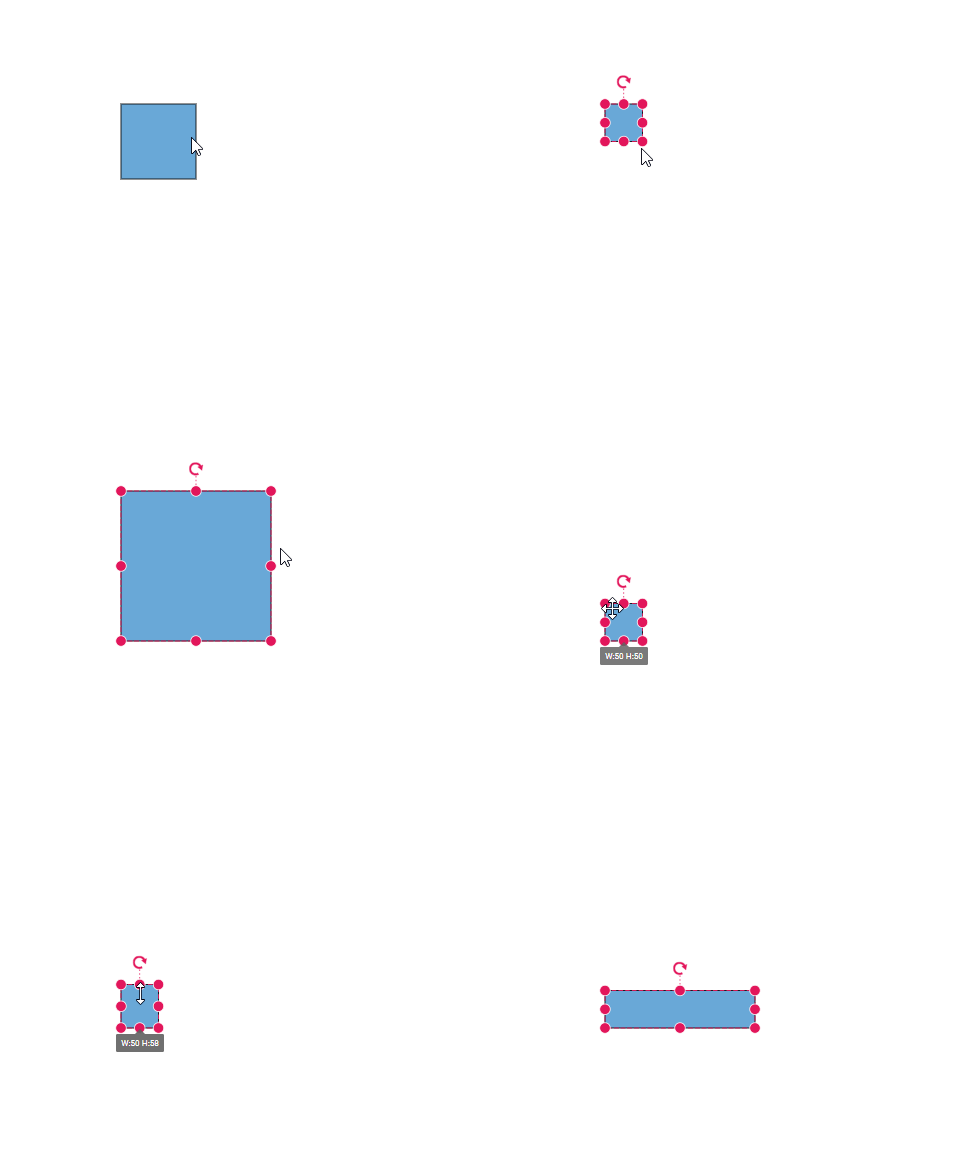
The size constraints ensure nodes maintain appropriate dimensions during resizing operations. The minWidth and minHeight properties define the smallest allowable size for a node during resize operations. Similarly, the maxWidth and maxHeight properties define the largest allowable size.
These constraints are particularly useful when creating diagrams where nodes need to maintain specific size ranges for visual consistency or functional requirements.
import {
  DiagramModule,
  DiagramComponent,
  NodeModel,
} from '@syncfusion/ej2-angular-diagrams';

import { Component, ViewEncapsulation, ViewChild } from '@angular/core';
@Component({
  imports: [DiagramModule],

  providers: [],
  standalone: true,
  selector: 'app-container',
  template: `<ejs-diagram #diagram id="diagram" width="100%" height="580px" [getNodeDefaults] ='getNodeDefaults'>
        <e-nodes>
            <e-node id='node1' [offsetX]=350 [offsetY]=250 [minWidth]=50 [minHeight]=50 [maxWidth]=200 [maxHeight]=200>
            </e-node>
        </e-nodes>
    </ejs-diagram>`,
  encapsulation: ViewEncapsulation.None,
})
export class AppComponent {
  @ViewChild('diagram')
  public diagram?: DiagramComponent;
  public getNodeDefaults(node: NodeModel): NodeModel {
    node.height = 100;
    node.width = 100;
    node.pivot = {x: 0, y: 0}
    return node;
  }
}
import { bootstrapApplication } from '@angular/platform-browser';
import { AppComponent } from './app.component';
import 'zone.js';
bootstrapApplication(AppComponent).catch((err) => console.error(err));