Nodes Interaction in Angular Diagram
06 Aug 202624 minutes to read
The Angular Diagram component provides comprehensive support for interactive node operations, enabling users to select, drag, resize, rotate, and flip nodes through both mouse interactions and programmatic methods. These interactions form the foundation of dynamic diagram editing capabilities.
Select
Node selection is fundamental to diagram interaction. Users can select nodes by clicking on them and deselect by clicking on the diagram canvas.

Programmatic Node Selection
Nodes can be selected at runtime using the select method. The selection can be cleared using either the clearSelection method to clear all selections or the unSelect method to remove specific objects from selection.
import { DiagramModule, DiagramComponent, NodeModel, ShapeStyleModel } from '@syncfusion/ej2-angular-diagrams'
import { Component, ViewEncapsulation, ViewChild } from '@angular/core';
@Component({
imports: [
         DiagramModule
    ],

providers: [ ],
standalone: true,
    selector: "app-container",
    template: `<button (click) = "select()">Select</button>
    <button (click) = "unSelect()">UnSelect</button>
    <ejs-diagram #diagram id="diagram" width="100%" height="580px" [getNodeDefaults] ='getNodeDefaults'>
        <e-nodes>
            <e-node id='node1' [offsetX]=350 [offsetY]=250 ></e-node>
        </e-nodes>
    </ejs-diagram>`,
    encapsulation: ViewEncapsulation.None
})
export class AppComponent {
    @ViewChild("diagram")
    public diagram?: DiagramComponent;
    public style?: ShapeStyleModel;
    public getNodeDefaults(node: NodeModel): NodeModel {
        node.height = 100;
        node.width = 100;
        return node;
    }
    select() {
        (this.diagram as any).select([(this.diagram as any).nodes[0]]);
    }
    unSelect() {
        (this.diagram as any).clearSelection()
    }
}
import { bootstrapApplication } from '@angular/platform-browser';
import { AppComponent } from './app.component';
bootstrapApplication(AppComponent).catch((err) => console.error(err));Selection Methods Reference
| Method | Parameter | Description |
|---|---|---|
unSelect |
NodeModel/ConnectorModel | Removes the specified object from the current selection. |
clearSelection |
- | Clears all selected objects in the diagram. |
Drag
Node dragging allows users to reposition nodes within the diagram canvas. Users can click and hold a node, then drag it to any location on the canvas.
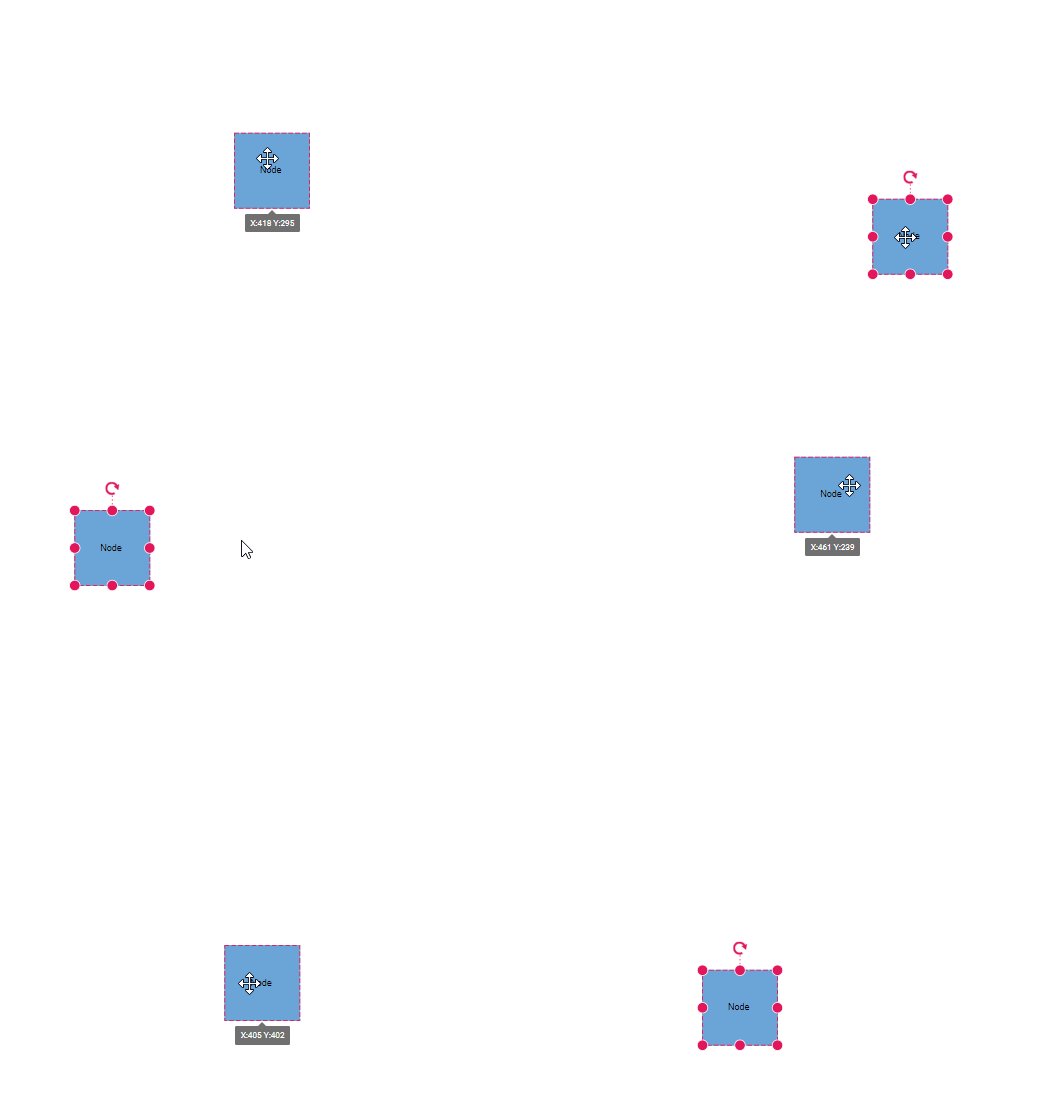
Programmatic Node Dragging
Nodes can be moved programmatically using the drag method, which accepts the target object and new position coordinates.
import { DiagramModule, DiagramComponent, NodeModel, ShapeStyleModel } from '@syncfusion/ej2-angular-diagrams'
import { Component, ViewEncapsulation, ViewChild } from '@angular/core';

@Component({
imports: [
         DiagramModule
    ],

providers: [ ],
standalone: true,
    selector: "app-container",
    template: `<button (click) = "drag()">Drag</button>
    <ejs-diagram #diagram id="diagram" width="100%" height="580px" [getNodeDefaults] ='getNodeDefaults'>
        <e-nodes>
            <e-node id='node1' [offsetX]=350 [offsetY]=250 ></e-node>
        </e-nodes>
    </ejs-diagram>`,
    encapsulation: ViewEncapsulation.None
})
export class AppComponent {
    @ViewChild("diagram")
    public diagram?: DiagramComponent;
    public style?: ShapeStyleModel;
    public getNodeDefaults(node: NodeModel): NodeModel {
        node.height = 100;
        node.width = 100;
        return node;
    }
    drag() {
        (this.diagram as any).drag((this.diagram as any).nodes[0], 50, 50);
    }
}
import { bootstrapApplication } from '@angular/platform-browser';
import { AppComponent } from './app.component';
bootstrapApplication(AppComponent).catch((err) => console.error(err));Resize
When a node is selected, resize handles appear on all sides, allowing users to modify the node’s dimensions by clicking and dragging these handles.

Programmatic Node Resizing
Node dimensions can be modified at runtime using the scale method, which applies scaling factors to adjust the node size proportionally.
import {
  DiagramModule, DiagramComponent,
  NodeModel,
  ShapeStyleModel,
} from '@syncfusion/ej2-angular-diagrams';
import { Component, ViewEncapsulation, ViewChild } from '@angular/core';

@Component({
  imports: [DiagramModule],

  providers: [],
  standalone: true,
  selector: 'app-container',
  template: `<button (click) = "reSize()">Resize</button>
    <ejs-diagram #diagram id="diagram" width="100%" height="580px" [getNodeDefaults] ='getNodeDefaults'>
        <e-nodes>
            <e-node id='node1' [offsetX]=350 [offsetY]=250 ></e-node>
        </e-nodes>
    </ejs-diagram>`,
  encapsulation: ViewEncapsulation.None,
})
export class AppComponent {
  @ViewChild('diagram')
  public diagram?: DiagramComponent;
  public style?: ShapeStyleModel;
  public getNodeDefaults(node: NodeModel): NodeModel {
    node.height = 100;
    node.width = 100;
    return node;
  }
  reSize() {
    (this.diagram as any).scale((this.diagram as any).nodes[0], 0.5, 0.5, {
      x: 0.5,
      y: 0.5,
    });
  }
}
import { bootstrapApplication } from '@angular/platform-browser';
import { AppComponent } from './app.component';
bootstrapApplication(AppComponent).catch((err) => console.error(err));Rotate
Node rotation is performed interactively by clicking and dragging the rotate handle that appears when a node is selected.
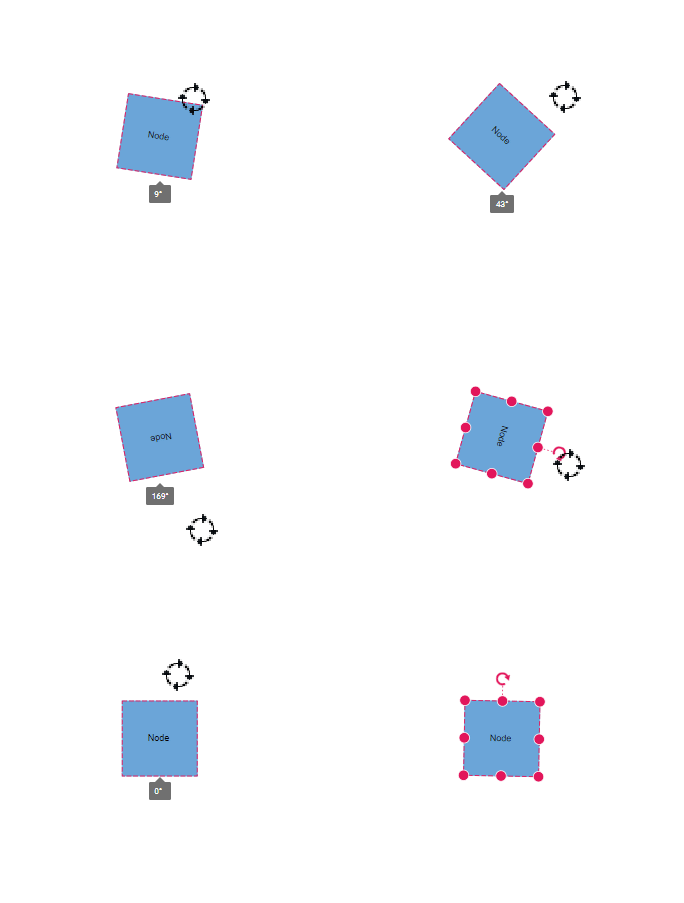
Programmatic Node Rotation
Nodes can be rotated at runtime using the rotate method, which accepts the target object and rotation angle in degrees.
import {
  DiagramModule, DiagramComponent,
  NodeModel,
  ShapeStyleModel,
} from '@syncfusion/ej2-angular-diagrams';
import { Component, ViewEncapsulation, ViewChild } from '@angular/core';

@Component({
  imports: [DiagramModule],

  providers: [],
  standalone: true,
  selector: 'app-container',
  template: `<button (click) = "rotate()">Rotate</button>
    <ejs-diagram #diagram id="diagram" width="100%" height="580px" [getNodeDefaults] ='getNodeDefaults'>
        <e-nodes>
            <e-node id='node1' [offsetX]=350 [offsetY]=250 ></e-node>
        </e-nodes>
    </ejs-diagram>`,
  encapsulation: ViewEncapsulation.None,
})
export class AppComponent {
  @ViewChild('diagram')
  public diagram?: DiagramComponent;
  public style?: ShapeStyleModel;
  public getNodeDefaults(node: NodeModel): NodeModel {
    node.height = 100;
    node.width = 100;
    return node;
  }
  rotate() {
    (this.diagram as any).rotate((this.diagram as any).nodes[0], (this.diagram as any).nodes[0].rotateAngle + 15);
  }
}
import { bootstrapApplication } from '@angular/platform-browser';
import { AppComponent } from './app.component';
bootstrapApplication(AppComponent).catch((err) => console.error(err));Flip
The diagram component supports node flipping operations to create mirrored images of nodes. The flip property controls the flip direction and behavior.
Flip Directions
| Flip Direction | Description |
|---|---|
| HorizontalFlip |
Horizontal mirrors the node across the horizontal axis. |
| VerticalFlip |
Vertical mirrors the node across the vertical axis. |
| Both |
Both mirrors the node across both horizontal and vertical axes. |
| None | Disables all flip operations for the node. |
The following example demonstrates how to apply flip transformations to nodes:
import {
  DiagramModule,
  DiagramComponent,
  NodeModel,
  FlipDirection
} from '@syncfusion/ej2-angular-diagrams';

import { Component, ViewEncapsulation, ViewChild } from '@angular/core';
@Component({
  imports: [DiagramModule],

  providers: [],
  standalone: true,
  selector: 'app-container',
  template: `<ejs-diagram #diagram id="diagram" width="100%" height="580px" [getNodeDefaults] ='getNodeDefaults'>
        <e-nodes>
            <e-node id='node1' [offsetX]=350 [offsetY]=250 ></e-node>
        </e-nodes>
    </ejs-diagram>`,
  encapsulation: ViewEncapsulation.None,
})
export class AppComponent {
  @ViewChild('diagram')
  public diagram?: DiagramComponent;
  public getNodeDefaults(node: NodeModel): NodeModel {
    node.shape = {
      type: 'Basic',
      shape: 'RightTriangle',
    };
    node.height = 100;
    node.width = 100;
    node.flip = FlipDirection.Horizontal;
    return node;
  }
}
import { bootstrapApplication } from '@angular/platform-browser';
import { AppComponent } from './app.component';
bootstrapApplication(AppComponent).catch((err) => console.error(err));Runtime Flip Updates
Node flip properties can be updated dynamically at runtime using the ^ operator, which allows toggling flip states by applying the same flip direction multiple times.
import {
  DiagramModule,
  DiagramComponent,
  NodeModel,
  FlipDirection
} from '@syncfusion/ej2-angular-diagrams';

import { Component, ViewEncapsulation, ViewChild } from '@angular/core';
@Component({
  imports: [DiagramModule],

  providers: [],
  standalone: true,
  selector: 'app-container',
  template: `
    <button (click)="flipHorizontal()">flipHorizontal</button>
    <button (click)="flipVertical()">flipVertical</button>
    <button (click)="flipBoth()">flipBoth</button>
    <button (click)="flipNone()">flipNone</button>

  <ejs-diagram #diagram id="diagram" width="100%" height="580px" [getNodeDefaults] ='getNodeDefaults'>
        <e-nodes>
            <e-node id='node1' [offsetX]=350 [offsetY]=250 ></e-node>
        </e-nodes>
    </ejs-diagram>`,
  encapsulation: ViewEncapsulation.None,
})
export class AppComponent {
  @ViewChild('diagram')
  public diagram?: DiagramComponent;
  public flipHorizontal() {
    (this.diagram as any).nodes[0].flip ^= FlipDirection.Horizontal;
    (this.diagram as any).dataBind();
  }
  public flipVertical() {
    (this.diagram as any).nodes[0].flip ^= FlipDirection.Vertical;
    (this.diagram as any).dataBind();
  }
  public flipBoth() {
    (this.diagram as any).nodes[0].flip ^= FlipDirection.Both;
    (this.diagram as any).dataBind();
  }
  public flipNone() {
    (this.diagram as any).nodes[0].flip = FlipDirection.None;
    (this.diagram as any).dataBind();
  }
  public getNodeDefaults(node: NodeModel): NodeModel {
    node.shape = {
      type: 'Basic',
      shape: 'RightTriangle',
    };
    node.height = 100;
    node.width = 100;
    node.flip = FlipDirection.Horizontal;
    return node;
  }
}
import { bootstrapApplication } from '@angular/platform-browser';
import { AppComponent } from './app.component';
bootstrapApplication(AppComponent).catch((err) => console.error(err));Flip Modes
The flipMode property controls which elements are affected during flip operations, determining whether ports, labels, and label text are flipped along with the node.
| FlipMode | Description |
|---|---|
| Label | Flips the label along with the node while maintaining text readability. |
| Port | Flips the port positions along with the node. |
| All | Flips the port, label, and label text along with the node. |
| None | Flips only the node geometry without affecting ports or labels. |
| LabelText | Flips the node and inverts the label text without changing label position. |
| PortAndLabel | Flips both port positions and labels along with the node while keeping text readable. |
| PortAndLabelText | Flips port positions and label text along with the node. |
| LabelAndLabelText | Flips both labels and label text along with the node. |
Flip Mode Visual Examples
The following table demonstrates how different flip modes affect node appearance across various flip directions:
| Flip Direction | Flip Mode | Default Node | Flipped Node |
|---|---|---|---|
| Horizontal | All |  |
 |
| Horizontal | Label | |
 |
| Horizontal | LabelText | |
 |
| Horizontal | Port | |
 |
| Horizontal | None | |
 |
| Horizontal | PortAndLabel | |
 |
| Horizontal | PortAndLabelText | |
 |
| Horizontal | LabelAndLabelText | |
 |
| Vertical | All |  |
 |
| Vertical | Label | |
 |
| Vertical | LabelText | |
 |
| Vertical | Port | |
 |
| Vertical | None | |
 |
| Vertical | PortAndLabel | |
 |
| Vertical | PortAndLabelText | |
 |
| Vertical | LabelAndLabelText | |
 |
| Both | All | |
 |
| Both | Label | |
 |
| Both | LabelText | |
 |
| Both | Port | |
 |
| Both | None | |
 |
| Both | PortAndLabel | |
 |
| Both | PortAndLabelText | |
 |
| Both | LabelAndLabelText | |
 |
The following example demonstrates implementing different flip modes:
import {
  DiagramModule,
  PointPortModel,
  PortVisibility,
  DiagramComponent,
  NodeModel,
  FlipDirection,
} from '@syncfusion/ej2-angular-diagrams';

import { Component, ViewEncapsulation, ViewChild } from '@angular/core';

@Component({
  imports: [DiagramModule],

  providers: [],
  standalone: true,
  selector: 'app-container',
  template: `<ejs-diagram #diagram id="diagram" width="100%" height="580px" [getNodeDefaults] ='getNodeDefaults'>
        <e-nodes>
            <e-node id='label' [offsetX]=150 [offsetY]=250 [ports]='ports'>
            <e-node-annotations>
                    <e-node-annotation content="FlipMode as Label" [offset]="annotationOffset">
                    </e-node-annotation>
                </e-node-annotations>
            </e-node>
            <e-node id='port' [offsetX]=450 [offsetY]=250 [ports]='ports'>
            <e-node-annotations>
                    <e-node-annotation content="FlipMode as Port" [offset]="annotationOffset">
                    </e-node-annotation>
                </e-node-annotations>
            </e-node>
            <e-node id='all' [offsetX]=150 [offsetY]=450 [ports]='ports'>
            <e-node-annotations>
                    <e-node-annotation content="FlipMode as All" [offset]="annotationOffset">
                    </e-node-annotation>
                </e-node-annotations>
            </e-node>
            <e-node id='none' [offsetX]=450 [offsetY]=450 [ports]='ports'>
            <e-node-annotations>
                    <e-node-annotation content="FlipMode as None" [offset]="annotationOffset">
                    </e-node-annotation>
                </e-node-annotations>
            </e-node>
        </e-nodes>
    </ejs-diagram>`,
  encapsulation: ViewEncapsulation.None,
})
export class AppComponent {
  @ViewChild('diagram')
  public diagram?: DiagramComponent;
  public annotationOffset = { x: 0, y: 0.8 };
  public ports: PointPortModel[] = [
    {
      // Sets the position for the port
      offset: {
        x: 0,
        y: 0.5,
      },
      visibility: PortVisibility.Visible,
    },
  ];
  public getNodeDefaults(node: NodeModel): NodeModel {
    node.shape = {
      type: 'Basic',
      shape: 'RightTriangle',
    };
    node.height = 100;
    node.width = 100;
    node.flip = FlipDirection.Horizontal;
    if (node.id === 'port') {
      (node as any).flipMode = 'Port';
    } else if (node.id === 'label') {
      (node as any).flipMode = 'Label';
    } else if (node.id === 'all') {
      (node as any).flipMode = 'All';
    } else {
      (node as any).flipMode = 'None';
    }
    return node;
  }
}
import { bootstrapApplication } from '@angular/platform-browser';
import { AppComponent } from './app.component';
bootstrapApplication(AppComponent).catch((err) => console.error(err));