Getting Started with Angular Accumulation Chart
11 Aug 20268 minutes to read
This section explains the steps required to create a simple accumulation chart and demonstrates the basic usage of the Angular Accumulation Chart component.
Ready to streamline your Syncfusion® Angular development? Discover the full potential of Syncfusion® Angular components with Syncfusion® AI Coding Assistant. Effortlessly integrate, configure, and enhance your projects with intelligent, context-aware code suggestions, streamlined setups, and real-time insights—all seamlessly integrated into your preferred AI-powered IDEs like VS Code, Cursor, Syncfusion® CodeStudio and more. Explore Syncfusion® AI Coding Assistant
Prerequisites
Before getting started, ensure that your environment meets the system requirements for Syncfusion® Angular UI components, which covers supported Node.js, Angular, and @syncfusion/ej2-angular-charts versions.
Setup the Angular application
A straightforward approach to begin with Angular is to create a new application using the Angular CLI. Install Angular CLI globally with the following command:
npm install -g @angular/cliVerify the installation:
ng versionAngular 21 Standalone Architecture: Standalone components are the default in Angular 21. This guide uses the modern standalone architecture. If you need more information about the standalone architecture, refer to the Standalone Guide.
Installing a specific version
To install a particular version of Angular CLI, use:
npm install -g @angular/[email protected]Create an Angular application
With Angular CLI installed, execute the following command to generate a new application:
ng new syncfusion-angular-app- This command will prompt you to configure settings like enabling Angular routing and choosing a stylesheet format.
? Which stylesheet format would you like to use? (Use arrow keys)
> CSS             [ https://developer.mozilla.org/docs/Web/CSS]
  Sass (SCSS)     [ https://sass-lang.com/documentation/syntax#scss ]
  Sass (Indented) [ https://sass-lang.com/documentation/syntax#the-indented-syntax ]
Less [ http://lesscss org ]- By default, a CSS-based application is created. Use SCSS if required:
ng new syncfusion-angular-app --style=scss- During project setup, when prompted for the Server-side rendering (SSR) option, choose the appropriate configuration.

- Select the required AI tool or ‘none’ if you do not need any AI tool.
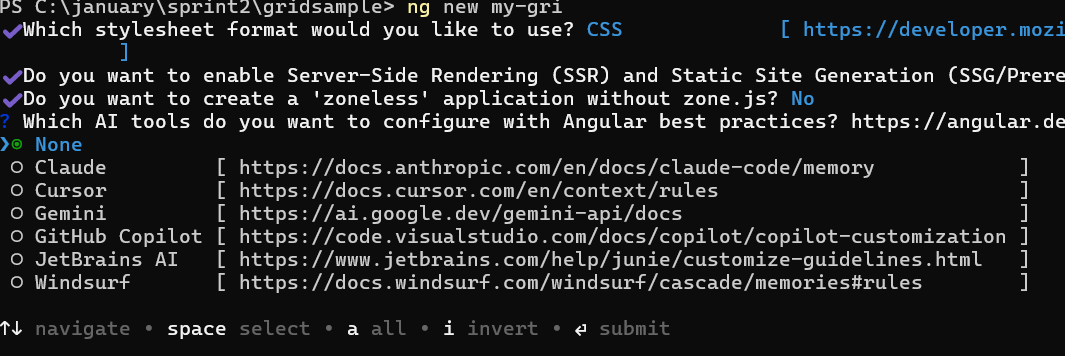
Navigate to your newly created application directory:
cd syncfusion-angular-appIn Angular 19 and below, the CLI generates files like
app.component.ts,app.component.html, etc. In Angular 20+, the CLI generates a simpler structure withapp.ts,app.html, andapp.css(no.component.suffixes).
Adding the Syncfusion® Angular Accumulation Chart package
To install the Syncfusion® Angular Accumulation Chart package, use the following command:
ng add @syncfusion/ej2-angular-chartsThe ng add command installs the package, registers it in package.json, and configures the required entries in your workspace automatically.
If ng add is unavailable in your setup, install the package manually with:
npm install @syncfusion/ej2-angular-chartsAdd Syncfusion® Accumulation Chart component
Modify the template in src/app/app.component.ts (or src/app/app.ts in Angular 20+) to render the Accumulation Chart component:
import { Component } from '@angular/core';
import { AccumulationChartModule } from '@syncfusion/ej2-angular-charts';

@Component({
  selector: 'app-root',
  standalone: true,
  imports: [AccumulationChartModule],
  template: `<ejs-accumulationchart id="pie-container"></ejs-accumulationchart>`
})
export class App {}
Module Injection
Angular Accumulation Chart components are segregated into individual feature-wise modules. To use a particular feature, you need to inject its feature service in src/app/app.ts (Angular 20+) or src/app/app.component.ts (Angular 19 and below). This example will use the pie series feature of the chart.
-
PieSeriesService- Inject this provider to render the pie series.
Replace the contents of src/app/app.ts (or src/app/app.component.ts on Angular 19 and below) with the following:
import { Component } from '@angular/core';
import { AccumulationChartModule, PieSeriesService } from '@syncfusion/ej2-angular-charts';

@Component({
  selector: 'app-root',
  standalone: true,
  imports: [AccumulationChartModule],
  providers: [PieSeriesService],
  template: `<ejs-accumulationchart id="pie-container"></ejs-accumulationchart>`,
})
export class App {}
Bind data to the Accumulation Chart
This section explains how to plot JSON data to the Angular Accumulation Chart. Replace the contents of src/app/app.ts (Angular 20+) or src/app/app.component.ts (Angular 19 and below) with the following:
import { Component } from '@angular/core';
import { AccumulationChartModule, PieSeriesService, AccumulationLegendService, AccumulationTooltipService } from '@syncfusion/ej2-angular-charts';

@Component({
    selector: 'app-root',
    standalone: true,
    imports: [AccumulationChartModule],
    providers: [PieSeriesService, AccumulationLegendService, AccumulationTooltipService],
    template: `
        <ejs-accumulationchart
            id="pie-container"
            [legendSettings]='legendSettings' [tooltip]='tooltip'>
            <e-accumulation-series-collection>
                <e-accumulation-series
                    [dataSource]='piedata'
                    type='Pie'
                    xName='x'
                    yName='y'>
                </e-accumulation-series>
            </e-accumulation-series-collection>
        </ejs-accumulationchart>
    `
})
export class App {
    public piedata: { x: string; y: number }[] = [
        { x: 'Jan', y: 3 }, { x: 'Feb', y: 3.5 },
        { x: 'Mar', y: 7 }, { x: 'Apr', y: 13.5 },
        { x: 'May', y: 19 }, { x: 'Jun', y: 23.5 },
        { x: 'Jul', y: 26 }, { x: 'Aug', y: 25 },
        { x: 'Sep', y: 21 }, { x: 'Oct', y: 15 },
        { x: 'Nov', y: 9 }, { x: 'Dec', y: 3.5 }
    ];
    public legendSettings: Object = {
        visible: true
    };
    public tooltip: Object = { enable: true };
}
import { bootstrapApplication } from '@angular/platform-browser';
import { App } from './app';
import 'zone.js';
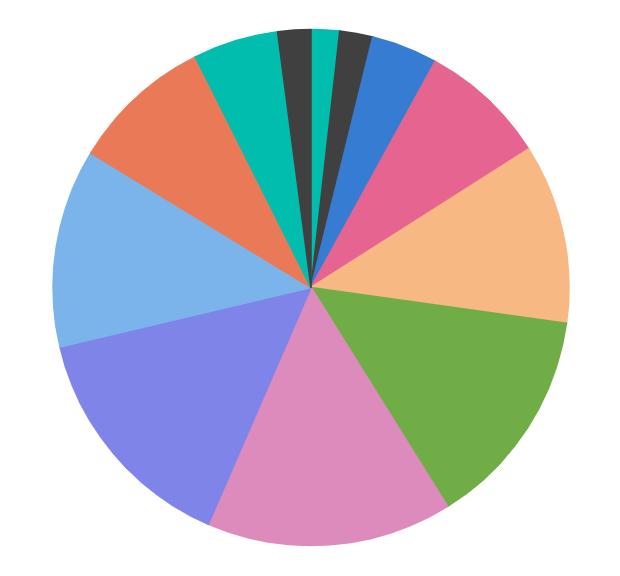
bootstrapApplication(App).catch((err) => console.error(err));The chart renders a pie with one slice for each month (Jan–Dec) sized according to the data values, with each slice labeled in the legend. Hovering over a slice displays a tooltip with the month and value.
Run the application
Run the application using the following command:
npm startOpen the generated local URL (for example, http://localhost:4200/) from the terminal in the browser. The application displays a pie chart showing monthly distribution from January to December, as shown below:
Troubleshooting
If the accumulation chart does not render as expected, check for these common issues:
-
“No provider for PieSeriesService” error: Confirm that
PieSeriesService,AccumulationLegendService, andAccumulationTooltipServiceare all added to the component’sprovidersarray. Each accumulation series type and feature (pie, legend, tooltip) requires its corresponding service. -
Chart not visible: Verify that the
<ejs-accumulationchart>element has a uniqueidand that the component’sselectormatches the root element used insrc/index.html(commonly<app-root>). -
Data not displayed: Check that the
xNameandyNamevalues match the field names in your data source exactly, and that thedataSourceis assigned before the chart renders. -
Build errors: Run
ng versionto confirm that Node.js, Angular CLI, and@syncfusion/ej2-angular-chartsare on supported versions, and check the terminal output for the specific error. -
Port already in use: If
npm startfails because port4200is in use, runng serve --port 4201(or another free port) instead.