Organizational Chart layout in Vue Diagram control
28 Mar 202524 minutes to read
An organizational chart is a diagram that displays the structure of an organization and relationships. To create an organizational chart, the type of layout should be set as an OrganizationalChart.
Organizational chart with DataSource
The following code example illustrates how to create an organizational chart with DataSource.
<template>
    <div id="app">

        <ejs-diagram id="diagram" :width='width' :height='height' :dataSourceSettings='dataSourceSettings'
            :getNodeDefaults='getNodeDefaults' :getConnectorDefaults='getConnectorDefaults'
            :layout='layout'></ejs-diagram>

    </div>
</template>

<script setup>
import { provide } from "vue";
import { DiagramComponent as EjsDiagram, HierarchicalTree, DataBinding } from '@syncfusion/ej2-vue-diagrams';
import { DataManager, Query } from "@syncfusion/ej2-data";


//Initialize data
let data = [
    {
        Id: 'parent',
        Role: 'Project Management',
    },
    {
        Id: 1,
        Role: 'R&D Team',
        Team: 'parent',
    },
    {
        Id: 3,
        Role: 'Philosophy',
        Team: '1',
    },
    {
        Id: 4,
        Role: 'Organization',
        Team: '1',
    },
    {
        Id: 5,
        Role: 'Technology',
        Team: '1',
    },
    {
        Id: 7,
        Role: 'Funding',
        Team: '1',
    },
    {
        Id: 8,
        Role: 'Resource Allocation',
        Team: '1',
    },
    {
        Id: 9,
        Role: 'Targeting',
        Team: '1',
    },
    {
        Id: 11,
        Role: 'Evaluation',
        Team: '1',
    },
    {
        Id: 156,
        Role: 'HR Team',
        Team: 'parent',
    },
    {
        Id: 13,
        Role: 'Recruitment',
        Team: '156',
    },
    {
        Id: 112,
        Role: 'Employee Relation',
        Team: '156',
    },
    {
        Id: 17,
        Role: 'Production & Sales Team',
        Team: 'parent',
    },
    {
        Id: 119,
        Role: 'Design',
        Team: '17',
    },
    {
        Id: 19,
        Role: 'Operation',
        Team: '17',
    },
    {
        Id: 20,
        Role: 'Support',
        Team: '17',
    },
    {
        Id: 21,
        Role: 'Quality Assurance',
        Team: '17',
    },
    {
        Id: 23,
        Role: 'Customer Interaction',
        Team: '17',
    },
    {
        Id: 24,
        Role: 'Support and Maintenance',
        Team: '17',
    },
    {
        Id: 25,
        Role: 'Task Coordination',
        Team: '17',
    }
];

let items = new DataManager(data, new Query().take(7));

const width = "1000px";
const height = "590px";

//Configures data source for Diagram
const dataSourceSettings = {
    id: 'Id',
    parentId: 'Team',
    dataSource: items,
}

//Uses layout to auto-arrange nodes on the Diagram page
const layout = {
    //Sets layout type
    type: 'OrganizationalChart',
}

//Sets the default properties for nodes and connectors
const getNodeDefaults = (node) => {
    node.annotations = [{ content: node.data.Role }];
    node.width = 75; node.height = 40;
    return node;
}
const getConnectorDefaults = (connector) => {
    connector.type = 'Orthogonal';
    return connector;
}

provide('diagram', [HierarchicalTree, DataBinding]);

</script>

<style>
@import "../node_modules/@syncfusion/ej2-vue-diagrams/styles/tailwind3.css";
@import "../node_modules/@syncfusion/ej2-base/styles/tailwind3.css";
@import "../node_modules/@syncfusion/ej2-popups/styles/tailwind3.css";
@import "../node_modules/@syncfusion/ej2-splitbuttons/styles/tailwind3.css";
@import "../node_modules/@syncfusion/ej2-navigations/styles/tailwind3.css";
</style><template>
<div id="app">
<ejs-diagram id="diagram" :width='width' :height='height' :getNodeDefaults='getNodeDefaults'
:getConnectorDefaults='getConnectorDefaults' :layout='layout'
:dataSourceSettings='dataSourceSettings'></ejs-diagram>
</div>
</template>
<script>
import { DiagramComponent, HierarchicalTree, DataBinding } from '@syncfusion/ej2-vue-diagrams';
import { DataManager, Query } from "@syncfusion/ej2-data";
let data = [
{
Id: 'parent',
Role: 'Project Management',
},
{
Id: 1,
Role: 'R&D Team',
Team: 'parent',
},
{
Id: 3,
Role: 'Philosophy',
Team: '1',
},
{
Id: 4,
Role: 'Organization',
Team: '1',
},
{
Id: 5,
Role: 'Technology',
Team: '1',
},
{
Id: 7,
Role: 'Funding',
Team: '1',
},
{
Id: 8,
Role: 'Resource Allocation',
Team: '1',
},
{
Id: 9,
Role: 'Targeting',
Team: '1',
},
{
Id: 11,
Role: 'Evaluation',
Team: '1',
},
{
Id: 156,
Role: 'HR Team',
Team: 'parent',
},
{
Id: 13,
Role: 'Recruitment',
Team: '156',
},
{
Id: 112,
Role: 'Employee Relation',
Team: '156',
},
{
Id: 17,
Role: 'Production & Sales Team',
Team: 'parent',
},
{
Id: 119,
Role: 'Design',
Team: '17',
},
{
Id: 19,
Role: 'Operation',
Team: '17',
},
{
Id: 20,
Role: 'Support',
Team: '17',
},
{
Id: 21,
Role: 'Quality Assurance',
Team: '17',
},
{
Id: 23,
Role: 'Customer Interaction',
Team: '17',
},
{
Id: 24,
Role: 'Support and Maintenance',
Team: '17',
},
{
Id: 25,
Role: 'Task Coordination',
Team: '17',
}
];
let items = new DataManager(data, new Query().take(7));
export default {
name: "App",
components: {
"ejs-diagram": DiagramComponent
},
data() {
return {
width: "100%",
height: "590px",
//Uses layout to auto-arrange nodes on the Diagram page
layout: {
//Sets layout type
type: 'OrganizationalChart',
},
//Configures data source for Diagram
dataSourceSettings: {
id: 'Id',
parentId: 'Team',
dataSource: items,
},
//Sets the default properties for nodes and connectors
getNodeDefaults: (node) => {
node.annotations = [{ content: node.data.Role }];
node.width = 75; node.height = 40;
return node;
},
getConnectorDefaults: (connector) => {
connector.type = 'Orthogonal';
return connector;
},
}
},
provide: {
diagram: [HierarchicalTree, DataBinding]
}
}
</script>
<style>
@import "../node_modules/@syncfusion/ej2-vue-diagrams/styles/tailwind3.css";
@import "../node_modules/@syncfusion/ej2-base/styles/tailwind3.css";
@import "../node_modules/@syncfusion/ej2-popups/styles/tailwind3.css";
@import "../node_modules/@syncfusion/ej2-splitbuttons/styles/tailwind3.css";
@import "../node_modules/@syncfusion/ej2-navigations/styles/tailwind3.css";
</style>NOTE
If you want to use Organizational chart layout in diagram, you need to inject HierarchicalTree module along with DataBinding module in the diagram.
Organizational chart with nodes and connectors
You can render an org-chart layout without using DataSource. The following code demonstrates how to render an org-chart layout without using data source.
<template>
    <div id="app">

      <ejs-diagram id="diagram" :width='width' :height='height' :nodes='nodes' :connectors='connectors'
        :getNodeDefaults='getNodeDefaults' :getConnectorDefaults='getConnectorDefaults'
        :layout='layout'></ejs-diagram>

    </div>
  </template>

  <script setup>
  import { provide } from "vue";
  import { DiagramComponent as EjsDiagram, HierarchicalTree, DataBinding } from '@syncfusion/ej2-vue-diagrams';

  //Initialize nodes for diagram
  let nodes = [
  { id: 'Project Management' },
      { id: 'R&D Team' },
      { id: 'Philosophy' },
      { id: 'Organization' },
      { id: 'Technology' },
      { id: 'Funding' },
      { id: 'Resource Allocation' },
      { id: 'Targeting' },
      { id: 'Evaluation' },
      { id: 'HR Team' },
      { id: 'Recruitment' },
      { id: 'Employee Relation' },
      { id: 'Production & Sales Team' },
      { id: 'Design' },
      { id: 'Operation' },
      { id: 'Support' },
      { id: 'Quality Assurance' },
      { id: 'Customer Interaction' },
      { id: 'Support and Maintenance' },
      { id: 'Task Coordination' },
  ];

  //Initialize connectors for diagram
  let connectors = [
    {
      id: 'Project Management-R&D Team',
      sourceID: 'Project Management',
      targetID: 'R&D Team',
    },
    {
      id: 'R&D Team-Philosophy',
      sourceID: 'R&D Team',
      targetID: 'Philosophy'
    },
    {
      id: 'R&D Team-Organization',
      sourceID: 'R&D Team',
      targetID: 'Organization',
    },
    {
      id: 'R&D Team-Technology',
      sourceID: 'R&D Team',
      targetID: 'Technology'
    },
    {
      id: 'R&D Team-Funding',
      sourceID: 'R&D Team',
      targetID: 'Funding'
    },
    {
      id: 'R&D Team-Resource Allocation',
      sourceID: 'R&D Team',
      targetID: 'Resource Allocation',
    },
    {
      id: 'R&D Team-Targeting',
      sourceID: 'R&D Team',
      targetID: 'Targeting'
    },
    {
      id: 'R&D Team-Evaluation',
      sourceID: 'R&D Team',
      targetID: 'Evaluation'
    },
    {
      id: 'Project Management-HR Team',
      sourceID: 'Project Management',
      targetID: 'HR Team',
    },
    {
      id: 'HR Team-Recruitment',
      sourceID: 'HR Team',
      targetID: 'Recruitment'
    },
    {
      id: 'HR Team-Employee Relation',
      sourceID: 'HR Team',
      targetID: 'Employee Relation',
    },
    {
      id: 'Project Management-Production & Sales Team',
      sourceID: 'Project Management',
      targetID: 'Production & Sales Team',
    },
    {
      id: 'Production & Sales Team-Design',
      sourceID: 'Production & Sales Team',
      targetID: 'Design',
    },
    {
      id: 'Production & Sales Team-Operation',
      sourceID: 'Production & Sales Team',
      targetID: 'Operation',
    },
    {
      id: 'Production & Sales Team-Support',
      sourceID: 'Production & Sales Team',
      targetID: 'Support',
    },
    {
      id: 'Production & Sales Team-Quality Assurance',
      sourceID: 'Production & Sales Team',
      targetID: 'Quality Assurance',
    },
    {
      id: 'Production & Sales Team-Customer Interaction',
      sourceID: 'Production & Sales Team',
      targetID: 'Customer Interaction',
    },
    {
      id: 'Production & Sales Team-Support and Maintenance',
      sourceID: 'Production & Sales Team',
      targetID: 'Support and Maintenance',
    },
    {
      id: 'Production & Sales Team-Task Coordination',
      sourceID: 'Production & Sales Team',
      targetID: 'Task Coordination',
    },
  ];

  const width = "1000px";
  const height = "590px";

  //Uses layout to auto-arrange nodes on the Diagram page
  const layout = {
    //Sets layout type
    type: 'OrganizationalChart',
  }

  //Sets the default properties for nodes and connectors
  const getNodeDefaults = (node) => {
    node.annotations = [{ content: node.id }];
    node.width = 75; node.height = 40;
    return node;
  }
  const getConnectorDefaults = (connector) => {
    connector.type = 'Orthogonal';
    return connector;
  }

  provide('diagram', [HierarchicalTree, DataBinding]);

  </script>

  <style>
@import "../node_modules/@syncfusion/ej2-vue-diagrams/styles/tailwind3.css";
@import "../node_modules/@syncfusion/ej2-base/styles/tailwind3.css";
@import "../node_modules/@syncfusion/ej2-popups/styles/tailwind3.css";
@import "../node_modules/@syncfusion/ej2-splitbuttons/styles/tailwind3.css";
@import "../node_modules/@syncfusion/ej2-navigations/styles/tailwind3.css";
</style><template>
<div id="app">
<ejs-diagram id="diagram" :width='width' :height='height' :nodes='nodes' :connectors='connectors'
:getNodeDefaults='getNodeDefaults' :getConnectorDefaults='getConnectorDefaults'
:layout='layout'></ejs-diagram>
</div>
</template>
<script>
import { DiagramComponent, HierarchicalTree, DataBinding } from '@syncfusion/ej2-vue-diagrams';
//Initialize nodes for diagram
let nodes = [
{ id: 'Project Management' },
{ id: 'R&D Team' },
{ id: 'Philosophy' },
{ id: 'Organization' },
{ id: 'Technology' },
{ id: 'Funding' },
{ id: 'Resource Allocation' },
{ id: 'Targeting' },
{ id: 'Evaluation' },
{ id: 'HR Team' },
{ id: 'Recruitment' },
{ id: 'Employee Relation' },
{ id: 'Production & Sales Team' },
{ id: 'Design' },
{ id: 'Operation' },
{ id: 'Support' },
{ id: 'Quality Assurance' },
{ id: 'Customer Interaction' },
{ id: 'Support and Maintenance' },
{ id: 'Task Coordination' },
];
//Initialize connectors for diagram
let connectors = [
{
id: 'Project Management-R&D Team',
sourceID: 'Project Management',
targetID: 'R&D Team',
},
{
id: 'R&D Team-Philosophy',
sourceID: 'R&D Team',
targetID: 'Philosophy'
},
{
id: 'R&D Team-Organization',
sourceID: 'R&D Team',
targetID: 'Organization',
},
{
id: 'R&D Team-Technology',
sourceID: 'R&D Team',
targetID: 'Technology'
},
{
id: 'R&D Team-Funding',
sourceID: 'R&D Team',
targetID: 'Funding'
},
{
id: 'R&D Team-Resource Allocation',
sourceID: 'R&D Team',
targetID: 'Resource Allocation',
},
{
id: 'R&D Team-Targeting',
sourceID: 'R&D Team',
targetID: 'Targeting'
},
{
id: 'R&D Team-Evaluation',
sourceID: 'R&D Team',
targetID: 'Evaluation'
},
{
id: 'Project Management-HR Team',
sourceID: 'Project Management',
targetID: 'HR Team',
},
{
id: 'HR Team-Recruitment',
sourceID: 'HR Team',
targetID: 'Recruitment'
},
{
id: 'HR Team-Employee Relation',
sourceID: 'HR Team',
targetID: 'Employee Relation',
},
{
id: 'Project Management-Production & Sales Team',
sourceID: 'Project Management',
targetID: 'Production & Sales Team',
},
{
id: 'Production & Sales Team-Design',
sourceID: 'Production & Sales Team',
targetID: 'Design',
},
{
id: 'Production & Sales Team-Operation',
sourceID: 'Production & Sales Team',
targetID: 'Operation',
},
{
id: 'Production & Sales Team-Support',
sourceID: 'Production & Sales Team',
targetID: 'Support',
},
{
id: 'Production & Sales Team-Quality Assurance',
sourceID: 'Production & Sales Team',
targetID: 'Quality Assurance',
},
{
id: 'Production & Sales Team-Customer Interaction',
sourceID: 'Production & Sales Team',
targetID: 'Customer Interaction',
},
{
id: 'Production & Sales Team-Support and Maintenance',
sourceID: 'Production & Sales Team',
targetID: 'Support and Maintenance',
},
{
id: 'Production & Sales Team-Task Coordination',
sourceID: 'Production & Sales Team',
targetID: 'Task Coordination',
},
];
export default {
name: "App",
components: {
"ejs-diagram": DiagramComponent
},
data() {
return {
width: "100%",
height: "590px",
nodes: nodes,
connectors: connectors,
//Uses layout to auto-arrange nodes on the Diagram page
layout: {
//Sets layout type
type: 'OrganizationalChart',
},
//Sets the default properties for nodes and connectors
getNodeDefaults: (node) => {
node.annotations = [{ content: node.id }];
node.width = 75; node.height = 40;
return node;
},
getConnectorDefaults: (connector) => {
connector.type = 'Orthogonal';
return connector;
},
}
},
provide: {
diagram: [HierarchicalTree, DataBinding]
}
}
</script>
<style>
@import "../node_modules/@syncfusion/ej2-vue-diagrams/styles/tailwind3.css";
@import "../node_modules/@syncfusion/ej2-base/styles/tailwind3.css";
@import "../node_modules/@syncfusion/ej2-popups/styles/tailwind3.css";
@import "../node_modules/@syncfusion/ej2-splitbuttons/styles/tailwind3.css";
@import "../node_modules/@syncfusion/ej2-navigations/styles/tailwind3.css";
</style>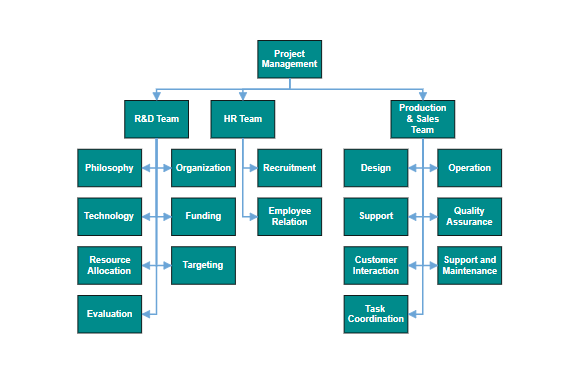
GetLayout info
Organizational chart layout starts parsing from root and iterate through all its child elements. The getLayoutInfo method provides necessary information of a node’s children and the way to arrange (direction, orientation, offsets, etc.) them. The arrangements can be customized by overriding this function as explained.
Set chart orientations, chart types, and offset to be left between parent and child nodes by overriding the getLayoutInfo method. The getLayoutInfo method is called to configure every subtree of the organizational chart. It takes the following arguments.
* node: Parent node to that options are to be customized.
* options: Object to set the customizable properties.
The following table illustrates the properties that “options” argument takes.
| Property | Description | Default Value |
|---|---|---|
| options.assistants | By default, the collection is empty. When any of the child nodes have to be set as Assistant, you can remove from children collection and have to insert into assistants collection. | Empty array |
| options.orientation | Gets or sets the organizational chart orientation. | SubTreeOrientation.Vertical |
| options.type | Gets or sets the chart organizational chart type. | For horizontal chart orientation:SubTreeAlignments.Center and for vertical chart orientation:SubTreeAlignments.Alternate |
| options.offset | Offset is the horizontal space to be left between parent and child nodes. | 20 pixels applicable only for vertical chart orientations. |
| options.hasSubTree | Gets whether the node contains subtrees. | Boolean |
| options.level | Gets the depth of the node from layout root. | Number |
| options.enableRouting | By default, connections are routed based on the chart type and orientations. This property gets or sets whether default routing is to be enabled or disabled. | true |
| options.rows | Sets the number of rows on which the child nodes will be arranged. Applicable only for balanced type horizontal tree. | Number |
The following table illustrates the different chart orientations and chart types.
| Orientation | Type | Description | Example |
|---|---|---|---|
| Horizontal | Left | Arranges the child nodes horizontally at the left side of the parent. | 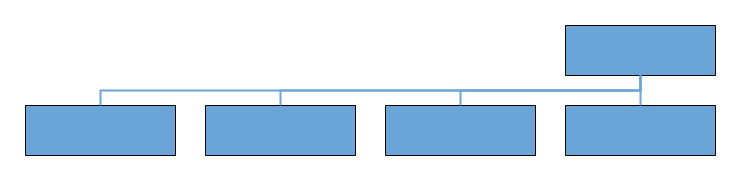 |
| Right | Arranges the child nodes horizontally at the right side of the parent. | 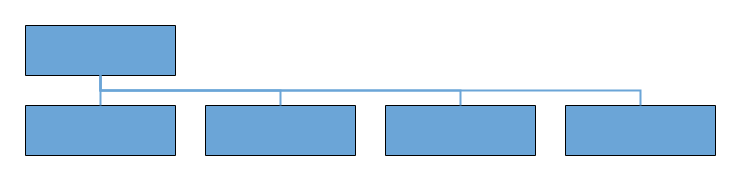 |
|
| Center | Arranges the children like standard tree layout orientation. | 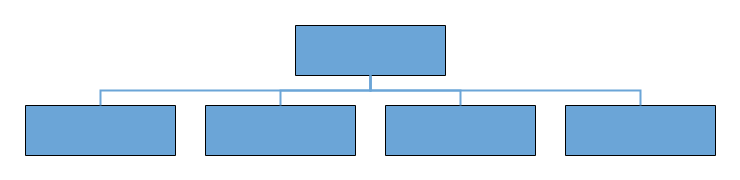 |
|
| Balanced | Arranges the leaf level child nodes in multiple rows. | 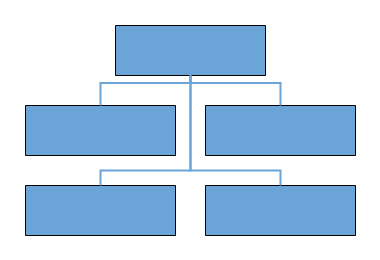 |
|
| Vertical | Left | Arranges the children vertically at the left side of the parent. | 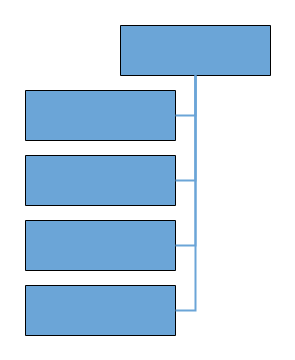 |
| Right | Arranges the children vertically at the right side of the parent. | 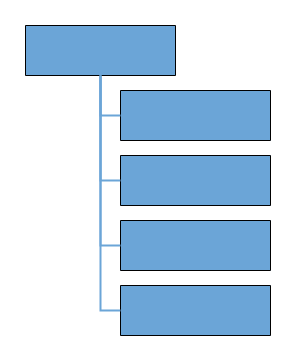 |
|
| Alternate | Arranges the children vertically at both left and right sides of the parent. | 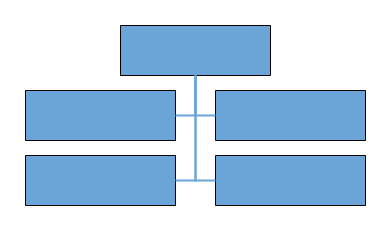 |
SubTree horizontal orientation
The following example shows how to utilize the getLayoutInfo function to customize the sub tree alignment in horizontal orientation.
<template>
    <div id="app">

        <label for="alignment">Alignment: </label>
        <select id="alignment" ref="alignChange" v-on:change="onAlignmentChange()">
            <option value="Left">Left</option>
            <option value="Right">Right</option>
            <option value="Alternate">Alternate</option>
        </select>
        <ejs-diagram id="diagram" ref="diagramObj" :width='width' :height='height'
            :dataSourceSettings='dataSourceSettings' :getNodeDefaults='getNodeDefaults'
            :getConnectorDefaults='getConnectorDefaults' :layout='layout'></ejs-diagram>

    </div>
</template>

<script setup>
import { provide, ref, onMounted } from "vue";
import { DiagramComponent as EjsDiagram, HierarchicalTree, DataBinding } from '@syncfusion/ej2-vue-diagrams';
import { DataManager, Query } from "@syncfusion/ej2-data";

let diagramInstance;
let diagramObj = ref(null);
let alignChange = ref(null);

//Initialize data
let data = [
    { Id: 1, Role: 'General Manager' },
    { Id: 2, Role: 'Assistant Manager', Team: 1 },
    { Id: 3, Role: 'Human Resource Manager', Team: 1 },
    { Id: 4, Role: 'Design Manager', Team: 1 },
    { Id: 5, Role: 'Operation Manager', Team: 1 },
    { Id: 6, Role: 'Marketing Manager', Team: 1 },
];

let items = new DataManager(data, new Query().take(7));

const width = "1000px";
const height = "590px";

//Configures data source for Diagram
const dataSourceSettings = {
    id: 'Id',
    parentId: 'Team',
    dataSource: items,
}

//Uses layout to auto-arrange nodes on the Diagram page
const layout = {
    //Sets layout type
    type: 'OrganizationalChart',
    // define the getLayoutInfo
    getLayoutInfo: (node, options) => {
        if (!options.hasSubTree) {
            options.type = 'Left';
            options.orientation = 'Vertical';
        }
    },
}

//Sets the default properties for nodes and connectors
const getNodeDefaults = (node) => {
    node.annotations = [{ content: node.data.Role }];
    node.width = 150; node.height = 50;
    return node;
}
const getConnectorDefaults = (connector) => {
    connector.type = 'Orthogonal';
    connector.targetDecorator.shape = 'None';
    return connector;
}
onMounted(function () {
    diagramInstance = diagramObj.value.ej2Instances;
})

const onAlignmentChange = () => {
    const alignChangeInstance = alignChange.value.value;
    diagramInstance.layout.getLayoutInfo = (node, options) => {
        if (!options.hasSubTree) {
            options.type = alignChangeInstance;
            options.orientation = 'Vertical';
        }
    };
};

provide('diagram', [HierarchicalTree, DataBinding]);

</script>

<style>
@import "../node_modules/@syncfusion/ej2-vue-diagrams/styles/tailwind3.css";
@import "../node_modules/@syncfusion/ej2-base/styles/tailwind3.css";
@import "../node_modules/@syncfusion/ej2-popups/styles/tailwind3.css";
@import "../node_modules/@syncfusion/ej2-splitbuttons/styles/tailwind3.css";
@import "../node_modules/@syncfusion/ej2-navigations/styles/tailwind3.css";
</style><template>
<div id="app">
<label for="alignment">Alignment: </label>
<select id="alignment" ref="alignChange" v-on:change="onAlignmentChange()">
<option value="Left">Left</option>
<option value="Right">Right</option>
<option value="Alternate">Alternate</option>
</select>
<ejs-diagram id="diagram" ref="diagramObj" :width='width' :height='height' :getNodeDefaults='getNodeDefaults'
:getConnectorDefaults='getConnectorDefaults' :layout='layout'
:dataSourceSettings='dataSourceSettings'></ejs-diagram>
</div>
</template>
<script>
import { DiagramComponent, HierarchicalTree, DataBinding } from '@syncfusion/ej2-vue-diagrams';
import { DataManager, Query } from "@syncfusion/ej2-data";
let diagramInstance;
let data = [
{ Id: 1, Role: 'General Manager' },
{ Id: 2, Role: 'Assistant Manager', Team: 1 },
{ Id: 3, Role: 'Human Resource Manager', Team: 1 },
{ Id: 4, Role: 'Design Manager', Team: 1 },
{ Id: 5, Role: 'Operation Manager', Team: 1 },
{ Id: 6, Role: 'Marketing Manager', Team: 1 },
];
let items = new DataManager(data, new Query().take(7));
export default {
name: "App",
components: {
"ejs-diagram": DiagramComponent
},
data() {
return {
width: "100%",
height: "590px",
//Uses layout to auto-arrange nodes on the Diagram page
layout: {
//Sets layout type
type: 'OrganizationalChart',
// define the getLayoutInfo
getLayoutInfo: (node, options) => {
if (!options.hasSubTree) {
options.type = 'Left';
options.orientation = 'Vertical';
}
},
},
//Configures data source for Diagram
dataSourceSettings: {
id: 'Id',
parentId: 'Team',
dataSource: items,
},
//Sets the default properties for nodes and connectors
getNodeDefaults: (node) => {
node.annotations = [{ content: node.data.Role }];
node.width = 150; node.height = 50;
return node;
},
getConnectorDefaults: (connector) => {
connector.type = 'Orthogonal';
connector.targetDecorator.shape = 'None';
return connector;
},
}
},
provide: {
diagram: [HierarchicalTree, DataBinding]
},
methods: {
onAlignmentChange() {
const alignChangeInstance = this.$refs.alignChange.value;
diagramInstance.layout.getLayoutInfo = (node, options) => {
if (!options.hasSubTree) {
options.type = alignChangeInstance;
options.orientation = 'Vertical';
}
};
}
},
mounted: function () {
diagramInstance = this.$refs.diagramObj.ej2Instances;
},
}
</script>
<style>
@import "../node_modules/@syncfusion/ej2-vue-diagrams/styles/tailwind3.css";
@import "../node_modules/@syncfusion/ej2-base/styles/tailwind3.css";
@import "../node_modules/@syncfusion/ej2-popups/styles/tailwind3.css";
@import "../node_modules/@syncfusion/ej2-splitbuttons/styles/tailwind3.css";
@import "../node_modules/@syncfusion/ej2-navigations/styles/tailwind3.css";
</style>SubTree vertical orientation
The following code example illustrates how to set the vertical arrangement to the leaf level trees.
<template>
    <div id="app">

        <label for="alignment">Alignment: </label>
        <select id="alignment" ref="alignChange" v-on:change="onAlignmentChange()">
            <option value="Center">Center</option>
            <option value="Right">Right</option>
            <option value="Left">Left</option>
            <option value="Balanced">Balanced</option>
        </select>
        <ejs-diagram id="diagram" ref="diagramObj" :width='width' :height='height'
            :dataSourceSettings='dataSourceSettings' :getNodeDefaults='getNodeDefaults'
            :getConnectorDefaults='getConnectorDefaults' :layout='layout'></ejs-diagram>

    </div>
</template>

<script setup>
import { provide, ref, onMounted } from "vue";
import { DiagramComponent as EjsDiagram, HierarchicalTree, DataBinding } from '@syncfusion/ej2-vue-diagrams';
import { DataManager, Query } from "@syncfusion/ej2-data";

let diagramInstance;
let diagramObj = ref(null);
let alignChange = ref(null);

//Initialize data
let data = [
    { Id: 1, Role: 'General Manager' },
    { Id: 2, Role: 'Assistant Manager', Team: 1 },
    { Id: 3, Role: 'Human Resource Manager', Team: 1 },
    { Id: 4, Role: 'Design Manager', Team: 1 },
    { Id: 5, Role: 'Operation Manager', Team: 1 },
    { Id: 6, Role: 'Marketing Manager', Team: 1 },
];

let items = new DataManager(data, new Query().take(7));

const width = "1000px";
const height = "590px";

//Configures data source for Diagram
const dataSourceSettings = {
    id: 'Id',
    parentId: 'Team',
    dataSource: items,
}

//Uses layout to auto-arrange nodes on the Diagram page
const layout = {
    //Sets layout type
    type: 'OrganizationalChart',
    // define the getLayoutInfo
    getLayoutInfo: (node, options) => {
        if (!options.hasSubTree) {
            options.type = 'Center';
            options.orientation = 'Horizontal';
        }
    },
}

//Sets the default properties for nodes and connectors
const getNodeDefaults = (node) => {
    node.annotations = [{ content: node.data.Role }];
    node.width = 150; node.height = 50;
    return node;
}
const getConnectorDefaults = (connector) => {
    connector.type = 'Orthogonal';
    connector.targetDecorator.shape = 'None';
    return connector;
}
onMounted(function () {
    diagramInstance = diagramObj.value.ej2Instances;
})

const onAlignmentChange = () => {
    const alignChangeInstance = alignChange.value.value;
    diagramInstance.layout.getLayoutInfo = (node, options) => {
        if (!options.hasSubTree) {
            options.type = alignChangeInstance;
            options.orientation = 'Horizontal';
        }
    };
};

provide('diagram', [HierarchicalTree, DataBinding]);

</script>

<style>
@import "../node_modules/@syncfusion/ej2-vue-diagrams/styles/tailwind3.css";
@import "../node_modules/@syncfusion/ej2-base/styles/tailwind3.css";
@import "../node_modules/@syncfusion/ej2-popups/styles/tailwind3.css";
@import "../node_modules/@syncfusion/ej2-splitbuttons/styles/tailwind3.css";
@import "../node_modules/@syncfusion/ej2-navigations/styles/tailwind3.css";
</style><template>
<div id="app">
<label for="alignment">Alignment: </label>
<select id="alignment" ref="alignChange" v-on:change="onAlignmentChange()">
<option value="Center">Center</option>
<option value="Right">Right</option>
<option value="Left">Left</option>
<option value="Balanced">Balanced</option>
</select>
<ejs-diagram id="diagram" ref="diagramObj" :width='width' :height='height' :getNodeDefaults='getNodeDefaults'
:getConnectorDefaults='getConnectorDefaults' :layout='layout'
:dataSourceSettings='dataSourceSettings'></ejs-diagram>
</div>
</template>
<script>
import { DiagramComponent, HierarchicalTree, DataBinding } from '@syncfusion/ej2-vue-diagrams';
import { DataManager, Query } from "@syncfusion/ej2-data";
let diagramInstance;
let data = [
{ Id: 1, Role: 'General Manager' },
{ Id: 2, Role: 'Assistant Manager', Team: 1 },
{ Id: 3, Role: 'Human Resource Manager', Team: 1 },
{ Id: 4, Role: 'Design Manager', Team: 1 },
{ Id: 5, Role: 'Operation Manager', Team: 1 },
{ Id: 6, Role: 'Marketing Manager', Team: 1 },
];
let items = new DataManager(data, new Query().take(7));
export default {
name: "App",
components: {
"ejs-diagram": DiagramComponent
},
data() {
return {
width: "100%",
height: "590px",
//Uses layout to auto-arrange nodes on the Diagram page
layout: {
//Sets layout type
type: 'OrganizationalChart',
// define the getLayoutInfo
getLayoutInfo: (node, options) => {
if (!options.hasSubTree) {
options.type = 'Center';
options.orientation = 'Horizontal';
}
},
},
//Configures data source for Diagram
dataSourceSettings: {
id: 'Id',
parentId: 'Team',
dataSource: items,
},
//Sets the default properties for nodes and connectors
getNodeDefaults: (node) => {
node.annotations = [{ content: node.data.Role }];
node.width = 150; node.height = 50;
return node;
},
getConnectorDefaults: (connector) => {
connector.type = 'Orthogonal';
connector.targetDecorator.shape = 'None';
return connector;
},
}
},
provide: {
diagram: [HierarchicalTree, DataBinding]
},
methods: {
onAlignmentChange() {
const alignChangeInstance = this.$refs.alignChange.value;
diagramInstance.layout.getLayoutInfo = (node, options) => {
if (!options.hasSubTree) {
options.type = alignChangeInstance;
options.orientation = 'Horizontal';
}
};
}
},
mounted: function () {
diagramInstance = this.$refs.diagramObj.ej2Instances;
},
}
</script>
<style>
@import "../node_modules/@syncfusion/ej2-vue-diagrams/styles/tailwind3.css";
@import "../node_modules/@syncfusion/ej2-base/styles/tailwind3.css";
@import "../node_modules/@syncfusion/ej2-popups/styles/tailwind3.css";
@import "../node_modules/@syncfusion/ej2-splitbuttons/styles/tailwind3.css";
@import "../node_modules/@syncfusion/ej2-navigations/styles/tailwind3.css";
</style>Assistant
Assistants are child item that have a different relationship with the parent node. They are laid out in a dedicated part of the tree. A node can be specified as an assistant of its parent by adding it to the assistants property of the argument “options”.
The following code example illustrates how to add assistants to layout.
<template>
    <div id="app">

      <ejs-diagram id="diagram" :width='width' :height='height' :dataSourceSettings='dataSourceSettings'
        :getNodeDefaults='getNodeDefaults' :getConnectorDefaults='getConnectorDefaults' :layout='layout'></ejs-diagram>

    </div>
  </template>

  <script setup>
  import { provide } from "vue";
  import { DiagramComponent as EjsDiagram, HierarchicalTree, DataBinding } from '@syncfusion/ej2-vue-diagrams';
  import { DataManager, Query } from "@syncfusion/ej2-data";

  //Initialize data
  let data = [
    { Id: 1, Role: 'General Manager' },
    { Id: 2, Role: 'Assistant Manager', Team: 1 },
    { Id: 3, Role: 'Human Resource Manager', Team: 1 },
    { Id: 4, Role: 'Design Manager', Team: 1 },
    { Id: 5, Role: 'Operation Manager', Team: 1 },
    { Id: 6, Role: 'Marketing Manager', Team: 1 },
  ];

  let items = new DataManager(data, new Query().take(7));

  const width = "1000px";
  const height = "590px";

  //Configures data source for Diagram
  const dataSourceSettings = {
    id: 'Id',
    parentId: 'Team',
    dataSource: items,
  }

  //Uses layout to auto-arrange nodes on the Diagram page
  const layout = {
    //Sets layout type
    type: 'OrganizationalChart',
    // define the getLayoutInfo
    getLayoutInfo: (node, options) => {
      if (node.data['Role'] === 'General Manager') {
        (options.assistants).push((options.children)[0]);
        (options.children).splice(0, 1);
      }
      if (!options.hasSubTree) {
        options.type = 'Center';
        options.orientation = 'Horizontal';
      }
    },
  }

  //Sets the default properties for nodes and connectors
  const getNodeDefaults = (node) => {
    node.annotations = [{ content: node.data.Role }];
    node.width = 150; node.height = 50;
    return node;
  }
  const getConnectorDefaults = (connector) => {
    connector.type = 'Orthogonal';
    connector.targetDecorator.shape = 'None';
    return connector;
  }

  provide('diagram', [HierarchicalTree, DataBinding]);

  </script>

  <style>
@import "../node_modules/@syncfusion/ej2-vue-diagrams/styles/tailwind3.css";
@import "../node_modules/@syncfusion/ej2-base/styles/tailwind3.css";
@import "../node_modules/@syncfusion/ej2-popups/styles/tailwind3.css";
@import "../node_modules/@syncfusion/ej2-splitbuttons/styles/tailwind3.css";
@import "../node_modules/@syncfusion/ej2-navigations/styles/tailwind3.css";
</style><template>
<div id="app">
<ejs-diagram id="diagram" :width='width' :height='height' :getNodeDefaults='getNodeDefaults'
:getConnectorDefaults='getConnectorDefaults' :layout='layout'
:dataSourceSettings='dataSourceSettings'></ejs-diagram>
</div>
</template>
<script>
import { DiagramComponent, HierarchicalTree, DataBinding } from '@syncfusion/ej2-vue-diagrams';
import { DataManager, Query } from "@syncfusion/ej2-data";
let data = [
{ Id: 1, Role: 'General Manager' },
{ Id: 2, Role: 'Assistant Manager', Team: 1 },
{ Id: 3, Role: 'Human Resource Manager', Team: 1 },
{ Id: 4, Role: 'Design Manager', Team: 1 },
{ Id: 5, Role: 'Operation Manager', Team: 1 },
{ Id: 6, Role: 'Marketing Manager', Team: 1 },
];
let items = new DataManager(data, new Query().take(7));
export default {
name: "App",
components: {
"ejs-diagram": DiagramComponent
},
data() {
return {
width: "100%",
height: "590px",
//Uses layout to auto-arrange nodes on the Diagram page
layout: {
//Sets layout type
type: 'OrganizationalChart',
// define the getLayoutInfo
getLayoutInfo: (node, options) => {
if (node.data['Role'] === 'General Manager') {
(options.assistants).push((options.children)[0]);
(options.children).splice(0, 1);
}
if (!options.hasSubTree) {
options.type = 'Center';
options.orientation = 'Horizontal';
}
},
},
//Configures data source for Diagram
dataSourceSettings: {
id: 'Id',
parentId: 'Team',
dataSource: items,
},
//Sets the default properties for nodes and connectors
getNodeDefaults: (node) => {
node.annotations = [{ content: node.data.Role }];
node.width = 150; node.height = 50;
return node;
},
getConnectorDefaults: (connector) => {
connector.type = 'Orthogonal';
connector.targetDecorator.shape = 'None';
return connector;
},
}
},
provide: {
diagram: [HierarchicalTree, DataBinding]
},
}
</script>
<style>
@import "../node_modules/@syncfusion/ej2-vue-diagrams/styles/tailwind3.css";
@import "../node_modules/@syncfusion/ej2-base/styles/tailwind3.css";
@import "../node_modules/@syncfusion/ej2-popups/styles/tailwind3.css";
@import "../node_modules/@syncfusion/ej2-splitbuttons/styles/tailwind3.css";
@import "../node_modules/@syncfusion/ej2-navigations/styles/tailwind3.css";
</style>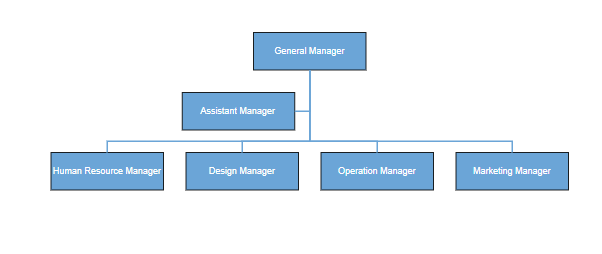
NOTE
An Assistant node cannot have any child nodes