How can I help you?
Orthogonal Connectors in React Diagram Component
21 Oct 202524 minutes to read
Orthogonal connectors use segments that are always perpendicular to each other, which is ideal for creating structured layouts in flowcharts or organizational charts.
To create an orthogonal connector, set its type property to Orthogonal. The following code example illustrates how to create a default orthogonal connector.
Multiple segments can be defined one after another. To create a connector with multiple segments, define and add the segments to connector.segments collection. The following code example illustrates how to create a connector with multiple segments.
The length and direction properties allow to define the flow and length of segment. The following code example illustrates how to create customized orthogonal segments.
import * as React from "react";
import * as ReactDOM from "react-dom";
import { DiagramComponent } from "@syncfusion/ej2-react-diagrams";
let connectors = [
    {
        id: "connector1",
        type: 'Orthogonal',
        // Defines multile segemnts for the connectors
        segments: [{
                type: 'Orthogonal',
                direction: 'Bottom',
                length: 150
            },
            {
                type: 'Orthogonal',
                direction: 'Right',
                length: 150
            }
        ],
        sourcePoint: {
            x: 300,
            y: 100
        },
        targetPoint: {
            x: 400,
            y: 200
        }
    }
];
function App() {
    return (<DiagramComponent id="container" width={'100%'} height={'600px'} connectors={connectors}/>);
}
const root = ReactDOM.createRoot(document.getElementById('diagram'));
root.render(<App />);
import * as React from "react";
import * as ReactDOM from "react-dom";
import {
DiagramComponent,
ConnectorModel
} from "@syncfusion/ej2-react-diagrams";
let connectors: ConnectorModel[] = [
{
id: "connector1",
type: 'Orthogonal',
// Defines multile segemnts for the connectors
segments: [{
type: 'Orthogonal',
direction: 'Bottom',
length: 150
},
{
type: 'Orthogonal',
direction: 'Right',
length: 150
}
],
sourcePoint: {
x: 300,
y: 100
},
targetPoint: {
x: 400,
y: 200
}
}
];
function App() {
return (
<DiagramComponent
id="container"
width={'100%'}
height={'600px'}
connectors={connectors}
/>
);
}
const root = ReactDOM.createRoot(document.getElementById('diagram'));
root.render(<App />);NOTE
You need to mention the segment type as same as what you mentioned in connector type. There should be no contradiction between connector type and segment type.
Orthogonal Segment Editing
- Orthogonal thumbs allow you to adjust the length of adjacent segments by clicking and dragging them.
- When necessary, some segments are added or removed automatically, while dragging the segment.
- This is to maintain proper routing of orthogonality between segments.
import * as React from "react";
import * as ReactDOM from "react-dom";
import { DiagramComponent,ConnectorConstraints,ConnectorEditing,Diagram } from "@syncfusion/ej2-react-diagrams";
Diagram.Inject(ConnectorEditing)
let connectors = [
    {
        id: "connector2",
        type: 'Orthogonal',
        // Defines multile segemnts for the connectors
        segments: [
            {
                type: 'Orthogonal',
                direction: 'Bottom',
                length: 150,
              },
              {
                type: 'Orthogonal',
                direction: 'Right',
                length: 150,
              },
              {
                type: 'Orthogonal',
                direction: 'Top',
                length: 100,
              },
              {
                type: 'Orthogonal',
                direction: 'Left',
                length: 100,
              },
        ],
        sourcePoint: {
            x: 300,
            y: 100
        },
        targetPoint: {
            x: 400,
            y: 200
        },
        constraints: ConnectorConstraints.Default |ConnectorConstraints.DragSegmentThumb,
    }
];
function App() {
    return (<DiagramComponent id="container" width={'100%'} height={'600px'} connectors={connectors}/>);
}
const root = ReactDOM.createRoot(document.getElementById('diagram'));
root.render(<App />);
import * as React from "react";
import * as ReactDOM from "react-dom";
import {
Diagram,
DiagramComponent,
ConnectorModel,
ConnectorConstraints,
ConnectorEditing
} from "@syncfusion/ej2-react-diagrams";
Diagram.Inject(ConnectorEditing);
let connectors: ConnectorModel[] = [
{
id: "connector2",
type: 'Orthogonal',
// Defines multile segemnts for the connectors
segments: [
{
type: 'Orthogonal',
direction: 'Bottom',
length: 150,
},
{
type: 'Orthogonal',
direction: 'Right',
length: 150,
},
{
type: 'Orthogonal',
direction: 'Top',
length: 100,
},
{
type: 'Orthogonal',
direction: 'Left',
length: 100,
},
],
sourcePoint: {
x: 300,
y: 100
},
targetPoint: {
x: 400,
y: 200
},
constraints: ConnectorConstraints.Default |ConnectorConstraints.DragSegmentThumb,
}
];
function App() {
return (
<DiagramComponent
id="container"
width={'100%'}
height={'600px'}
connectors={connectors}
/>
);
}
const root = ReactDOM.createRoot(document.getElementById('diagram'));
root.render(<App />);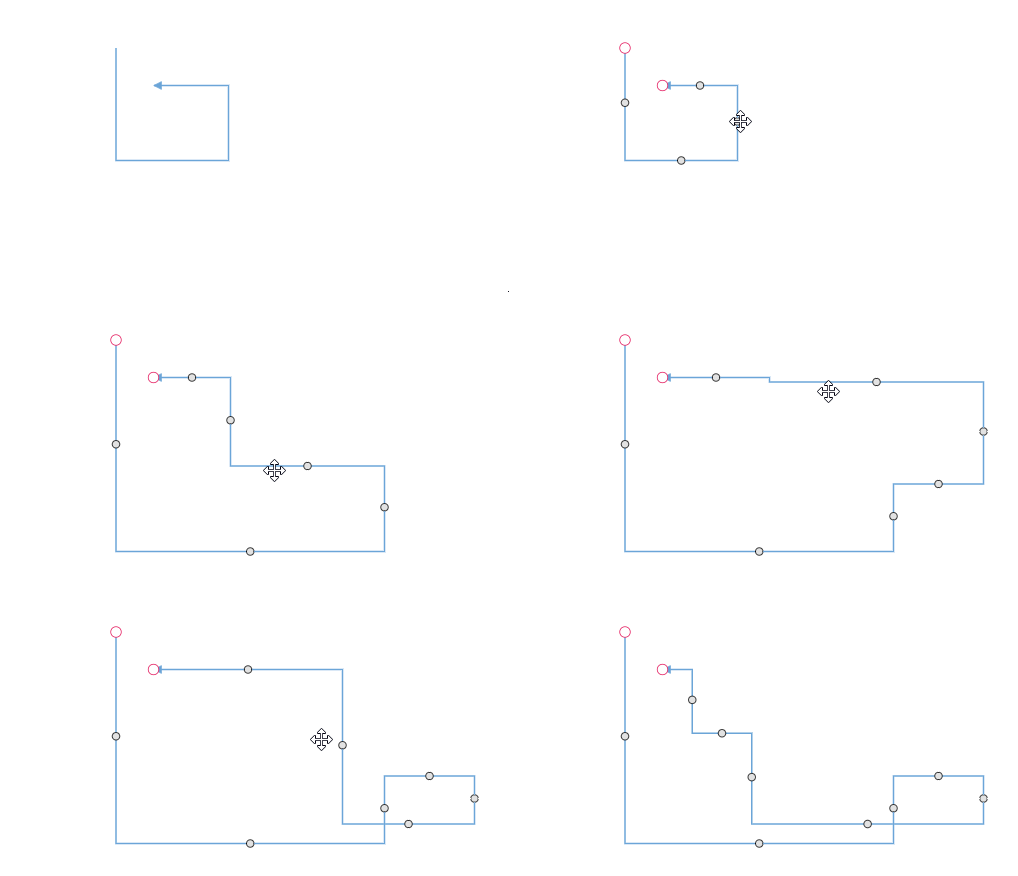
Avoid Overlapping
Orthogonal segments automatically reroute themselves to avoid overlapping with their connected source and target nodes. The following example illustrates how an orthogonal connector adjusts its path when a connected node is moved.
import * as React from "react";
import * as ReactDOM from "react-dom";
import { DiagramComponent, PortVisibility } from "@syncfusion/ej2-react-diagrams";
let nodeport = {
    style: {
        strokeColor: '#366F8C',
        fill: '#366F8C'
    }
};
nodeport.shape = 'Circle';
nodeport.visibility = PortVisibility.Visible;
nodeport.id = 'port';
nodeport.offset = {
    x: 0,
    y: 0.5
};
let port2 = {
    style: {
        strokeColor: '#366F8C',
        fill: '#366F8C'
    }
};
port2.offset = {
    x: 0,
    y: 0.5
};
port2.id = 'port1';
port2.visibility = PortVisibility.Visible;
port2.shape = 'Circle';
let nodes = [{
        id: 'node',
        width: 100,
        height: 100,
        offsetX: 100,
        offsetY: 100,
        ports: [nodeport]
    },
    {
        id: 'node1',
        width: 100,
        height: 100,
        offsetX: 300,
        offsetY: 100,
        ports: [port2]
    },
];
let connectors = [{
        id: "connector1",
        type: 'Orthogonal',
        sourcePoint: {
            x: 100,
            y: 100
        },
        targetPoint: {
            x: 200,
            y: 200
        },
        sourceID: 'node',
        targetID: 'node1',
        sourcePortID: 'port',
        targetPortID: 'port1'
    }];
function App() {
    return (<DiagramComponent id="container" width={900} height={900} nodes={nodes} connectors={connectors} getNodeDefaults={(node) => {
            node.height = 100;
            node.width = 100;
            node.style.fill = '#6BA5D7';
            node.style.strokeColor = 'white';
            return node;
        }}/>);
}
const root = ReactDOM.createRoot(document.getElementById('diagram'));
root.render(<App />);
import * as React from "react";
import * as ReactDOM from "react-dom";
import {
ConnectorModel,
NodeModel,
DiagramComponent,
BasicShapeModel,
PointPortModel,
Diagram,
PortVisibility
} from "@syncfusion/ej2-react-diagrams";
let nodeport: PointPortModel = {
style: {
strokeColor: '#366F8C',
fill: '#366F8C'
}
};
nodeport.shape = 'Circle';
nodeport.visibility = PortVisibility.Visible
nodeport.id = 'port';
nodeport.offset = {
x: 0,
y: 0.5
};
let port2: PointPortModel = {
style: {
strokeColor: '#366F8C',
fill: '#366F8C'
}
}
port2.offset = {
x: 0,
y: 0.5
};
port2.id = 'port1';
port2.visibility = PortVisibility.Visible
port2.shape = 'Circle';
let nodes: NodeModel[] = [{
id: 'node',
width: 100,
height: 100,
offsetX: 100,
offsetY: 100,
ports: [nodeport]
},
{
id: 'node1',
width: 100,
height: 100,
offsetX: 300,
offsetY: 100,
ports: [port2]
},
];
let connectors: ConnectorModel[] = [{
id: "connector1",
type: 'Orthogonal',
sourcePoint: {
x: 100,
y: 100
},
targetPoint: {
x: 200,
y: 200
},
sourceID: 'node',
targetID: 'node1',
sourcePortID: 'port',
targetPortID: 'port1'
}];
function App() {
return (
<DiagramComponent
id="container"
width={900}
height={900}
nodes={nodes}
connectors={connectors}
getNodeDefaults={(node: NodeModel) => {
node.height = 100;
node.width = 100;
node.style.fill = '#6BA5D7';
node.style.strokeColor = 'white';
return node;
}}
/>
);
}
const root = ReactDOM.createRoot(document.getElementById('diagram'));
root.render(<App />);How to Customize Orthogonal Segment Thumb Shape
The thumbs used to edit orthogonal segments are rendered as a Circle by default. You can change this shape using the diagram’ssegmentThumbShape property. The following predefined shapes are available:
| Shape name | Shape |
|---|---|
| Rhombus | 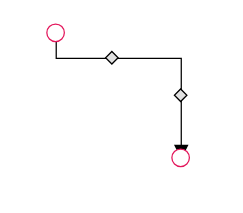 |
| Square | 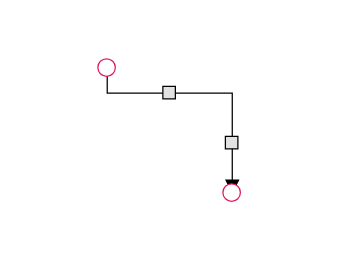 |
| Rectangle | 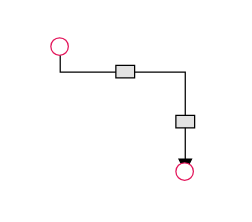 |
| Ellipse | 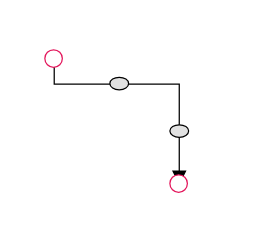 |
| Arrow | 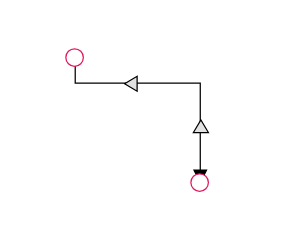 |
| OpenArrow | 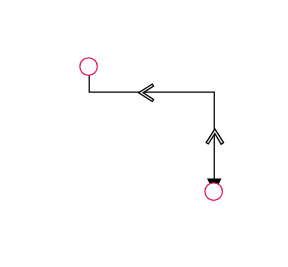 |
| Circle | 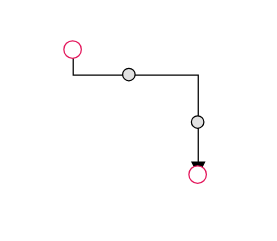 |
| Fletch | 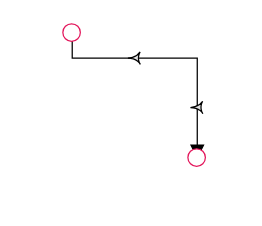 |
| OpenFetch | 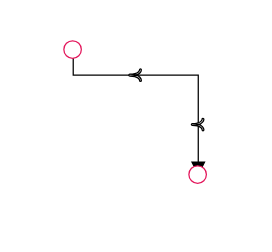 |
| IndentedArrow | 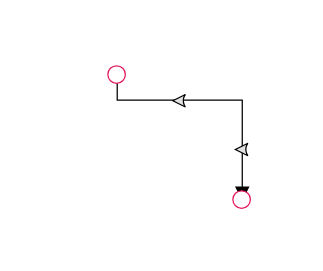 |
| OutdentedArrow | 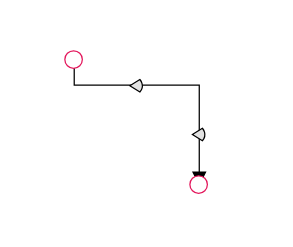 |
| DoubleArrow | 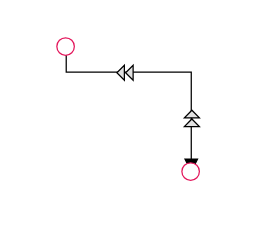 |
You can also customize the style of the thumb shape by overriding the e-orthogonal-thumb CSS class.
import * as React from "react";
import * as ReactDOM from "react-dom";
import { DiagramComponent,Diagram,ConnectorEditing,ConnectorConstraints  } from "@syncfusion/ej2-react-diagrams";
Diagram.Inject(ConnectorEditing);
let connector2 = {};
connector2.id = 'connector2';
// Define the type of the segment
connector2.type = 'Orthogonal';
connector2.sourcePoint = { x: 250, y: 250 };
connector2.targetPoint = { x: 350, y: 350 };
connector2.segments = [
    {
        type: 'Orthogonal',
        // Defines the direction for the segment lines
        direction: "Right",
        // Defines the length for the segment lines
        length: 70
    },
    {
        type: 'Orthogonal',
        direction: "Bottom",
        length: 20
    }
];
function App() {
    return (<DiagramComponent id="container" width={'900px'} height={'500px'} connectors={[connector2]}
    segmentThumbShape= 'Arrow'
    getConnectorDefaults={(connector) => {
            connector.constraints =
                ConnectorConstraints.Default | ConnectorConstraints.DragSegmentThumb;
        }}/>);
}
const root = ReactDOM.createRoot(document.getElementById('diagram'));
root.render(<App />);
import * as React from "react";
import * as ReactDOM from "react-dom";
import { Diagram, ConnectorModel, ConnectorEditing, DiagramComponent, ConnectorConstraints } from "@syncfusion/ej2-react-diagrams";
Diagram.Inject(ConnectorEditing);
let connector2: ConnectorModel = {};
connector2.id = 'connector2';
// Define the type of the segment
connector2.type = 'Orthogonal';
connector2.sourcePoint = { x: 250, y: 250 };
connector2.targetPoint = { x: 350, y: 350 };
connector2.segments = [
{
type: 'Orthogonal',
// Defines the direction for the segment lines
direction: "Right",
// Defines the length for the segment lines
length:70 },
{
type:'Orthogonal',
direction: "Bottom",
length: 20 }];
function App() {
return (
<DiagramComponent
id="container"
width={'900px'}
height={'500px'}
connectors={[connector2]}
segmentThumbShape= 'Arrow'
getConnectorDefaults={(connector) => {
connector.constraints =
ConnectorConstraints.Default | ConnectorConstraints.DragSegmentThumb;
}}
/>
);
}
const root = ReactDOM.createRoot(document.getElementById('diagram'));
root.render(<App />);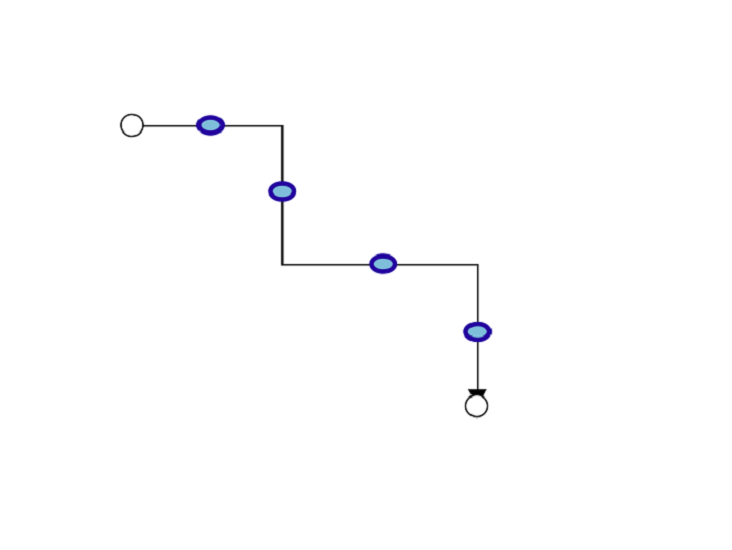
Use the following CSS to customize the segment thumb’s appearance.
 .e-orthogonal-thumb {

            stroke:#24039e;

            fill:rgb(126, 190, 219);

            stroke-width: 3px;

            }
How to customize Orthogonal Segment Thumb Size
By default, orthogonal segment thumbs have a width and height of 10px. This can be customized for all connectors or for individual ones using thesegmentThumbSize property.
To change the thumb size for all orthogonal connectors in a diagram, set the segmentThumbSize property in the diagram model.
To customize the thumb size for a specific connector, you must first disable its InheritSegmentThumbSize property. Then, you can set the connector’s unique segmentThumbSize value.
import * as React from "react";
import * as ReactDOM from "react-dom";
import { Diagram, DiagramComponent, ConnectorConstraints, ConnectorEditing } from "@syncfusion/ej2-react-diagrams";
Diagram.Inject(ConnectorEditing);
let nodes = [
    {
        id: 'node1', width: 100, height: 100, offsetX: 200, offsetY: 200,
    },
    {
        id: 'node2', width: 100, height: 100, offsetX: 400, offsetY: 400,
    },
    {
        id: 'node3', width: 100, height: 100, offsetX: 600, offsetY: 200,
    },
    {
        id: 'node4', width: 100, height: 100, offsetX: 800, offsetY: 400,
    },
];

let connectors = [{
    id: 'connector1',
    type: 'Orthogonal',
    sourceID: 'node1',
    targetID: 'node2',
    segments: [
        {
            type: 'Orthogonal',
            direction: "Right",
            length: 70
        },
        {
            type: 'Orthogonal',
            direction: "Bottom",
            length: 50
        }
    ],
    constraints: ConnectorConstraints.Default | ConnectorConstraints.DragSegmentThumb,
},
{
    id: 'connector2',
    type: 'Orthogonal',
    sourceID: 'node3',
    targetID: 'node4',
    segments: [
        {
            type: 'Orthogonal',
            direction: "Right",
            length: 70
        },
        {
            type: 'Orthogonal',
            direction: "Bottom",
            length: 50
        }
    ],
    constraints:ConnectorConstraints.Default & ~(ConnectorConstraints.InheritSegmentThumbSize) | ConnectorConstraints.DragSegmentThumb,
    segmentThumbSize: 20
},];
function App() {
    return (<DiagramComponent id="container" width={'900px'} height={'500px'} nodes = {nodes} connectors={connectors}
    segmentThumbSize={15} />);
}
const root = ReactDOM.createRoot(document.getElementById('diagram'));
root.render(<App />);
import * as React from "react";
import * as ReactDOM from "react-dom";
import { Diagram, ConnectorModel, NodeModel, ConnectorEditing, DiagramComponent, ConnectorConstraints } from "@syncfusion/ej2-react-diagrams";
Diagram.Inject(ConnectorEditing);
let nodes: NodeModel[] = [
{
id: 'node1', width: 100, height: 100, offsetX: 200, offsetY: 200,
},
{
id: 'node2', width: 100, height: 100, offsetX: 400, offsetY: 400,
},
{
id: 'node3', width: 100, height: 100, offsetX: 600, offsetY: 200,
},
{
id: 'node4', width: 100, height: 100, offsetX: 800, offsetY: 400,
},
];
let connectors: ConnectorModel[] = [
{
id: 'connector1',
type: 'Orthogonal',
sourceID: 'node1',
targetID: 'node2',
segments: [
{
type: 'Orthogonal',
direction: "Right",
length: 70
},
{
type: 'Orthogonal',
direction: "Bottom",
length: 50
}
],
constraints: ConnectorConstraints.Default | ConnectorConstraints.DragSegmentThumb,
},
{
id: 'connector2',
type: 'Orthogonal',
sourceID: 'node3',
targetID: 'node4',
segments: [
{
type: 'Orthogonal',
direction: "Right",
length: 70
},
{
type: 'Orthogonal',
direction: "Bottom",
length: 50
}
],
constraints:ConnectorConstraints.Default & ~(ConnectorConstraints.InheritSegmentThumbSize) | ConnectorConstraints.DragSegmentThumb,
segmentThumbSize: 20
},
];
function App() {
return (
<DiagramComponent
id="container"
width={'900px'}
height={'500px'}
nodes={nodes}
connectors={connectors}
segmentThumbSize={15}
/>
);
}
const root = ReactDOM.createRoot(document.getElementById('diagram'));
root.render(<App />);