Connector Interaction in EJ2 React Diagram Component
21 Oct 202522 minutes to read
Connectors in the React Diagram component support various interaction capabilities including selection, dragging, endpoint manipulation, segment editing, and flipping operations. These interactions enable users to dynamically modify connector behavior and appearance within the diagram.
Select and Unselect connector
A connector can be selected by clicking on it. This selection enables further operations such as dragging, editing, or applying transformations.
Connectors can be selected programmatically at runtime using the select method and selection can be cleared using the clearSelection method. The following code demonstrates how to select and clear selection in the diagram.
import * as React from "react";
import * as ReactDOM from "react-dom";
import { DiagramComponent } from "@syncfusion/ej2-react-diagrams";
let diagramInstance;
let connectors = [{
        // Name of the connector
        id: "connector1",
        sourcePoint: {
            x: 100,
            y: 100
        },
        targetPoint: {
            x: 200,
            y: 200
        },
    }];
function App() {
    const select = () => {
        diagramInstance.select([diagramInstance.connectors[0]]);
    }
    const unSelect = () => {
        diagramInstance.clearSelection();
    }
    return (
    <div>
         <button onClick={select}>select</button>
            <button onClick={unSelect}>unSelect</button>
    <DiagramComponent id="container" width={'100%'} height={'600px'}
    ref={(diagram) => (diagramInstance = diagram)}
    connectors={connectors}/>
     </div>
    );
}
const root = ReactDOM.createRoot(document.getElementById('diagram'));
root.render(<App />);
import * as React from "react";
import * as ReactDOM from "react-dom";
import {
DiagramComponent,
ConnectorModel
} from "@syncfusion/ej2-react-diagrams";
let diagramInstance:DiagramComponent;
let connectors: ConnectorModel[] = [{
// Name of the connector
id: "connector1",
sourcePoint: {
x: 100,
y: 100
},
targetPoint: {
x: 200,
y: 200
},
// Flip the connector in horizontal direction
flip:"Horizontal"
}];
function App() {
const select = () => {
diagramInstance.select([diagramInstance.connectors[0]]);
}
const unSelect = () => {
diagramInstance.clearSelection();
}
return (
<div>
<button onClick={select}>select</button>
<button onClick={unSelect}>unSelect</button>
<DiagramComponent id="container" width={'100%'} height={'600px'}
ref={(diagram) => (diagramInstance = diagram)}
connectors={connectors}/>
</div>
);
}
const root = ReactDOM.createRoot(document.getElementById('diagram'));
root.render(<App />);Drag Connector
Connectors can be repositioned by clicking and dragging them to a new location within the diagram canvas.
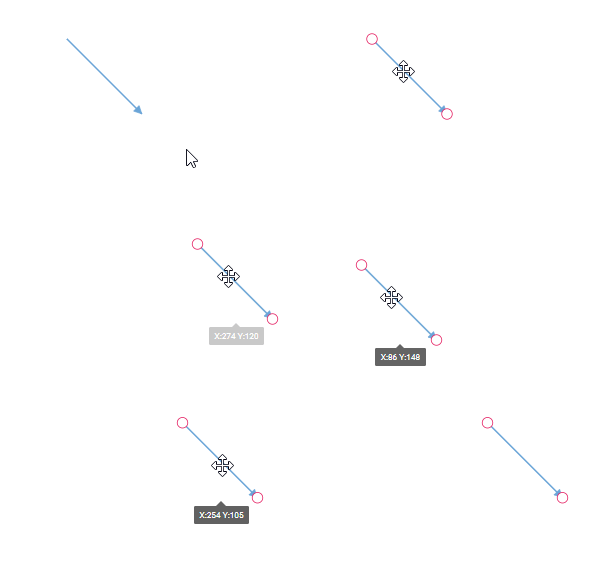
A connector can be dragged at runtime by using the Drag method. The following code explains how to drag the connector by using the drag method.
import * as React from "react";
import * as ReactDOM from "react-dom";
import {
    DiagramComponent
} from "@syncfusion/ej2-react-diagrams";
let diagramInstance
let connectors = [{
    // Name of the connector
    id: "connector1",
    sourcePoint: {
        x: 100,
        y: 100
    },
    targetPoint: {
        x: 200,
        y: 200
    },
}];
function App() {
  const drag = () => {
    let connector = diagramInstance.connectors[0];
    diagramInstance.drag(connector, 20, 20);
}

return (
  <div>
      <button onClick={drag}>drag</button>
      <DiagramComponent id="container" width={'100%'} height={'600px'}
      ref={(diagram) => (diagramInstance = diagram)}
      connectors={connectors}/>
   </div>
  );
}
const root = ReactDOM.createRoot(document.getElementById('diagram'));
root.render(<App />);
import * as React from "react";
import * as ReactDOM from "react-dom";
import {
DiagramComponent,ConnectorModel
} from "@syncfusion/ej2-react-diagrams";
let diagramInstance:DiagramComponent;
let connectors:ConnectorModel[] = [{
// Name of the connector
id: "connector1",
sourcePoint: {
x: 100,
y: 100
},
targetPoint: {
x: 200,
y: 200
},
}];
function App() {
const drag = () => {
let connector = diagramInstance.connectors[0];
diagramInstance.drag(connector, 20, 20);
}
return (
<div>
<button onClick={drag}>drag</button>
<DiagramComponent id="container" width={'100%'} height={'600px'}
ref={(diagram) => (diagramInstance = diagram)}
connectors={connectors}/>
</div>
);
}
const root = ReactDOM.createRoot(document.getElementById('diagram'));
root.render(<App />);End Point Dragging
When a connector is selected, circular handles (thumbs) appear at the source and target endpoints. These handles allow users to adjust the connector’s start and end positions by clicking and dragging them.
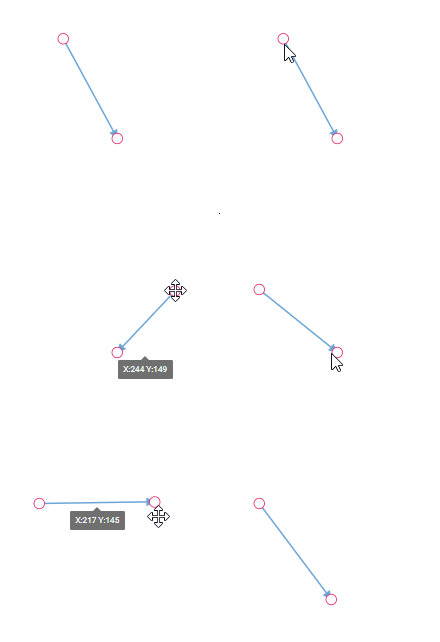
The end points of connectors can also be updated programmatically using the dragSourceEnd and dragTargetEnd methods of the diagram component.
The following code example demonstrates how to drag connector end points at runtime.
import * as React from "react";
import * as ReactDOM from "react-dom";
import { DiagramComponent } from "@syncfusion/ej2-react-diagrams";
let diagramInstance;
let connectors = [{
        // Name of the connector
        id: "connector1",
        style: {
            strokeColor: '#6BA5D7',
            fill: '#6BA5D7',
            strokeWidth: 2
        },
        targetDecorator: {
            style: {
                fill: '#6BA5D7',
                strokeColor: '#6BA5D7'
            }
        },
        sourcePoint: {
            x: 100,
            y: 100
        },
        targetPoint: {
            x: 200,
            y: 200
        },

    }];
function App() {
    const sourcePoint = () => {
        let connector = diagramInstance.connectors[0];
        connector.sourcePoint = {x:300,y:100};
        diagramInstance.dataBind();
    }
    const targetPoint = () => {
        let connector = diagramInstance.connectors[0];
        connector.targetPoint = {x:300,y:200};
        diagramInstance.dataBind();
    }
    const dragSourceEnd = () => {
          /**
     * parameter 1 - connector whose source point needs to be moved.
     * parameter 2 - A number representing the horizontal distance by which the source point should be moved.
     * parameter 3 - A number representing the vertical distance by which the source point should be moved.
     */
           diagramInstance.dragSourceEnd(diagramInstance.connectors[0], 50, 50);
    }
    const dragTargetEnd = () => {
        /**
     * parameter 1 - connector whose target point needs to be moved.
     * parameter 2 - A number representing the horizontal distance by which the target point should be moved.
     * parameter 3 - A number representing the vertical distance by which the target point should be moved.
     */
         diagramInstance.dragTargetEnd(diagramInstance.connectors[0], 50, 50);
    }
    return (
    <div>
         <button onClick={sourcePoint}>sourcePoint</button>
         <button onClick={targetPoint}>targetPoint</button>
         <button onClick={dragSourceEnd}>dragSourceEnd</button>
         <button onClick={dragTargetEnd}>dragTargetEnd</button>
    <DiagramComponent id="container" width={'100%'} height={'600px'}
    ref={(diagram) => (diagramInstance = diagram)}
    connectors={connectors}/>
     </div>
    );
}
const root = ReactDOM.createRoot(document.getElementById('diagram'));
root.render(<App />);
import * as React from "react";
import * as ReactDOM from "react-dom";
import { DiagramComponent,ConnectorModel } from "@syncfusion/ej2-react-diagrams";
let diagramInstance:DiagramComponent;
let connectors:ConnectorModel[] = [{
// Name of the connector
id: "connector1",
style: {
strokeColor: '#6BA5D7',
fill: '#6BA5D7',
strokeWidth: 2
},
targetDecorator: {
style: {
fill: '#6BA5D7',
strokeColor: '#6BA5D7'
}
},
sourcePoint: {
x: 100,
y: 100
},
targetPoint: {
x: 200,
y: 200
},
}];
function App() {
const sourcePoint = () => {
let connector = diagramInstance.connectors[0];
connector.sourcePoint = {x:300,y:100};
diagramInstance.dataBind();
}
const targetPoint = () => {
let connector = diagramInstance.connectors[0];
connector.targetPoint = {x:300,y:200};
diagramInstance.dataBind();
}
const dragSourceEnd = () => {
/**
* parameter 1 - connector whose source point needs to be moved.
* parameter 2 - A number representing the horizontal distance by which the source point should be moved.
* parameter 3 - A number representing the vertical distance by which the source point should be moved.
*/
diagramInstance.dragSourceEnd(diagramInstance.connectors[0], 50, 50);
}
const dragTargetEnd = () => {
/**
* parameter 1 - connector whose target point needs to be moved.
* parameter 2 - A number representing the horizontal distance by which the target point should be moved.
* parameter 3 - A number representing the vertical distance by which the target point should be moved.
*/
diagramInstance.dragTargetEnd(diagramInstance.connectors[0], 50, 50);
}
return (
<div>
<button onClick={sourcePoint}>sourcePoint</button>
<button onClick={targetPoint}>targetPoint</button>
<button onClick={dragSourceEnd}>dragSourceEnd</button>
<button onClick={dragTargetEnd}>dragTargetEnd</button>
<DiagramComponent id="container" width={'100%'} height={'600px'}
ref={(diagram) => (diagramInstance = diagram)}
connectors={connectors}/>
</div>
);
}
const root = ReactDOM.createRoot(document.getElementById('diagram'));
root.render(<App />);Segment Editing
The diagram allows editing of individual connector segments at runtime. To enable this feature, activate the DragSegmentThumb constraint for the connector.
{     connector.constraints =
      ConnectorConstraints.Default | ConnectorConstraints.DragSegmentThumb;
}
NOTE
To edit connector segments, inject the ConnectorEditing module into the diagram.

Flip
The diagram provides support for flipping connectors to create mirrored versions of the original element. The flip operation transforms the connector based on the specified flip direction.
The available flip types are:
-
Horizontal Flip -
Horizontalinterchanges the connector source and target x coordinates. -
Vertical Flip -
Verticalinterchanges the connector source and target y coordinates. -
Both -
Bothswaps the source point as the target point and the target point as the source point.
import * as React from "react";
import * as ReactDOM from "react-dom";
import { DiagramComponent } from "@syncfusion/ej2-react-diagrams";
let connectors = [{
    id: 'connector1',
    //Flip
    flip: 'Horizontal',
    annotations: [{ content: 'Horizontal Flip' }],
    sourcePoint: { x: 100, y: 100 },
    targetPoint: { x: 200, y: 200 },
  },
  {
    id: 'connector2',
    //Flip
    flip: 'Vertical',
    annotations: [{ content: 'Vertical Flip' }],
    sourcePoint: { x: 300, y: 100 },
    targetPoint: { x: 400, y: 200 },
  },
  {
    id: 'connector3',
    //Flip
    flip: 'Both',
    annotations: [{ content: 'Both Flip' }],
    sourcePoint: { x: 500, y: 100 },
    targetPoint: { x: 600, y: 200 },
  }];
function App() {
    return (<DiagramComponent id="container" width={'100%'} height={'600px'} connectors={connectors}/>);
}
const root = ReactDOM.createRoot(document.getElementById('diagram'));
root.render(<App />);
import * as React from "react";
import * as ReactDOM from "react-dom";
import {
DiagramComponent,
ConnectorModel
} from "@syncfusion/ej2-react-diagrams";
let connectors: ConnectorModel[] = [{
id: 'connector1',
//Flip
flip: 'Horizontal',
annotations: [{ content: 'Horizontal Flip' }],
sourcePoint: { x: 100, y: 100 },
targetPoint: { x: 200, y: 200 },
},
{
id: 'connector2',
//Flip
flip: 'Vertical',
annotations: [{ content: 'Vertical Flip' }],
sourcePoint: { x: 300, y: 100 },
targetPoint: { x: 400, y: 200 },
},
{
id: 'connector3',
//Flip
flip: 'Both',
annotations: [{ content: 'Both Flip' }],
sourcePoint: { x: 500, y: 100 },
targetPoint: { x: 600, y: 200 },
}];
function App() {
return (
<DiagramComponent
id="container"
width={'100%'}
height={'600px'}
connectors={connectors}
/>
);
}
const root = ReactDOM.createRoot(document.getElementById('diagram'));
root.render(<App />);NOTE
The flip operation is not applicable when connectors are connected to nodes.