Bezier Control Points Interaction
21 Oct 202512 minutes to read
Bezier control points determine the curvature and shape of bezier connector segments in React Diagram components. These interactive handles allow users to modify connector paths dynamically while maintaining visual consistency across multiple segments.
Configure Bezier Segment Smoothness
When working with multiple bezier segments, maintain visual consistency by configuring the smoothness behavior of control points using the bezierSettings property of the connector. The smoothness property controls how adjacent control points respond when one is modified.
| BezierSmoothness value | Description | Output |
|---|---|---|
| SymmetricDistance | Both control points of adjacent segments will be at the same distance when any one of them is editing. | 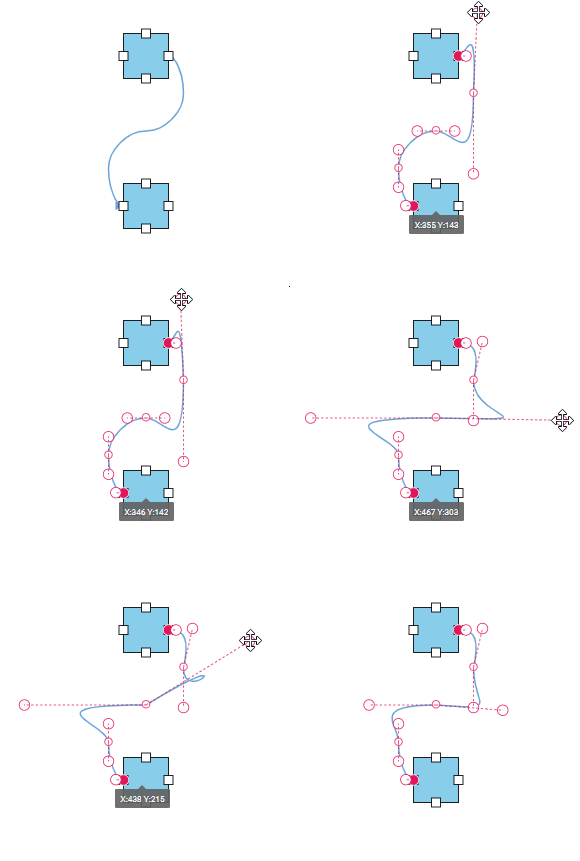 |
| SymmetricAngle | Both control points of adjacent segments will be at the same angle when any one of them is editing. | 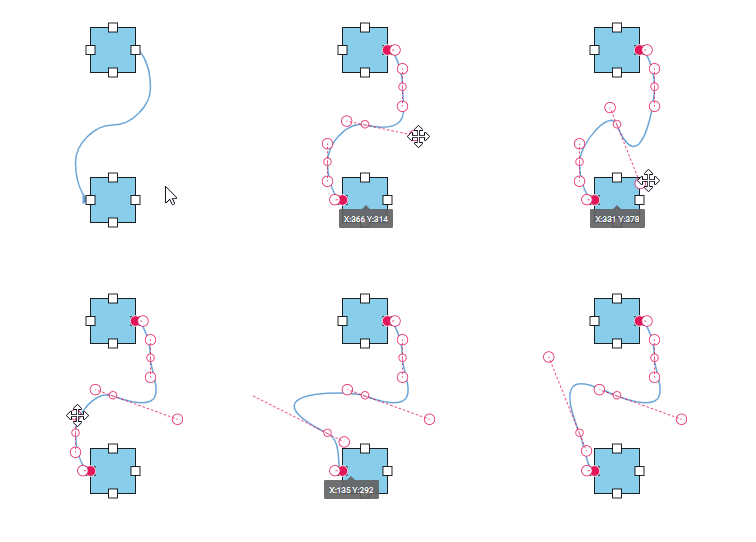 |
| Default | Both control points of adjacent segments will be at the same angle and same distance when any one of them is editing. | 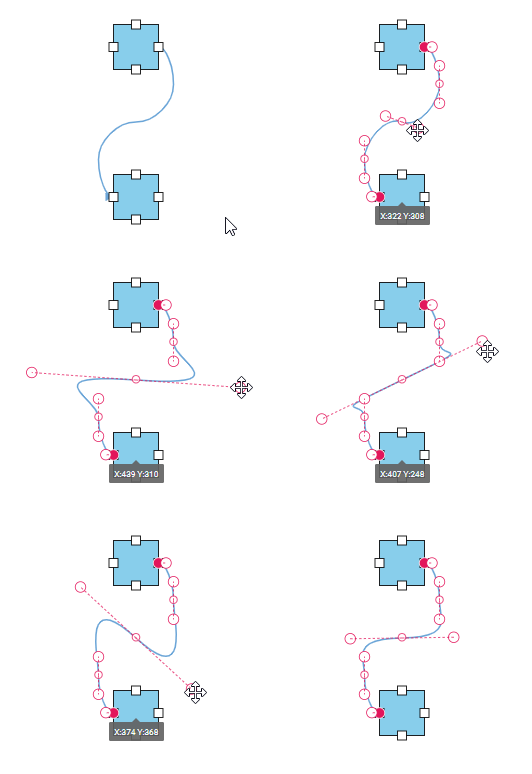 |
| None | Segment’s control points are interacted independently from each other. | 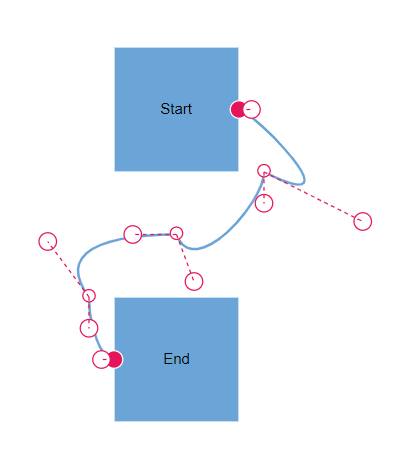 |
import * as React from "react";
import * as ReactDOM from "react-dom";
import { Diagram, DiagramComponent, ConnectorConstraints, ConnectorEditing,PortVisibility ,BezierSmoothness} from "@syncfusion/ej2-react-diagrams";
Diagram.Inject(ConnectorEditing);
let nodes = [
    {
        id: 'Start',
        offsetX: 250,
        offsetY: 150,
        annotations: [{ content: 'Start' }],
        ports: [
          {
            id: 'StartPort',
            visibility: PortVisibility.Visible,
            shape: 'Circle',
            offset: { x: 1, y: 0.5 },
            style: { strokeColor: '#366F8C', fill: '#366F8C' },
          },
        ],
      },
      {
        id: 'End',
        offsetX: 250,
        offsetY: 350,
        annotations: [{ content: 'End' }],
        ports: [
          {
            id: 'EndPort',
            visibility: PortVisibility.Visible,
            shape: 'Circle',
            offset: { x: 0, y: 0.5 },
            style: { strokeColor: '#366F8C', fill: '#366F8C' },
          },
        ],
      },

];

let connectors = [ {
    id: 'connector1',
    targetDecorator: { shape: 'None' },
    // ID of the source and target nodes
    sourceID: 'Start',
    sourcePortID: 'StartPort',
    targetID: 'End',
    targetPortID: 'EndPort',
    type: 'Bezier',

    // Configuring settings for bezier interactions
    bezierSettings: {
      smoothness: BezierSmoothness.SymmetricAngle,
    },
  },];
function App() {
    return (<DiagramComponent id="container" width={'900px'} height={'500px'} nodes = {nodes} connectors={connectors}
    getNodeDefaults={(node) => {
        node.height = 100;
        node.width = 100;
        node.shape = { type: 'Basic', shape: 'Rectangle' };
        node.style.fill = '#6BA5D7';
        node.style.strokeColor = 'white';
        return node;
      }}
      getConnectorDefaults={(connector) => {
        connector.constraints =
          ConnectorConstraints.Default | ConnectorConstraints.DragSegmentThumb;
      }} />);
}
const root = ReactDOM.createRoot(document.getElementById('diagram'));
root.render(<App />);
import * as React from "react";
import * as ReactDOM from "react-dom";
import { Diagram, NodeModel,ConnectorModel,DiagramComponent, ConnectorConstraints, ConnectorEditing,PortVisibility ,BezierSmoothness} from "@syncfusion/ej2-react-diagrams";
Diagram.Inject(ConnectorEditing);
let nodes: NodeModel[] = [
{
id: 'Start',
offsetX: 250,
offsetY: 150,
annotations: [{ content: 'Start' }],
ports: [
{
id: 'StartPort',
visibility: PortVisibility.Visible,
shape: 'Circle',
offset: { x: 1, y: 0.5 },
style: { strokeColor: '#366F8C', fill: '#366F8C' },
},
],
},
{
id: 'End',
offsetX: 250,
offsetY: 350,
annotations: [{ content: 'End' }],
ports: [
{
id: 'EndPort',
visibility: PortVisibility.Visible,
shape: 'Circle',
offset: { x: 0, y: 0.5 },
style: { strokeColor: '#366F8C', fill: '#366F8C' },
},
],
},
];
let connectors: ConnectorModel[] = [ {
id: 'connector1',
targetDecorator: { shape: 'None' },
// ID of the source and target nodes
sourceID: 'Start',
sourcePortID: 'StartPort',
targetID: 'End',
targetPortID: 'EndPort',
type: 'Bezier',
// Configuring settings for bezier interactions
bezierSettings: {
smoothness: BezierSmoothness.SymmetricAngle,
},
},];
function App() {
return (<DiagramComponent id="container" width={'900px'} height={'500px'} nodes = {nodes} connectors={connectors}
getNodeDefaults={(node: NodeModel) => {
node.height = 100;
node.width = 100;
node.shape = { type: 'Basic', shape: 'Rectangle' };
node.style.fill = '#6BA5D7';
node.style.strokeColor = 'white';
return node;
}}
getConnectorDefaults={(connector: ConnectorModel) => {
connector.constraints =
ConnectorConstraints.Default | ConnectorConstraints.DragSegmentThumb;
}} />);
}
const root = ReactDOM.createRoot(document.getElementById('diagram'));
root.render(<App />);How to Show or Hide the Bezier Segment’s Control Points
Configure which control points are visible during interaction using the controlPointsVisibility property within bezierSettings. This property provides granular control over control point display for different connector segments.
| ControlPointsVisibility value | Description | Output |
|---|---|---|
| None | It allows you to hide all control points of the bezier connector. | 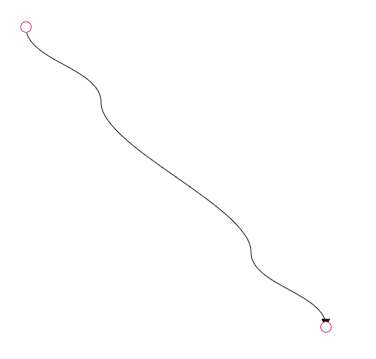 |
| Source | It allows you to show control points of the source segment and hides all other control points in a bezier connector. | 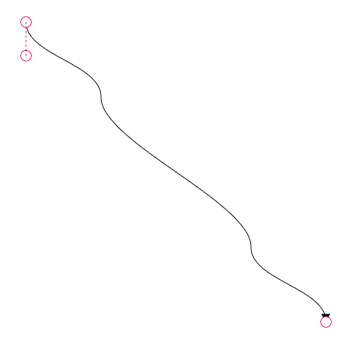 |
| Target | It allows you to show control points of the target segment and hides all other control points in a bezier connector. | 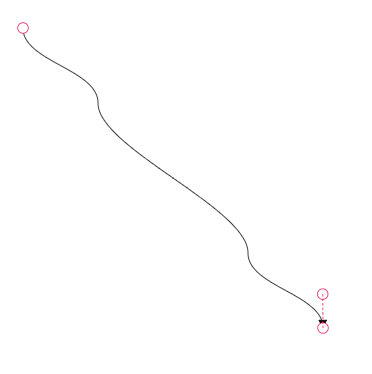 |
| Intermediate | It allows you to show control points of the intermediate segments and hides all other control points in a bezier connector. | 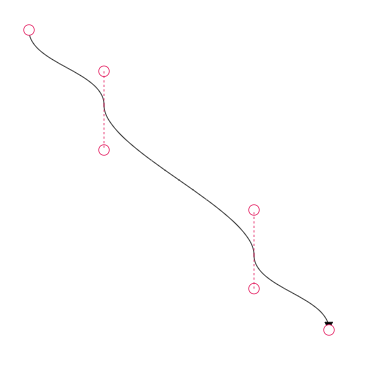 |
| All | It allows you to show all the control points of the bezier connector, including the source, target, and intermediate segments’ control points. | 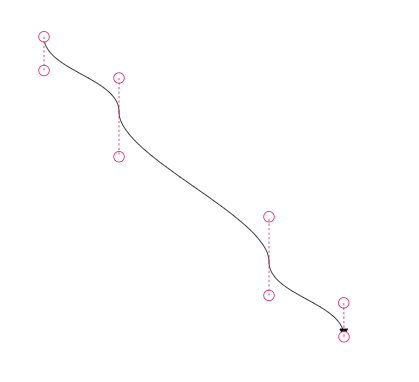 |