Styles and Appearance in EJ2 JavaScript TreeView
The following content provides the exact CSS structure that can be used to modify the component’s appearance based on the user preference.
Customizing the height of TreeView nodes
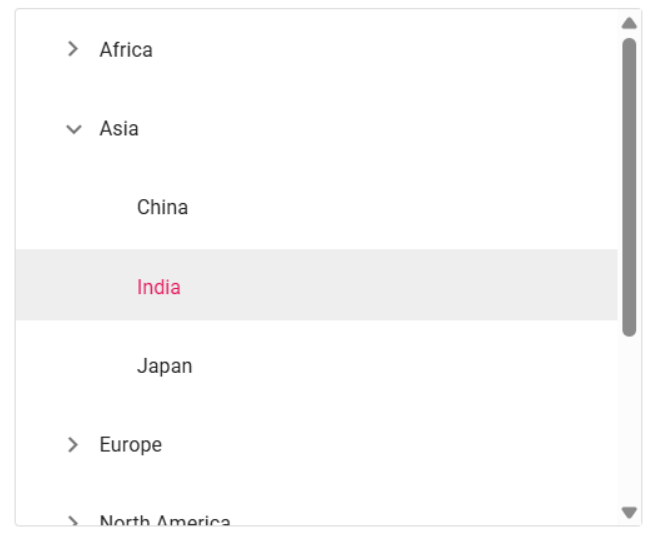
Use the following CSS to customize the TreeView nodes.
.e-treeview .e-list-item {
        line-height: 45px;
}
.e-treeview .e-fullrow {
        height: 45px;
}
Customizing the text of TreeView nodes
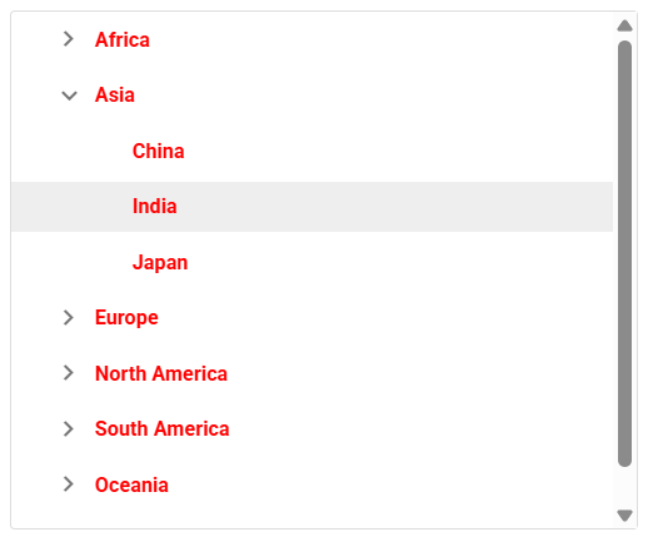
Use the following CSS to customize the text of TreeView nodes.
.e-treeview .e-list-text {
        font-weight: bold;
        color:yellow !important;
}
Customizing the TreeView expand and collapse icons
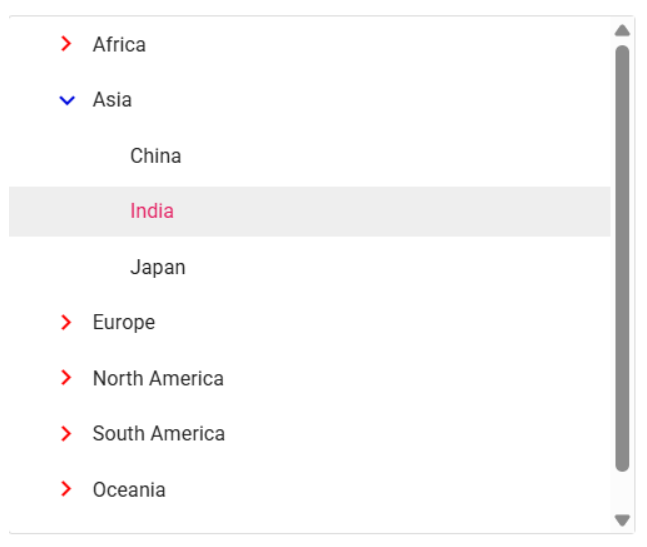
Use the following CSS to customize the TreeView expand and collapse icons.
.e-treeview .e-icon-expandable {
        color: red;
}
.e-treeview .e-icon-collapsible {
        color: black;
}
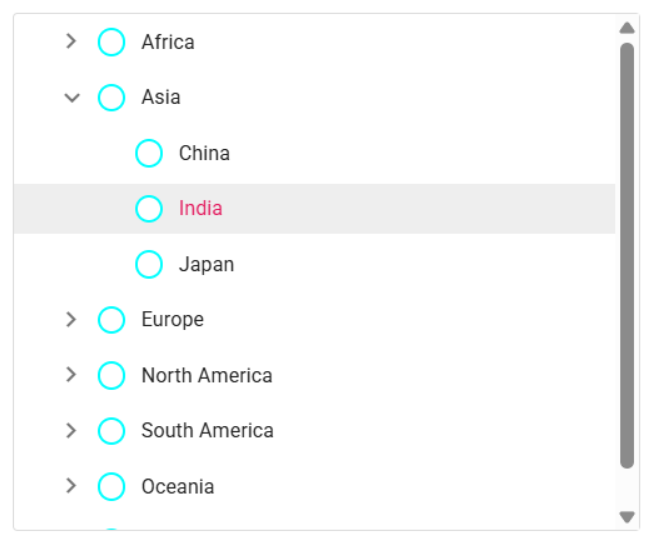
Customizing the TreeView checkboxes
Use the following CSS to customize the TreeView checkboxes.
.e-checkbox-wrapper .e-frame {
    border:aqua solid 2px !important;
    border-radius: 50% !important;
}
.e-checkbox-wrapper:hover .e-frame{
    border:black solid 2px !important;
    border-radius:50% !important;
}
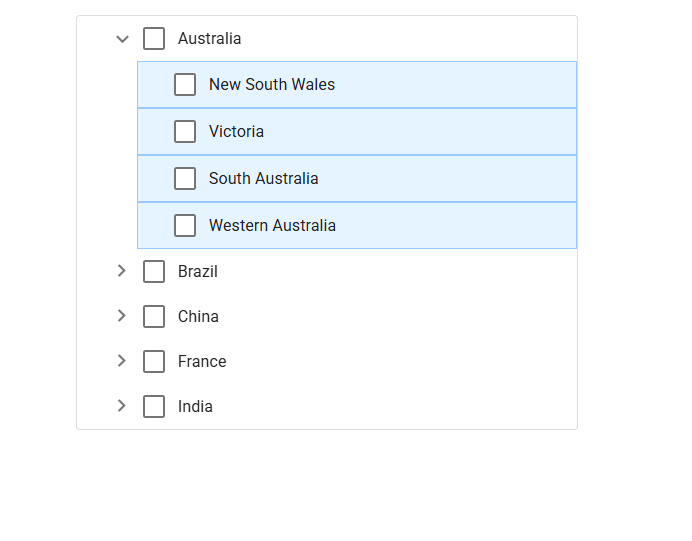
Customizing the TreeView nodes based on levels
Use the following CSS to customize the TreeView nodes based on levels.
.e-treeview .e-level-2 > .e-text-content {
  background: #E6F4FF;
  border: 1px solid #99C9FF;
}
Customizing the TreeView using HtmlAttributes
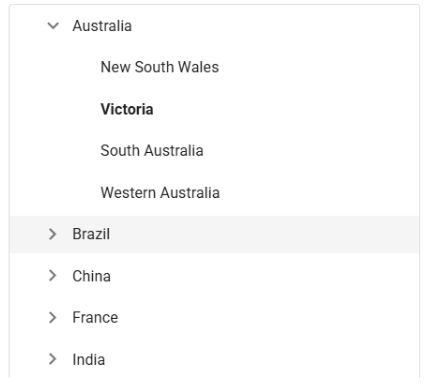
The htmlAttributes property of the TreeView component allows you to define a mapping field for applying custom HTML attributes to individual TreeView nodes.
By using attributes, you can customize specific nodes effectively. For instance, in the given example, a ‘child-node’ class is added to a specific node, allowing you to customize the corresponding node via CSS.
.child-node {
   font-weight: bold;
}ej.base.enableRipple(true);
var countries = [
{ id: 1, name: 'Australia', hasChild: true, expanded: true },
{ id: 2, pid: 1, name: 'New South Wales' },
{ id: 3, pid: 1, name: 'Victoria', htmlAttributes: { class: 'child-node' } },
{ id: 4, pid: 1, name: 'South Australia' },
{ id: 6, pid: 1, name: 'Western Australia' },
{ id: 7, name: 'Brazil', hasChild: true },
{ id: 8, pid: 7, name: 'Paraná' },
{ id: 9, pid: 7, name: 'Ceará' },
{ id: 10, pid: 7, name: 'Acre' },
{ id: 11, name: 'China', hasChild: true },
{ id: 12, pid: 11, name: 'Guangzhou' },
{ id: 13, pid: 11, name: 'Shanghai' },
{ id: 14, pid: 11, name: 'Beijing' },
{ id: 15, pid: 11, name: 'Shantou' },
{ id: 16, name: 'France', hasChild: true },
{ id: 17, pid: 16, name: 'Pays de la Loire' },
{ id: 18, pid: 16, name: 'Aquitaine' },
{ id: 19, pid: 16, name: 'Brittany' },
{ id: 20, pid: 16, name: 'Lorraine' },
{ id: 21, name: 'India', hasChild: true },
{ id: 22, pid: 21, name: 'Assam' },
{ id: 23, pid: 21, name: 'Bihar' },
{ id: 24, pid: 21, name: 'Tamil Nadu' },
{ id: 25, pid: 21, name: 'Punjab' }
];
var treeObj = new ej.navigations.TreeView({
fields: { dataSource: countries, id: 'id', parentID: 'pid', text: 'name', hasChildren: 'hasChild', htmlAttributes: 'htmlAttributes' }
});
treeObj.appendTo('#tree');<html lang="en">
<head>
<title>Essential JS 2 for TreeView </title>
<meta charset="utf-8">
<meta name="viewport" content="width=device-width, initial-scale=1.0">
<meta name="description" content="Essential JS 2 for TreeView UI Control">
<meta name="author" content="Syncfusion">
<link href="index.css" rel="stylesheet">
<link href="https://cdn.syncfusion.com/ej2/35.1.37/ej2-base/styles/bootstrap5.3.css" rel="stylesheet">
<link href="https://cdn.syncfusion.com/ej2/35.1.37/ej2-navigations/styles/bootstrap5.3.css" rel="stylesheet">
<script src="https://cdn.syncfusion.com/ej2/35.1.37/dist/ej2.min.js" type="text/javascript"></script>
</head>
<body>
<div id="container">
<div id="treeparent">
<div id="tree"></div>
</div>
</div>
<script>
var ele = document.getElementById('container');
if (ele) {
ele.style.visibility = "visible";
}
</script>
<script src="index.js" type="text/javascript"></script>
<style>
#treeparent {
display: block;
max-width: 350px;
max-height: 350px;
margin: auto;
overflow: auto;
border: 1px solid #dddddd;
border-radius: 3px;
}
.child-node {
font-weight: bold;
}
</style>
</body>
</html>#container {
visibility: hidden;
}
#loader {
color: #008cff;
height: 40px;
width: 30%;
position: absolute;
font-family: 'Helvetica Neue', 'calibiri';
font-size: 14px;
top: 45%;
left: 45%;
}